

Soundverse AI Studio now lets you make a song with your friends on one live timeline, from anywhere. You invite people by email or link, everyone edits the same project at the same time with named cursors, and the conversation lives inside the session: Session Chat, comments pinned to the exact bar, and video calls. Here is how it works, step by step, and how it compares to BandLab.
The launch film goes live here today, Sunday 29 November, at 18:00 IST.
What real-time collaboration in AI Studio does
Most remote sessions still run on emailed stems, voice notes in a group chat and a pile of files named "final_v7". Collaboration in Soundverse AI Studio replaces that with one project that everyone works in at once. The latest version is always the one in front of you, because there is only one.
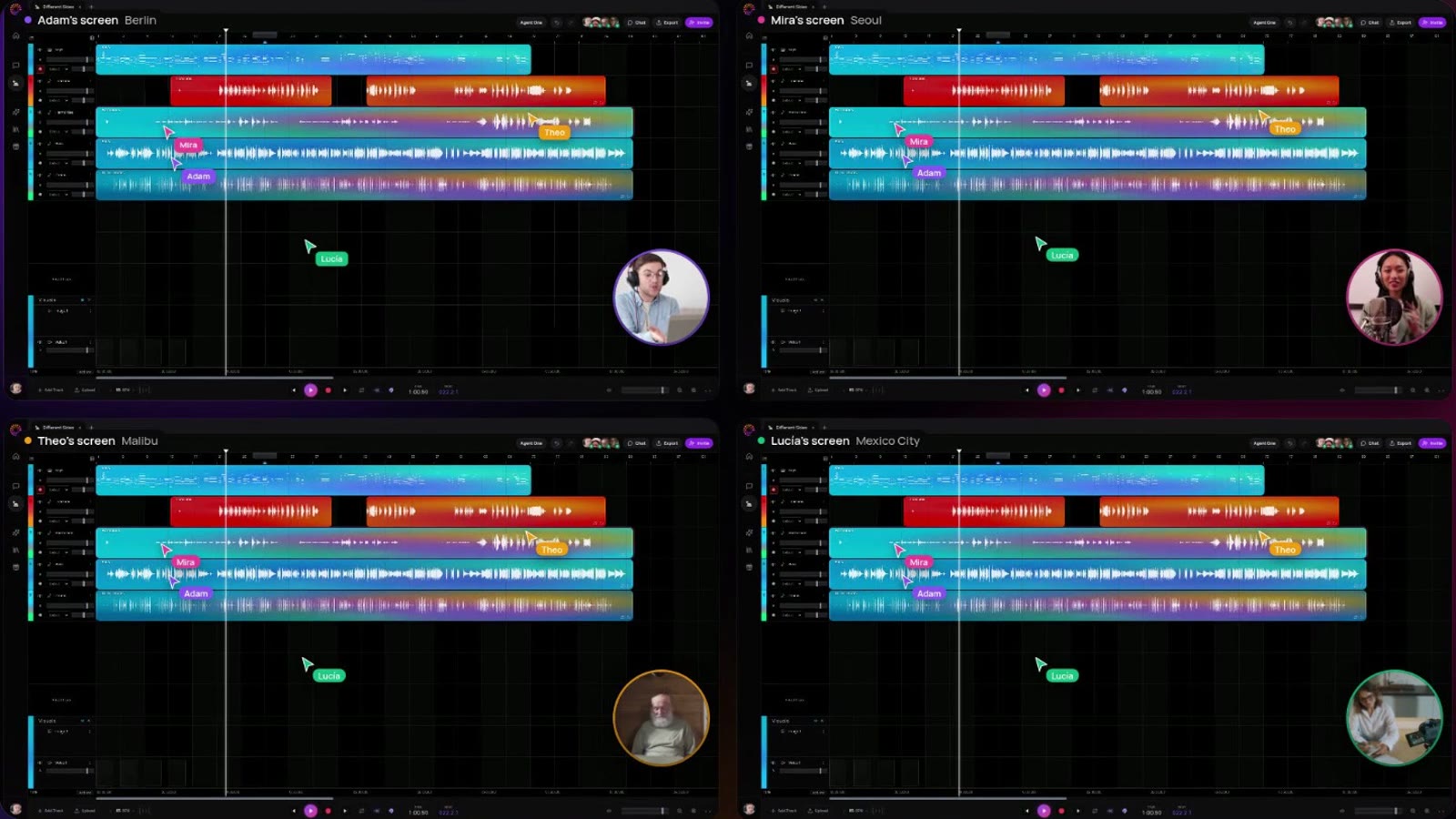
In the launch film, four people in four cities make one song together: a producer in Berlin, a singer in Seoul, a guitarist in Malibu and a video maker in Mexico City. It starts with a voice memo the singer hums into her phone at 2 am and shares in Session Chat.
How to collaborate on a song in AI Studio, step by step
1. Invite people by email or link
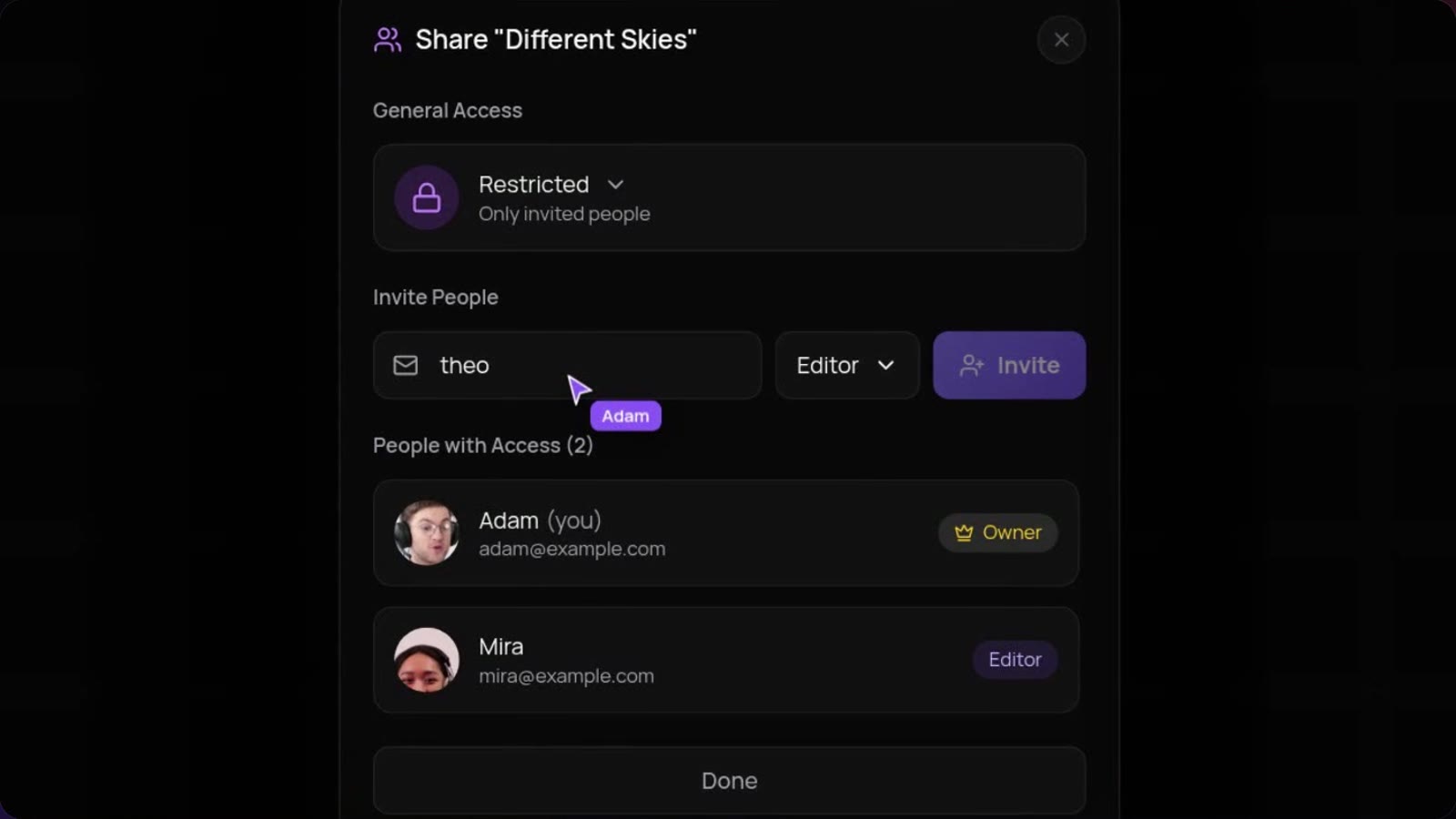
Open your project in AI Studio and click Invite in the top bar (or choose Invite collaborators from the Studio menu). Type an email address, pick a role and click Invite:
- Editor can change the song.
- Viewer can listen and look, but not edit.
- Admin can also invite people and change link access.
People who already use Soundverse are usually added straight away. Anyone else gets an emailed invite that lasts 7 days, and signs up to accept it. You can also set General Access to Anyone with link, choose Can view or Can edit, and share the link.
2. Edit the same timeline, live
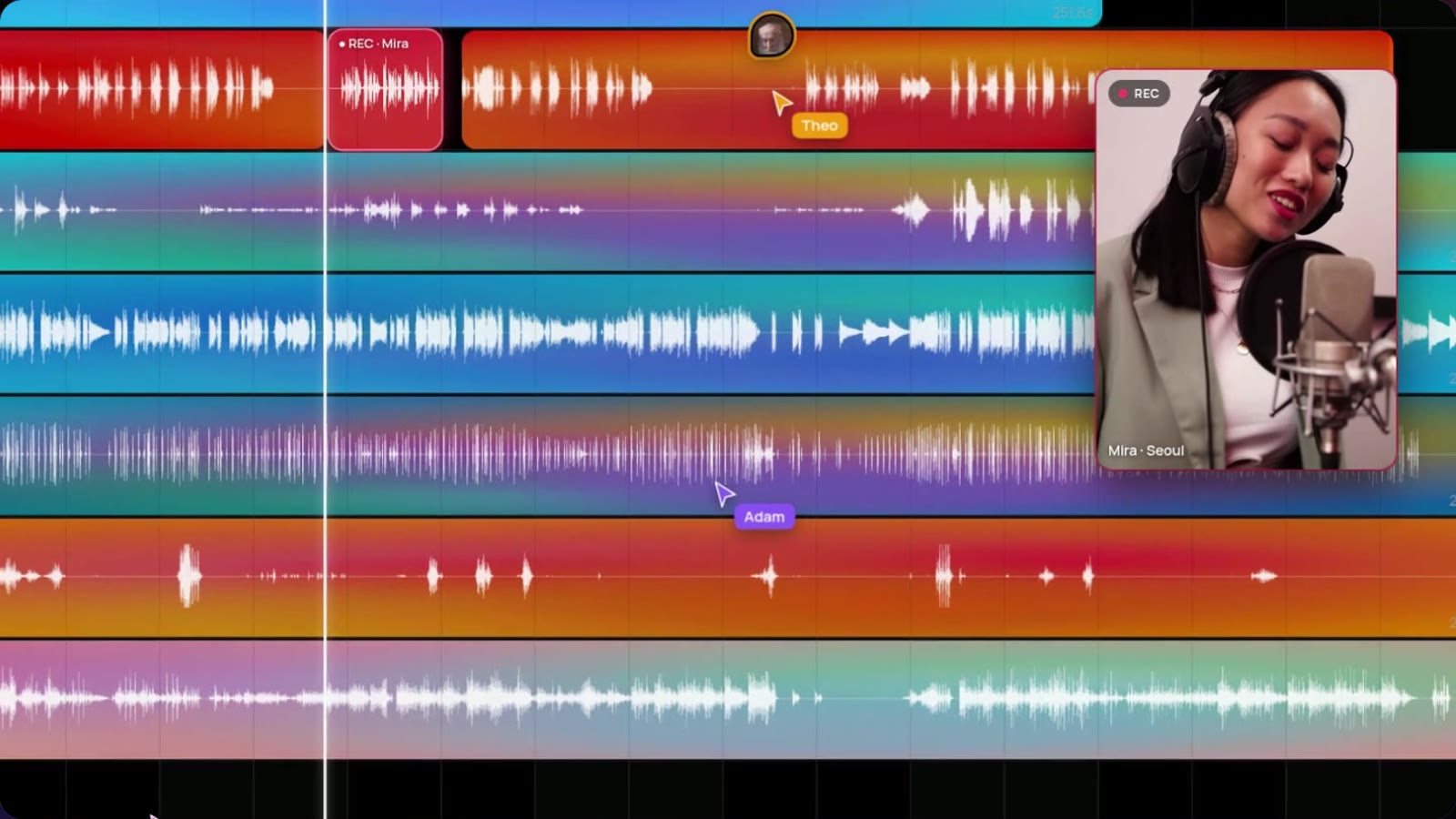
Once people join, their avatars show in the top bar and each person gets a named cursor. Every edit appears for everyone as it happens: a note moved in the piano roll, a clip trimmed, a new track added. Named cursors make it easy to split the work by role, so one person arranges while another mixes.
3. Talk it through in Session Chat
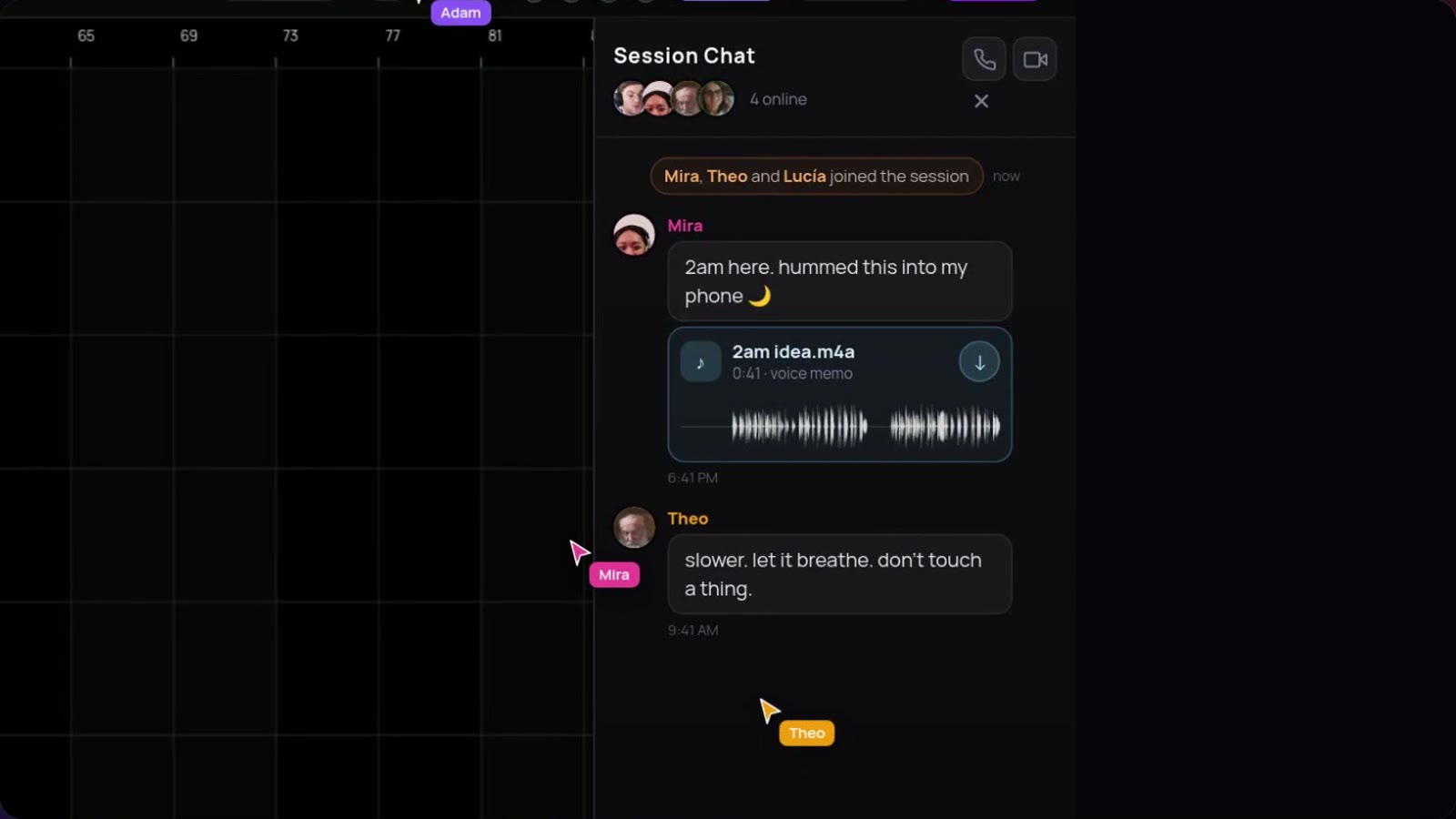
Open Chat in the top bar. Session Chat carries messages, voice memos and files for this project only. Drag a file from the chat straight onto a track, and the idea becomes part of the song. In the film, the 2 am voice memo lands on the timeline as the vocal everyone builds on.
4. Record a take from anywhere
A singer can record over your beat from wherever they are. Their take lands on its own track in the same project, so you hear it as soon as it is recorded and can talk it through on a call.
5. Leave feedback at the exact bar
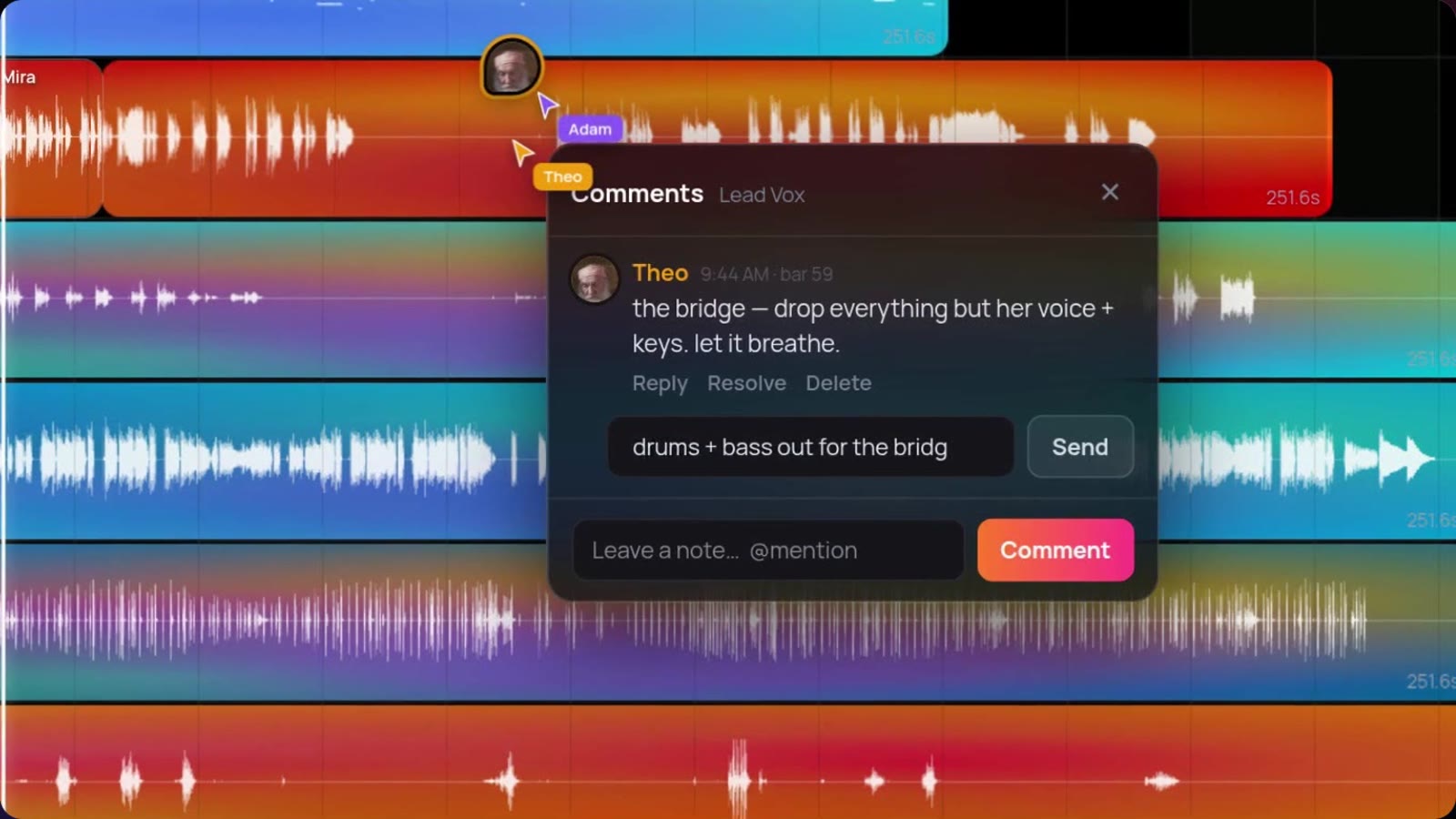
Add a comment to a track, pinned to the exact bar it's about. @mention someone to pull them in, reply in the thread, and resolve it when the fix is done. Notes stay where they belong instead of getting lost in a chat history.
6. Mix together
Effects, EQ, reverb, delay and automation are part of the same session. Anyone with edit access can shape the mix, and everyone hears the change.
7. Jump on a call without leaving
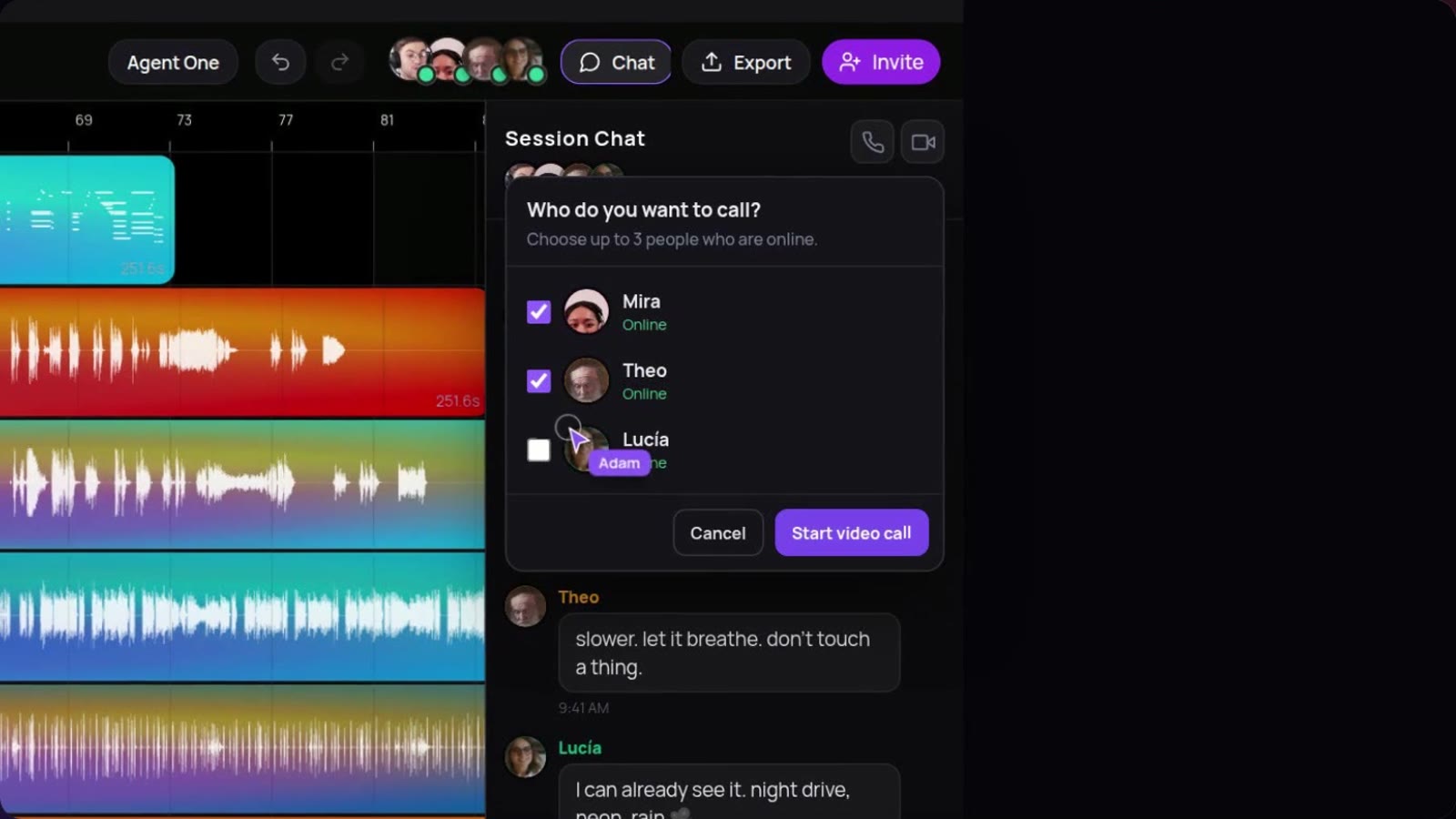
Start a video call from Session Chat and choose up to three people who are online. You stay in the studio while you talk, so "can you try the bridge without drums" turns into an edit in seconds.
8. Make the video together, too
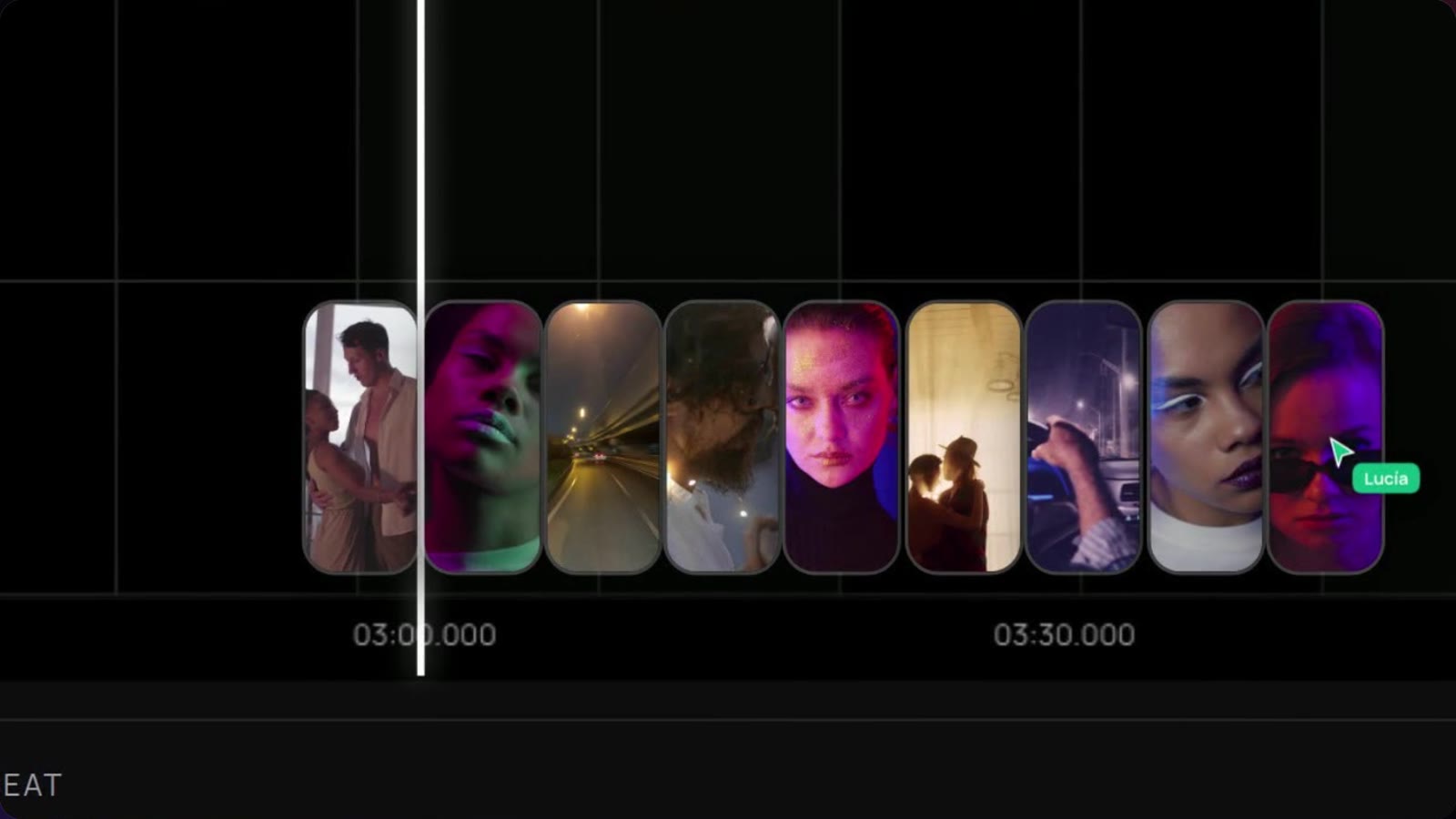
AI Studio has a Visuals track. Drop video clips on it and see them play with the song, so whoever is making the music video works in the same project as the people making the music.
9. Bring Agent One into the room
Ask Agent One for a bassline or a pad, and everyone in the session sees it land on its own track. It works like a third writer in the room.
Soundverse AI Studio vs BandLab for collaboration
BandLab is a popular browser and mobile DAW with a large social community. Its free tier gives you 16 tracks and its paid Membership raises that to 32 (as listed in October 2026). BandLab's help centre explains how to invite collaborators to a project by username or email from the Studio.
Here is where each one fits:
- Choose BandLab if you want a free, mature DAW with a big community to share and discover music in, and AI generation is a nice extra rather than the point.
- Choose Soundverse AI Studio if you want the whole session inside one project: live editing with named cursors, Session Chat with files you can drag onto tracks, comments pinned to the exact bar, video calls, roles for each person, a Visuals track for the music video, and Agent One adding parts while everyone watches. On top of that you get full-song generation, stems, inpainting and the rest of the Soundverse tools in the same studio.
For a full side-by-side of pricing, AI tools and release, read Soundverse vs BandLab.
Who it's for
- Co-writers in different cities or time zones: each writer adds parts and takes when they're free, and comments carry the notes between sessions.
- Producer and vocalist pairs: share the beat, collect takes in the same project and talk them through on a call.
- Bands: pull everyone's ideas and phone recordings into one project instead of a group chat full of voice notes.
- Managers and A&R: leave feedback at the exact bar and see each note resolved.
- Music teachers and students: teach inside a real song, with notes on the timeline and a video call alongside.
FAQ
How many people can work on one AI Studio project?
Invite everyone you make the song with, and give each person an Editor, Viewer or Admin role. Video calls inside the project take up to three people who are online.
Do my collaborators need a Soundverse account?
Yes. People who already use Soundverse are added straight away; anyone else gets an emailed invite that lasts 7 days and signs up to accept it.
Can I control who edits and who only listens?
Yes. Give each person a role: Editor, Viewer or Admin. The project owner and Admins can send invites and change link access.
Is collaboration the same as sharing a song?
No. Sharing sends someone a finished track. Collaboration puts them inside the project, on the same timeline, so you make the song together.
Start a session
Create a Soundverse account, open a project in AI Studio and click Invite. See everything the feature does on the Collaborative AI Studio page, and find more guides on the Soundverse blog.