

To build your own audio plugin with AI in Soundverse, describe the effect or instrument you want in plain words, and Agent One builds it as a real plugin with knobs and presets in about a minute. You hear it or play it right beside the chat, change it by asking, then use it on tracks in Soundverse AI Studio or in your own DAW through the Soundverse VST. No code and no sound design required.
This guide walks through both kinds of plugin the AI Plugin Generator makes: an AI effect plugin and an AI synth or instrument plugin.
Before you start
- A Soundverse account. Sign up here if you don't have one.
- For your DAW: the Soundverse VST, which you can get from the Soundverse VST download page. It works in any DAW that loads VST3, AU or CLAP. You only need it to use your plugins outside Soundverse.
- An idea. The more you say about the sound and how you want to control it, the closer the first build gets.
How to build an effect plugin
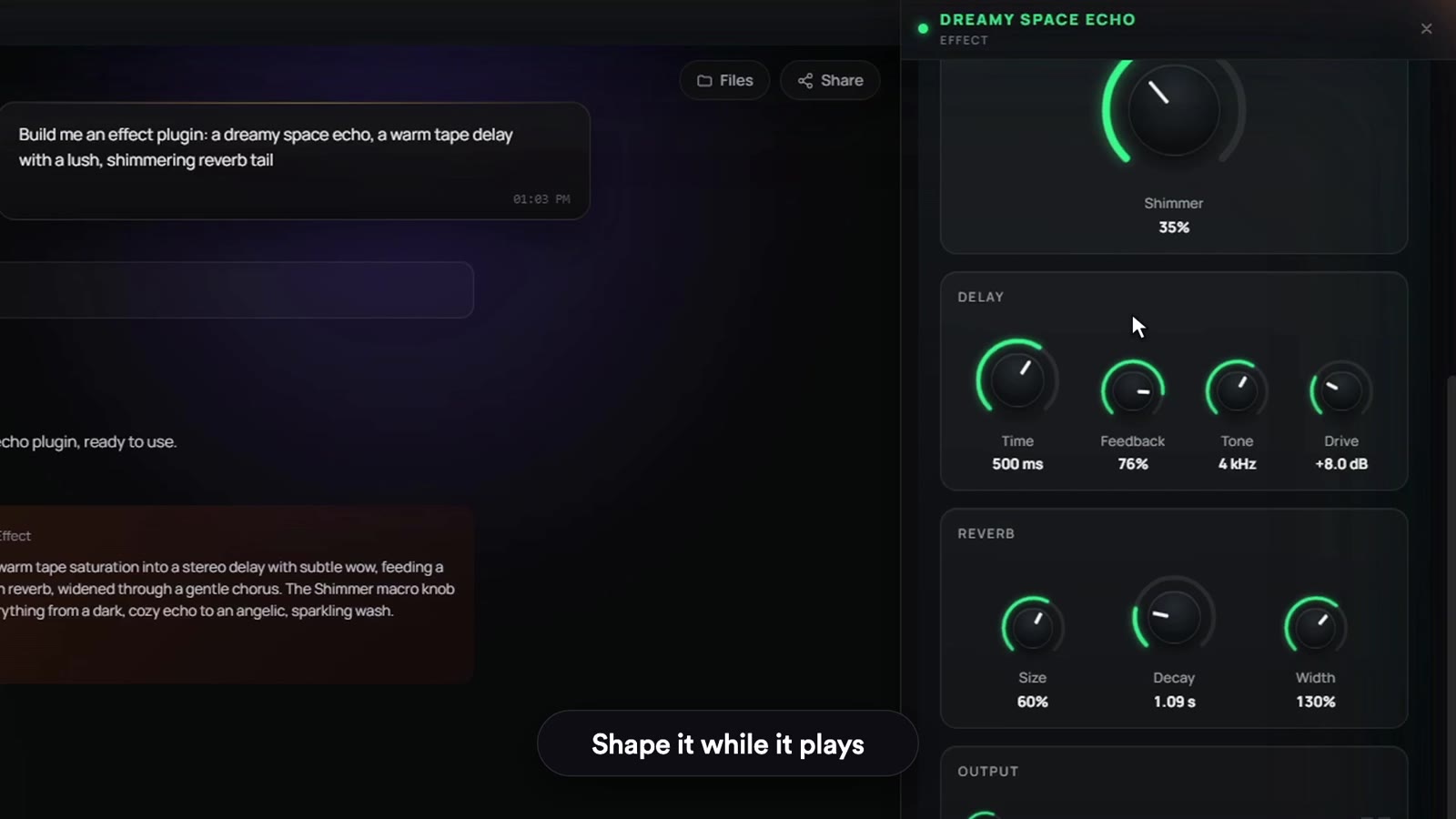
- Describe it. Open AI Tools → Build & Train → Effect Plugin Builder, or just ask Agent One in chat. In the tutorial the prompt is: "Build me an effect plugin: a dreamy space echo, a warm tape delay, with a lush, shimmering reverb tail."
- Let Agent One build it. Agent One designs the effect, wires up the knobs, names the presets and test-renders it before handing it over. The Soundverse engine checks it along the way. It takes about a minute. In the tutorial, Dreamy Space Echo arrives with delay, reverb, shimmer and an output stage.
- Hear it. The plugin opens right beside the chat. Effects play on your newest song in the chat or on any file from your Library. Hit bypass to compare dry and wet.
- Shape it while it plays. Every knob is live. In the tutorial that means time, feedback, size and decay. Switch between the presets Agent One named for you.
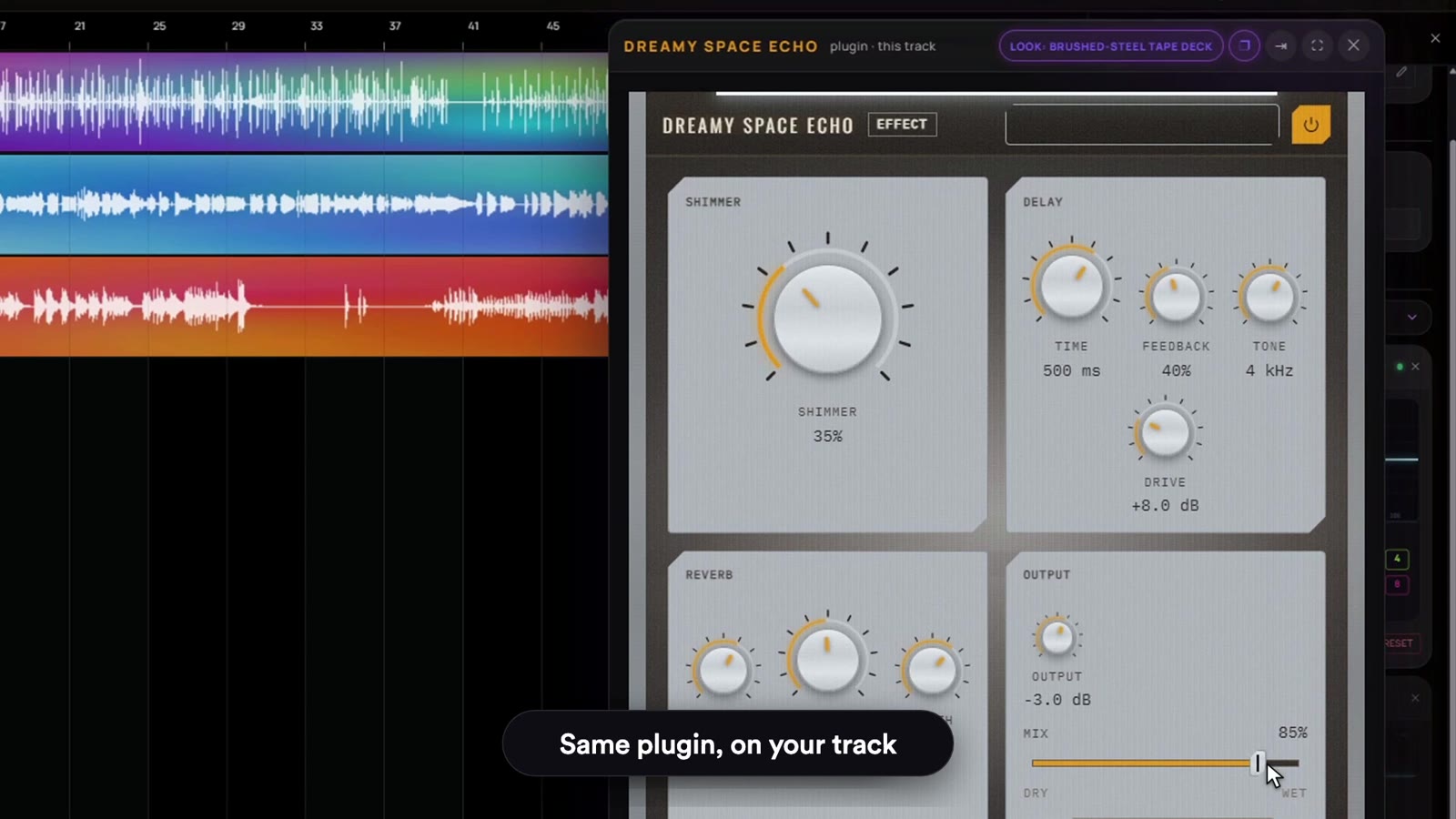
- Change it in plain words. Ask for a sound change, like "make it darker", and Agent One saves a new version. Ask for a new look, like "make it look like a brushed-steel vintage tape deck", and you get a new faceplate with the same plugin and the same sound underneath. Every change saves as a new version, so you can always go back.
- Use it in AI Studio. Open Soundverse AI Studio, the AI DAW in the browser, and add the effect from My plugins onto any track.
- Use it in your DAW. Put Soundverse FX on an audio track, open the Plugins tab in the Soundverse plugin, hover your effect and click Load.
How to build an instrument plugin
- Describe it. Open AI Tools → Build & Train → Instrument Plugin Builder, or tell Agent One what you want from the Soundverse home page. In the tutorial: "Build me an instrument plugin: a soft, dusty felt piano, with a little wobble."
- Let Agent One build it. It designs the sound, wires up the controls and names the presets. It takes about a minute, and the instrument arrives in the chat with its own faceplate, knobs and presets.
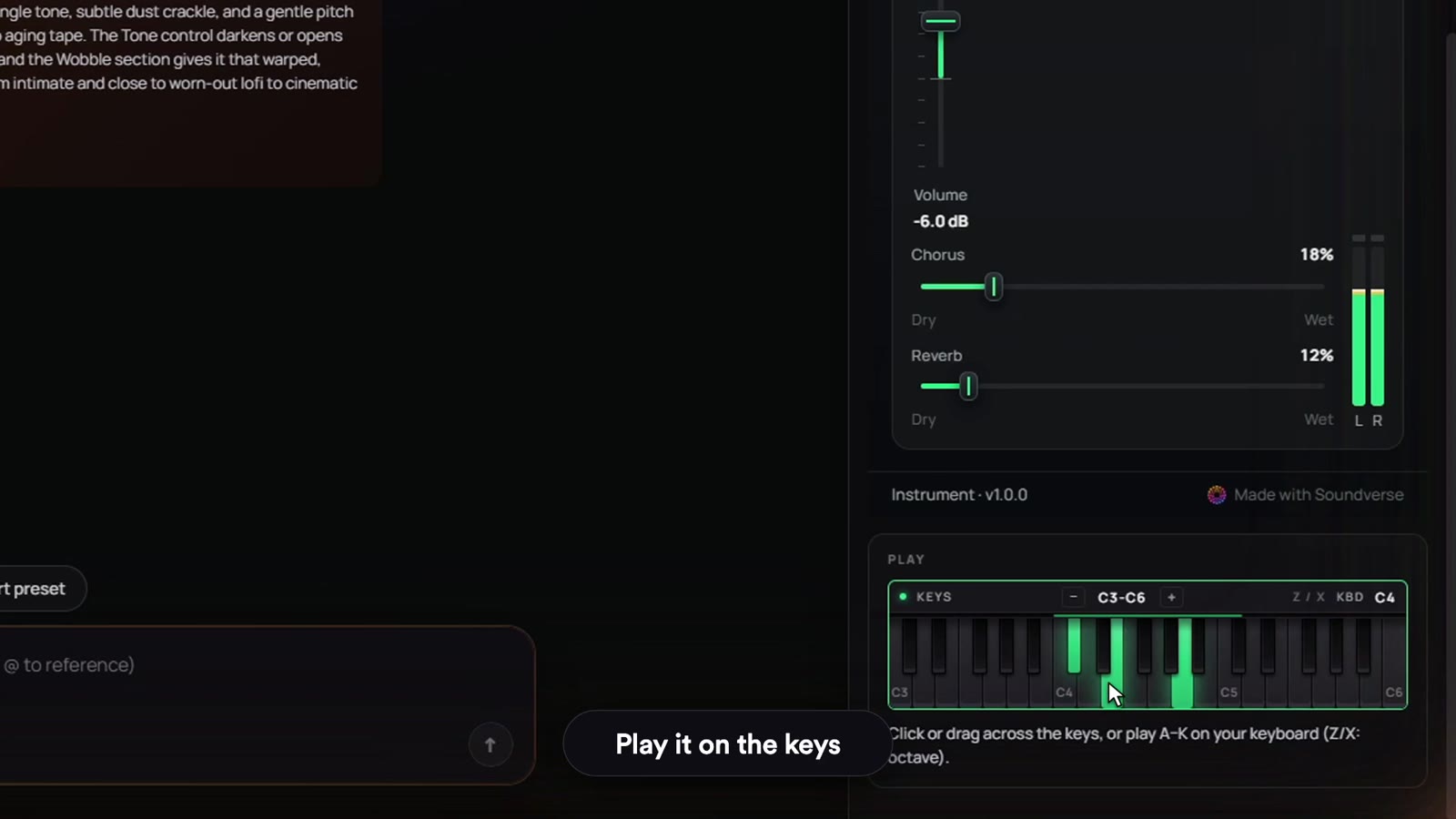
- Play it. Play it on the on-screen keys, or straight from your computer keyboard.
- Shape it while you play. Every knob is live, so you can dial in the tone, the wobble and the space until it feels right.
- Use it in AI Studio. Open AI Studio and find it in My plugins. Put it on a MIDI track and it plays your notes with the same sound and the same controls. Anyone collaborating on your project hears it too.
- Use it in your DAW. Put Soundverse Instrument on a MIDI track, open the Plugins tab in the Soundverse plugin, hover your instrument and click Load.
What kinds of plugins it can make
Effects are plugins that change audio on a track:
- Saturation and distortion: tape, tube, fuzz or a gentle warmth. Try "a dusty tape saturator with drive, tone and mix" or "a fuzz that only bites on loud notes".
- Space and time: delays, echoes and reverbs. Try "a dubby tape delay with feedback" or "a lush shimmer reverb".
- Filters and movement: sweeping filters, tremolo, wobble and modulation, with rate and depth. Try "a resonant lowpass filter that wobbles in time" or "a slow tremolo for guitars".
- Character effects: bitcrushers, lo-fi and radio sounds. Try "make vocals sound like an old radio" or "a gritty lo-fi bitcrusher".
Instruments are plugins you play with notes, from a keyboard or a MIDI track:
- Pads and keys: "a warm analog pad with a slow attack" or "a glassy electric piano".
- Basses and leads: "a deep sub bass for trap" or "a bright saw lead".
- Plucks and arps: "a plucky arp synth".
You can also put several ideas in one plugin, like crushing, wobble and a dark filter in one lo-fi effect with a single mix knob.
Tips for better results
- Name the controls you want. Describing the sound and how you want to control it, for example "with drive and tone knobs", gives Agent One a clear brief.
- Ask for versions to compare. Request a darker and a brighter version, then switch between them to pick the one that fits.
- Restyle as often as you like. Asking for a look such as "a video game" or "a 70s hi-fi" changes the panel everywhere the plugin shows. The sound stays exactly the same.
- Change it without breaking projects. When you change a plugin, its controls keep their names, so projects that already use it keep working.
Limits to know
- It can't copy a commercial plugin or run your own code. Plugins are built from the Soundverse engine's audio building blocks.
- It plays inside Soundverse. Your plugins run in the chat, in AI Studio and through the Soundverse VST in your DAW. They aren't separate plugin files you install on their own.
- Soundverse FX and Soundverse Instrument load your Soundverse plugins only, not other companies' plugins.
- About a minute per build or change, while Agent One designs it and the engine checks it.
- Private for now. Plugins are private to your account. Publishing them for other people to use is coming.
Where to go next
Start building on the AI Plugin Generator page. To put your plugins on tracks in your DAW, read the Soundverse VST page or jump to the download page. New here? Create your account, and find more guides on the Soundverse blog.
FAQ
Do I need to know how to code or design sound?
No. You describe what you want to hear in your own words. Agent One picks the building blocks, wires up the controls and names the presets, and the Soundverse engine checks the plugin before you hear it.
Can I change a plugin after it's built?
Yes. Ask Agent One for the change in the same chat, like "make it darker" or "add more wobble", and it saves the next version. Earlier versions stay in your account.
Can I make my own VST plugin with this?
You make your own plugin, and you use it in your DAW through the Soundverse VST. Add Soundverse FX or Soundverse Instrument to a track and load your plugin from the Plugins tab. It isn't a separate plugin file you install on its own.
Can it recreate a commercial plugin I already use?
No. It builds plugins from the Soundverse engine's building blocks, so it can't copy a commercial plugin or run code you write. Describe the sound you want instead.
Who can see the plugins I build?
Only you. They live in your Soundverse account and appear wherever you sign in. Publishing plugins so others can use them is coming.
Keep reading
- The Soundverse plugin ecosystem: AI Plugin Generator and Soundverse VST
- The Soundverse VST: AI tools and your own plugins inside your DAW
- AI Studio's built-in plugins: synths, effects, meters and automation
- The Soundverse AI Studio guide: a DAW in your browser
- Soundverse edit tools: AI remix, stem generator and audio to MIDI