

Ethics & trust
Provenance: who made this track, from what, and with whose permission
Provenance is the record of how a track was made, step by step, and whether every part of it came with permission. Here’s the framework we published in our whitepaper, The Spectrum of Creation, what you can see in Soundverse today, and what you can and can’t release.
What provenance means at Soundverse
Every track answers two separate questions. How much of it did a person make? And did anything go into it without permission? The first decides authorship. The second decides whether the track can be released. They’re independent: a fully human song built on an uncleared sample can’t be released, while clearance doesn’t hold back a fully AI song made from clean inputs. Our Terms add a separate rule for streaming services, though: a purely AI song can’t go there as standalone music (see Clearance isn’t the only question). (Whitepaper p. 2; Terms §6)
“Taints, not AI use, are what make tracks unreleasable.”
Four things to trace
The whitepaper reduces any track’s origin story to four questions, one for each axis. Material from someone else that comes in without permission, on any axis, is what the paper calls a taint. (Whitepaper p. 4)
| Axis | The question | Clean | A taint |
|---|---|---|---|
| Lyrics | Where did the words come from? | No lyrics, lyrics written by the AI, by you, or co-written with the AI | Someone else’s copyrighted lyrics |
| Composition | Where did the music come from? | Generated from a prompt, your own MIDI or melody, or a reference to your own track | A copyrighted song used as the reference |
| Voice | Whose voice is on it? | An instrumental, a generic AI voice, or your own trained voice. A licensed artist model is allowed but carries a condition. | A real person’s voice used without permission |
| Source audio | Where did any source audio come from? | Made on Soundverse, or your own original recording | A copyrighted recording someone else owns |
30 ways to make a track
The paper names 30 creation modes, each with a code and a default tier, so platforms, distributors and rights holders can talk about the same thing. They fall into seven families. The codes are the paper’s shared vocabulary: the app doesn’t assign a creation mode to your files today, and its map names the tool behind each step. (Whitepaper pp. 7–9)
| Family | Green when… | Not Green when… |
|---|---|---|
| Fully AI (SV-F01–F03) | Text to song, text to music, a score for your own video | Scoring an image or video that isn’t yours or cleared isn’t clean (the paper names no tier) |
| Lyric-led (SV-L01–L03) | Your lyrics sung by AI, lyrics co-written with AI, narration of your own text | Lines from someone else’s copyrighted lyrics (Red) |
| Your melody (SV-M01–M03) | Your MIDI, a melody you hum, a short motif | Someone else’s protected melody or hook (Red) |
| From a reference (SV-R01–R05) | A similar song or a remix of your own track. A style taken from a reference: Green or Amber. | Someone else’s copyrighted track as the reference (Amber or Red) or as the remix source (Red) |
| Voice and likeness (SV-K01–K07) | A model of your own voice or instrument | A licensed artist model, or a clone with documented consent (Amber). A voice swap or clone without permission (Red). |
| AI help on your recording (SV-A01–A05, A0X) | Adding parts to, repairing, mastering or extending your own track | The recording isn’t yours (Red) |
| Localization (SV-T01–T02) | Translating and re-singing your own song | Translating someone else’s song (Red) |
The weakest-link rule
Most tracks take several steps: generate, add a stem, fix a section, master. The whitepaper’s rule for the finished track is short:
“Final clearance equals the minimum clearance of every step in the lineage. One tainted step taints the chain, and no later step can restore what an earlier step lost.”
Clean all the way
- Melody-to-SongYou hum the melodyGreen
- Add Stem (AI)An AI bass layerGreen
- Apply EffectReverb and EQGreen
- Extend MusicA new outroGreen
FinalGreen
One foreign input
- Lyrics-to-SongYour own lyricsGreen
- Foreign ReferenceA copyrighted track as the referenceRed
- Inpaint RegionFix the chorusRed
- Master / ExportFinalizeRed
FinalRedYour original lyrics don’t cure a borrowed melody.
- “Editing never launders.” Inpainting, effects, extending or mastering can’t turn a tainted track into a clean one. (Whitepaper p. 6)
- “The reference is the risk.” Rights come in with what you upload: the reference track, the source file, the target voice, the seed melody. In the paper’s words, “Prompt text is cheap; uploads carry rights.” (Whitepaper p. 6)
The three clearance tiers
Each track gets one of three tiers. The whitepaper calls them Green, Amber and Red. In the app they read Cleared, Conditional and Blocked.
Green · Cleared
Nothing from anyone else on any axis: the track is built from AI output, your own original input and material made on Soundverse.
Under the framework: clear to release and to monetize, subject to your plan (Free-plan songs are for personal use) and to our human-contribution rule for streaming services. (Whitepaper pp. 4, 12; Terms §4.2, §6)
Amber · Conditional
Releasable, with a condition attached. In the framework that’s typically a licensed artist model (the artist is paid, and the royalty travels with the release), a documented consent, or an attestation.
Under the framework: release once the condition is met. The condition stays with the release, and earnings are net of it. (Whitepaper pp. 4, 12)
Red · Blocked
Someone else’s right is in the track without permission: a copyrighted reference, sample, lyric, melody or voice.
Under the framework: not eligible for release or monetizing until it’s fixed. It may stay private, for non-commercial use where our Terms permit. (Whitepaper pp. 4, 12; Terms §4.2)
“RED is not a punishment and not a judgment of quality. It is a statement of fact: something in this track belongs to someone who has not agreed to its use.”
How to fix a Red track
- Find the earliest step that brought in someone else’s material.
- Remove it, replace it with something of your own, or get a license for it.
- Redo every step after it. In the paper’s words, “Patching later steps achieves nothing.”
- If you borrowed a track for its feel, take its style instead: genre, mood and tempo feel. “Style is free; expression is owned.”
- Or keep the track private, for non-commercial use where our Terms permit.
Sources: Whitepaper pp. 5, 8, 10, 12; Terms §4.2
Clearance isn’t the only question
Three separate things decide what you can do with a track:
- Clearance: whether someone else’s rights are in it. That’s this page.
- Your plan: what you may do commercially. On the Free plan, what you make is for personal, non-commercial use. Paid plans add commercial rights: what each plan covers is on Pricing, and the binding detail is in our Licensing Model. (Terms §1, §6)
- Authorship: how much of it a person made, which decides what you can own. Our Terms also don’t allow purely AI-generated songs on streaming services as standalone music: the final song needs a genuine human contribution. (Terms §5, §6)
In Soundverse today
The app uses two of these labels today. Files a Soundverse tool generated read Cleared. Uploads, AI Studio exports and songs carried over from Soundverse 1.0 (which the Library treats as uploads), and anything made from them, read Conditional. The Library never sets a file to Blocked today, because it doesn’t scan files for other people’s material. Releasing to streaming stores from Soundverse is in preview and isn’t open to everyone yet.
What’s allowed and what’s not
Allowed means clear to release under the whitepaper’s framework. Not allowed means you can’t release or monetize it. Our Terms also don’t let you upload or use someone else’s material without a license, and models of a person made without consent may be removed. These rules apply whether or not the app can spot the problem, and our Terms of Service make them binding. Your plan and the authorship rule above still apply. (Terms §4.2, §8, §9)
Allowed Green
| If you… | Verdict | Why | Source |
|---|---|---|---|
| Generate a song or instrumental from your prompt | Allowed · Green | Nothing from anyone else goes in. But a prompt alone doesn’t make you its author (see the FAQ), and a purely AI song can’t go to streaming services as standalone music. | Whitepaper p. 7; Terms §6 |
| Write your own lyrics and have AI compose and sing them | Allowed · Green | The words are your own expression. | Whitepaper p. 7 |
| Hum, sing or play your own melody, or program your own MIDI | Allowed · Green | Clean if the melody is yours. Playing someone else’s melody doesn’t make it yours. | Whitepaper pp. 6–8 |
| Upload your own original recording | Allowed · Green | Your own source audio is clean. The Library still shows every upload as Conditional, because it can’t tell who made it. | Whitepaper p. 4 |
| Train a model on your own voice or instrument, and use it | Allowed · Green | It’s a likeness you own. | Whitepaper p. 8; Terms §8 |
| Remix, extend, repair or master your own track | Allowed · Green | “A human work stays fully the creator’s through any amount of clean assistance.” | Whitepaper pp. 8–9 |
| Translate and re-sing your own song | Allowed · Green | In the paper’s words, “one song, many markets.” | Whitepaper p. 9 |
| Take the style of a song you like: its genre, mood or tempo feel | Usually allowed · Green or Amber | Only style travels, and style is free. If a recognizable hook survives, “it was never just style.” | Whitepaper pp. 8, 11 |
Conditional Amber
| If you… | Verdict | Why | Source |
|---|---|---|---|
| Use a licensed Artist DNA, or swap a vocal into one | Conditional · Amber | Under the framework, a licensed artist model is Amber: the artist is paid, and the royalty travels with any release. | Whitepaper pp. 8, 12 |
| Use a real person’s voice with their recorded consent, which must cover release | Conditional · Amber | Release once that consent is on file. Consent to collaborate isn’t consent to release. | Whitepaper p. 8; Terms §7.1, §8 |
| Ask for a sound like a named living artist | Conditional · Amber | A fresh song steered at a named artist raises soundalike and publicity concerns. You may need to attest before release. | Whitepaper p. 11; Terms §8 |
| Use a sample or other material you’ve licensed | Conditional · Amber | Release once the license is on file. This applies the paper’s Amber definition; the paper doesn’t name samples. | Applies Whitepaper pp. 4, 12; Terms §4 |
| Release a song you made with other people | Conditional · Amber | Everyone who holds rights in it has to agree. | Whitepaper p. 11; Terms §7 |
| Bring songs over from Suno or another AI platform | Conditional | Their rights are whatever that platform’s terms gave you for your plan, so Soundverse never marks them Cleared. The whitepaper doesn’t cover other platforms; this is Soundverse’s rule. | Move from Suno |
Not allowed Red
| If you… | Verdict | Why | Source |
|---|---|---|---|
| Use someone else’s copyrighted lyrics, even a few lines | Not allowed · Red | “There is no safe number of borrowed lines.” | Whitepaper p. 7 |
| Use a copyrighted song as the reference, with your own lyrics on top | Not allowed · Red | Lyrics and composition are separate rights: original words don’t cure a borrowed composition. With your own lyrics on top, the paper is clear: Red. In general it rates a similar song from a copyrighted reference Amber or Red. Take its style instead. | Whitepaper pp. 8, 11 |
| Upload someone else’s released song (one you don’t own or license) and remix it, extend it or split its stems | Not allowed · Red | Remixes and stems are derivatives of the original recording. Your added parts don’t cleanse the borrowed one. | Whitepaper pp. 8, 9, 11; Terms §9 |
| Use a sample you haven’t cleared | Not allowed · Red | “A fully human song built on an uncleared sample is unreleasable.” | Whitepaper pp. 2, 4 |
| Hum or program someone else’s protected melody or hook | Not allowed · Red | “Performing an input is not authoring it.” | Whitepaper pp. 8, 11; Terms §9 |
| Swap a vocal into a real artist’s voice without a license, or clone someone without consent | Not allowed · Red | “A voice can be infringed without a note being copied.” With a clone made without consent, every song from the model inherits the problem, and our Terms let us remove such a model. | Whitepaper pp. 8–9, 11; Terms §8 |
| Cover or translate someone else’s song without a license | Not allowed · Red | The lyrics and melody belong to their writers. A translated cover is “derivative twice over.” A same-language cover applies the paper’s Red definition. | Whitepaper pp. 9, 11 (translation); applies Whitepaper p. 4 (cover); Terms §4 |
| Edit a Red track until it sounds different | Not allowed · Red | “Editing never launders.” | Whitepaper p. 6; Terms §10 |
What the app can and can’t see
The Library sets a file’s tier from where it came from: generated by a Soundverse tool, or uploaded. It doesn’t read your lyrics, listen for samples or recognize voices. So a song made from lyrics you copied can still read Cleared. The rules above apply either way: you need the rights to anything you upload, type in or link to. (Terms §9)
How it looks in your Library
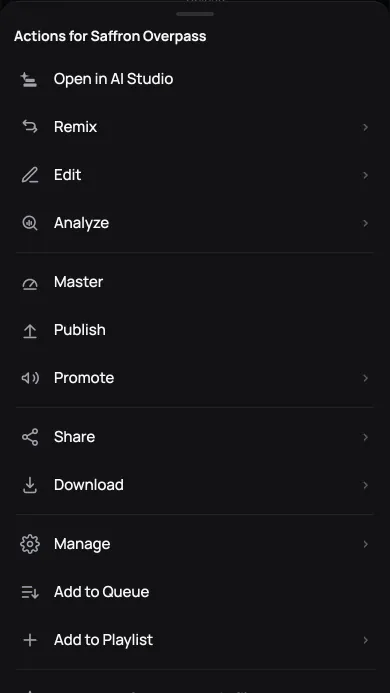
Every song, video and image in your Library has a provenance map and a clearance tier. You won’t see the tier on the Library cards themselves: it’s in the file’s menu, under Manage.
- Right-click a file in your Library, or click its ⋮ button. In a phone browser, press and hold it. The iOS and Android apps don’t show provenance yet.
- Open Manage. Choose View Provenance Map to see how the file was made, or Song Details for its license and clearance. Videos and images have Video Details and Image Details.

The provenance map
The map lists every step that led to the file, oldest first, ending with the file itself. For a song made from a prompt, the first step is the prompt.
- Each step shows the tool that made it and when, or “unverified source” for an upload.
- Each dot is that step’s own tier. The line beside it shows the running tier, so you can see exactly where a track turned Conditional.
- Open Details on a step for its prompt, tool, model and date; whether the lyrics were written by you, written by the AI or taken from a reference track; and, for newer files, its edit history: renames, album art, lyrics and visibility changes.
- Click an earlier step to re-center the map on that file.
- The final tier sits at the bottom, under the map’s own summary of the whitepaper’s weakest-link rule: “Final clearance = the weakest link across the lineage. Clearance only ever travels downward.”


Song Details
Song Details opens the License Info card: the track’s name and ID, when and by whom it was made, the tool and model, its project, its license (Personal Use on the Free plan, Royalty Free on paid plans, or a license you bought for the track), and a Provenance block with the tier and a button to the map. The short line under the tier is general product text, not a check of your file: Cleared means generated by Soundverse tools, not scanned; releasing to stores is in preview and isn’t open to everyone yet; and Free-plan songs can’t be monetized.

What decides the tier today
| How the file got into your Library | What you see |
|---|---|
| Generated by a Soundverse tool: a generation, or a variation, remix, edit, stem split or stitch of your own generated Soundverse files | Cleared |
| Uploaded: your own recordings, songs brought over from Suno, and songs carried over from Soundverse 1.0 (which the Library treats as uploads) | Conditional, shown as “Upload · unverified source” |
| Exported from AI Studio | Conditional (see AI Studio below) |
| Made from a Conditional file, such as stems split from an upload | Conditional: the weakest link carries down |
| Made from a file another account owns | Conditional, shown as “Reference · third-party reference” |
Songs made with an Artist DNA read Cleared and carry a DNA badge. The whitepaper treats a licensed artist model as Amber, because the artist’s royalty travels with the release.
Maps are drawn for files. A project’s map is a generic outline, not its real history.
Publishing to the community
When you publish a file to the Soundverse community (⋮ → Publish), the sheet shows its tier. For a Cleared file it says “No third-party content — this is yours to publish.” That means the file was generated by Soundverse tools; the Library hasn’t scanned it, so you still need the rights to anything you put in. For a Conditional file, Publish stays off until you tick a box confirming that you hold the license or consent for the flagged step and take responsibility for the release.

In AI Studio and Agent One
AI Studio
AI Studio doesn’t show clearance yet. There’s no tier on clips, lanes or exports.

When you export a mix, Soundverse also saves a private copy to your Library. The Library can’t see the steps inside a studio project, so it treats that copy like an upload: its map shows one step, “Upload · unverified source”, and it reads Conditional, even when every clip came from Soundverse. Publishing it to the community asks you to confirm the rights, as for any Conditional file.

Agent One
Songs Agent One makes land in your Library like any other generation. Right-click one in the chat, or click its ⋮, for the same menu: Manage → View Provenance Map, and Publish. If you gave Agent One an uploaded track as a reference, the new song’s map usually starts with that upload, so the song reads Conditional.
Related tools
Copyright Checker
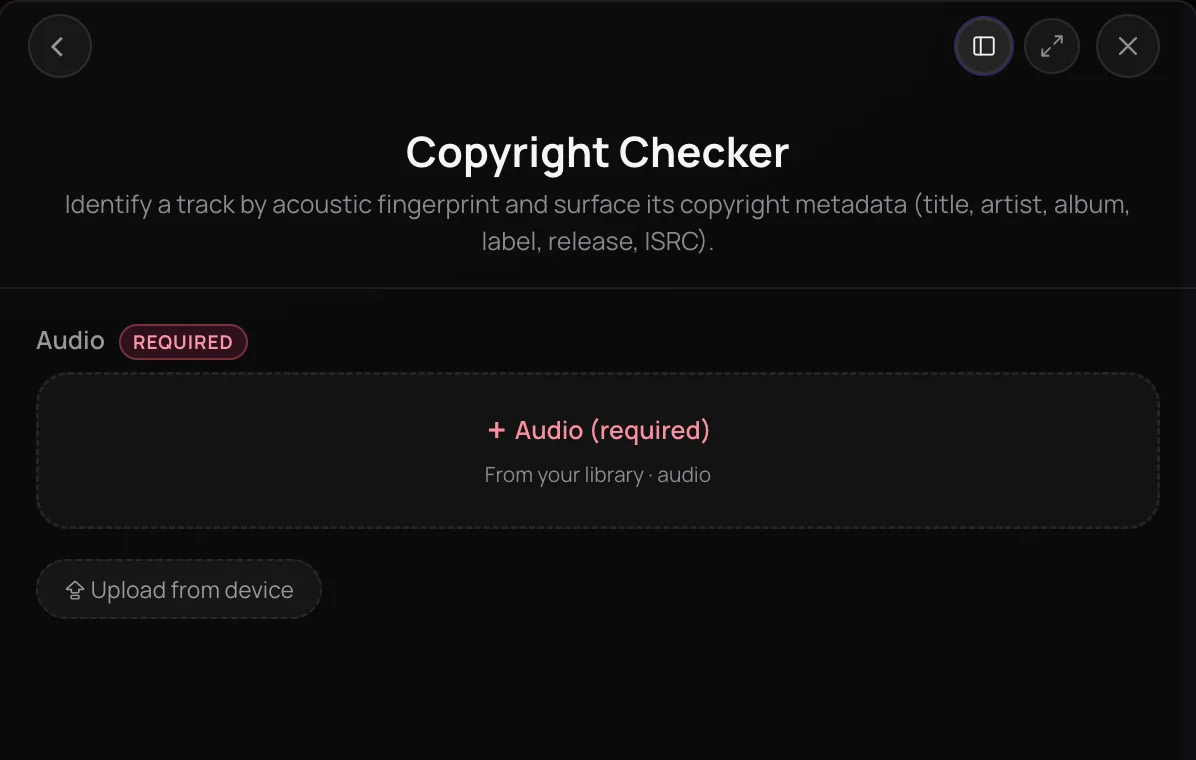
Copyright Checker identifies a recording by its acoustic fingerprint and shows what’s known about it: title, artist, album, label, release and ISRC. It’s a recognition check, not legal advice, a license or a guarantee, and running it doesn’t change a file’s tier. In your Library: ⋮ → Analyze → Copyright Check.
Watermarks
Downloads of tracks can carry an inaudible Soundverse watermark that links the file to the track it came from. A watermark isn’t provenance: it doesn’t carry the map or the tier. Our Terms don’t allow removing or altering watermarks or provenance features. The Watermark Checker, which reads the mark, is in preview and isn’t open to everyone yet.
Trace
Trace measures how similar two pieces of music are, down to the stem and the section, for labels and rights holders. Its scores aren’t findings of copying, and Trace doesn’t set a track’s tier. In the Soundverse app, Trace is in preview and isn’t open to everyone yet.
Releasing to stores
Releasing to streaming stores from Soundverse is in preview and isn’t open to everyone yet. The Library doesn’t scan for other people’s material, so check what went into a track before you release it.
The Spectrum of Creation (July 2026) sets out the whole framework: all 30 creation modes, 14 hard cases and how earnings are shared. Our Terms of Service, sections 4 to 10, are the binding rules.
Questions
What is provenance in AI music?
Provenance in AI music is the record of where each part of a track came from (its lyrics, composition, voice and source audio) and whether each part came with permission. In Soundverse, every file in your Library has a provenance map of the steps and files that made it, and a clearance tier set from where it came from: generated by a Soundverse tool, or uploaded. It doesn’t check the rights in each part.
Who owns a song I make with Soundverse?
It depends on what you put in. The US Copyright Office’s 2025 report on AI and copyrightability says prompts alone don’t make you the author of what an AI produces, but your own expression can be protected: lyrics, a melody, a performance, or creative arrangement and changes. Soundverse’s Terms follow the same line. Your plan sets how you may use the rest, and unless you buy the master separately, the master recording stays with Soundverse. This isn’t legal advice.
Can I use songs from the Free plan commercially?
No. On the Free plan, what you make on Soundverse is for personal, non-commercial use, and you can’t monetize it. Paid plans add commercial rights: what each plan covers is on the Pricing page, and the binding detail is in our Licensing Model. A track’s clearance tier doesn’t change this: a Cleared song made on the Free plan is still for personal use. Clearance is about other people’s rights; your plan sets yours.
What happens if my track is Red?
Under the Spectrum of Creation framework, a Red track can’t be released or monetized until it’s fixed. It may stay private, for non-commercial use where our Terms permit, but our Terms don’t let you upload or use someone else’s material without a license in the first place. To fix it, find the earliest step that brought in someone else’s material, remove it, replace it or license it, then redo every step after it. Editing later steps doesn’t help. The Soundverse Library never sets a file to Blocked today, because it doesn’t scan for other people’s material, so check what went into a track before you release it.
Why does my upload say Conditional?
Soundverse can’t tell who made an uploaded file, so every upload reads Conditional in your Library, including your own recordings, songs brought over from Suno, songs carried over from Soundverse 1.0, and AI Studio exports, which the Library saves as uploads. Anything made from an upload, such as stems split from it, reads Conditional too, because clearance follows the weakest link. Conditional doesn’t stop you working with the file. To publish it to the Soundverse community, you confirm that you hold the license or consent for it.
Does Cleared mean my song can’t infringe anything?
No. In the Soundverse Library, Cleared means the file and every file it was made from were generated by Soundverse tools, not uploaded or taken from another account. It isn’t a scan: the Library doesn’t read your lyrics or listen for samples and voices. As Soundverse’s Terms put it, a Green classification supports, but does not guarantee, non-infringement.
Can I use someone else’s voice in my song?
Only with permission. Under the Spectrum of Creation framework, a licensed Artist DNA model, or a real person’s voice used with their recorded consent, which must cover release, is Conditional: you can release once the condition is met, and the condition stays with the track. Swapping a vocal into an artist’s voice without a license, or cloning someone without consent, is not allowed, every song from such a model inherits the problem, and our Terms let us remove such a model.
Is a watermark the same as provenance?
No. A Soundverse watermark is an inaudible mark that a downloaded copy of a track can carry, linking the file to the track it came from. Provenance is the record of how the track was made and whether it’s clear to release. The watermark doesn’t carry a track’s clearance tier, and the Watermark Checker that reads it is in preview and isn’t open to everyone yet.
See where your tracks came from
Open any song in your Library and choose Manage, then View Provenance Map.
Also as a PDF and on Zenodo: doi.org/10.5281/zenodo.23667118
This page explains how Soundverse works. It isn’t legal advice, and our Terms of Service are the binding text. Sources: The Spectrum of Creation (Soundverse, July 2026) and Copyright and Artificial Intelligence, Part 2: Copyrightability (U.S. Copyright Office, January 2025). Updated November 2026.