AI Studio guide: a full DAW in your browser, with Agent One inside
A walk through Soundverse AI Studio, the browser DAW: record, play instruments, generate on the timeline, mix, master, add titles and invite collaborators.
Quick answer: AI Studio is Soundverse's multitrack music studio, and it runs in your browser with nothing to install. You record vocals, play eight built-in instruments and generate songs, stems, sound effects and video onto one timeline, then mix with Mix One, master with Mastering One and export, alone or with collaborators in real time. It's built for songwriters, producers and video creators, and it's on every plan, including Free. The studio itself uses no tokens; only AI generation does.
What AI Studio is
AI Studio is a timeline for audio, MIDI, video and image tracks, with AI generation built in. Right-click an empty part of a track to generate an instrumental, a song, vocals, sound effects or dialogue. Right-click a clip for AI tools such as Extend Music, Remix Track or Separate Stems. Results land as new clips; a result never overwrites a clip.
Around the timeline sit eight instruments (Synth One, Bass One, Drum Kit One, Sampler One, Guitar One, Chord One, Visual One and VocalMIDI One), 28 effects, Mix One and Mastering One. Soundverse calls the whole thing CAVE, a Collaborative Audio Visual Environment. Agent One, Soundverse's AI music producer, works inside it too.
A two-minute tour of AI Studio's instruments, effects and real-time collaboration.
One session, start to finish
The clearest way to learn AI Studio is to watch someone use it. In this tutorial, music producer and live musician Mayur Jumani takes a song from one prompt to a finished music video in about seven minutes.
Mayur Jumani builds a track in AI Studio, from an Agent One prompt to an exported music video.
Here's his session as steps, with chapter times so you can jump straight to each part.
- Generate a track with the agent (0:25). Mayur asks Agent One for a funky breakup-to-freedom track. Open in AI Studio puts the song on a timeline (0:56).
- Record your own vocals (1:21). Arm a track and press Record. Each audio track records its own input, with live monitoring.
- Effects, solo and the metronome (1:43). Effects go on each track in Track Details, and solo lets you hear one part on its own.
- Separate stems with AI (2:24). Right-click the song's clip, open AI Tools and choose Separate Stems. Drums, bass, guitar, vocals and more land on their own tracks. 2- and 6-stem splits run on every plan; the 14+ stem split needs Creator.
- MIDI tracks and Synth One (2:58). Add a MIDI track, load Synth One and play it from a MIDI controller. It has 100 factory presets and takes a MIDI keyboard in browsers that support the Web MIDI API.
- Vocal effects (3:50). Reverb, a ping-pong delay and a phaser on the vocal.
- Mix with levels, drive and panning (4:18). Balance the tracks in the Mixer.
- AI visuals in the visual lane (4:44). Generate a music video for the song on a lane above the audio. Video generation needs Creator or above.
- Invite collaborators and use Session Chat (5:27). Click Invite, add someone and talk in the session.
- Export (5:46). Choose Audio, Stems or Video.
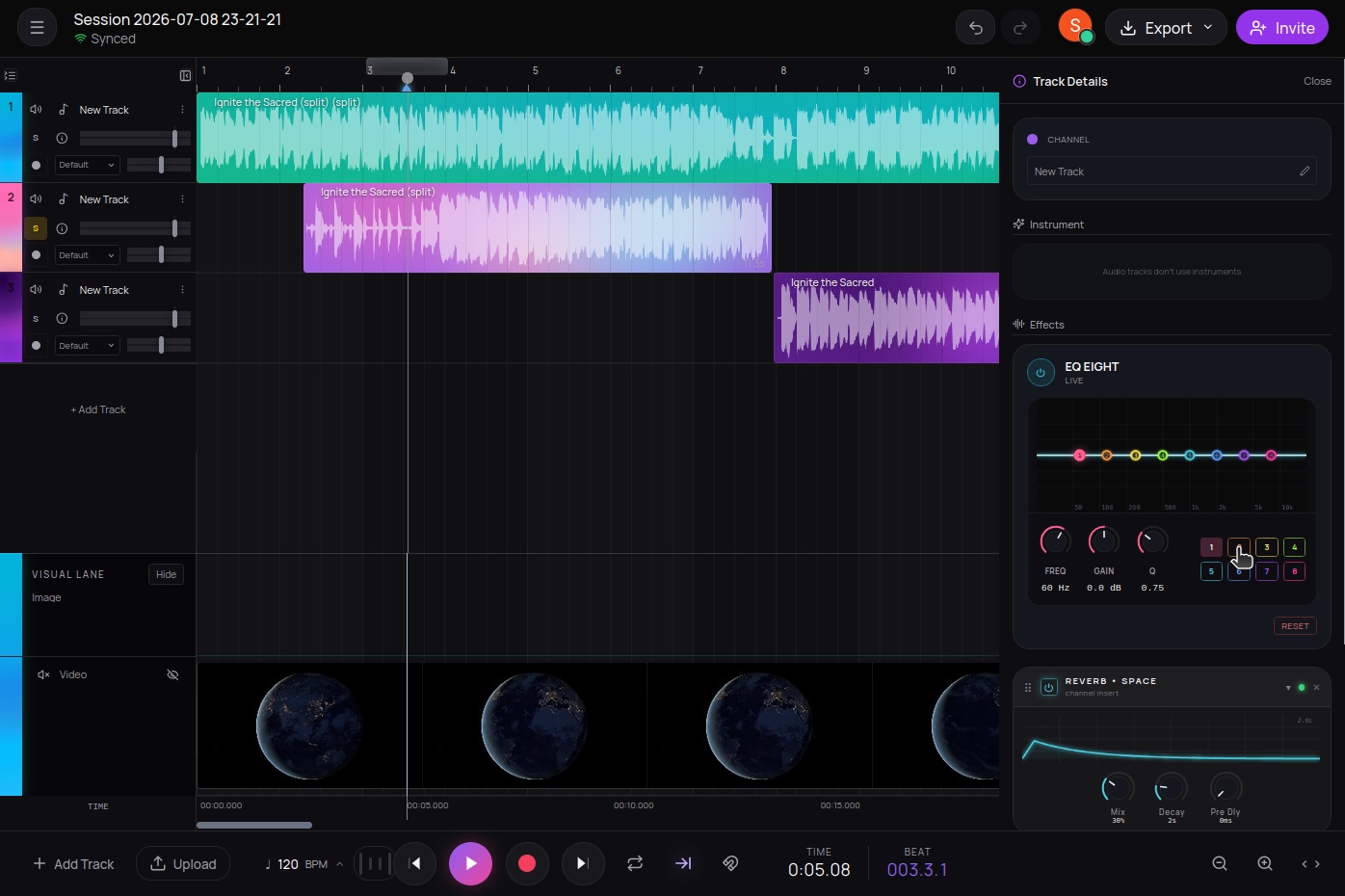 An AI Studio session: audio tracks, a visual lane, per-track effects, and Invite and Export in the top bar.
What's new: titles, mixing, automation, lanes and sessions
Everything in this section is live on soundverse.ai as of November 2026.
Text lane: titles and lyrics on your video
AI Studio now has a text lane. Type a title and it shows on the picture straight away. Drag each text clip so it lines up with the voice, then place it, resize it and give it motion. When you export, the titles are burned into every frame.
In the demo, the music video "Neon Nights" gets its lines on screen in time with the vocal: "This city never sleeps. Neither do we. Tonight, we move."
The text lane in 36 seconds: "Neon Nights" gets its lyrics on screen.
Mix One and Mastering One
Mix One shows every track as a block on a chart of frequency against stereo position. Set each track's type (Vocals, Drums, Bass and so on), pick one of 18 genre templates, including Filmi / Bollywood and Punjabi / Desi Pop, and click Auto-Place. A heat overlay marks where two tracks mask each other, and Fix tone applies the corrective EQ moves it found.
Mastering One sits on every project's master bus, switched off until you turn it on. Pick a genre and a loudness target, from Club −7 to Broadcast −23 LUFS, play the song and press Master. It listens for two seconds and sets its own controls, which you can then adjust. Its Streaming −14 target matches the −14 dB LUFS that Spotify normalizes tracks to during playback, measured under the ITU-R BS.1770 standard. Both plugins run in your browser on every plan and use no tokens. The launch video calls the mastering plugin Master One.
"Every decision the AI makes is exposed as a setting you can adjust." (from the AI Studio launch tour)
Mix One and Master One: genre-aware mixing and mastering, compared raw, mixed and mastered.
 Mastering One: pick a genre and a loudness target, then press Master.
Automation
Draw volume, pan and effect-parameter curves on a track to give the mix movement, build tension and make a drop hit harder. The curves play back and export with the mix. Automation covers effects, not instrument knobs.
Visual lanes and the visualizer
Video and images sit on their own lanes above your tracks, so the music and the picture are built on one timeline. Free projects get one video lane; paid plans allow more. On Creator and up, Generate Video on a video lane offers models such as Veo 3.1, and Describe and Generate Audio and Video to SFX fill new tracks with sound timed to the picture. The visualizer renders an audio-reactive visual for your song to MP4, from 10 scenes, in 16:9, 9:16, 1:1 or 4:5.
Collaboration: invite, Session Chat and comments
The owner and Admins invite people by email as Editor, Viewer or Admin, or share a link. Everyone edits the same timeline live and sees each person's named cursor. Right-click an empty part of a track and choose Comment to pin a note at that bar; anyone in the project can reply, resolve or reopen it.
Session Chat carries messages, @mentions and files you can drag onto the timeline, and you can start an audio or video call with up to three people who are online. Collaborators need a free Soundverse account, not a paid plan. Collaborative AI Studio covers roles and links in detail.
 One project, one timeline, everyone editing at once.
Agent One as a session member
Open Agent One from the top bar and leave its Studio switch on. It then edits the project live under its own AI-marked avatar, from "Add a funky bassline that fits this song" to "Cut bars 9 to 17 and close the gap". It writes MIDI parts on new tracks, moves and trims clips, and sets volume, pan, effects and EQ. Timeline edits use no tokens, though each Agent One request does, and Agent One can't change the project tempo.
What each plan gets in AI Studio
Prices and limits as of November 2026. See pricing for the current list.
| Free | Creator | Pro | |
|---|---|---|---|
| Price | $0 | $12.49/mo ($9.99 billed yearly) | $31.24/mo ($24.99 billed yearly) |
| Projects | 3, up to 3 tracks each | More projects and tracks | More projects and tracks |
| Instruments, effects, Mix One, Mastering One | Included, no tokens | Included, no tokens | Included, no tokens |
| Audio export | MP3 | MP3, WAV and more | MP3, WAV and more |
| Stems export | Not included | Yes | Yes |
| Video export | Up to 720p | Up to 1080p | Up to 4K |
| Song models on the timeline | Soundverse v6 | Adds Soundverse v7 and v8 | Adds Soundverse v9 |
| Stem tools | 2- and 6-stem splits | Adds 14+ stems and AI Stem Generator | Same as Creator |
| Agent One | Lite, plans of up to 4 steps | Standard and Pro, up to 12 steps | Up to 120 steps |
| Licence | Personal license (non-commercial) | Royalty Free license | Sample license |
Max (from $72/mo, $60 billed yearly) adds the "Distribution license — collect streaming revenue". Soundverse's own distribution is coming to Max.
Good to know before you start
- No third-party plugins. Instruments and effects are built in; AI Studio doesn't load VST or AU plugins.
- Simple recording. There's no count-in, punch-in or take comping.
- Browser export limits. Export is blocked for projects longer than 15 minutes or with more than 24 tracks.
- Video export needs WebCodecs. It uses your browser's built-in encoders (WebCodecs), which current desktop Chrome and Edge include.
Already have a song and want to change it? Our guide to the edit tools covers AI Remix, stems, Extend, Inpainting and Audio to MIDI, and from song to video covers the music video tools.
FAQ
Is AI Studio free?
Yes. AI Studio is on every plan, including Free: 3 projects with up to 3 tracks each, one video lane, and MP3 audio and 720p video export. The studio itself uses no tokens. AI generation does, and some AI tools need Creator or above.
Do I need to install anything?
No. AI Studio runs in your browser. Use a current desktop version of Chrome or Edge for video export, and a browser that supports Web MIDI if you want to play a MIDI keyboard.
Do my collaborators need a paid plan?
No, just a free Soundverse account. A shared project's track limit follows the owner's plan, while each person's AI tools and exports follow their own plan.
Can I export stems for a mix engineer?
Yes, on Creator and up. Export gives one file per track in WAV, FLAC or MP3, packed in a ZIP, with each track's effects baked in or not.
Can I use what I make commercially?
On Free, what you make is for personal, non-commercial use. Creator adds the "Royalty Free license — monetize your content". Check your plan's licence on the pricing page, and make sure you have the rights to anything you record or upload.
Try it: open AI Studio and start from a prompt, a recording or an empty timeline.