AI Studio for teams: real-time collaboration and a visual Node Editor for AI workflows
Work on one Soundverse AI Studio session together in real time, like Figma for music, and chain AI tools visually with the Node Editor, like ComfyUI for music.
Quick answer: Two things make Soundverse AI Studio work like the tools teams already know. Collaborative AI Studio is real-time collaboration for music, like Google Docs or Figma: invite anyone into your session, and every edit, generated stem and tweak shows up on everyone's screen instantly. The Node Editor is a visual workflow canvas, like ComfyUI for music: drag AI tools onto a canvas as nodes, connect them, and run the whole chain; change one input and the pipeline re-runs. Both live inside AI Studio, so every output lands on your timeline.
Figma for music creation: real-time collaboration in Soundverse AI Studio.
Collaborative AI Studio: same project, same moment
Invite anyone into your session and build a track together. Every edit, every generated stem and every tweak shows up on everyone's screen instantly. A producer in Mumbai, a vocalist in London and an editor in New York can work on the same project at the same moment, with no file-sending and no version chaos.
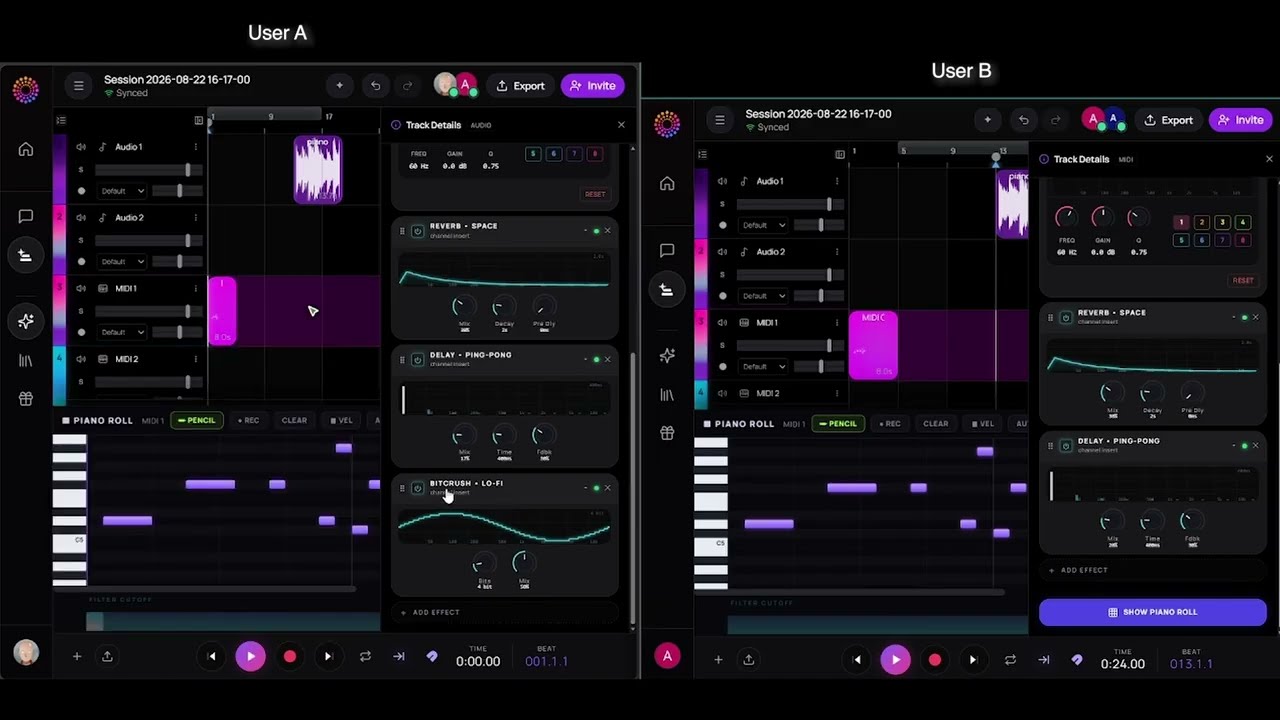
More than a shared DAW
- Audio-visual. Produce the music and the video on the same timeline.
- Generative. Music generation, Voice Clone, Voice to Instrument, video generation and more are inside the session, for everyone in it.
- Extensible. A full plugin ecosystem of instruments, effects and meters.
If Google Docs changed how teams write and Figma changed how teams design, this is the same idea for music. There's no setup: just a link and your ideas. More on the feature: Collaborative AI Studio.
How to collaborate
- Open a project in AI Studio.
- Click Invite and share the link with your collaborators.
- Work on the same timeline together, and watch each other's changes appear live.
- Use the AI tools in the session; their results land on the shared timeline.
The Node Editor: ComfyUI for music
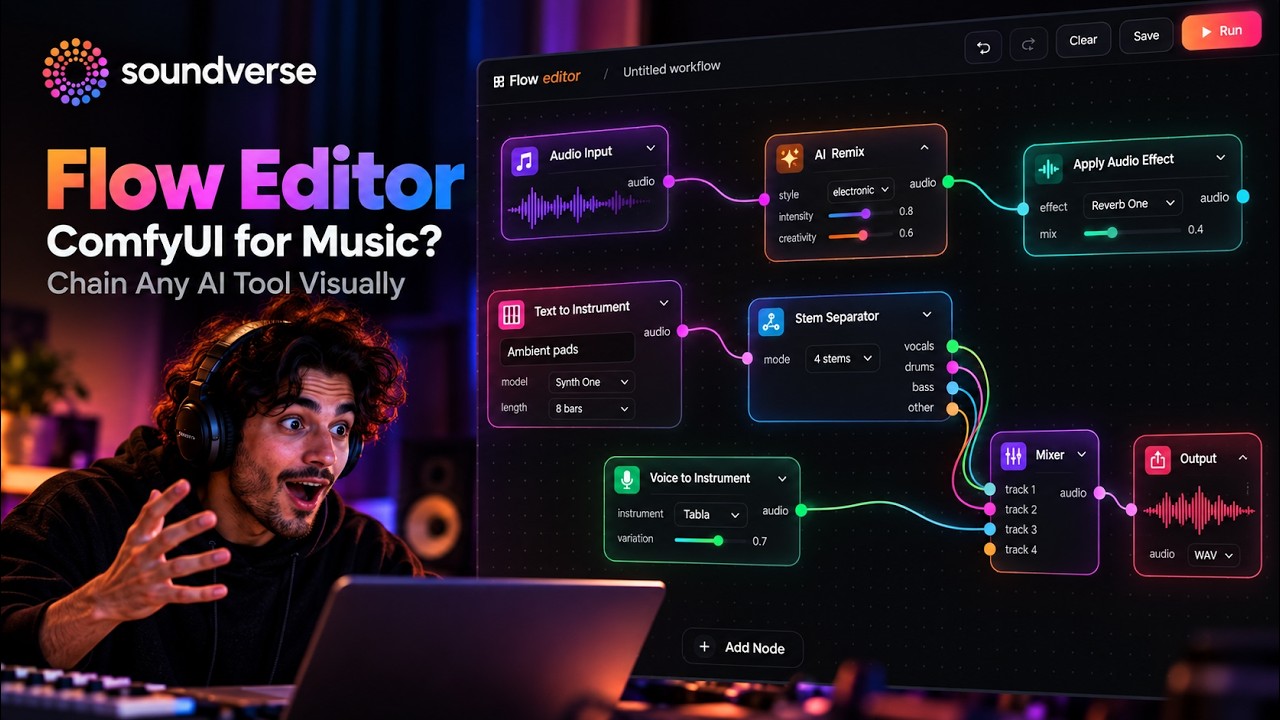
Drag a node. Connect a node. Run the whole chain. The Node Editor lets you build your own AI music workflows visually.
ComfyUI for music? Chain any AI tool visually.
What you can build
Wire any AI tool in Soundverse together as connected nodes on a canvas. For example:
- Generate a beat.
- Run it through Voice to Instrument.
- Layer a cloned vocal.
- Render a video.
Change one input and the entire pipeline re-runs. Save the graph, reuse it on the next track, and share it with your team. It's the same visual approach that changed AI image generation, built for audio and video.
Why it fits in AI Studio
Because the Node Editor lives inside AI Studio, every output lands straight on your timeline. It's fully audio-visual and generative, and open to the plugin ecosystem, so AI tools and plugins can all be nodes in the same graph. No code and no scripting.
Collaboration plus workflows
The two features work well together. A team can share one session, and one person can build a node graph for a repeatable job, say "stems, then a new bass, then a mastering pass", that anyone on the project can run again on the next song.
Who it's for
- Bands and co-writers working remotely.
- Producers and vocalists in different cities.
- Teams making music and video content every week.
- Power users who want a repeatable pipeline instead of repeating steps by hand.
FAQ
Can several people edit the same project at once?
Yes. Everyone in the session sees every edit, generated stem and tweak instantly.
Do collaborators need to send files?
No. Everyone works in the same project, so there's nothing to send.
What is the Node Editor?
A visual canvas where you connect Soundverse's AI tools as nodes and run them as one workflow.
Do I need to code to use the Node Editor?
No. You drag, connect and run nodes on a canvas.
Can I reuse a workflow?
Yes. Save the graph, reuse it on your next track, or share it with your team.
Try it
Open a project in AI Studio and invite one collaborator, or build your first two-node workflow. For everything else in the studio, read the AI Studio guide.