

Making a song with other people online can feel complicated the first time: who gets access, where the latest version lives, how you leave feedback, how a singer in another city records their part. This beginner's guide walks through your first collaboration session in Soundverse AI Studio, one step at a time, with every click shown in the video below.
The video tutorial goes live here on Monday 30 November at 17:00 IST.
What you need before you start
- A Soundverse account, and one for each person you want to make music with.
- A desktop browser with a microphone if you plan to record. Headphones help, so the song doesn't bleed into your recording.
- A project in AI Studio. It can be empty, or a song you've already started.
Step 1: Open a project
Go to soundverse.ai, sign in and click Studio in the left sidebar. AI Studio opens your latest project. To start fresh, click the + next to Studio (New studio project) instead.
Take a second to learn the layout, because everyone in the session will see the same thing:
- Tracks are listed on the left.
- The timeline is in the middle, where clips and notes live.
- The top bar holds Agent One, Export and Invite. Once someone joins your project, a Chat button appears there too.
Step 2: Invite people
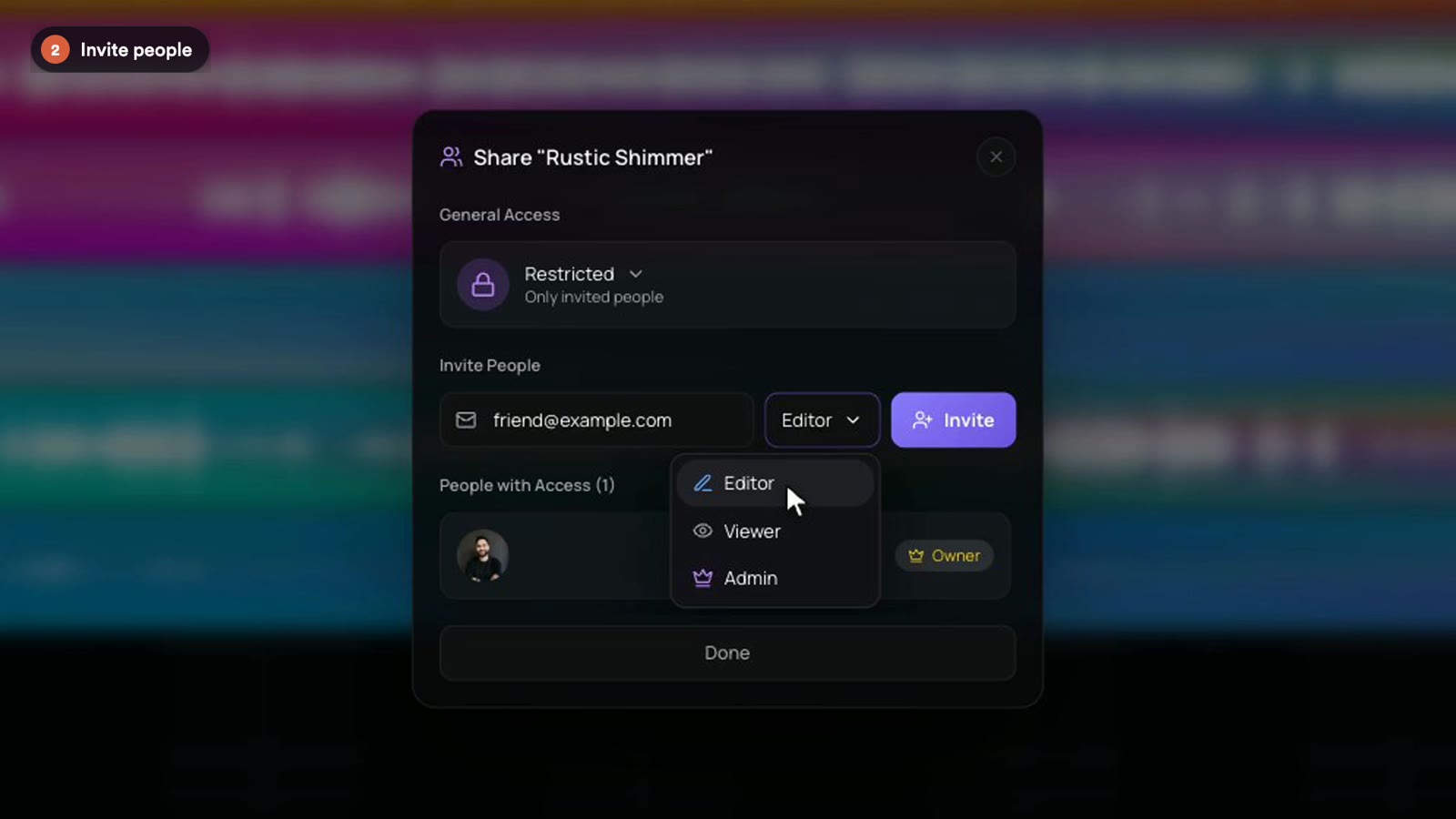
Click Invite in the top bar (or open the Studio menu and choose Invite collaborators). The Share window opens.
- Type your friend's email address in the Invite people box.
- Open the role menu next to it and pick a role.
- Click Invite.
| Role | What they can do |
|---|---|
| Editor | Change the song: add tracks, move clips, record |
| Viewer | Listen and look around, without editing |
| Admin | Everything an Editor can do, plus invite people and change who has access |
If your friend already uses Soundverse, they're usually added straight away and show up under People with access. If they're new, they get an email invite that stays valid for 7 days, and they sign up to accept it.
Prefer a link?
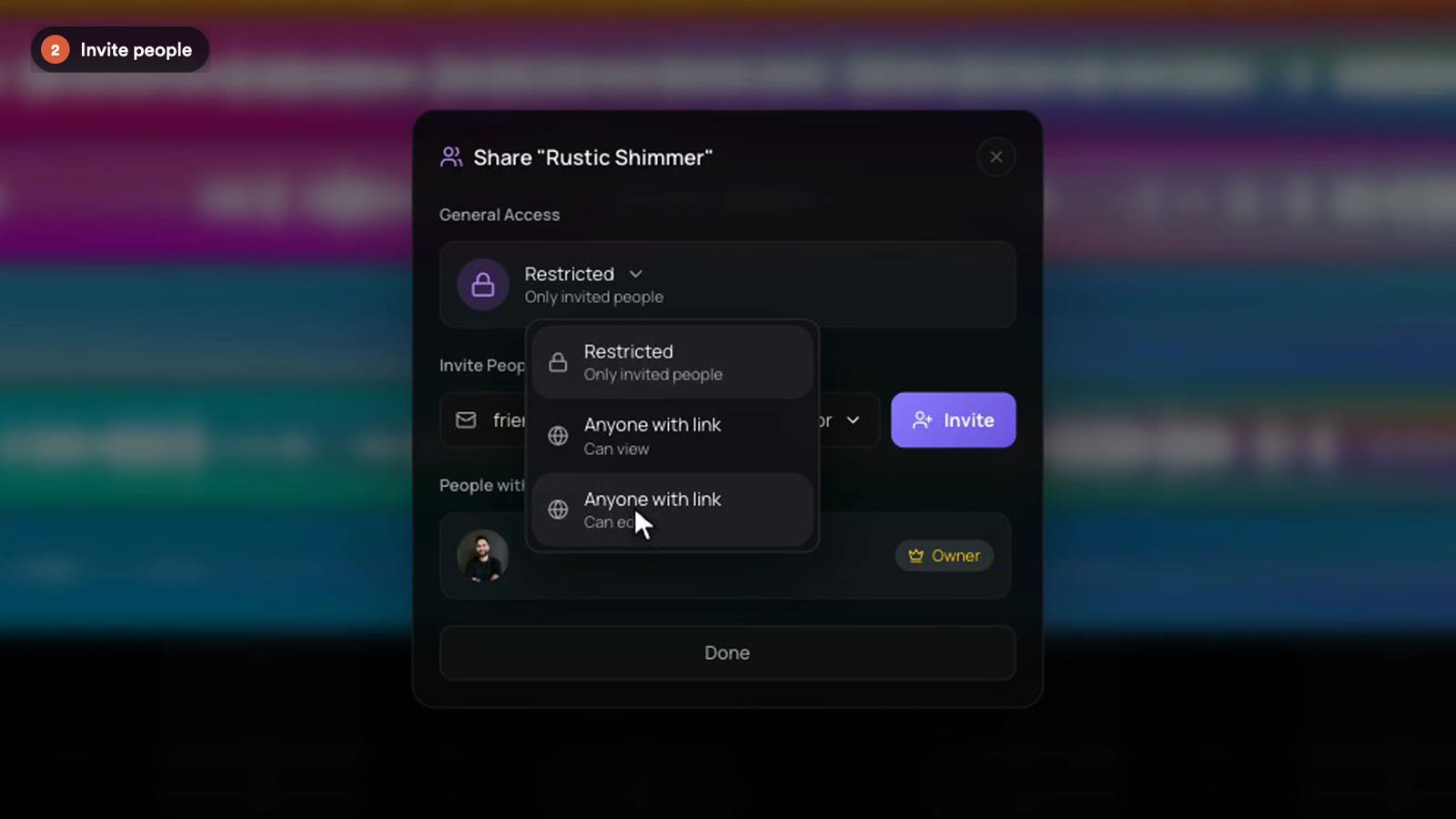
Under General Access, a project starts as Restricted, so only invited people can open it. Switch it to Anyone with link, choose Can view or Can edit, and share the link with your group. Switch it back to Restricted whenever you like.
Step 3: Work on the same timeline, live
When people join, their pictures appear in the top bar and each person gets a cursor with their name on it. Every change shows up for everyone as it happens: a note moved in the piano roll, a trimmed clip, a new track. There's no saving and sending, and no "final_v7": there is one project and everyone is in it.
A simple way to split the work on your first session: one person arranges, one writes a part, one handles the mix. The named cursors show who is working where.
Step 4: Talk in Session Chat
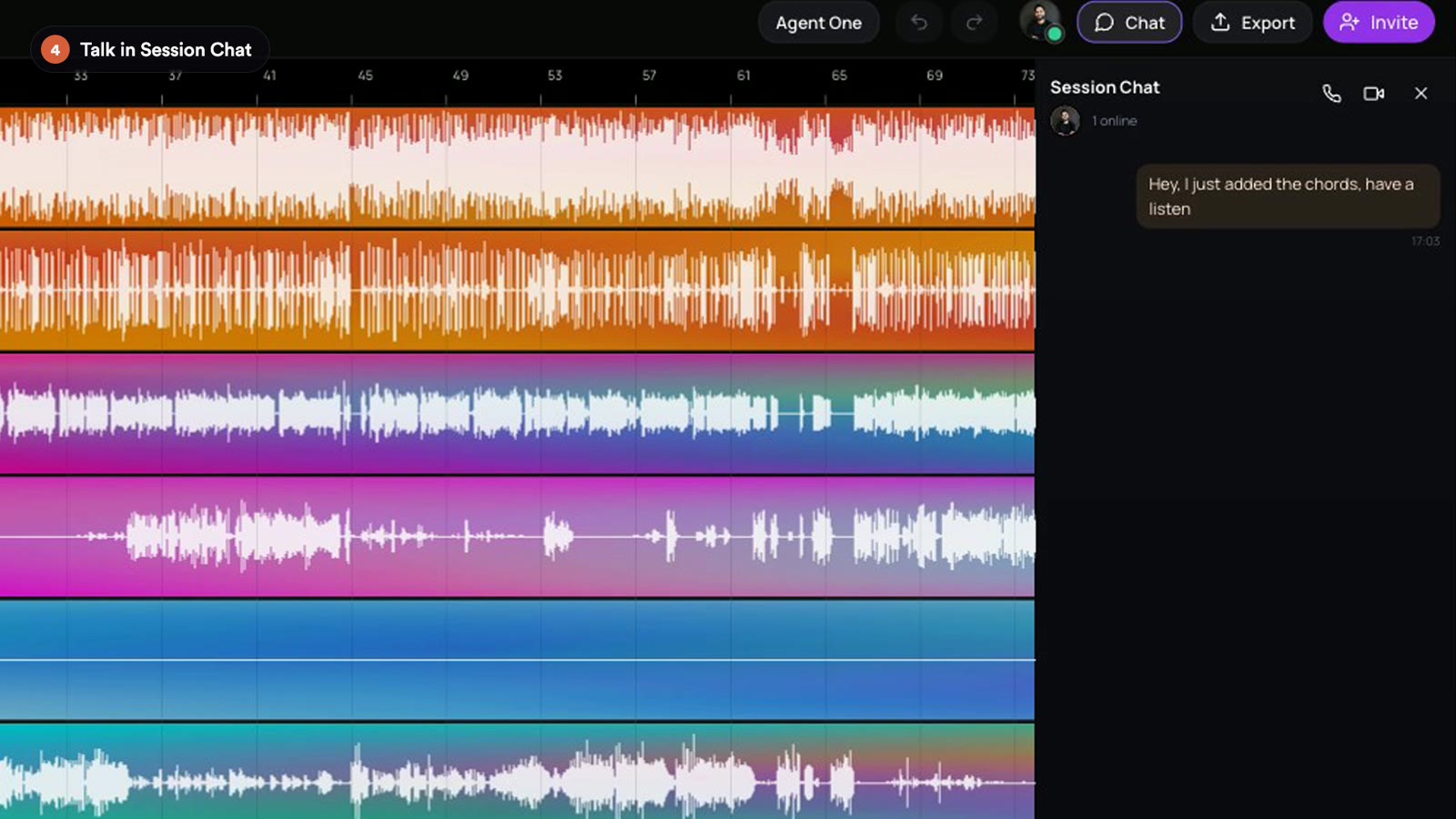
Click Chat in the top bar to open Session Chat on the right. It belongs to this project, so the conversation stays next to the music. Type a message and press send; everyone in the session sees it at once, and you'll see a note when someone joins.
You can share files and voice memos here as well, and drag a file from the chat straight onto a track.
Step 5: Record a take from anywhere
Your singer doesn't need to be in the same room. To record:
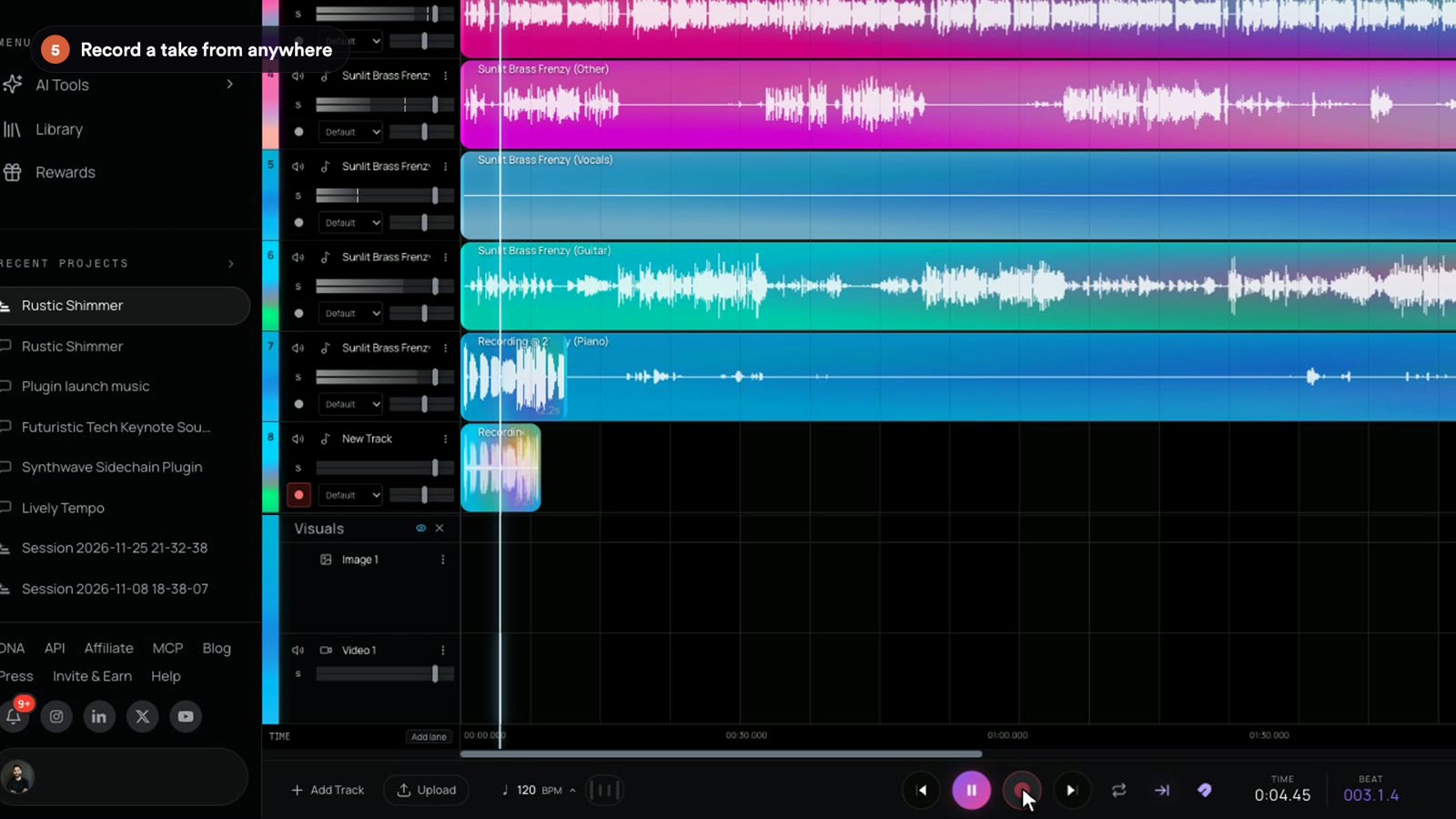
- Pick the track you want to record on, or add a new empty track.
- Arm it and press Record. The first time, your browser asks for microphone access: click Allow.
- Sing or play, then press stop.
The take lands on its own track in the project, so everyone in the session can hear it right away. Record as many takes as you like and keep the best one.
Step 6: Leave comments at the exact bar
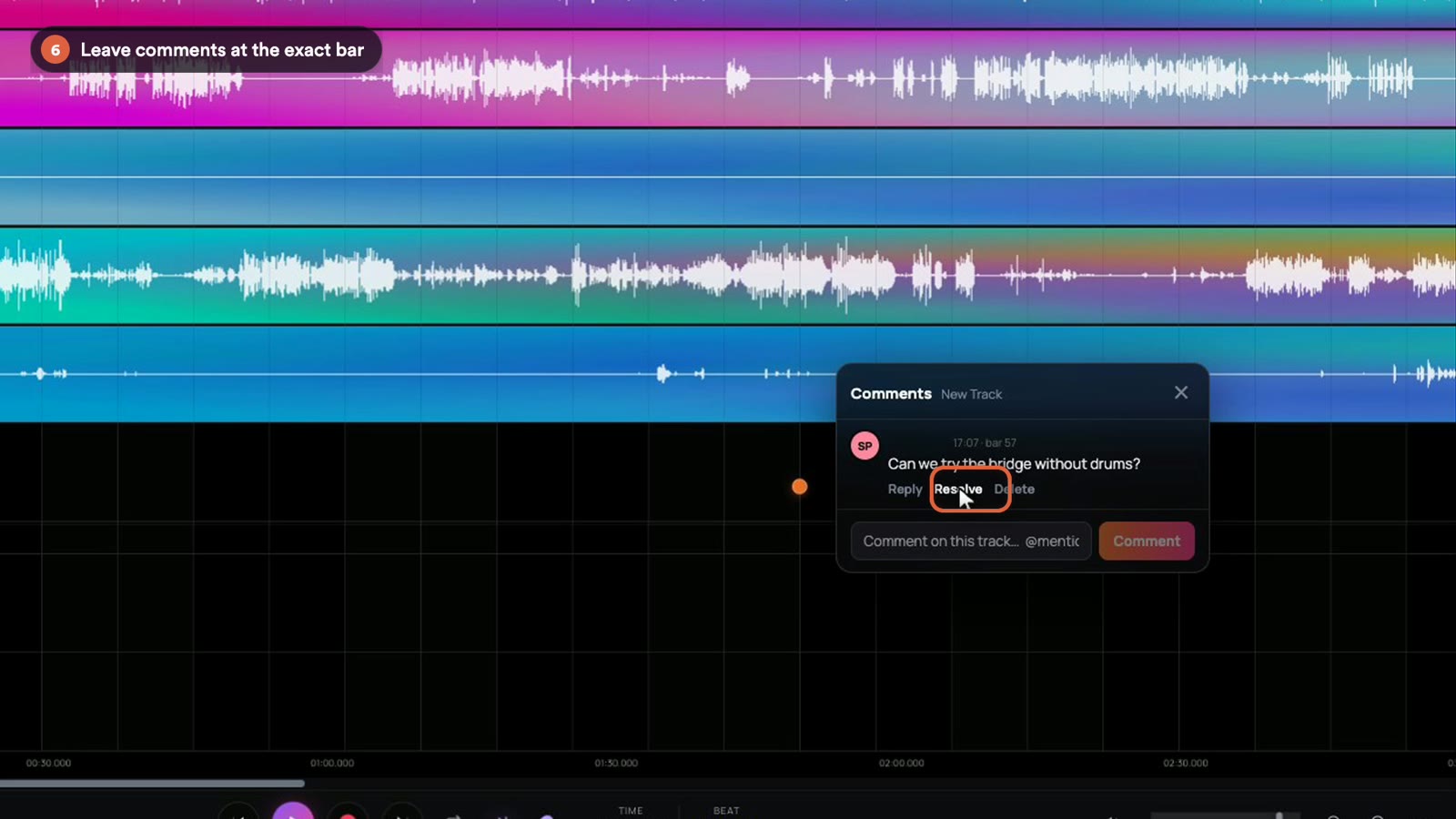
Feedback works best when it's attached to the music. Right-click a track's lane and choose Comment. The note is pinned to that bar, so nobody has to guess what "the part at 1:12" means.
- Type @ and a name to mention someone in the project.
- Collaborators can Reply in the same thread.
- When the fix is done, click Resolve. Open threads then work like a to-do list.
Step 7: Mix together
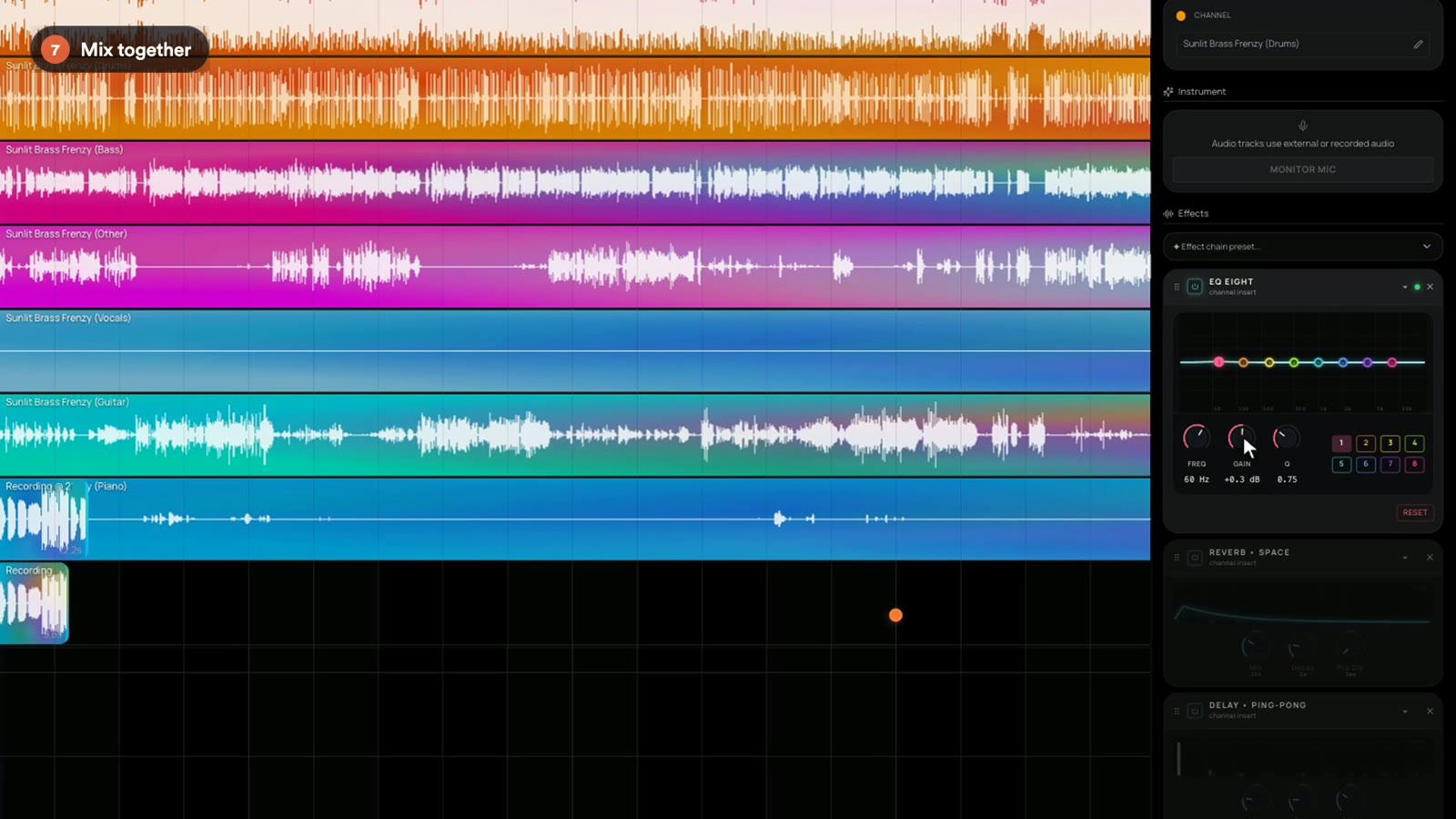
Click a track to open its Track Details. Each track has its own effects chain: an EQ (EQ Eight) to shape the tone, a reverb (Reverb Space) for room, and a delay (Ping-Pong) for echoes. Turn the knobs while the song plays. Choose Show automation in the track options to draw changes over time, like a filter that opens into the chorus.
Anyone with edit access can change the mix and everyone hears it, so two people can try two ideas live instead of trading files.
Step 8: Jump on a call
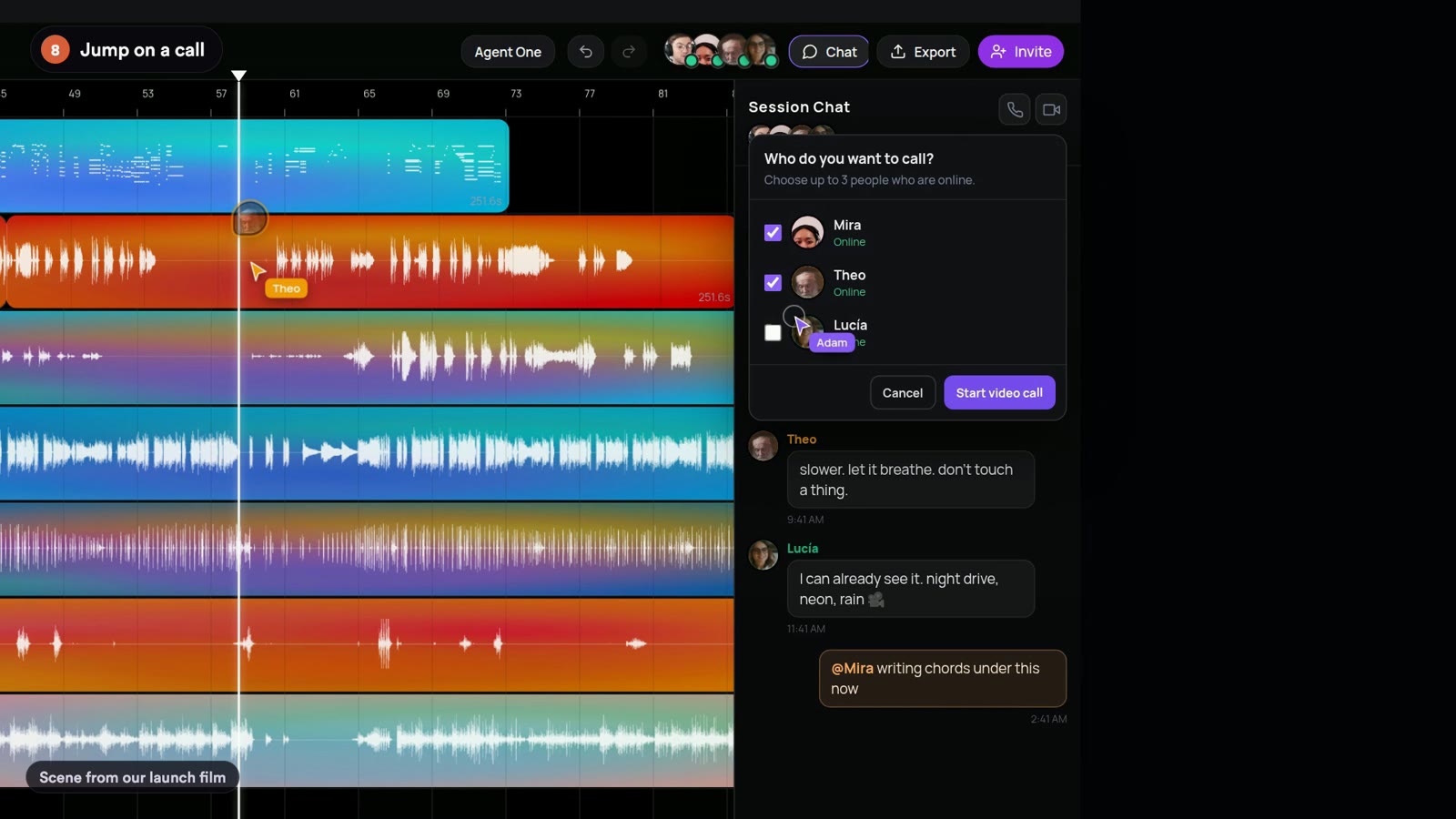
Sometimes it's faster to talk. Open Session Chat and use the call buttons at the top. Pick up to three people who are online and start the call. It opens inside the studio, so you never leave the project.
Step 9: Make the music video in the same project
AI Studio has a Visuals track. Drop video clips onto it and they play in time with the song in the preview. Whoever is making the video works in the same project as the people making the music.
Step 10: Bring Agent One into the session
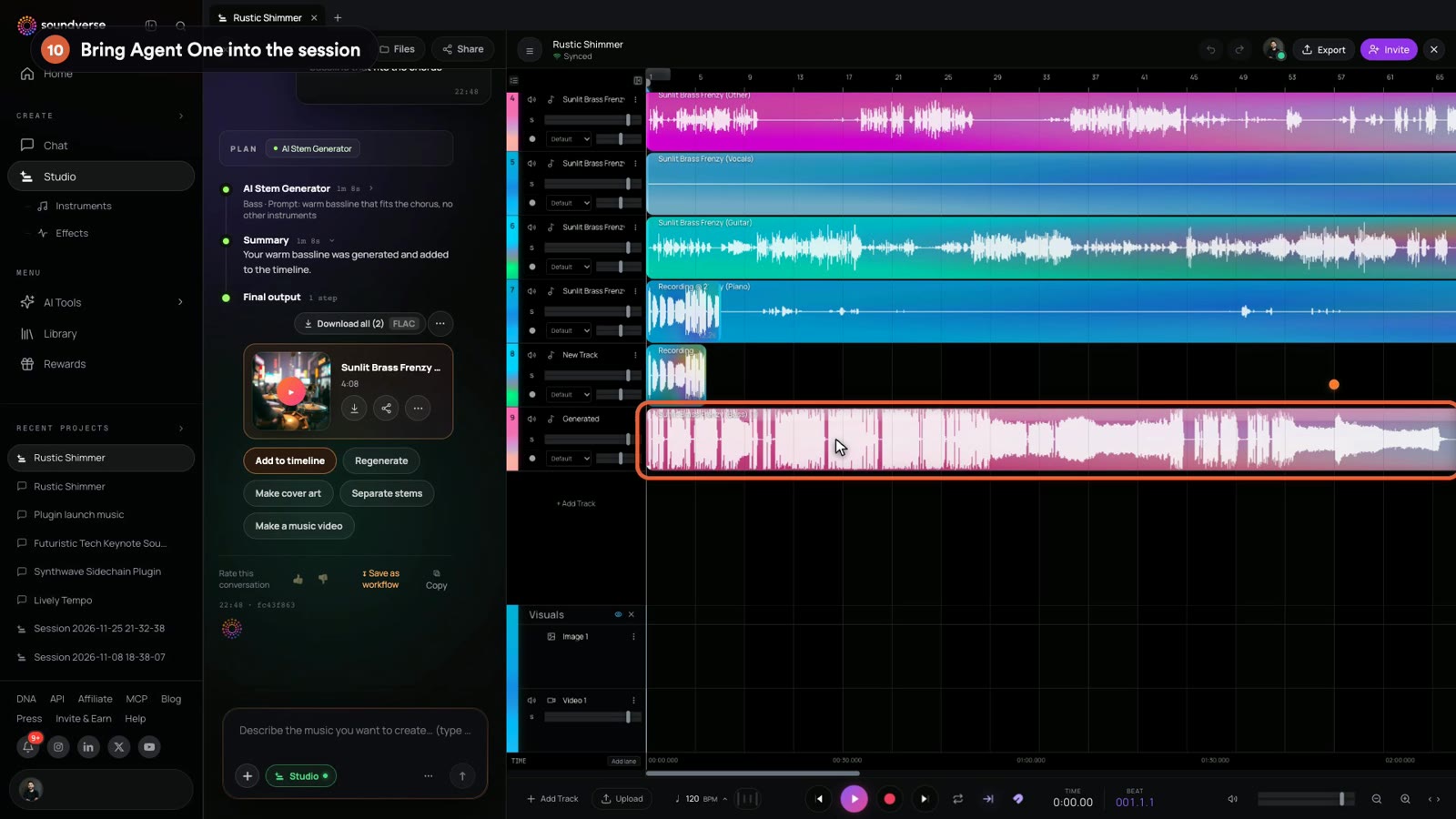
Open Agent One from the top bar and ask for what you need, for example "a warm bassline that fits the chorus". Agent One adds it to the project on its own track, where everyone in the session can hear it.
Tips for a smooth first session
- Give each person the role they need. Editor for co-writers and producers, Viewer for a manager or a fan who just wants to listen.
- Name your tracks and takes, so everyone knows what's what.
- Resolve comments as you fix them. The open threads are your list of what's left.
- Wear headphones when recording, and record a short test take first.
Troubleshooting
- I don't see the Chat button. It appears once someone else has joined your project. Invite a collaborator first.
- Nobody shows up in the call list. You can only call people who are online in the project right now.
- @ shows no names. Mentions list the people in the project, so invite them before you mention them.
- My friend never got the invite. Ask them to check spam. Email invites stay valid for 7 days; after that, send a new invite.
FAQ
Do my collaborators need a Soundverse account?
Yes. Existing users are added straight away; anyone new gets an email invite and signs up to accept it.
Can someone listen without being able to change anything?
Yes. Give them the Viewer role, or share a link set to Can view.
How many people can join a video call?
Calls take up to three people who are online in the project.
Start your first session
Open AI Studio, click Invite and make your next song together.