
Setup guide
Add the Soundverse connector to Claude
A few minutes, once. After that you just ask Claude for music and it shows up in your Library — no tab-switching, no copy-pasting.
Get connected
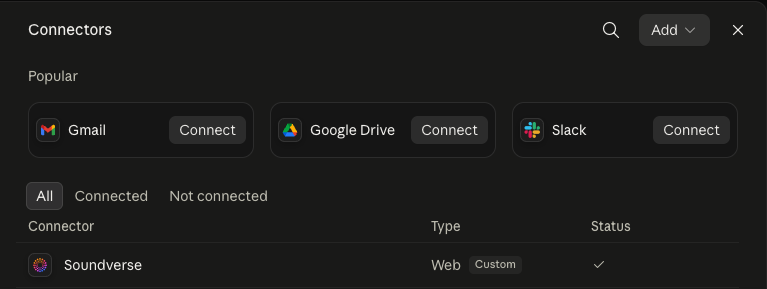
- In Claude, go to Settings → Connectors, click Add, then Add custom connector.
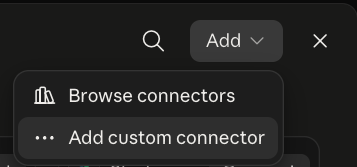
- Call it Soundverse and paste in this URL:
https://mcp.soundverse.ai/mcp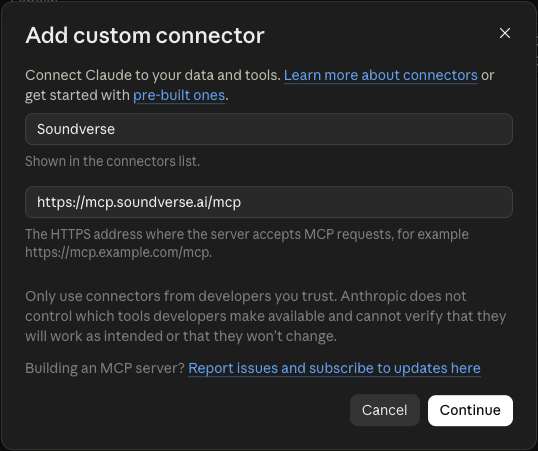
- On the next screen, pick Use your own OAuth client and paste in this Client ID. Leave the secret blank, there isn’t one.
jt7cp9hv4m9idkuyv2gt0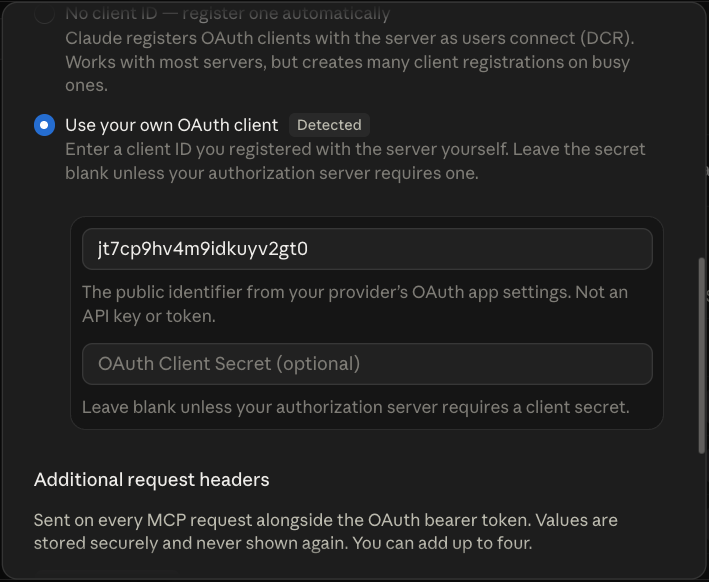
- Hit Connect and sign in with your Soundverse account.

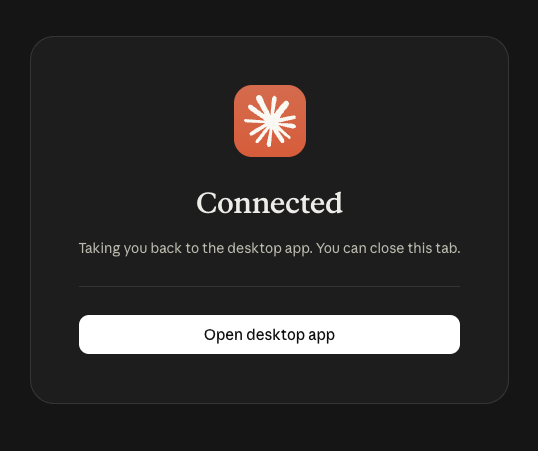
- Done. You’re back in Claude and connected.
No secret needed
The Client ID is safe to share. Just leave the secret field empty.
Permissions
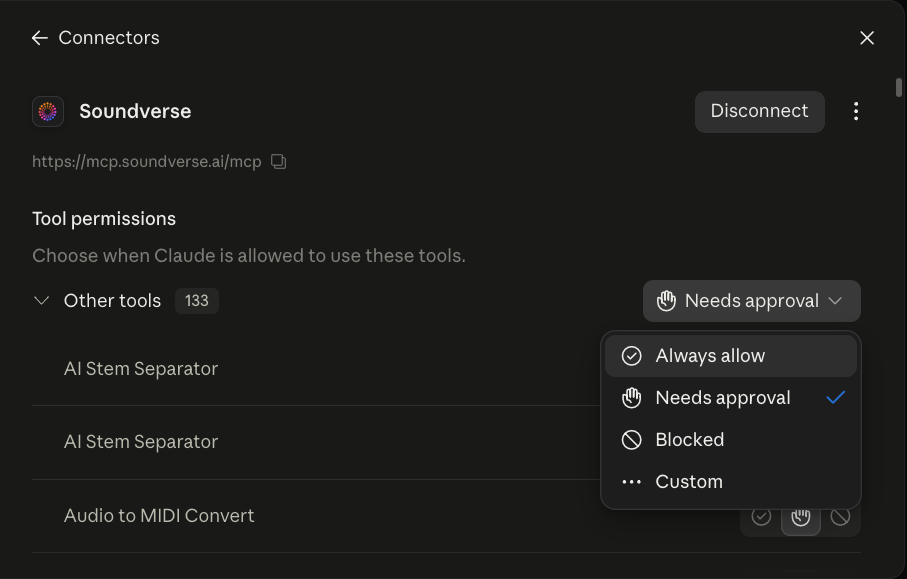
Soundverse connects a lot of individual tools (song generation, stems, voice cloning, and more). From the connector’s settings you can decide how much it can do on its own:
- Needs approval: Claude asks before each use (default).
- Always allow: Claude just runs it.
- Blocked: Claude can’t use it.
Set this per tool, or all at once.
Using it
Just ask, like you would in the app:
- “Write and generate an upbeat pop song about a road trip.”
- “Turn this hum into a full song.” (attach the audio)
- “Swap the vocals on this track for something warmer.”
- “Pull the stems from this song.”
Claude lets you know in the chat once it’s done, but the actual track lives in your Soundverse Library. It doesn’t play inside the conversation. Head there to listen, download, or keep editing.
Help
Authorization failed? Recheck the Client ID and make sure the secret is blank.
Can’t reach the server? Recheck the URL. No typos, no trailing slash.
Something stuck? Remove the connector and add it again.
Still stuck? help.soundverse.ai