What Does the Workflow Look Like for Creating a Music Video Using AI?
The AI music video workflow in 11 steps, from brief and song map to lip-sync, beat edit, grade, Canvas loop and AI disclosure, with a time budget.
An AI music video workflow has eleven steps: brief, song map, treatment, style bible, shot generation, performance shots, beat edit, grade, titles or lyrics, export versions and an upload with AI disclosure. For a three-minute song, budget three to five working days. AI tools generate the shots; your editor handles the rest.
Below, each step gets a time estimate and a note on where it happens: in an AI tool, in your editor, or both. The times are our planning numbers for one artist or a two-person team making a three-minute song with 30 to 45 shots, not a benchmark. Platform rules come from each company's help pages, checked on 19 November 2026.
The AI music video workflow at a glance
- Brief and references: 1 to 2 hours, in a doc and a moodboard.
- Song map by section: 30 minutes, in an analysis tool or with markers in your editor.
- Treatment and storyboard: 2 to 3 hours. An AI story tool drafts the idea; you write the shot list.
- Look and style bible: 2 to 4 hours, with an image generator for reference frames and a text file of rules.
- Shot generation: 6 to 12 hours over one or two days, in the AI video tool.
- Performance or lip-sync shots: 2 to 4 hours, in a lip-sync tool.
- Edit to the beat: 4 to 8 hours, in your editor.
- Grade: 2 to 3 hours, in your editor.
- Titles and lyrics: 1 to 3 hours. A transcription tool gives the timing; your editor sets the type.
- Export versions: 1 to 2 hours, in your editor, plus a converter for crops and loops.
- Upload with AI disclosure: 30 to 60 minutes, in YouTube Studio and Spotify for Artists.
That's roughly 22 to 43 hours of work.
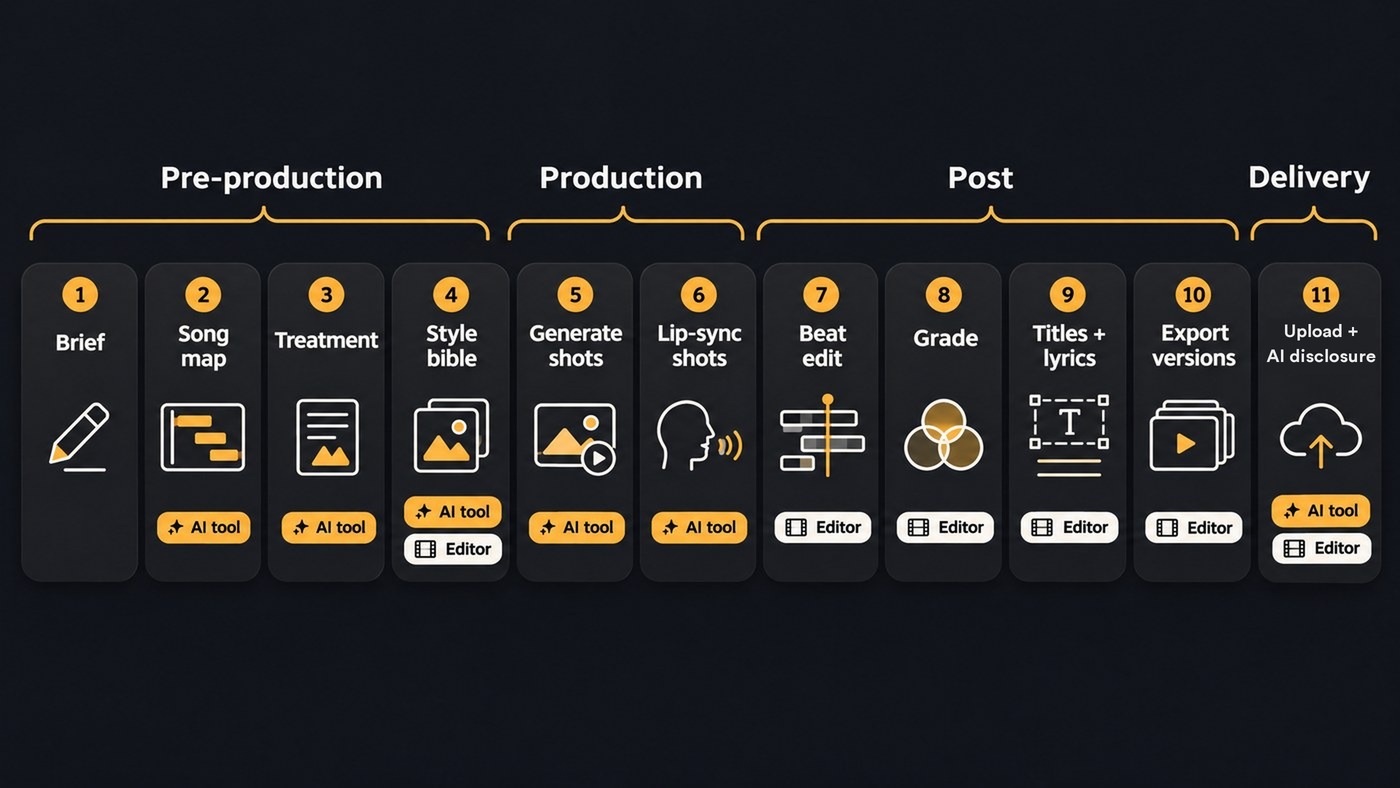
Pre-production: brief, song map, treatment and style bible
1. Brief and references. One page: the song, the release date, where the video will run (YouTube, Shorts, Reels, Spotify Canvas), the kind of video (performance, story, both or abstract), three to five reference images and a short "never" list. Decide now whether the artist appears as themselves, as a stylised character or not at all. That choice shapes lip-sync, consent and disclosure later.
2. Song map by section. Write down where each section starts, the tempo and where the downbeats fall. Soundverse's Section Analysis returns labelled sections with start and end times plus the tempo, beats and downbeats. Then do the bar maths: a bar of 4/4 lasts 240 ÷ BPM seconds, so at 100 BPM a four-bar shot runs 9.6 seconds. Our guide to AI music videos that match song structure assigns scenes to sections.
3. Treatment and storyboard. The treatment is the idea, a short paragraph per section. The storyboard is one frame per shot. Music Video Storyteller drafts the treatment from the song's sections and lyrics, but it doesn't write a shot list, so break each section into shots yourself: number, bars, framing, camera move and action.
4. Look and style bible. Fix the palette, light, lenses and texture in a short text block you paste into every prompt, and make reference images for each character and location. Our guide to keeping faces, clothes and locations consistent covers the reference sheets.
Production: generating shots and performance shots
5. Generate the shots. Work section by section rather than in timeline order, so each section keeps one model and one look. Start shots on approved frames from your storyboard, make two to four takes of the shots that matter, and generate half a bar of extra at each end so you can cut on the beat. Save approved takes in a folder named by shot number, with the prompt beside each one. Our guide to improving coherence across AI video sequences covers handoff frames and camera continuity.
6. Performance or lip-sync shots. Treat these as their own pass. Split the vocal into line-length pieces and make one clip per line, from a clean vocal stem rather than the full mix. Soundverse's Lip Sync, on the Creator plan and above, takes up to 15 seconds of vocal per clip, and its page says illustrated, painterly and anime-style characters work best because the video model blocks realistic human faces. Spins, crossed arms and fast footwork still trip up generators, as our explainer on why AI video struggles with human motion sets out, so keep choreography simple and cut away before it breaks.
Post-production: edit to the beat, grade, titles and lyrics
7. Edit to the beat. Put the final master on the timeline first and drop a marker at every section start. Cut on downbeats inside sections and save big changes of place or palette for section boundaries. Make a rough cut at full length before polishing anything, and fill gaps with new generations instead of stretching shots. This happens in your editor, whether that's Premiere Pro, DaVinci Resolve, CapCut or Soundverse's AI Studio.
8. Grade. Balance exposure and white balance shot by shot, then lay one look over the whole timeline and add the same grain to every clip. Clips from different models rarely match out of the box, and the grade is what makes them read as one shoot.
9. Titles and lyrics. Choose between burned-in lyrics, which are part of the picture and suit Shorts, and a caption file viewers can switch on. For timing, Soundverse's Audio Transcription gives every word a start time when Word timestamps is on. DaVinci Resolve's Edit page says subtitles can be rendered into the final video or exported as separate TTML, SRT or VTT files. Proofread every line against the lyric sheet.
Delivery: export versions and upload with AI disclosure
10. Export versions. Finish the 16:9 master, then cut the other versions from the same timeline:
- 16:9 master for YouTube, at the frame rate you edited in. Our guide to AI video file formats covers codecs and bitrates.
- 9:16 cut-downs for Shorts, Reels and TikTok, built around the hook and reframed shot by shot. YouTube's Shorts upload page accepts files up to 3 minutes long in a square or vertical shape. Our guide to vertical AI music videos covers reframing.
- Spotify Canvas loop: Spotify's Canvas guidelines ask for 3 to 8 seconds, vertical 9:16, 720 to 1080 pixels tall, as an MP4 or JPG. They also warn: "You only have 8 seconds, but trimmed down music videos and incomplete stories can leave fans expecting more." Pick one complete moment and loop it.
11. Upload with AI disclosure. In YouTube Studio, the Attributes section has an "AI use" question. YouTube's disclosure page puts the line here: "Realistic AI content and meaningful changes require disclosure, while non-realistic or minor edits don't." AI-generated music is on its list of what needs disclosing, and clearly fantastical scenes are on the list of what doesn't. Keep your shot log and consent forms with the release files.
How long does it take to make a music video with AI?
Our three-to-five-day budget assumes 30 to 45 shots. At 100 BPM, two to four bars per shot is 4.8 to 9.6 seconds, so a three-minute song needs roughly 19 to 38 shots before takes. Most of the time goes to steps 5 and 7: generating and reviewing takes, then cutting them. Retakes of hero shots and lip-sync lines are what usually stretch the schedule, so plan those first.
You can also hand steps 3 to 7 to one tool. Soundverse's AI Music Video Generator writes a script, quotes the cost for your approval, then films the scenes and cuts them to the music, and you open the result in AI Studio to keep editing. You'll still want your own grade, titles and versions on top.
Where Soundverse fits
Soundverse is an AI music platform that takes you from idea to audience, and it covers most of this workflow in one account. On the Free plan, Section Analysis maps the sections, tempo and downbeats, and Music Video Storyteller writes a section-by-section story you can turn into a shot list. On Creator and above, Multi-Scene Video Builder films up to 10 planned scenes with first and last frames, Lip Sync makes singing shots, and AI Music Video Generator films and cuts a whole video at up to 1080p. AI Studio, on every plan, puts video on a lane under your song and exports MP4, WebM or MOV: up to 720p on Free, 1080p on Creator and 4K on Pro. Media Converter, on the Free plan, trims a clip and crops it to 9:16 for a Canvas. Licensing is set by plan: the Free plan is for personal use, and the Creator plan comes with a royalty-free license.
This AI Studio tutorial takes a song from Agent One into the studio, adds the musician's own vocals and a mix, generates visuals on a video lane and exports the finished music video.
FAQ
Can AI make a whole music video on its own? Some tools can assemble one end to end. Soundverse's AI Music Video Generator films and cuts a full video to your song after you approve its script and cost. Most artists still do a pass in an editor for the grade, titles and platform versions.
Which steps should stay in a video editor? The beat edit, the grade, titles and lyrics, and the export versions. AI tools are best at producing shots; an editor is where timing, colour and type are controlled frame by frame.
How many shots does a three-minute AI music video need? Plan two to four bars per shot. At 100 BPM that's 4.8 to 9.6 seconds a shot, or roughly 19 to 38 shots for three minutes, plus two to four takes for the important ones.
Do I have to label an AI music video on YouTube? If it looks realistic, or if the music itself is AI-generated, yes: set "AI use" to Yes in YouTube Studio's Attributes section. Clearly fantastical or non-realistic visuals over a human-made song don't need the label under YouTube's examples.
Sign up for Soundverse free and map your song before you generate the first shot. More guides on the Soundverse blog.