What Are the Most Common File Formats for Exported AI Video Content?
AI video file formats explained: MP4 with H.264 and AAC, HEVC, MOV and ProRes, WebM and GIF, plus the frame rates YouTube, Reels and Spotify want.
The most common AI video file formats are MP4 files carrying H.264 video and AAC audio, the combination YouTube recommends and browsers broadly support. You'll also meet H.265 (HEVC) for smaller high-resolution files, MOV with ProRes for editing, WebM with VP9 or AV1 for the web, and GIF for silent previews.
The format matters at two moments: when you hand a clip to an editor, and when you upload it. Here is what each format is for, what AI video tools export, and what YouTube, Instagram, TikTok and Spotify ask for, from their own pages, checked on 19 November 2026.
Containers vs codecs: the two parts of a video file
A file name like song-video.mp4 tells you the container, not how the picture was compressed. MDN's guide to media containers, Mozilla's developer reference, puts it plainly: "A media container is a file format that encapsulates one or more media streams (such as audio or video) along with metadata, enabling them to be stored and played back together."
Inside the container sit the codecs:
- Video codec: how the frames are compressed, such as H.264, H.265/HEVC, VP9, AV1 or ProRes.
- Audio codec: how the soundtrack is compressed, usually AAC in an MP4.
- Metadata: frame rate, colour space, duration and similar details.
So two MP4 files can behave very differently. One with H.264 plays almost anywhere; one with HEVC may not play in an older browser.
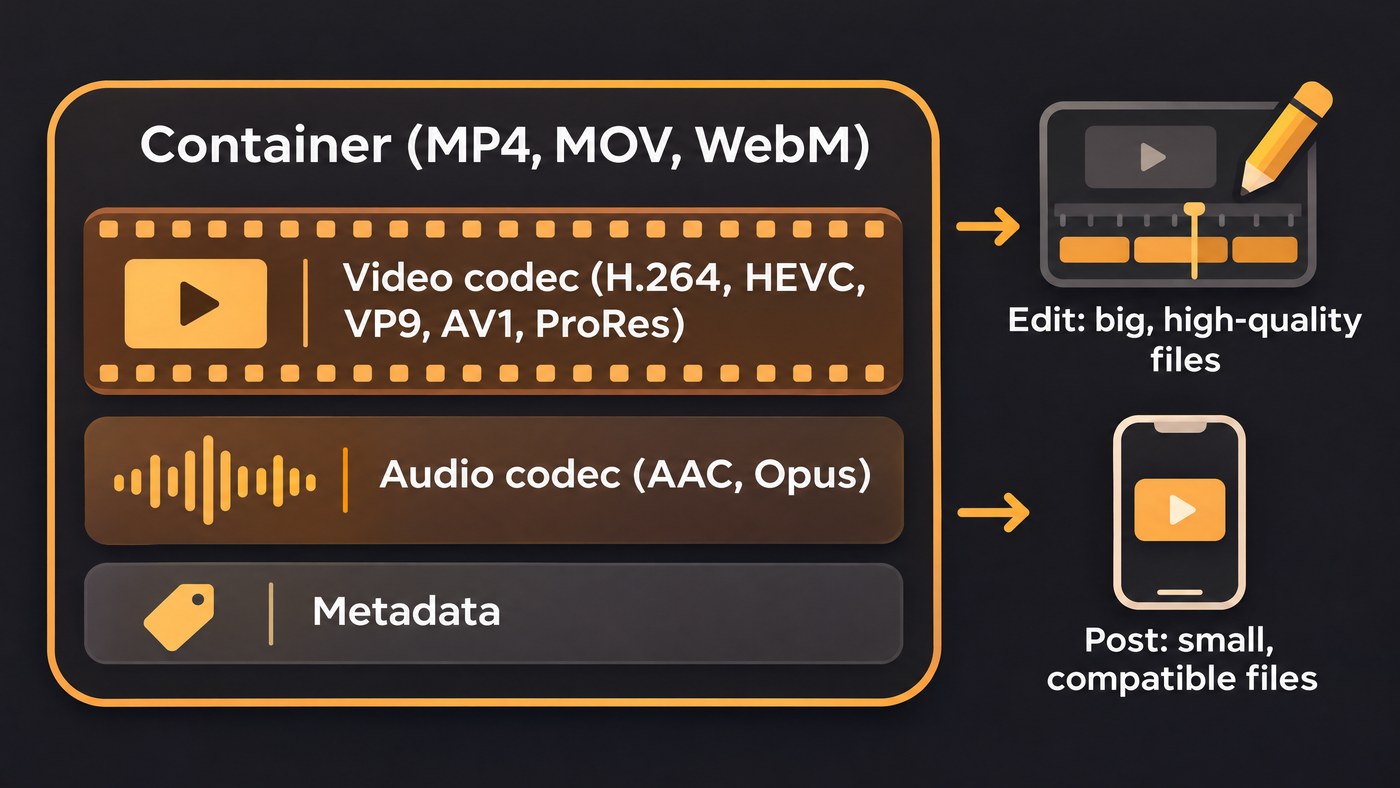
The most common AI video file formats
MP4 with H.264 (AVC). The default. MDN's video codec guide calls AVC broadly compatible in browsers and notes that many platforms support hardware encoding and decoding of it. YouTube's recommended settings name MP4 as the container and H.264 as the video codec.
H.265 (HEVC). MDN says HEVC can, in theory, reach files half the size of AVC at comparable quality, and was built for very high resolutions up to 8K. The catch is playback: browser support often depends on the device's hardware. Good for 4K masters; check playback before you embed one on a website.
MOV with ProRes. MOV is Apple's QuickTime format, and ProRes is Apple's family of editing codecs. Apple's About Apple ProRes page (published 3 March 2025) lists target data rates at 1920x1080 and 29.97 fps of about 147 Mbps for ProRes 422 and about 220 Mbps for ProRes 422 HQ. Huge files, on purpose: they hold up through repeated re-encoding while you colour, cut and add titles. Apple notes that only ProRes 4444 and 4444 XQ carry an alpha channel, which matters if you export lyric overlays with a transparent background.
WebM with VP9 or AV1. MDN names MP4 and WebM as probably the most common containers on the web. AV1, designed by the Alliance for Open Media, is royalty-free and, per MDN, compresses better than VP9 and HEVC. YouTube itself notes that watching new 4K uploads in 4K needs a browser or device that supports VP9.
GIF. An image format, so it has no soundtrack, and it is limited in colour. Fine for a silent preview in a chat; Google Flow, for example, offers GIF downloads at 270p. Never post a music video as a GIF.
Frame rate, resolution and aspect ratio
Frame rate. YouTube's recommended upload encoding settings are clear: "Content should be encoded and uploaded in the same frame rate it was recorded." Common rates are 24, 25, 30, 48, 50 and 60 fps. Converting 24 fps footage to 60 doesn't add motion unless something generates the in-between frames; our explainer on frame interpolation in AI music video tools covers how that works and where it smears.
Resolution. AI video generators usually render at 1080p or below; Soundverse's AI Video Generator, for one, renders at 480p, 720p or 1080p and never 4K. Exporting a 1080p clip at 4K makes a bigger file, not a sharper picture, unless an upscaler adds detail.
Aspect ratio. 16:9 for YouTube and Spotify music videos, 9:16 for Reels, Shorts and Spotify Canvas, 1:1 for square feed posts. Pick the shape before you generate; cropping later cuts off faces and text. Our guide to vertical AI music videos for Shorts and Reels covers framing.
Bitrate and the audio track
Bitrate is how much data each second of video gets. YouTube recommends, for standard-frame-rate SDR uploads, about 8 Mbps at 1080p, 5 Mbps at 720p and 35 to 45 Mbps at 4K, with higher figures for 48 to 60 fps. Next to ProRes 422 HQ's 220 Mbps, that is the gap between an editing file and a posting file.
For the soundtrack, YouTube asks for AAC-LC (or Opus) at a 48 kHz sample rate, and recommends 384 kbps for stereo. Two habits help musicians:
- Set video projects to 48 kHz, so the audio isn't resampled on upload.
- Keep a separate WAV master. A video's AAC track is a lossy copy. Our guide to audio file formats for music distribution covers the master itself.
What AI video tools actually export
Soundverse. AI Studio exports video as MP4, WebM or MOV at 24, 30 or 60 fps, from 720p up to 4K. Export follows your plan: up to 720p on Free, 1080p on Creator, and 1440p and 4K on Pro. It uses the browser's built-in encoders, which current desktop Chrome and Edge include. It also imports MP4, MOV, WebM, MKV and AVI onto its video lanes. AI Video Generator renders clips at 480p, 720p or 1080p depending on the model, never 4K, and AI Music Video Generator films 16:9 or 9:16 at up to 1080p. Lip Sync clips come at 480p, 720p or 1080p, and Soundverse for Android shares lyric videos as MP4.
This AI Studio tutorial puts a song, an AI video and sound effects on one timeline, then exports a finished piece ready to post.
Google Flow. Flow's help page on managing assets says you can download creations as GIFs or video files, with the GIF option at 270p. It can also publish a clip straight to YouTube, where Flow prepares a compatible format and uploads at the highest resolution the model generated.
Whatever the tool, check a download's codec and frame rate before you edit, and convert once at the start rather than at every step. For why this rendering happens in the cloud, see whether AI video needs high-end hardware.
What YouTube, Instagram, TikTok and Spotify ask for
- YouTube: MP4, H.264 and AAC-LC are recommended, and the supported formats list also accepts MOV, WebM, ProRes, HEVC (H.265), DNxHR, CineForm, AVI and more. Audio files such as MP3 or WAV can't be uploaded on their own as a video, so a song needs at least a still image or visualizer.
- Instagram Reels: Instagram's Help Center accepts aspect ratios between 1.91:1 and 9:16, a minimum frame rate of 30 fps and a minimum resolution of 720 pixels. A 24 fps AI clip should be exported at 30 for Reels.
- TikTok: TikTok's help pages refused the connection from our network on 19 November 2026, so we can't quote its current specs. Check the upload screen in the app before exporting a long or high-resolution cut; a 9:16 MP4 is the usual starting shape.
- Spotify Canvas: Spotify's Canvas guidelines ask for 3 to 8 seconds, vertical 9:16, 720 to 1080 pixels tall, as an MP4 or JPG.
- Spotify music videos: for direct uploads in Spotify for Artists, videos should be horizontal 16:9, longer than 30 seconds, shorter than 20 minutes, under 50 GB and at least 1920 × 1080 pixels. Spotify says direct upload is open to eligible artists in listed countries, and delivery through labels and distributors remains the primary path.
How to pick an export: editing vs posting
For editing (handing off to an editor, colourist or another tool):
- Export the highest quality the tool offers: MOV or MP4 at the generated resolution.
- Keep the frame rate the clip was generated at.
- Use ProRes if your editor works on a Mac and asks for it, and ProRes 4444 when you need transparency.
- Keep the WAV master of the song beside the video files.
For posting (YouTube, Reels, Shorts, Canvas):
- MP4 with H.264 video and AAC audio at 48 kHz.
- 1080p for 16:9 and 9:16, at the frame rate the platform asks for (30 fps or more for Reels).
- Don't over-compress. Platforms re-encode uploads anyway, so a clean, high-quality H.264 file is enough.
Where Soundverse fits
Soundverse is an AI music platform that takes you from idea to audience, so the song and its video can come out of the same project. In AI Studio, which is on every plan, you put generated or uploaded video on a video lane under your tracks, then export the finished video as MP4, WebM or MOV at 24, 30 or 60 fps: up to 720p on Free, 1080p on Creator and up to 4K on Pro. Our walkthrough of the Render to Video Lane workflow shows the 1080p path. When a file arrives in the wrong shape, Media Converter, which works on the Free plan, converts video to MP4, MOV or WebM, can change the codec, resolution (up to 4K) and frame rate, crops to 9:16, and keeps the original untouched. Licensing is set by plan: the Free plan is for personal use, and the Creator plan comes with a royalty-free license.
FAQ
What is the best file format for an AI music video? For posting, an MP4 with H.264 video and AAC audio at 1080p. For editing, the highest-quality MOV or MP4 your tool exports, or ProRes if your editor asks for it.
Is MP4 or MOV better for AI video? Neither is better as a container; the codec inside decides quality and size. MP4 with H.264 plays almost everywhere, while MOV is common for ProRes editing files, which are much larger.
What frame rate should I export AI video at? The rate the clip was generated at. YouTube asks for uploads at the original frame rate, and Instagram Reels need at least 30 fps, so export a 24 fps clip at 30 for Reels.
Can I upload a GIF or an MP3 to YouTube? No. GIF isn't on YouTube's supported formats list, and YouTube says audio files like MP3 or WAV can't be uploaded to create a video. Render the song with a still image or visualizer to MP4 first.
Sign up for Soundverse free and export your next music video in the right format. More guides on the Soundverse blog.