How Can I Improve the Coherence of AI-Generated Video Sequences?
AI video coherence for music videos: map the song, write a style bible, pin handoff frames, match camera moves, cut on the beat and grade it as one.
AI video coherence across a sequence comes from deciding the look, the camera language and the timing before you generate, then making every clip from that plan. Storyboard the song, paste one style bible into each prompt, start shots on approved frames, keep clips short, cut on the beat and grade everything as one.
This guide is about the sequence: how shots follow each other and read as one video. Keeping a character's face, clothes and locations the same is its own job, covered in our guide to AI video consistency across shots.
Why AI video sequences lose coherence
Each clip is generated on its own, without knowing what came before or after, so light, colour, grain, camera behaviour and pacing drift from clip to clip. The Long Context Tuning paper (March 2025) opens: "Recent advances in video generation can produce realistic, minute-long single-shot videos with scalable diffusion transformers. However, real-world narrative videos require multi-shot scenes with visual and dynamic consistency across shots." Its method lets a model see every shot in a scene at once. Most tools still make one shot at a time, so continuity has to come from you.
Think of coherence in three layers:
- Look: colour, light, texture and lens.
- Space and motion: screen direction, camera behaviour and where things move.
- Time: pacing, cuts and how scenes follow the song.
Plan the sequence first: song map, shot list, animatic
- Map the song. Get the section times, tempo and downbeats. Soundverse's Section Analysis returns each section's start and end time plus the tempo, beats and downbeats, and works on the Free plan. Our guide to AI music videos that match song structure covers assigning scenes to sections.
- Write one line of story per section. What the verse sets up, what the chorus reveals.
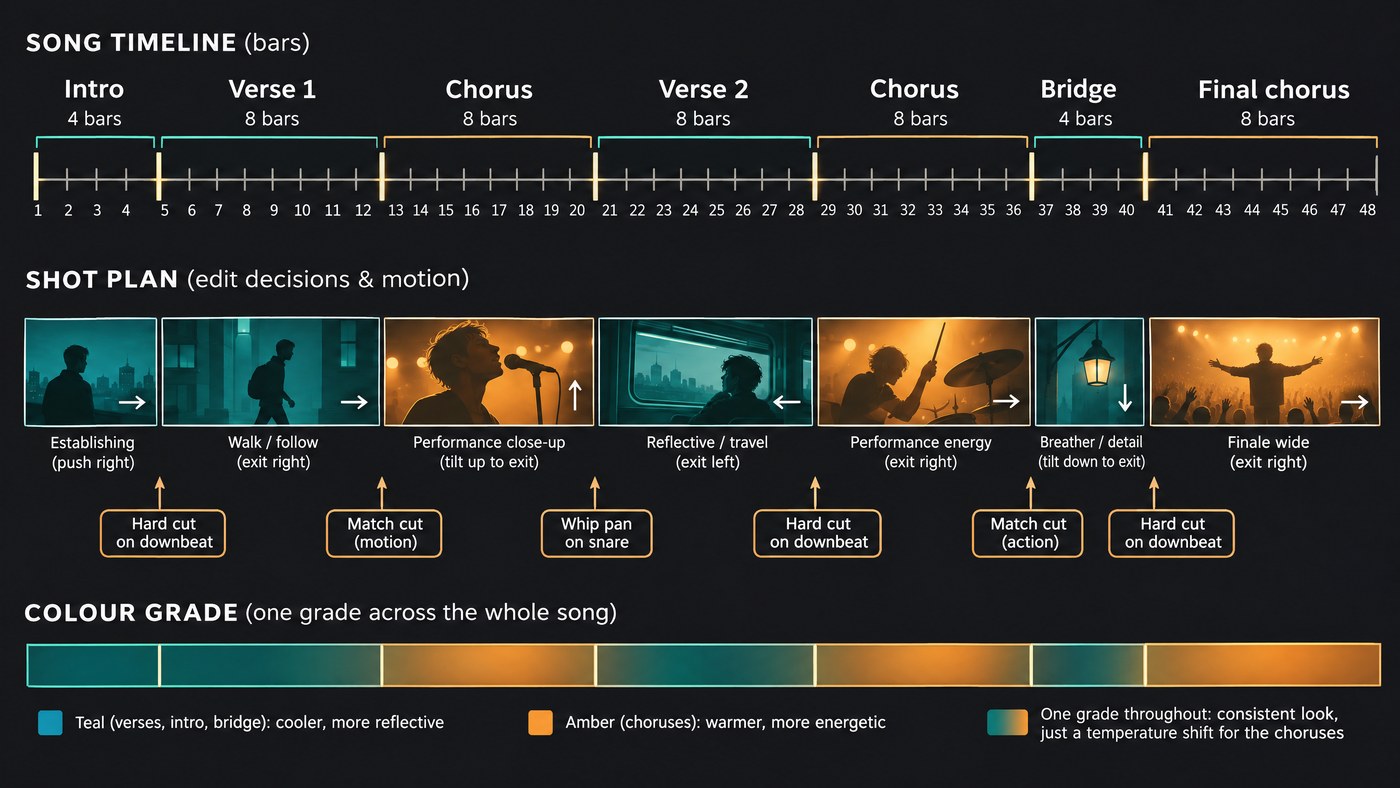
- Write the shot list. For each shot: number, bars, length, framing, camera move, which way the motion is heading at the end, and how it hands off to the next shot.
- Build an animatic. Make one still keyframe per shot, lay the stills over the song at their planned lengths, and watch at full speed. Pacing problems show up here, where a fix costs a new still, not a new clip.
Do the bar maths before you write prompts. At 96 BPM a beat lasts exactly 15 frames at 24 fps, and a bar of 4/4 lasts 2.5 seconds. An 8-bar chorus is 20 seconds: four 5-second shots, or one 10-second hero shot and two 5-second cutaways.
Write a style bible and paste it into every prompt
A style bible is a short text file of rules for the whole video, pasted word for word at the start of every prompt.
- Format and lenses: aspect ratio, resolution and frame rate, plus a lens rule such as 35mm for wides and 85mm for close-ups.
- Light: time of day and key-light direction for each section.
- Palette: three or four colours, such as teal shadows, amber highlights and one red accent.
- Texture: grain, contrast and softness.
- Camera rules: for example locked-off shots and slow push-ins in the verses, handheld and faster moves in the chorus.
- Avoid list: what breaks the look, written as nouns for models that take a negative prompt.
Then each prompt adds only the shot:
STYLE: 16:9, 35mm lens, night, sodium streetlight from frame right, teal shadows and amber highlights, fine film grain, soft contrast, slow deliberate camera.
SHOT 7 (chorus, bars 1 to 2, 5 seconds): Medium shot. She walks toward camera along the wet pavement and exits frame left. Slow dolly out.
Name camera moves the same way every time. Google's Veo prompt guide uses standard terms such as static, pan, tilt, dolly, truck, pedestal, zoom and arc, and it notes that some advanced angles and lenses aren't officially supported, so results vary. If your tool rewrites prompts, check that the style block survived. Keep one video model per section at least.
Use first and last frames as handoffs
The keyframes from your animatic become the first frames of your shots, so each clip starts on an image you already approved.
- Continuous action across a cut: end shot A on a frame and start shot B on that frame, or one just after it.
- Designed transitions: pin the end of shot A and the start of shot B to share a shape, colour or position. A round streetlight that becomes a spinning record is a match cut, and Google's guide lists match cut and jump cut among the editing terms you can prompt.
- Long sequences: chained clips copy each other's errors, so restart from an approved still every few shots.
Use seeds and takes to control variation
A seed sets the random starting point of a generation. Runway's API reference describes it this way: "Using the same seed integer for an identical request will produce similar results." Similar, not identical, and any change to the prompt or settings changes the result.
Keep the seed, change one word, and you see the effect of the word instead of luck. Log the seed with every approved shot. Where an app hides seeds, reuse an approved take's frames as first frames instead.
Keep clips short and give each one a job
One action and one camera move per clip. Google's Veo 3 model card still lists keeping complex scenes and complex motion consistent as a known limitation, and longer clips give drift more time to build. Two to four bars per shot is a good default, with half a bar of extra at each end so you can cut on the beat.
Match camera language across the cut
- Screen direction: if she exits frame left, she enters the next shot from frame right. Write it into both prompts.
- Carry the motion: if the camera drifts left at the end of shot A, keep it drifting left at the start of shot B, or hold both still at the cut.
- Match speeds within a section: slow moves stay slow until the music changes.
- Step the framing: wide to medium to close reads as one scene. Two similar framings back to back read as a jump cut, so use that only on purpose.
Put transitions on the beat
- Hard cuts on downbeats. Inside a section, cut on beat one of a bar. Save big changes of place or palette for section boundaries.
- Whip pans on the snare. Generate the end of shot A whipping right and the start of shot B whipping in from the left, then join them where the blur peaks.
- Flash frames. One or two white frames or a flare on a hit hide a small mismatch.
- Few crossfades. Two semi-transparent generated images show every difference between them. A hard cut or a very short dip usually reads cleaner.
- Cut from beat timestamps, not rounded frame counts. Our explainer on how AI video reads rhythm and tempo shows how rounding drifts.
Keep lighting and colour continuous
Hold each section's time of day and light direction from the style bible, then grade the whole timeline as one: balance white balance and exposure shot by shot, then lay one look over everything. Blackmagic Design's DaVinci Resolve colour page describes a Shot Match to This Clip command and clip groups, where a grade on one shot applies to the whole group. Put the same grain and sharpening over every clip. When colour changes, make it land on a section boundary, such as a warmer chorus, so it reads as a choice.
Edit to hide the breaks
- Cut before the artefact. Drift tends to build toward the end of a clip, so trim early.
- Use music-video inserts. A hand on the mic, a speaker cone, a neon sign, rain on glass. They bridge two shots that don't quite match.
- Let sound carry the cut. Run ambience or a riser across a hard cut, or let the sound of shot A spill into shot B.
- Punch in. A 10 to 15% crop removes a bad edge, at some cost in sharpness.
- Fix one element. A video edit model can change one thing, like a jacket colour, without regenerating the shot.
- Review three ways. Watch at full speed with sound, then muted, then at half speed.
Where Soundverse fits
Soundverse is an AI music platform that takes you from idea to audience. Music Video Storyteller reads your song's sections and lyrics and writes what happens in each one, with the kind of video, the cast and the place. It works on the Free plan, and Soundverse says to treat the story as a starting point, not a shot list.
Multi-Scene Video Builder films up to 10 scenes of 4 to 15 seconds, each with a first frame and an optional last frame. With Auto-generate direction off, you describe the characters, environment, camera movement and story once for the whole video. Choose Multiple videos to get each scene as its own clip, then cut them to your song on a video lane in AI Studio, which exports video at 24, 30 or 60 fps. Seedance 2.5 Edit changes one thing in a clip and keeps its length and framing. The video tools need the Creator plan or above.
This walkthrough shows a song, an AI video and sound effects made and lined up on one AI Studio timeline, then exported as one piece.
FAQ
What's the difference between coherence and consistency in AI video?
Consistency means elements stay the same: the face, the outfit, the room. Coherence means the sequence reads as one piece, with a matching look, camera moves that flow across cuts and pacing that follows the music. You need both.
How long should each shot be in an AI music video?
Plan in bars. Two to four bars per shot is about 4 to 10 seconds between 96 and 120 BPM, plus a little extra at each end so you can cut on the beat. Save longer takes for slow performance moments.
Does using the same seed guarantee the same video?
No. Runway's API reference says you get similar results for an identical request with the same seed, and any change to the prompt, model or settings changes the output. Use seeds to reduce variation while testing.
Can I mix clips from different AI video models in one sequence?
Yes, but each model has its own colour, texture and motion. Keep one model per section, so any change of look lands on a section boundary, and grade the whole timeline together.
Sign up for Soundverse free and storyboard your next video before you generate a frame. More guides on the Soundverse blog.