How Does Frame Interpolation Work in AI Music Video Tools?
How frame interpolation works in AI music video tools: optical flow, RIFE and FILM, beat-timed morphs, common artifacts and the settings that fix them.
Frame interpolation in AI music video tools creates new frames between the ones you already have. A model estimates how each pixel moves from one frame to the next (optical flow), warps both frames toward the in-between moment and blends them. Tools use it to raise frame rates, smooth generated clips, make slow motion and morph between keyframes.
For a producer, it's the step between a clip that stutters and a chorus shot that glides. It's also behind many odd artifacts in AI videos, from rubbery hands to a face that melts for one frame. Knowing how it works tells you when to use it.
What frame interpolation is (and what it replaces)
A video is a run of still frames. Change the frame rate or the speed and you need frames that were never rendered. Editors have three ways to supply them, and DaVinci Resolve's Edit page offers all three for retimed footage: optical flow, frame blending and nearest frame.
- Nearest frame repeats existing frames. Nothing new is invented, so motion looks steppy.
- Frame blending crossfades two neighbours. Smooth, but anything moving shows a ghost of itself.
- Optical flow (true interpolation) works out where things moved and draws them in the middle position. This is the only one of the three that creates new picture content.
How optical flow interpolation works
Say you need one frame halfway between frame A and frame B.
- Estimate motion. For every pixel in A, find where it went in B. The result is a flow field, a grid of small arrows.
- Scale to the moment you want. For the halfway frame, each arrow is cut in half. For a frame a quarter of the way through, a quarter.
- Warp both frames. A is pushed forward along the arrows and B is pulled back, so both land on the in-between moment.
- Blend and fill. The two warped images are mixed, leaning on whichever frame sees each area better. Parts that were hidden in one frame (a hand passing in front of a face) have to be guessed.
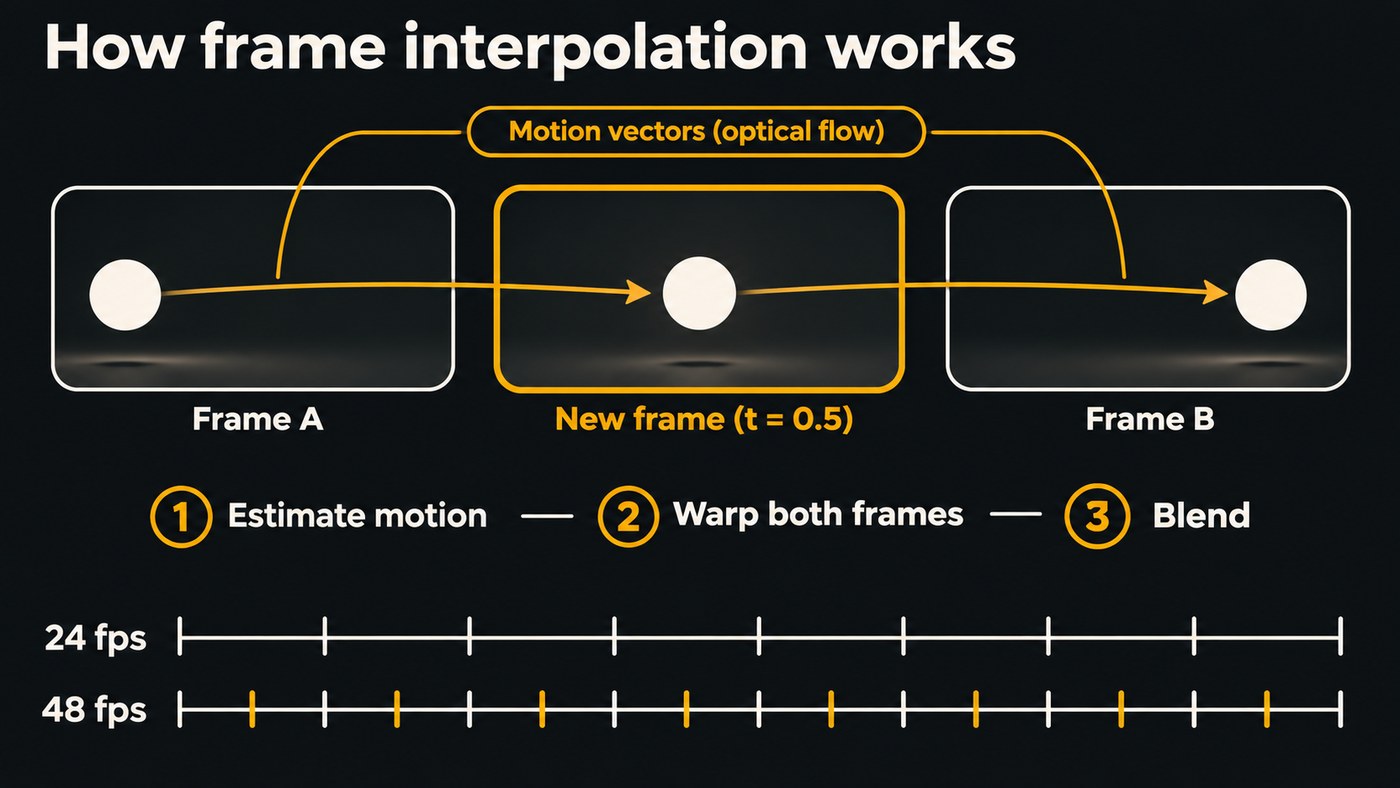
Step 4 is where most trouble starts. When motion is large, fast or overlapping, the arrows are wrong, and the guesses show.
Learned interpolation: RIFE and FILM
Modern tools replace hand-built flow estimation with neural networks trained on real video. Two open models show up again and again.
RIFE (Real-Time Intermediate Flow Estimation) was first posted in November 2020 and accepted at ECCV 2022. Its authors write that "RIFE uses a neural network named IFNet that can estimate the intermediate flows end-to-end with much faster speed." It doesn't depend on a pre-trained optical flow model, and it can make a frame at any point between two frames, not only the midpoint. That matters for awkward conversions like 24 to 60 fps. The maintainers of Practical-RIFE noted in August 2024 that versions 4.24 and later suit post-processing of some diffusion-generated videos, and they recommend 4.25 as the default for most scenes.
FILM (Frame Interpolation for Large Motion) comes from Google Research and was also accepted at ECCV 2022. The paper opens: "We present a frame interpolation algorithm that synthesizes multiple intermediate frames from two input images with large in-between motion." It uses one network trained from frames alone, and its repository describes turning near-duplicate photos into slow-motion footage, with a --times_to_interpolate setting for how many times the interpolator runs.
If you work in ComfyUI, the ComfyUI-Frame-Interpolation node pack (MIT licence, updated March 2026) includes RIFE and FILM nodes alongside others such as AMT and IFRNet.
Generative in-betweening: first and last frames
AI video models add a second kind of interpolation. Instead of filling a gap of a few milliseconds, the model generates seconds of new action between two keyframes you choose. Optical flow can only move pixels that already exist; a video model can invent a camera move or a costume change on the way. (Our explainer on AI music videos made with text-to-video AI covers the generation side.)
In Soundverse's AI Video Generator, you set a first and a last frame so the clip travels between them, such as the same street by day and by night. Veo 3.1 makes 4, 6 or 8 second clips this way, and Seedance 2.5 clips of 4 to 30 seconds. Neural Frames' FAQ describes interpolation blocks that its video timeline editor places between video blocks as transitions.
How AI music video tools use frame interpolation
1. Frame-rate conversion. If your clips come out at 24 fps and you deliver at 60, every second needs 36 new frames. Whole-number jumps (24 to 48, 30 to 60) are the cleanest. Topaz Video's frame interpolation docs recommend its Apollo model when you need exactly 2x, 4x or 8x the frames, and Apollo Fast for non-double conversions such as 24 to 29.97 or 60.
2. Smoothing generated clips. Generated video can stutter or repeat frames. Topaz's Replace Duplicate Frames option swaps duplicated frames for interpolated ones, and Neural Frames has a Smooth control, on a scale of 0 to 6, that works through frame interpolation.
3. Slow motion. Interpolation lets you stretch a shot without it turning choppy. A 4-second clip slowed to half speed fills 8 seconds, which is exactly four bars at 120 BPM, and needs twice the frames to stay at the same rate. Topaz says its Chronos model gives good results at 4x slow motion or less, while Aion handles large motion across the whole frame at a higher processing cost. Resolve offers optical flow retiming, with Speed Warp in DaVinci Resolve Studio.
4. Morph transitions timed to the beat. A beat lasts 60 ÷ BPM seconds. At 100 BPM that's 0.6 seconds, or 18 frames at 30 fps, so a two-beat morph is 36 frames. Generate the morph with a first and last frame, or interpolate between two stills with FILM, then place it so the last keyframe lands on the downbeat. Our guide to making AI music videos that match song structure shows where those downbeats fall in a typical arrangement.
Common frame interpolation artifacts
- Warping. Straight edges bend and backgrounds swim when the flow field is wrong in one region.
- Ghosting on fast motion. When something moves further than the model can track, it falls back to blending two positions. Drum hits, dance moves and whip pans show doubled edges.
- Hands and faces. Fingers cross and hide each other, and mouths change shape quickly. The model has to invent what it can't see, so hands go rubbery and lips go soft.
- Cuts. Interpolating across a hard cut morphs two unrelated shots into a smear frame.
- Text and lyrics. Overlays added before interpolation warp along with the picture.
- Strobes and flashes. Sudden brightness changes confuse motion estimation, so a flash on the snare can smear.
- Missing audio. Topaz notes that frame interpolation removes the audio from the output, so the music has to go back on afterwards.
Practical settings and fixes
- Pick the delivery rate first. Choose 24 fps for a filmic feel, or 30 or 60 for smoother motion, and conform every clip to it before editing.
- Prefer whole multiples. Use 2x or 4x where you can. For 24 to 60, use a model built for odd timesteps.
- Interpolate shot by shot. Split at every cut, interpolate each shot, and add titles and lyrics afterwards.
- Lower the flow resolution for 4K. Practical-RIFE recommends
--scale=0.5for high-resolution video such as 4K, and FILM's repo lets you split large frames into patches. - Keep slow motion modest on fast action. Past 4x, regenerate the shot as slow motion instead of stretching it.
- Protect lip sync. Raising the frame rate keeps a singer's mouth on time, while slowing the shot down breaks the sync. Generate performance shots at their final speed.
- Fix bad frames by hand. Try a different model, lower the multiplier, or cut away on the beat right where the hand melts.
- Reattach the master. Line up your mastered audio after interpolation and check sync against a drum hit, frame by frame.
For a full workflow that ends with Topaz upscaling, see making a 3-minute AI short film with Midjourney, Veo 3, Soundverse and Topaz Video AI.
Where Soundverse fits
Soundverse is an AI music platform that takes you from idea to audience, and on the video side it covers the generative half of this process. Its pages don't describe optical-flow interpolation, so convert frame rates and make slow motion in a dedicated tool, then bring the clips back.
In the AI Video Generator, first and last frames set where a clip starts and ends, and first-frame mode works with every model that makes new clips. Multi-Scene Video Builder plans up to 10 scenes of 4 to 15 seconds, each with an optional first and last frame, on Creator and above. Section Analysis returns the tempo, beats and downbeats for timing morphs, and AI Studio puts clips on video lanes above your tracks and exports at 24, 30 or 60 fps, up to 4K on Pro. Licensing is set by plan: the Free plan is for personal use, and the Creator plan comes with a royalty-free license.
From 3:04, this walkthrough of Soundverse's Create tools shows Multi-Scene Video Builder putting a video together scene by scene.
FAQ
Is frame interpolation the same as AI video generation? No. Interpolation fills gaps of a few milliseconds between frames that already exist. Generation creates seconds of new action from a prompt or between two keyframes.
What frame rate should an AI music video use? Match where it will play. 24 fps reads as filmic, while 30 or 60 fps looks smoother on phones. Keep one rate across the whole edit.
Why do hands and faces look strange after interpolation? Fingers hide each other and mouths change shape fast, so the model has to guess what's behind them. Lower the multiplier, try another model, or cut away at the worst frames.
Does frame interpolation break audio sync? Changing the frame rate keeps timing intact, but slow motion stretches the picture away from the music. Some tools also drop the audio track, so reattach your master afterwards.
Can I interpolate between two still images? Yes. FILM was built for two images with large motion between them, such as near-duplicate photos. For bigger changes, generate the in-between with a first and last frame.
Sign up for Soundverse free and build your next music video around your song. More guides on the Soundverse blog.