Render to Video Lane: turn your track into a 1080p music video in AI Studio
Visualizer v2 in Soundverse AI Studio renders your track's visualizer as a 1080p video straight onto the video lane. No download, no re-upload. Here's how it works.
Quick answer: Render to Video Lane is part of Visualizer v2 in Soundverse AI Studio. Pick a look for your track (Hyperdrive, Retro Drive, Tape Room or Liquid), choose the format, and click Render to Video Lane. The visualizer renders frame by frame as a 1080p video and lands straight on your project's video lane, frame-accurate, with your audio still on its own track. No download, no re-upload.
Render to Video Lane: turn your track into a 1080p music video in Soundverse AI Studio.
Your track has a look
Every release needs visuals: something for YouTube, a loop for social posts, a background for a lyric video. A visualizer is the fastest way to get there, because the picture comes from the music itself.
Until now, using a visualizer in an edit meant exporting a video file, downloading it and uploading it again into your project. Render to Video Lane removes those steps. The video is created inside AI Studio and placed where you need it.
How to render a visualizer to the video lane
- Open Visualizer v2 on your track in AI Studio.
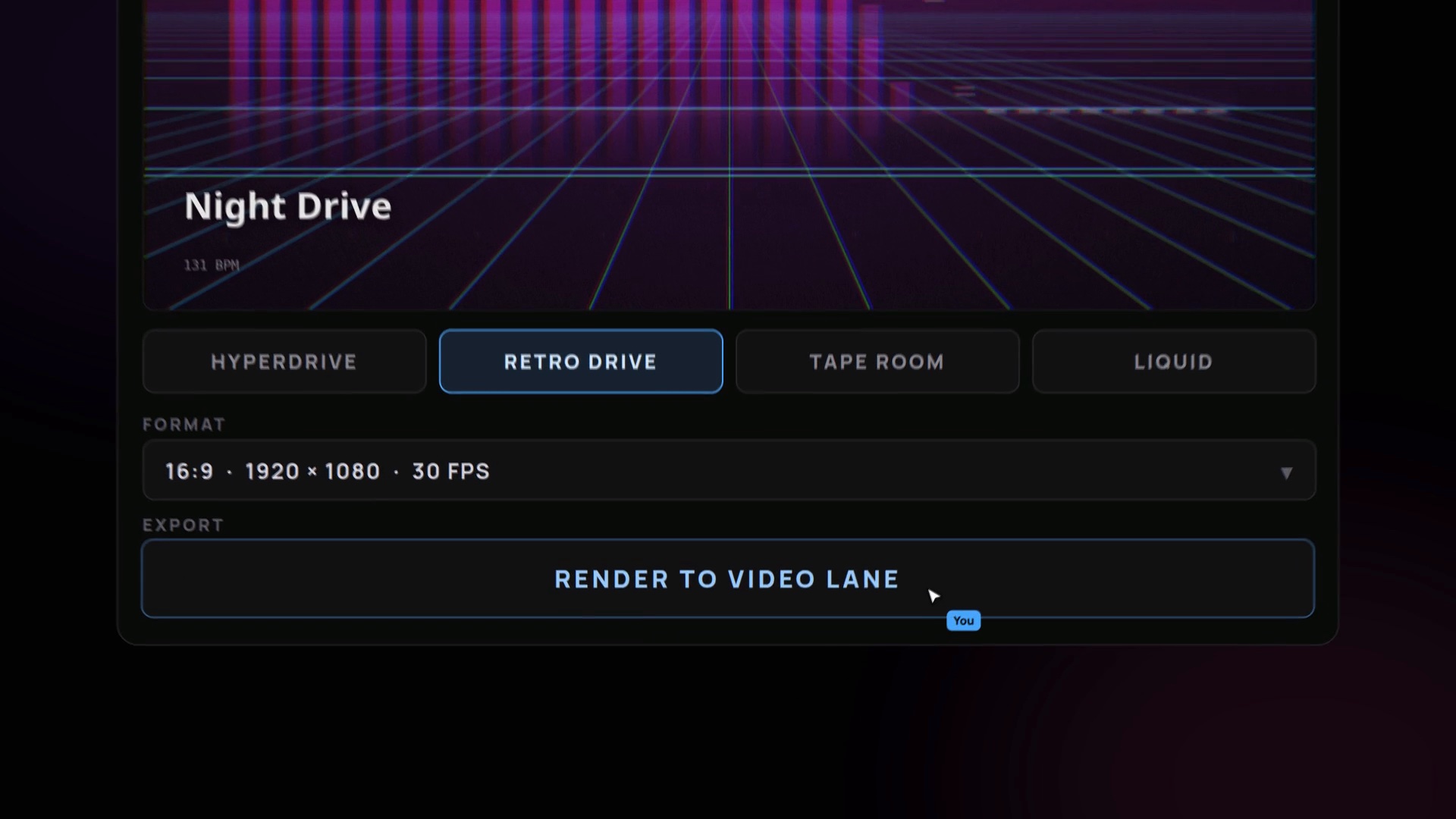
- Pick a look. Choose from Hyperdrive, Retro Drive, Tape Room or Liquid. The preview updates with your track.
- Choose the format, for example 16:9 at 1920 x 1080 and 30 fps.
- Click Render to Video Lane. The visualizer renders frame by frame. You can watch the progress ("Rendering frame 739 of 900").
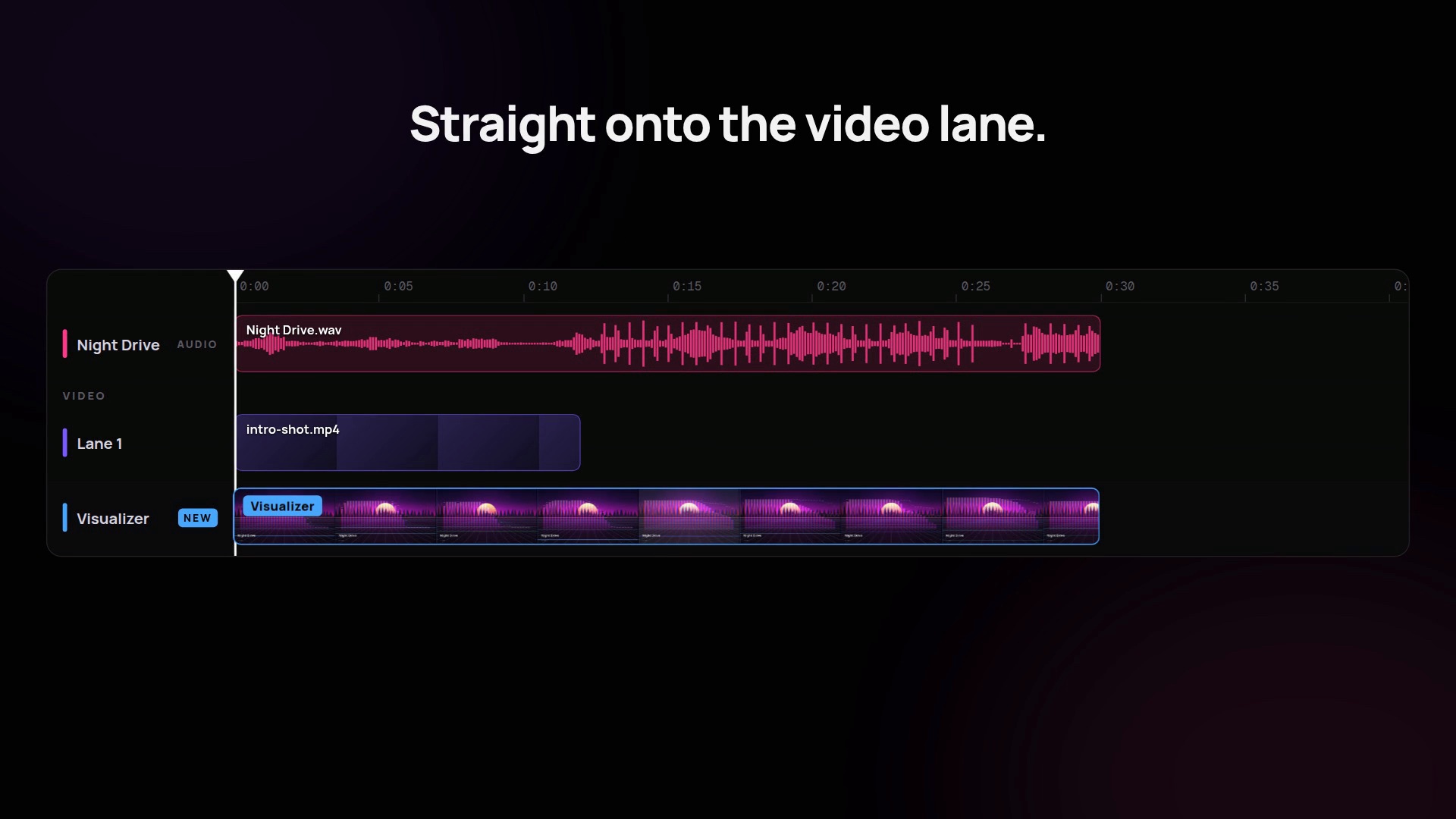
- It lands on the video lane. The finished video is placed straight onto your project's video lane.
Lane busy? It opens a new one
If something is already on the video lane, Render to Video Lane doesn't overwrite it. It opens a new lane for the visualizer, so your existing clips stay where they are.
What you get
- No download, no re-upload. The video goes straight from the visualizer to your timeline.
- Frame-accurate, 1080p. The render matches your project frame by frame.
- Audio stays on its own track. The visualizer is video only, so your mix stays separate and editable.
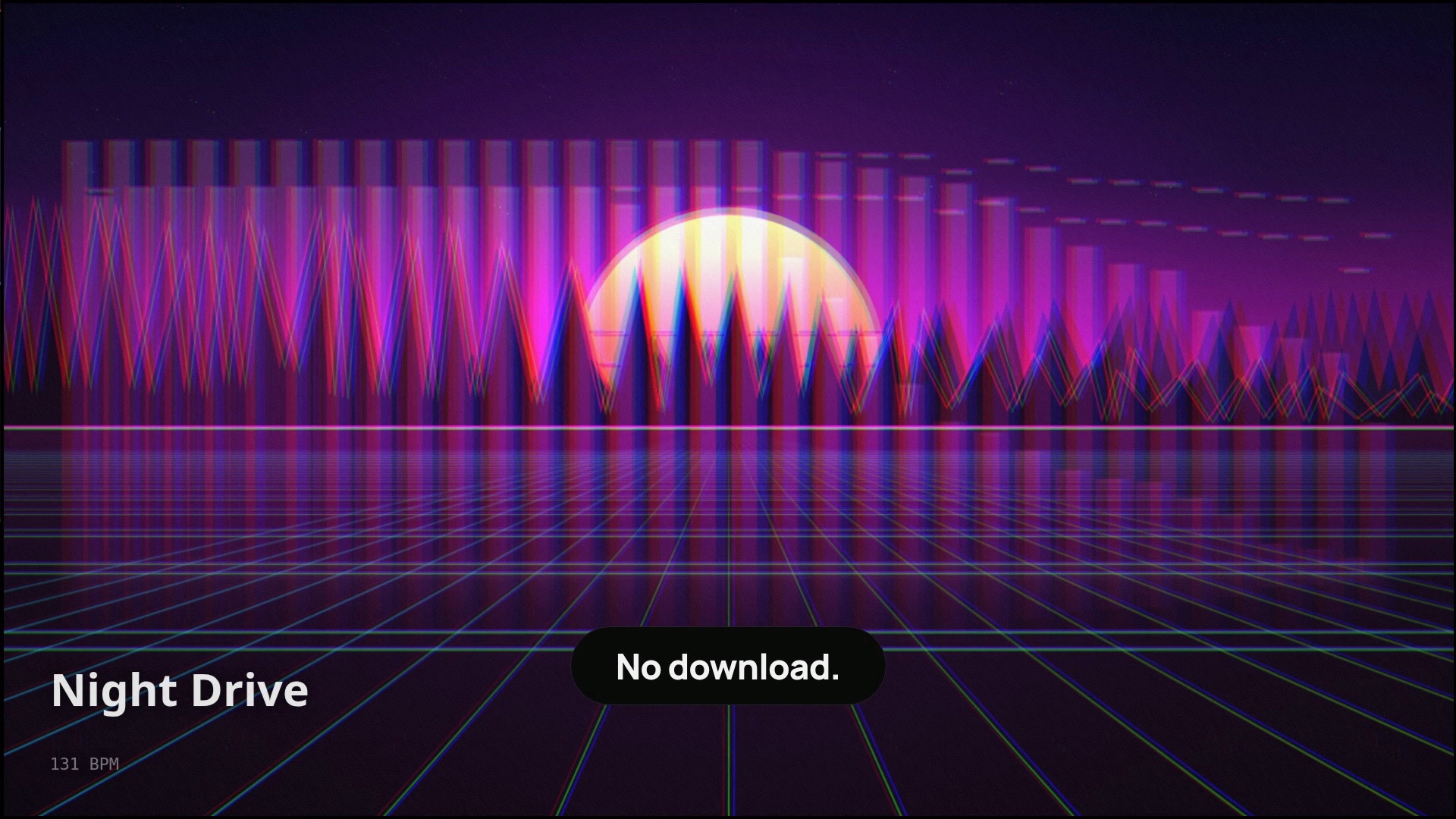
Here's the vertical version as a Short:
Turn your track into a 1080p music video.
Ideas for using it
- A YouTube video for your single. Render a visualizer for your track and export it from AI Studio.
- Social loops. Render a short section of the chorus for Reels, Shorts or posts.
- A lyric video. Put the visualizer on one lane and your lyrics or titles on top.
- A base for a music video. Combine the visualizer with generated video shots on other lanes.
FAQ
Where do I find Render to Video Lane?
In Visualizer v2 inside Soundverse AI Studio. Open the visualizer for your track, pick a look and a format, and the Render to Video Lane button is at the bottom of the panel.
Which looks are available?
The video shows four: Hyperdrive, Retro Drive, Tape Room and Liquid.
Does it replace what's already on my video lane?
No. If the lane is busy, it opens a new one.
Is the audio included in the video?
The audio stays on its own track in your project, separate from the visualizer video. When you export the project, the music is included.
What resolution does it render?
1080p, for example 1920 x 1080 at 30 fps for 16:9.
Try it
Open your track in AI Studio, open Visualizer v2 and click Render to Video Lane. For more release visuals, see music release visuals and the AI music video generator.