Soundverse Edit tools, the video walkthrough: Inpainting, stems, Voice Swap and Remix in action
Watch every Soundverse Edit tool in action: Inpainting, Extend, AI Remix, stems, Voice Swap, Voice to Instrument and more. A video walkthrough with steps.
Quick answer: Already have a song? The Edit category on Soundverse has every tool for making it better: rework a section with Inpainting, Extend Music, AI Remix, split it with the Stem Separator, add a new layer with the AI Stem Generator, change the singer with Voice Swap, turn vocals into instruments, Apply Effect, Translate Lyrics, convert files with the Media Converter, and get notes out with Audio to MIDI. You can open any tool on its own, or just describe the change to Agent One and it picks the right tools and runs them for you.
This is the video walkthrough. For the full written guide, see Soundverse edit tools: AI Remix, stems, Extend, Inpainting and MIDI.
Every AI tool in Soundverse Edit: Inpainting, stems, Voice Swap, Remix and more. Full walkthrough.
The Edit tools at a glance
| Group | Tool | What it does |
|---|---|---|
| Rework | Inpainting | Select any part of a song and reimagine it, with several AI variations to choose from |
| Rework | Extend Music | Extend your music automatically |
| Rework | AI Remix | Remix a reference song with your own prompt and optional lyrics |
| Stems | Stem Separator | Extract vocals and instrument tracks from any song |
| Stems | AI Stem Generator | Generate a brand-new vocal or instrument layer that fits an existing track |
| Voice | Voice Swap | Change any vocal into a different voice style |
| Voice | Voice to Instrument | Turn vocals into instruments like sitar, drums, bansuri or guitar |
| Mix | Apply Effect | EQ, reverb, delay, compression, saturation and more, on a file or a selection |
| Lyrics | Translate Lyrics | Translate lyrics into another language, keeping their meaning and flow |
| Files | Media Converter | Convert audio, image and video between formats with smart presets |
| Files | Audio to MIDI | Turn a recording into MIDI, one .mid file per instrument |
Rework your music
Inpainting is the tool to reach for when a song is 90% right. Select the part that isn't working, a line, a fill or a whole bridge, and generate new versions of just that part. You get several variations, so you can pick the one that fits, and the rest of the song stays exactly as it was.
Extend Music makes a track longer automatically, in the same style. It's useful when a loop needs to become a full section, or a song needs a longer intro or outro.
AI Remix takes a reference song and remixes it with your own prompt, and optional lyrics.
Stems and layers

The Stem Separator pulls a song apart into vocals and instruments, so you can mute, replace or rework each part on its own.
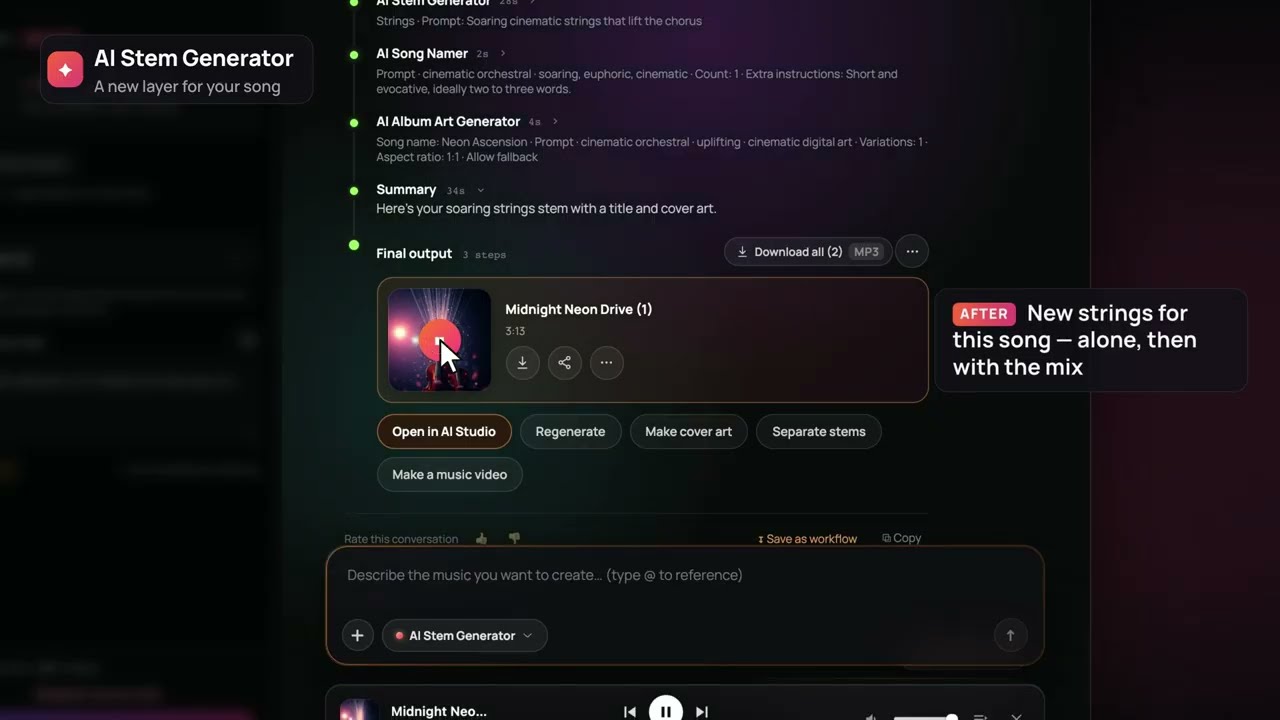
The AI Stem Generator goes the other way: it writes a new stem that fits a track you already have. In the walkthrough, it adds new strings to Midnight Neon Drive, first on their own and then with the mix.
Voice and instruments
Voice Swap changes any vocal into a different voice style. If you've trained a model of your own voice, you can swap it onto a demo or a guide vocal. See Voice Clone vs Voice Training for how to make one.
Voice to Instrument turns vocals into realistic instruments, like sitar, drums, bansuri or guitar. Hum the line; get the instrument. There's a full guide in Voice to Instrument: hum a line, hear tabla, dholak or your own trained instrument.
Sound, lyrics and files
Apply Effect puts EQ, reverb, delay, compression, saturation and more on an audio file, or just on a selection.
Translate Lyrics translates your lyrics into another language while keeping their meaning and flow, which is the first step to releasing a song in a second language.
Media Converter converts audio, images and video between formats, with smart presets.
Audio to MIDI turns a recording into MIDI, with one .mid file per instrument and the notes it plays, so you can take a generated part into any DAW or play it on your own synth.

Use them all through Agent One
You don't have to learn the tools one by one. Ask Agent One to "take the vocals out, add a bansuri line and make the chorus longer," and it separates the stems, generates the new layer and extends the section, picking the right tool for every step. Everything you edit can open in AI Studio for fine-tuning.
How to get started
- Go to soundverse.ai and open the Edit category.
- Pick the tool you want, or start a chat with Agent One.
- Upload your song, or pick one from your Library.
- Make your edit, generate and listen.
- Open your track in AI Studio to keep refining, then export or share.
Only edit songs, vocals and voices you own or have permission to use.
FAQ
How do I change one part of a song without regenerating it?
Use Inpainting. Select the part, generate variations, and keep the one you like. The rest of the song stays the same.
What's the difference between the Stem Separator and the AI Stem Generator?
The Stem Separator splits an existing song into its parts. The AI Stem Generator creates a new part that fits a song.
Can I get MIDI from a generated track?
Yes. Audio to MIDI gives you one .mid file per instrument.
Can Agent One do several edits in one go?
Yes. Describe all the changes in one message and Agent One picks and runs the tools in order.
Can I edit a song I didn't make on Soundverse?
You can upload your own song, as long as you own it or have permission to use it.
Try it
Pick a song you've almost finished, open the Edit tools, and fix the one part that's been bugging you. Next, see every AI tool in Create.