Choosing an AI Video Maker That Integrates With Music Production Software
How an AI video maker can work with your DAW: Link, MIDI, OSC and SMPTE sync, stem handoff, DAW video tracks, three workflows and a sync checklist.
If you need an AI video maker that integrates with music production software, there are three routes: live sync, where your DAW drives Resolume or TouchDesigner over Ableton Link, MIDI, OSC or SMPTE timecode; file handoff, sending stems and a master to Neural Frames or Kaiber; and one timeline holding audio and video, in a DAW or Soundverse AI Studio.
Resolume and TouchDesigner don't generate video with AI themselves. They are the bridge: AI-made clips go in as content, and the DAW decides what plays and when. Every tool below was checked on its own website on 19 November 2026.
What "integrates with music production software" means in practice
Vendors use the word for five different things, so check which one you're being sold:
- Plugin and ReWire-style sync. ReWire once let one app follow another's transport. Ableton's help centre notes that it is no longer available as of Live 11, after Reason Studios ended support in 2020. For visuals, that job now falls to Ableton Link for tempo and beat, and to MIDI and OSC for control.
- Audio-reactive tools fed by the DAW. The DAW's output, or single tracks routed through a virtual audio device or your interface, goes into a visual app that analyses it in real time, while MIDI notes from the DAW trigger clips and effects.
- Stems and markers exported from the DAW. You bounce a master and stems, note where sections start and upload them to a music video generator. This is a file handoff, not a live link.
- Timecode and tempo sync. SMPTE timecode locks a video's playhead to the song's position. Link shares tempo and beat position between apps on a network.
- One timeline for both. A DAW with a video track, or a browser studio that holds audio and video lanes together.
Audio-reactive visual tools that take DAW audio, MIDI or timecode
Resolume Avenue and Arena. The product page lists BPM sync, audio analysis through FFT so clips and effects react to the incoming sound, MIDI and OSC mapping, support for your own VST effects, and NDI, Syphon and Spout for passing video between apps. Resolume can join an Ableton Link session, which its support page describes as an open source protocol used mainly to sync tempo between devices or software. Arena alone adds SMPTE input, and the SMPTE support page is frank about its scope: "It is purely a technique to make the playhead of a video clip run exactly in time with the playhead of an audio track." Arena can follow two SMPTE inputs, most sources run at 25 or 29.97 fps, and SMPTE isn't available on clips with an audio track. Best for: live shows, and finished AI clips that must hit exact moments.
TouchDesigner with TDAbleton. Derivative's documentation puts it plainly: "TDAbleton is a tool for linking TouchDesigner tightly with Ableton Live." It works through Ableton's MIDI Remote Scripts and Max for Live devices, talks OSC over UDP, and can run on a separate machine. TouchDesigner can read bars, beats, time, locators, track levels, clip data and MIDI from your Set and send changes back. Best for: producers who want visuals that follow the arrangement and don't mind building a node network.
Synesthesia. Its homepage describes audio algorithms that turn music into visual action, MIDI- and OSC-mappable controls, import of your own videos and logos, and Syphon, Spout and NDI for working alongside other VJ software. Best for: shader-based visuals with little setup.
Magic Music Visuals. Its website returned an access error (HTTP 403) when we tried it on 19 November 2026, so we can't confirm its current features. Read its own pages before you buy.
To use AI footage with any of these, render the clips first and load them as content. The DAW then decides when they play and how hard they react.
Music video generators that take your mix or stems
These connect to your DAW through files: you bounce, upload, and they analyse.
Neural Frames. Its homepage says its audio engine analyses your song's rhythm, energy and structure, and that it extracts 8 stems so visuals can respond to each one, with up to 4K output on its higher plans. Our roundup of AI video tools that sync visuals to audio stems covers how to map them.
Kaiber. Its help article on Music Video Sequence, updated in November 2026, describes uploading your audio, analysing its structure and content, and generating a music video of 30 seconds to 4 minutes in Generate, Reference or Restyle mode.
Both pages describe uploading audio files, not connecting to a DAW session. What they need from you is a clean WAV master, stems that all start at bar 1 and the song's tempo.
DAWs with video tracks
The other direction: bring AI clips into the DAW, then score or check them there.
- Ableton Live 12. The Live manual says Live imports QuickTime (.mov) movies, shows video only for clips in Arrangement View, lets a video clip act as tempo leader with Warp Markers as hit points, and renders the video with your audio through Export Audio/Video. Convert MP4 clips to MOV first.
- Logic Pro. Apple's guide says you can view a QuickTime movie in sync with your project and replace its soundtrack, but you can't record or edit video in Logic, and only one movie can be open per project.
- Cubase Pro 15. Steinberg's help says File > Export > Video writes an MP4 of the whole project or a locator range, with only a stereo output channel, from projects at 44.1 or 48 kHz.
- REAPER. Its homepage lists native video support among recent improvements.
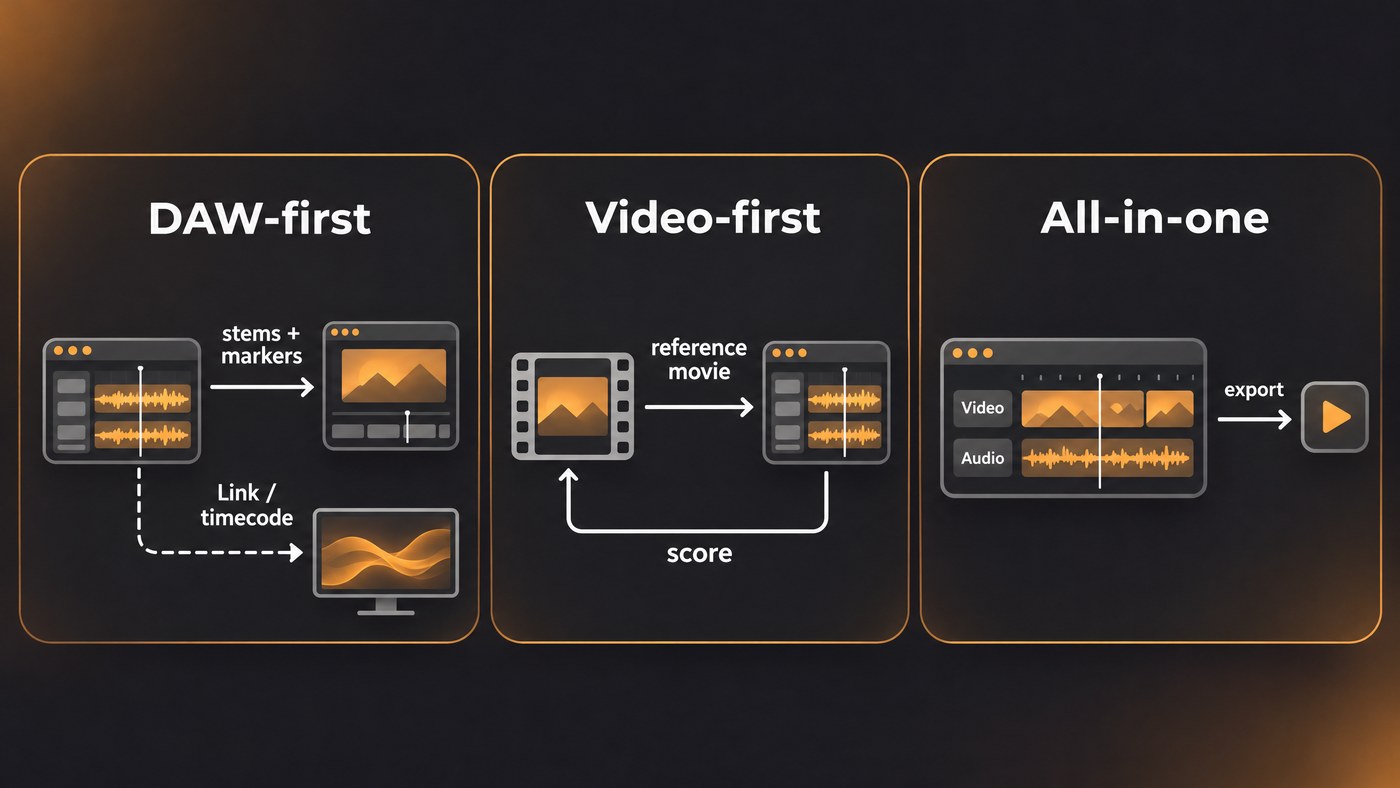
Three workflows that connect a DAW and an AI video maker
DAW-first: the song is finished, the video follows
- Lock the tempo and arrangement, and drop a marker at the start of each section.
- Export a 48 kHz WAV master and stems that all start at bar 1 and run the full length.
- Upload them to Neural Frames or Kaiber, or generate clips section by section in any video generator.
- Import the clips back onto your DAW's video track and check every hit against the music.
- For a live show, share tempo over Link or send SMPTE to Resolume Arena, and fire clips with MIDI.
Video-first: the picture is cut, the music follows
- Cut your AI clips in a video editor and export a reference movie at a constant frame rate.
- Import it into Live (as tempo leader), Logic or Cubase.
- Mark the hit points, then write or adapt the music to them.
- Export a 48 kHz WAV and lay it under the locked picture, or export the video straight from the DAW.
All-in-one: audio and video on one browser timeline
- Import or generate the song in Soundverse AI Studio.
- Put your clips on the video lane above the tracks and trim each one against the waveform.
- Use the Visualizer if you also want an audio-reactive version of the song.
- Export the video, and on Creator and above export stems as well if the mix moves to a DAW later.
Our essay on audio and video on one timeline argues for this route, and our guide to AI video in production pipelines covers the post-production side.
Sync checklist: frame rate, sample rate, start offset, tempo map
- Frame rate. Pick one and use it everywhere: project, clips and export. For SMPTE, Resolume says to match the incoming signal's rate, usually 25 or 29.97. Convert variable-frame-rate phone clips to constant.
- Sample rate. Work at 48 kHz for anything bound for video. Cubase only exports video from 44.1 or 48 kHz projects.
- Start offset. Decide what bar 1 equals in timecode. Resolume mentions a common show convention of starting each show an hour apart, at 01:00:00:00, 02:00:00:00 and so on. Ableton's manual describes trimming a two-beep pre-roll while you compose and restoring it before export, so audio and picture keep the same start. Export WAV, not MP3.
- Tempo map. If the tempo changes, give the video tool beat times, not one BPM. Link carries tempo and beat; SMPTE carries position. A live show often needs both.
For how the sync itself works, read our explainer on how AI-generated visuals synchronize with audio.
Where Soundverse fits
Soundverse is an AI music platform that takes you from idea to audience. AI Studio is a browser studio with audio, MIDI, video and image tracks on one timeline. Video lanes sit above your tracks (one on Free, no lane limit on paid plans), and it imports MP3, WAV, OGG, M4A and AAC audio and MP4, MOV, WebM, MKV and AVI video. Imported audio is analysed for tempo and key, several of its instruments take a Web MIDI controller, the Visualizer renders an audio-reactive visual to MP4, and video exports as MP4, WebM or MOV at 24, 30 or 60 fps. For the DAW side, Audio to MIDI writes one .mid file per instrument at your song's tempo, and Stem Separator gives WAV or FLAC stems. Know the limits: AI Studio doesn't load VST or AU plugins, browser export is blocked past 15 minutes or 24 tracks, and video export relies on browser encoders that current desktop Chrome and Edge include. Licensing is set by plan: the Free plan is for personal use, and the Creator plan comes with a royalty-free license.
This tutorial shows AI Studio generating, editing and mixing a track, then making a music video on the same timeline.
FAQ
Is there an AI video plugin I can load in my DAW? None of the official pages we checked offers one. The connection runs the other way: Resolume hosts VST effects inside Resolume, and TDAbleton links TouchDesigner to Live through MIDI Remote Scripts, Max for Live and OSC.
Ableton Link or SMPTE: which do I need? Link keeps tempo and beat position aligned between apps, which suits loops and reactive visuals. SMPTE locks a finished video's playhead to the song's position, which suits a clip that must hit exact moments. Resolume Arena reads both.
Can I put AI-generated clips into Ableton Live? Yes, as QuickTime .mov files in Arrangement View. Set the video as tempo leader if you're scoring to it, add Warp Markers at the hits, and render with Export Audio/Video.
Does Soundverse AI Studio sync live with my DAW? Its page doesn't describe a live sync with other DAWs. You move work between them as files: stems, MIDI and video exports.
Sign up for Soundverse free and put your next track and its video on one timeline. More guides on the Soundverse blog.