How Does AI-Generated Visual Content Synchronize With Audio in Modern Platforms?
How AI-generated visuals synchronize with audio: beat maps, audio-reactive bands, visemes for lip sync, joint audio-video models, and how to check timing.
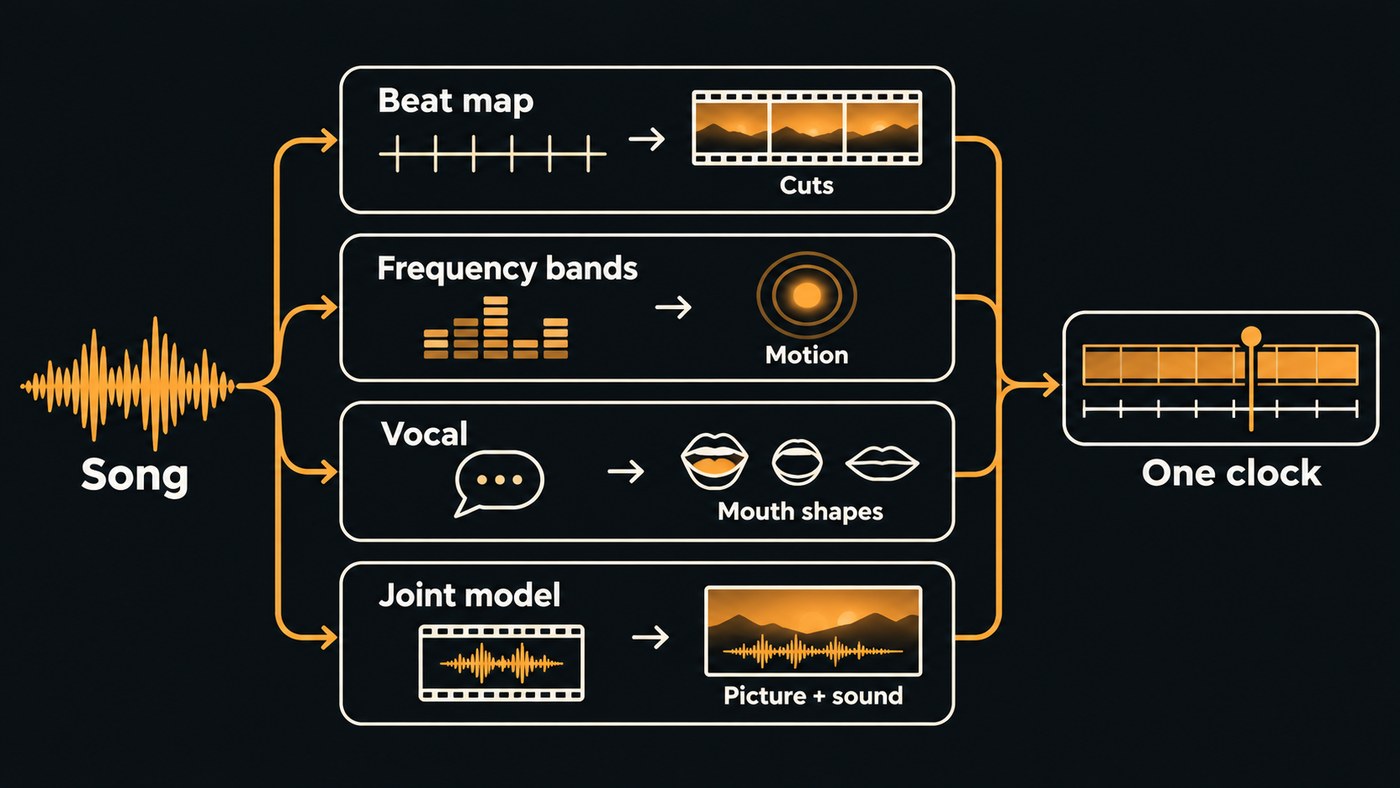
AI-generated visuals synchronize with audio in four ways: software analyses the track for beats, downbeats and loudness and places cuts and motion on those timestamps; lip-sync models turn the vocal's sounds into mouth shapes; some video models generate picture and sound together; and the editor keeps both locked to one timeline.
Which one a platform relies on decides what can go wrong. Most text-to-video models never hear your song, so the sync has to come from elsewhere. Sources below were checked on 19 November 2026.
The four ways AI visuals lock to a song
- Analysis-driven placement. The song is analysed first, and cuts and transitions are placed on the resulting timestamps. The video model only supplies clips.
- Audio-reactive parameters. Loudness and frequency content drive visual values frame by frame, such as scale, brightness or zoom.
- Audio-driven generation. The audio is an input to the model, as in lip sync, where a vocal decides how a mouth moves.
- Joint audio-video generation. One model makes the frames and the soundtrack together, so a door slam and its sound arrive in the same frame.
Explain the process of syncing AI-generated visuals to an audio track
- Fix time zero. The audio is decoded to samples, usually 44,100 or 48,000 a second, and everything is measured from the first one. Trim lead-in silence before you analyse.
- Analyse the music. Onset detection finds where each hit starts, beat and downbeat tracking find each beat and each bar's first beat, and structure analysis marks the sections.
- Build the tempo map. The result is a list of timestamps: every beat, downbeat and section start. For a song that speeds up, the map follows the real beats, not one BPM.
- Decide the mapping. Which event triggers which visual change: hard cuts on downbeats, new scenes on section starts, a flash on the snare, mouth movement from the vocal.
- Make or place the visuals. Generated clips are trimmed to whole bars, reactive layers are rendered from the audio, and lip-sync shots are generated from the vocal.
- Render to one clock. The editor converts each timestamp to a frame number and writes picture and sound into one file.
Most rhythm errors start in steps 2 and 3. Our explainer on how AI video engines read rhythm and tempo covers them.
Audio-reactive parameters: amplitude and frequency bands
Audio-reactive visuals read the sound in short slices and turn each slice into numbers. MDN describes the Web Audio API's AnalyserNode (last modified 22 August 2026) as a node that provides real-time frequency and time-domain analysis for building visualizations.
- Amplitude. The time-domain data gives the waveform and its loudness per slice, which suits overall pulse and brightness.
- Frequency bands. A Fast Fourier Transform splits each slice into frequency bins. MDN notes that the number of bins is half the FFT size, so an FFT size of 2,048 at 48 kHz gives 1,024 bins, each about 23.4 Hz wide. Tools group bins into bands, so the lows can drive zoom while the highs drive sparkle.
- Smoothing and window length. The AnalyserNode's smoothing averages each frame with the last, which calms jitter but makes motion trail the beat. A 2,048-sample window at 48 kHz covers about 42.7 milliseconds; longer windows separate frequencies better but blur sharp hits.
A full mix gives one set of bands for everything. If you want the kick and the bass to do different jobs, analyse stems instead; our roundup of AI video tools that sync visuals to audio stems covers the tools that do.
Lip sync: phonemes, visemes and mouth shapes
A phoneme is a unit of sound; a viseme is the mouth shape you see. Microsoft's Azure Speech documentation (updated 25 February 2026) puts it simply: "A viseme is the visual description of a phoneme in spoken language." Azure uses 22 visemes, and several phonemes share one because they look the same on the face: s and z share a viseme, and so do p, b and m. Each viseme event carries an audio offset: the timestamp at which that mouth shape should appear.
Lip-sync systems work in one of two ways:
- Timing-based. Speech becomes phoneme timings, each phoneme a viseme, and a rigged face or avatar moves through the shapes.
- Audio-driven generation. A model learns to draw the mouth straight from audio features. The Wav2Lip paper (Prajwal and colleagues, 2020) trained its generator against a separate lip-sync discriminator that judges whether lips and audio match, because earlier models drifted out of sync on unconstrained video.
Singing stretches both: a held vowel keeps one shape for seconds, and runs pack many syllables into one beat.
Video models that generate sound with the picture
Some video models create the soundtrack in the same pass as the frames, so effects and speech are timed to what's on screen. Going only by what each vendor states:
- Google Veo. DeepMind's Veo page says Veo 3 generates sound effects, ambient noise and dialogue natively, and that in evaluations last updated October 2025, raters chose Veo 3.1 for audio better synchronized with the video. Its limitations note: "While Veo continues to make incredible strides in video generation, creating videos with natural and consistent spoken audio, particularly for shorter speech segments, remains an area of active development."
- ByteDance Seedance. The Seedance 2.0 page describes a unified multimodal audio-video joint generation architecture that takes text, image, audio and video inputs.
- OpenAI Sora 2. OpenAI's Sora 2 prompting guide (updated March 2026) asks for dialogue in its own block below the visual description and warns that long, complex speeches are unlikely to sync well.
For a music video, remember what these models sync to: their own audio. They don't follow your song's beat unless the tool takes your audio as input, so mute the generated sound or keep it as effects under the music.
Timing problems: drift, frame rate versus sample rate, latency
Offset or drift. An offset is a constant delay: everything is two frames late. Drift grows: fine at the first chorus, late by the last. Each needs a different fix.
Frame rate versus sample rate. At 48 kHz and 24 fps there are exactly 2,000 samples per frame. At 29.97 fps it's 1,601.6, so the editor tracks fractions. A cut can only land on a frame, so a beat can fall up to half a frame from the nearest cut, about 21 milliseconds at 24 fps.
Rate mismatches cause drift. 23.976 and 24 fps differ by 0.1%. Conform one to the other and a 3:30 song ends about 210 milliseconds out.
Variable frame rate. HandBrake's documentation on frame rates notes that modern video formats can switch frame rate on the fly, and names encoding for import into an editor as a case for constant frame rate. If a phone clip drifts against the music, convert it first.
Latency. Wireless headphones delay what you hear, so a correct file can look early while you edit. Live visualizers lag too, because analysis windows and smoothing take time; an offline render can shift the analysis earlier to compensate.
How close is close enough. The European Broadcasting Union's Recommendation R37 (2007) sets end-to-end limits for television: sound no more than 40 milliseconds ahead of the picture and no more than 60 milliseconds behind it. At 24 fps, that's about one frame early to one and a half frames late.
Sync checks an artist can run
- Blip and flash. EBU R37 describes a one-frame white flash with a 1 kHz tone of the same length. Put both at the start of your timeline, export, then step through the exported file: the flash and the tone should start on the same frame.
- First and last downbeat. The same error at both is an offset, so slide the audio. A bigger error at the end is drift, so check frame and sample rates.
- Match every setting. Project frame rate, clip frame rate and export frame rate should agree, with audio at 48 kHz throughout.
- Judge on wired playback, then on a phone.
- Step through a hard consonant. On lip-sync shots, pause on a line that starts with b or m. The lips should close on that frame, not two frames later.
Where Soundverse fits
Soundverse is an AI music platform that takes you from idea to audience. Section Analysis labels each section with start and end times and detects the tempo, beats and downbeats, on the Free plan. Lip Sync makes a character image sing up to 15 seconds of vocal; the mouth movement is generated from the audio you provide, and a clean vocal stem syncs far better than a full mix. AI Music Video Generator films the scenes and cuts them to your song, with an optional lip-synced performance.
In AI Studio, video sits on lanes above your tracks and exports at 24, 30 or 60 fps, and the Visualizer renders an audio-reactive visual for your song. Going the other way, Describe and Generate Audio places music, effects and dialogue at each moment of a video, locked to the picture, as our post on how AI scores your video explains. Lip Sync, Describe and Generate Audio and AI Music Video Generator need the Creator plan or above. Licensing is set by plan: the Free plan is for personal use, and the Creator plan comes with a royalty-free license.
This walkthrough shows a song, a character image and a prompt becoming a full music video, with planned scenes, a lip-synced performance and cuts to the music.
FAQ
Do AI video generators listen to my song? Most don't. Text- and image-to-video models render from a prompt and frames, and the sync comes from analysis and editing. Lip-sync tools and some newer models take audio as input, and joint models generate their own sound.
Why is my video in sync at the start but late at the end? That's drift, usually a frame-rate or sample-rate mismatch, such as 23.976 against 24 fps or a variable-frame-rate phone clip. Match the rates or convert the clip to a constant frame rate, then re-export.
Why does a lip-sync shot look off when the audio is in time? Each sound needs its matching mouth shape on the right frame, and sung vowels and fast runs give the model fewer clear shapes to land. Feed a dry lead vocal, then step through the hard consonants.
Sign up for Soundverse free and map your song's beats and sections before you cut a single frame. More guides on the Soundverse blog.