AI Video Tools That Sync Visuals to Audio Stems
AI video tools that sync visuals to audio stems: which ones really use stems, how to map drums, vocals and bass, and how to export stems they can read.
Few AI video tools that sync visuals to audio stems truly work at the stem level. Checked on 7 November 2026, Neural Frames splits your track into stems such as kick, snare, bass and vocals and lets each one drive motion, and free ComfyUI nodes do the same. Lip-sync tools use the vocal stem. Most others follow the full mix.
That difference shows on screen. A tool that follows the full mix hears the kick and the bass as one block of low end, so it can pulse on the beat but can't let the drums cut while the bass moves the camera. Stems give each part of the arrangement its own visual job.
What it means to sync visuals to audio stems
A stem is one part of the mix bounced on its own: drums, bass, vocals or everything else. (Our guide to what audio stems are covers the basics.) Stem-level sync routes each one to a different visual control. A good starting map:
- Drums drive cuts and hits. Transients are short and sharp, so the kick makes a clean trigger for a cut or a zoom pulse, and the snare suits a flash or a quick rotation.
- Vocals drive lip sync and focus. The mouth follows the lead vocal, and vocal entries are natural places to cut to the singer.
- Bass drives motion. Bass notes are long and move slowly, which suits a camera drift, a pan or a push-in rather than a flash.
- Everything else drives colour and texture. Pads, keys and guitars work well on slow changes of light, colour or how strongly the image transforms.
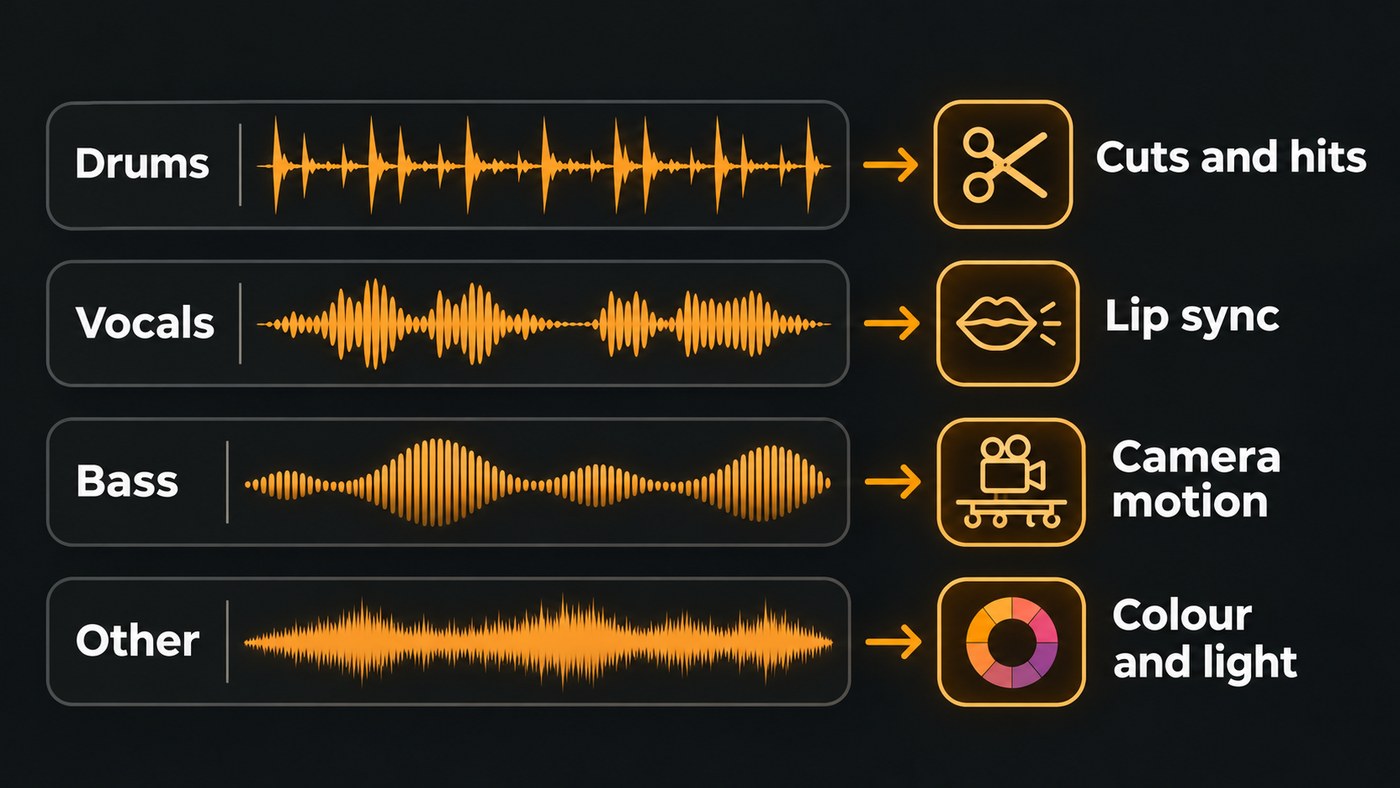
A full-mix tool can still cut on the beat. What it can't do is keep those four jobs apart.
Which AI video tools actually use stems
Checked against each tool's own documentation on 7 November 2026.
Neural Frames. This is the clearest example of stem-level sync in a hosted AI video tool. Its help centre article on modulations, dated 15 August 2025, says: "You can apply oscillators, BPM-synced effects, and even audioreactive modulations that sync with specific elements of a song, like the kick, snare, or bassline." When you upload a track, stem extraction separates hi-hats, bass, kick, drums, vocals, toms, snare and other. You pick one as the audio source for each modulation and point it at strength, horizontal or vertical pan, zoom or rotation. Best for audio-reactive videos and visualizers where motion matters more than story.
ComfyUI with the RyanOnTheInside nodes. A free, open-source node pack (MIT), last updated on GitHub in March 2026. Its README lists track separation for vocals, drums, bass and other instruments, plus audio features such as amplitude envelope, RMS energy and onset detection that can drive IPAdapters, masks, images and video. You need a capable GPU and some patience with node graphs. Best for producers who want stem control over every parameter.
Lip-sync tools fed with a vocal stem. Here the stem is the input itself.
- Soundverse Lip Sync makes a character image sing up to 15 seconds of vocal, and its page states that a clean vocal stem syncs far better than a full mix.
- Seedance 2.5 in Soundverse takes up to 30 seconds of vocal as reference audio for a lip-synced shot, and its page advises splitting the vocal out with Stem Separator first.
This short demo shows Agent One with Seedance 2.5 making someone on screen say or sing new words, from a prompt or from audio you provide.
Tools that follow the full mix. Good for beat-matched edits, but not stem-level:
- Freebeat says its visuals sync to BPM, beats, drops and song sections across the whole track.
- LTX Studio's Audio-to-Video, added on 20 January 2026 according to its release notes, generates visuals that sync to your audio's rhythm, tone and pacing.
- Soundverse AI Studio's Visualizer renders an audio-reactive visual for your song to MP4. Its page describes it reacting to the song, not to separate stems.
How to map stems to visuals: a starting recipe
These are starting values, not rules. Begin low and raise each amount until you can feel it without it shaking the frame.
- Kick to zoom. A small amplitude so every kick nudges the image forward.
- Snare to rotation. A short clockwise flick on the backbeat adds snap without fighting the kick.
- Bass to pan. A larger amount, because bass moves slowly; the camera drifts with the bassline.
- Vocals to strength. The image transforms more when the singer comes in and settles in the gaps.
- Hi-hats off. They fire so often that most mappings turn into jitter.
For hard cuts, work from the tempo. A beat lasts 60 ÷ BPM seconds and a bar of 4/4 lasts 240 ÷ BPM. At 120 BPM, that's a beat every 0.5 seconds (15 frames at 30 fps, 12 at 24 fps) and a bar every 2 seconds. Cut every bar in a busy chorus and every two or four bars in a verse.
How to export stems for AI video tools
Tools fall into two camps. Neural Frames and the ComfyUI nodes separate stems themselves, so they want your best full mix. Lip-sync tools and your editor want individual stems. Either way:
- Export WAV, not MP3. Ableton's manual warns that a small amount of silence is added to the beginning of an exported MP3, which can cause alignment problems. A few milliseconds is enough to make cuts feel late.
- Export every stem from the same start and length. In Ableton Live 12, choose Export Audio/Video and set Rendered Track to All Individual Tracks. The Live manual explains: "All exported files will have the same length, which makes it easy to align them either in Live or another multitrack program." In other DAWs, start every stem at bar 1 and render to the end of the song.
- Match video's sample rate. YouTube's recommended upload encoding settings list a 48 kHz audio sample rate, so export at 48 kHz and your editor won't need to resample.
- Group stems by visual job. Drums (or kick and snare separately if you want two triggers), bass, lead vocal, backing vocals and everything else. Five files are easier to route than thirty.
- Print the lead vocal dry for lip sync. No reverb or delay tails, no doubles, no harmonies. The mouth should move for the lead line only.
- Trim to the tool's limit. Soundverse Lip Sync takes up to 15 seconds and 15 MB of vocal; Seedance 2.5 takes clips up to 30 seconds. Start a beat before the first word.
- Name files clearly, with tempo and section, such as night-bus_120bpm_chorus1_vocal.wav.
If you only have the stereo master, split it first. Our roundup of free ways to isolate vocals from a mix compares options. Stems that only drive visuals don't need to be perfect, because nobody hears them on their own. The vocal you feed a lip-sync tool does.
A stem-synced music video, step by step
- Get the map. Find the tempo, the section boundaries and the downbeats. Our guide to matching AI music videos to song structure shows how to plan scenes per section.
- Generate the shots for each section in whichever video generator you prefer.
- Lay the stems under the picture. Put each stem on its own audio track in your editor. The drum stem shows every kick as a spike, so cutting on it is quick.
- Add performance shots made from the dry vocal stem, placed where the vocal enters.
- Add the reactive layer. Use Neural Frames or ComfyUI, driven by drums and bass, for the intro, interludes or the drop.
- Mute the stems and export with the master. The stems were guides. Your audience hears the finished mix.
Where Soundverse fits
Soundverse is an AI music platform that takes you from idea to audience, and it covers the audio side of stem sync. Stem Separator splits a song of up to 50 MB into 2 stems or 6 (vocals, drums, bass, guitar, piano and other) in WAV, FLAC or MP3, and both splits work on the Free plan. Section Analysis labels each section with start and end times, detects tempo, beats and downbeats, and saves the map with the file. For the vocal, Lip Sync makes a character image sing up to 15 seconds of a clean vocal stem at up to 1080p, on Creator and above. In AI Studio, separated stems land on their own tracks with video on lanes above them, so you can trim each clip against the drum stem by eye.
AI Studio's Visualizer reacts to your song as a whole, and its page doesn't describe routing individual stems to visual parameters; for stem-level control, use Neural Frames or ComfyUI. Licensing is set by plan: the Free plan is for personal use, and the Creator plan comes with a royalty-free license.
FAQ
Do I need stems to make an audio-reactive video? No. Full-mix tools such as Freebeat cut to beats, drops and sections. Stems matter when you want different parts of the arrangement to do different things, like the kick cutting while the bass moves the camera.
Which stem should drive lip sync? The dry lead vocal on its own. Backing vocals, doubles and reverb tails give the model extra syllables to chase, and Soundverse's Lip Sync page notes that sync is weaker with a full mix.
Why do my cuts land slightly late? Check the audio format first: an MP3 can carry a little silence at the start, which shifts everything. Then check that your editor's frame rate matches your export, and that the song doesn't change tempo partway through.
Are AI-separated stems good enough to drive visuals? Usually, yes. A little bleed between stems rarely shows in motion, because viewers never hear the stems alone. Listen closely only to the vocal stem for lip sync, and split from a WAV master rather than an MP3, as Soundverse's Stem Separator page advises.
Sign up for Soundverse free and split your next track into stems that your visuals can follow. More guides on the Soundverse blog.