Make a launch trailer for your single in AI Studio, just by asking Agent One
Step by step: song, trailer voice, AI video shots, sound effects, titles, a 9:16 cut and a 1080p export, all made by asking Agent One in Soundverse AI Studio.
Quick answer: In Soundverse AI Studio you can make a complete launch trailer for a single without editing anything by hand. Turn on Studio in Agent One, then ask for each step in plain words: place and trim the song, mix it, add a trailer voice, generate video shots, add sound effects and titles, make a vertical cut, and export a 1080p MP4. This walkthrough builds "Raise the Night", a 16-bar trailer, from one chat.
Make a launch trailer in Soundverse AI Studio, just by asking Agent One.
Why a trailer, and why from one chat
Every release goes better with a short trailer: the hook of the song, a voice that says when it drops, a few strong visuals and the date on screen. Usually that means a video editor, a voice session and an afternoon of exporting and re-importing files.
In AI Studio, Agent One can read and edit everything in your project. You describe the result you want, it does the work on the timeline, and you can still open any track and adjust it yourself.
Step 1: Turn on Studio and put your song on the timeline
Open a project in AI Studio, then turn on Studio in the Agent One chat box. Agent One can now see the tracks, lanes and clips in your project.
Ask it to place your song. In the video the prompt is "Put my song "Raise the Night" from my library on Audio 1". Agent One finds the song in your Library and places it at bar 1.
Step 2: Trim it to trailer length
A trailer needs the hook, not the whole song. Ask: "Trim the song to its first 16 bars and fade it out over the last 2 bars." Agent One cuts the clip to 16 bars with a 2-bar fade-out.
Step 3: Mix it
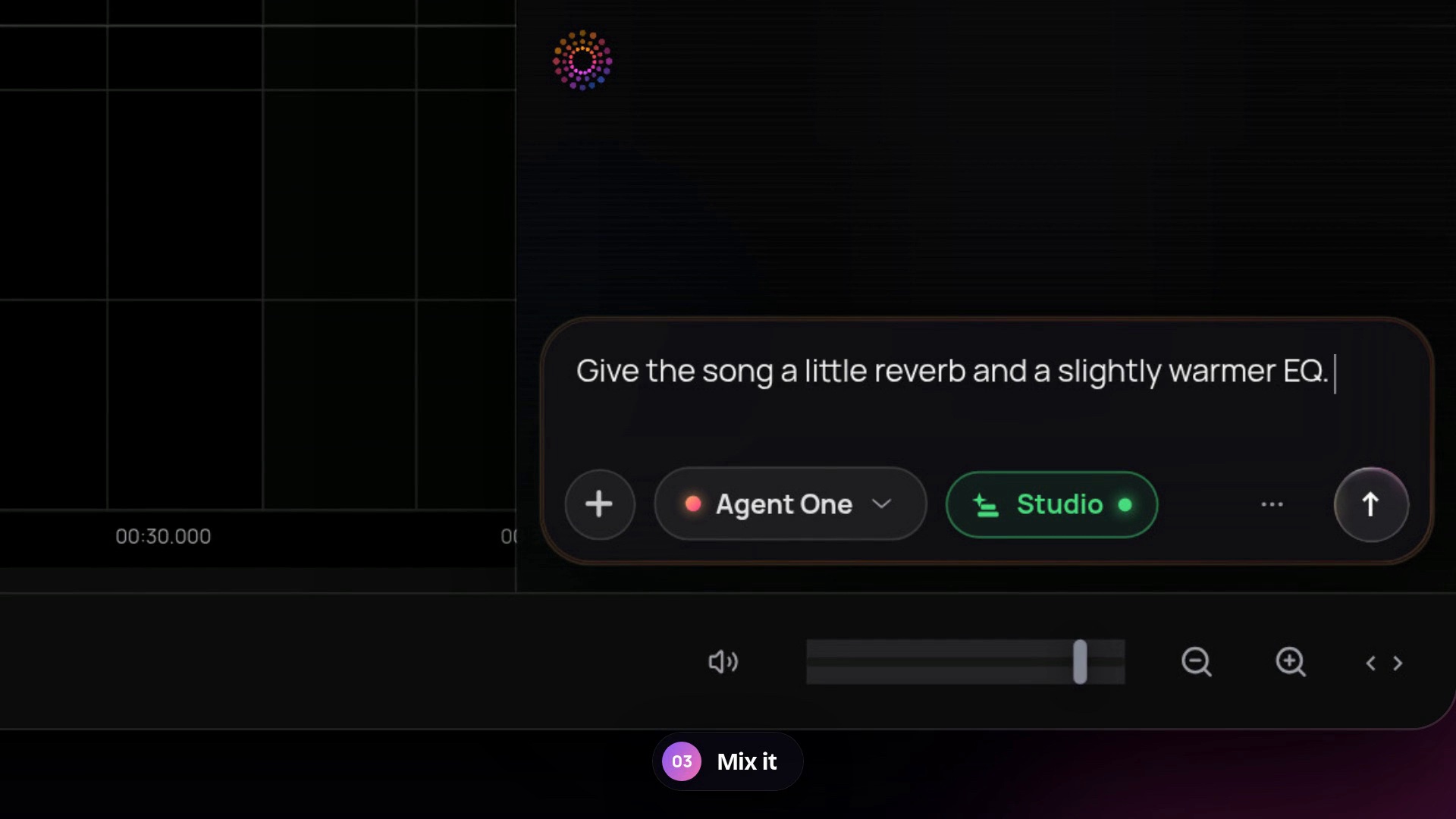
Ask for "a little reverb and a slightly warmer EQ". The reverb and EQ are added on the track itself, so you can open them later and change the settings.
Step 4: Add the trailer voice
Ask Agent One to "generate a deep, cinematic trailer voice" and give it the line, for example "Raise the Night. Releasing on the 21st of November. Check it out." It uses AI Speech, picks a deep voice and places the voiceover on its own audio track, timed to the song.
Step 5: Generate the video shots
Now the visuals. Ask for "an 8-second cinematic shot of a neon-lit city street at night in the rain, 16:9, on the video lane at bar 1". The AI Video Generator creates the shot and puts it straight onto the video lane.
Ask for a second shot (in the video, a singer silhouette in pink neon) and it lands right after the first. Then ask Agent One to fill the rest of the trailer, and it lays four shots on the bar grid across bars 1 to 17, cut to the music.
Step 6: Sound design with Video to SFX
Ask: "Make sound effects for video 1 and put them under it." Video to SFX watches the clip and generates matching sound effects, placed right under the video.
Step 7: Titles, release date and credit
Titles are just as easy to ask for:
- The title. "RAISE THE NIGHT" in Bebas Neue, hot pink, with a glitch-in animation.
- The release date card. "At bar 13, add a big centred OUT NOV 21 card" with a smaller "Check it out" line underneath.
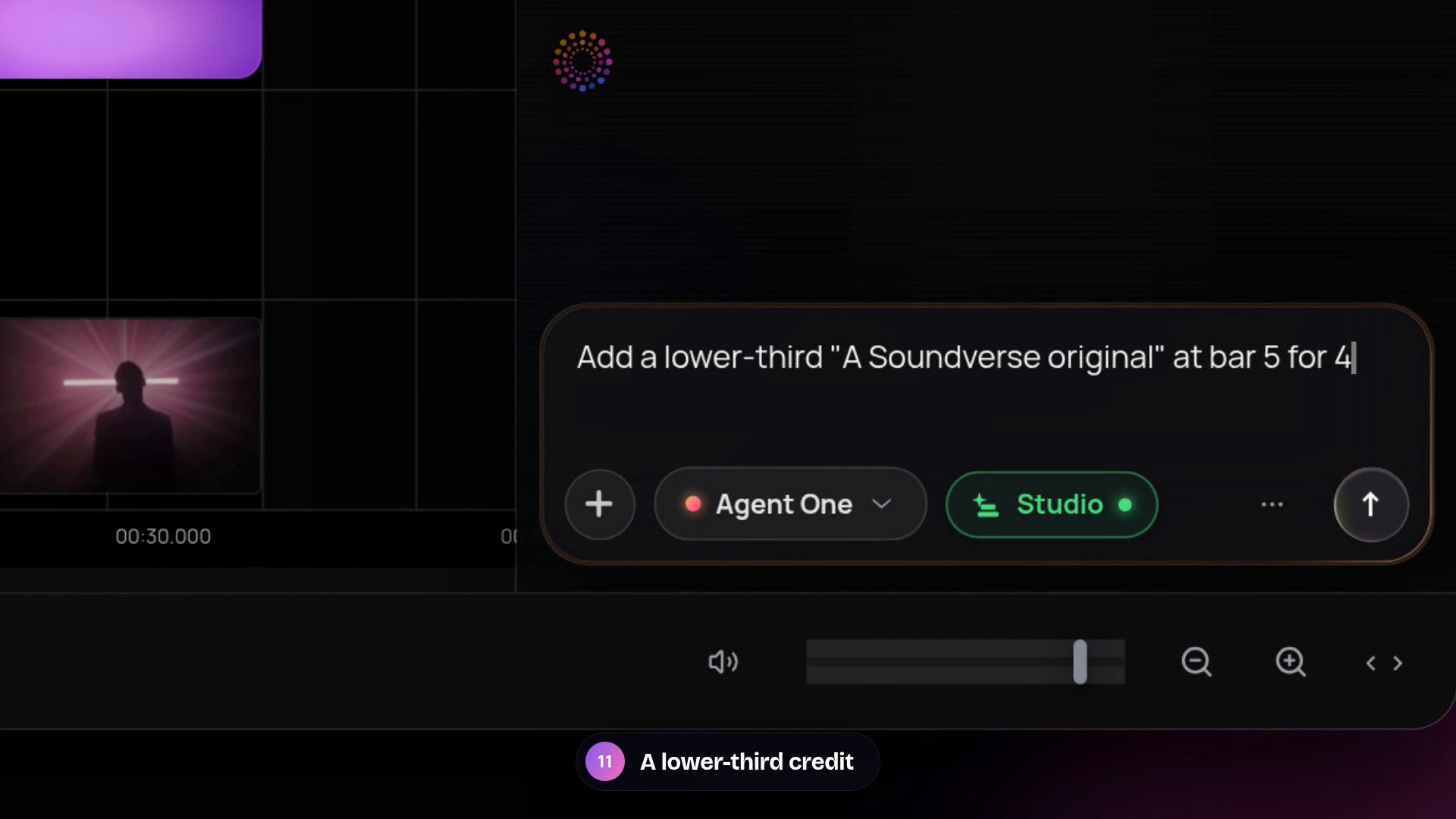
- A lower-third credit. "A Soundverse Original", sliding in from the left between bars 5 and 9.
Step 8: A 9:16 cut for Reels, then back to 16:9
One sentence changes the frame shape: "Make the frame vertical, 9:16, for Reels." Agent One reframes the project for vertical video. When you're done, ask "Switch the frame back to 16:9 for YouTube" and every title keeps its place.
Step 9: Export
Export the trailer as a 1080p MP4. It renders in your browser, with the music, voice, sound effects and titles in one file.
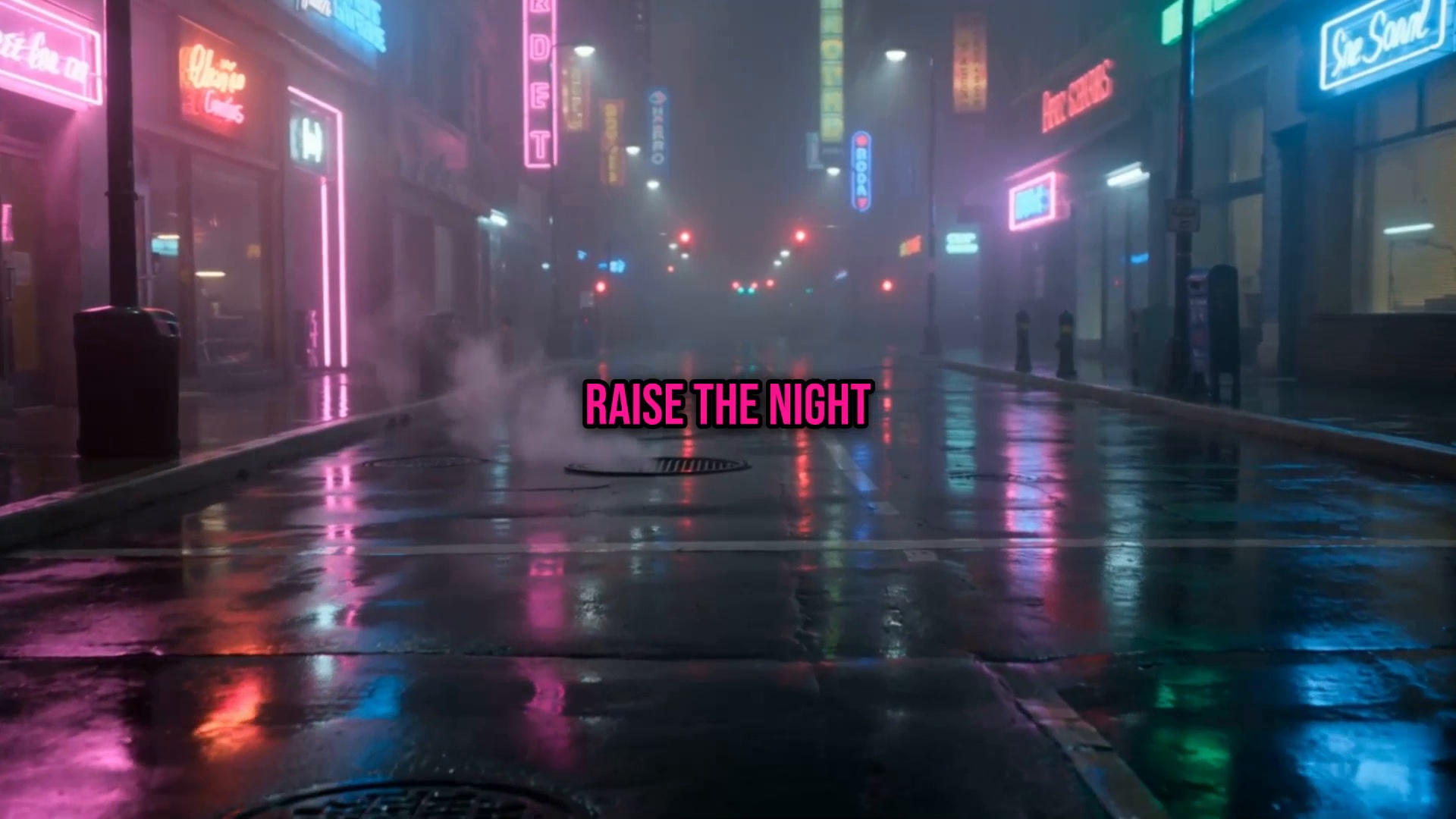
Here's the finished trailer as a Short:
The whole trailer was made just by asking Agent One.
Prompts to try
- "Put my song from my library on Audio 1, starting at bar 1."
- "Trim the song to its first 16 bars and fade it out over the last 2 bars."
- "Give the song a little reverb and a slightly warmer EQ."
- "Generate a deep, cinematic trailer voice that says: [your line]."
- "Generate an 8-second cinematic shot of [your scene], 16:9, and put it on the video lane at bar 1."
- "Make sound effects for video 1 and put them under it."
- "At bar 13, add a big centred release date card."
- "Make the frame vertical, 9:16, for Reels."
What you used
| Step | Soundverse tool |
|---|---|
| Place, trim and mix the song | AI Studio with Agent One |
| Trailer voice | AI Speech Generator |
| Video shots | AI Video Generator |
| Sound effects | Video to SFX |
| Titles, frame shape and export | AI Studio |
FAQ
Do I need video editing experience?
No. Every step in this trailer was done by asking Agent One in plain words. You can still open any track or clip and adjust it yourself.
Can I use my own song?
Yes. Agent One finds songs in your Soundverse Library, so upload or generate your track first, then ask it to place the song on the timeline.
Can I make a vertical version for Reels and Shorts?
Yes. Ask Agent One to make the frame 9:16, export, then ask it to switch back to 16:9 for YouTube. Your titles keep their place.
What does the export include?
A 1080p MP4 with the music, the voice, the sound effects and the titles, rendered in your browser.
How long is the trailer?
This one is 16 bars of the song. You can ask for any length, for example "trim it to the first 8 bars".
Try it
Open a project in AI Studio, turn on Studio in Agent One, and ask for your first step.