The Workflow for Creating Instrumentals Using Text-to-Audio Models, Step by Step
The workflow for creating instrumentals with text-to-audio models: brief, prompt, takes, extend, stems, arrange, mix, master, export, with example prompts.
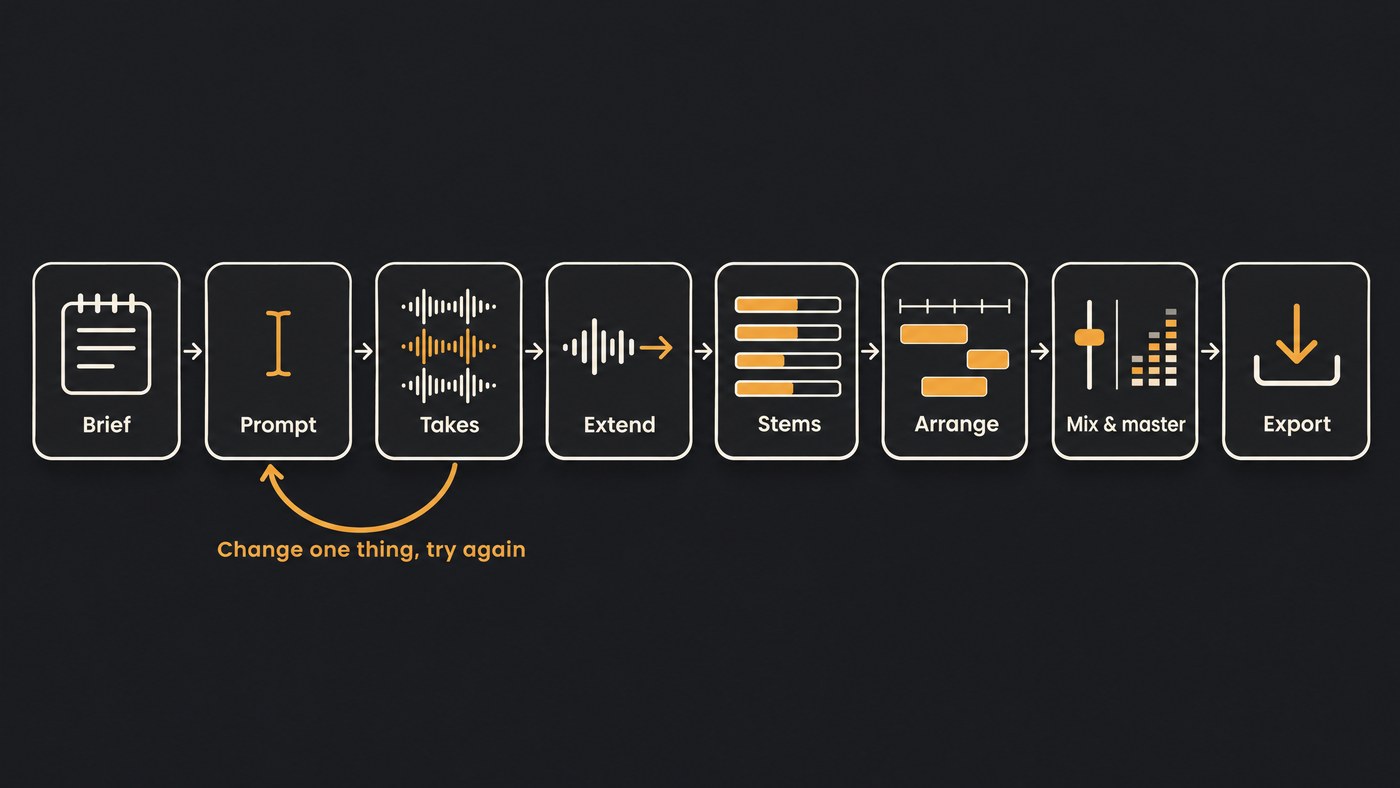
The workflow for creating instrumentals using text-to-audio models runs in eight steps: write a short brief (genre, BPM, key, instruments, structure), turn it into a prompt, generate several takes, pick and extend the best one, split it into stems, arrange in a DAW, mix and master, then export. Expect to loop between prompting and picking.
Text-to-audio models such as Google's Lyria, Stability AI's Stable Audio and Soundverse's AI Music Generator turn a written description into music. They're quick at a convincing first draft and less reliable at what a producer cares about most: an exact tempo, a key, a clean ending and sections that develop. This workflow puts a check at each of those points. We read the vendor documentation cited below on 19 November 2026.
Step 1: Write a brief before you write a prompt
Spend two minutes on five lines for yourself:
- Genre and era: "late-90s UK garage", "modern amapiano", "lo-fi hip-hop".
- Tempo: a number, such as 86 BPM, plus feel (half-time, swung, straight).
- Key: for example F minor. You'll check it later, because models don't always follow it.
- Instrumentation: three to six parts, each with a texture word: "dusty Rhodes", "muted nylon guitar", "sliding 808".
- Structure and purpose: "8-bar intro, groove from bar 9, breakdown at 1:30, about 2:45, built for a vocal topline".
The prompt is a compressed version of this brief, and you'll judge every take against it.
Step 2: Turn the brief into a prompt
Google's Lyria prompt guide (last updated 18 November 2026) starts from one principle: "Good prompts are descriptive and clear." It suggests building a prompt from genre and style, mood, instrumentation, and tempo and rhythm, and tells you to include the word instrumental when you want no vocals. Stability AI's Stable Audio 3.0 prompt guide (18 August 2026) recommends a similar order: genre first, then the main instruments and rhythm, then mood, arrangement and production character.
A dependable order for any text-to-audio model:
- Genre and sub-genre
- BPM as a number, and the key
- Three to six instruments with texture words
- Mood and arc, including where the big moments land
- Production character: tape, clean, roomy, lo-fi
- Exclusions, ending with "instrumental, no vocals"
Example prompts to adapt:
- Lo-fi hip-hop, 84 BPM, F minor, dusty swung drums with a soft kick, warm Rhodes chords, round bass, vinyl crackle, mellow late-night mood, short intro, gentle fade-out, instrumental, no vocals
- Cinematic trailer cue, 100 BPM, D minor, low string ostinato, taiko and booming toms, brass swells, tension building to one big hit at the end, wide hall reverb, no choir, instrumental, no vocals
- Amapiano, 113 BPM, A minor, deep log-drum bass, crisp shakers and rimshots, jazzy piano chords, airy pads, smooth groove with space in the mids for a vocal topline, instrumental, no vocals
- Melodic drill, 142 BPM, C-sharp minor, sliding 808 bass, skippy hi-hats, dark piano melody, sparse string pad, cold and tense, 8-bar intro, instrumental, no vocals
Describe sounds instead of naming artists. Syntax varies by model: Lyria takes a separate negative prompt for things to avoid, and Stable Audio accepts optional tags such as TrackType: Instrument when you want a single part. Our Soundverse prompting playbook has more real prompts and the order we use.
Step 3: Generate several takes and shortlist
Stability's guide is frank about variation: "Stable Audio will not produce the same result every time." Use that. Generate four to six takes from the same prompt before you change anything, and score each against the brief:
- Does the groove sit at the tempo you asked for?
- Is the intro usable, and does the track end rather than stop?
- Do the instruments match, and is there room for what you'll add?
- Any artifacts, such as smeared cymbals, warbling sustained notes or vocal-like textures?
If nothing is close, change one element of the prompt per round so you know what made the difference. Keep a log of prompt, model and take.
Step 4: Pick a take, then extend or repair it
Most generated instrumentals need a longer intro, another section or a real ending. Use the model's extend or continuation feature with a prompt that fits the music around it. Stability's guide gives the example that a build-and-drop prompt is more likely to join smoothly when extending a progressive house track than an unrelated sound. Listen across every join. For one weak bar inside the track, regenerating just that section (inpainting) beats regenerating the whole take.
Step 5: Check tempo and key, then get stems
Run the chosen take through a BPM and key detector before you build on it. If it reads 85.7 BPM when you asked for 84, set the project to the detected tempo or warp the audio to the grid. If the key is a semitone off, decide whether to follow the audio or pitch-shift it slightly.
Then get stems. Split the take with a stem separator into drums, bass and other parts, or prompt the model for isolated parts if it supports that. A separator can only split what's in the mix, so start from a WAV rather than an MP3 and solo each stem to check for bleed. Our guides to what audio stems are and techniques for editing audio stems cover the cleanup.
Step 6: Arrange the instrumental in a DAW
Import the stems at bar 1 at the project tempo, then turn the generated loop into an arrangement:
- Mark the sections from your brief: intro, A, B, breakdown, outro.
- Mute and unmute stems for contrast, such as drums out for the first 8 bars and bass in at the drop.
- Copy the strongest 4 or 8 bars over a weak section instead of regenerating.
- Add your own parts: a played bassline, layered drum samples, a counter-melody. This is where the track starts to sound like you.
- Automate filters and volume for builds and transitions.
Step 7: Mix and master
Balance kick and bass first, then the lead instrument, then everything else. Generated stems often crowd the same range, so cut low mids where parts overlap and high-pass anything that doesn't need sub. Our guide to balancing levels in a multi-track project covers gain staging and a static mix.
For the master, take any limiter off the mix bus, master toward a target, and measure. Spotify's guidance for artists, checked on 19 November 2026, is to target −14 dB integrated LUFS with true peak below −1 dBTP. If you'd rather use a service, see our shortlist of budget AI mastering services.
Step 8: Export
- A 24-bit WAV master at the session sample rate for release.
- WAV stems of the final arrangement for collaborators or a mix engineer.
- An MP3 for quick sharing.
- File names with title, BPM and key, saved next to the project and your prompt log.
Common failure modes in text-to-audio instrumentals, and fixes
- Tempo isn't what you asked for. Write BPM as a number, detect it afterwards, and warp or follow the detected tempo.
- Wrong key or sharp tuning. Detect the key, fix small offsets with pitch shift, or regenerate with the key earlier in the prompt.
- Vocal-like sounds appear. End with "instrumental, no vocals" and, where supported, add vocals to the negative prompt.
- Everything plays at once. Use fewer instruments and describe what enters when. Lyria's guide shows prompts that set out each section with timestamps, plus a key and a BPM.
- It loops without developing. Extend with a prompt for the next section, then build contrast with mutes in the DAW.
- Abrupt start or ending. Ask for a short intro and a fade-out, or extend before the start or after the end.
- Smeared or warbly parts. Pick a cleaner take, or replace the part with a sample or a played instrument.
- An instruction is ignored. Move it earlier, and remove contradictions such as "no drums" next to "punchy drums".
Where Soundverse fits
Soundverse is an AI music platform that takes you from idea to audience, and most steps of this workflow have a tool there. AI Music Generator makes instrumentals with no vocals from a prompt plus tags: up to two genres, one theme, up to three vibes, up to five instruments and a tempo. Each run makes one take. Free uses Soundverse v6, Creator adds v7 and v8, and Pro adds Soundverse v9. The Tempo tag runs from Slow to Very Fast and there's no key setting, so write the BPM into your prompt and check the result with Tempo & Key Detector.
Extend Music adds up to 85 seconds per run, after the end or before the start. Stem Separator splits a track into 2 or 6 stems, or every part with MIDI on Creator. In AI Studio, imported audio is analyzed for tempo and key, Follow tempo fits a clip to the project tempo, and Mastering One runs on every plan. Free exports MP3; Creator adds WAV and stems. Licensing is set by plan: the Free plan is for personal use, and the Creator plan comes with a royalty-free license.
From 0:17, this walkthrough of Soundverse's Create tools shows AI Music Generator making an instrumental from a prompt.
FAQ
Can text-to-audio models hit an exact BPM and key? Some let you write BPM and key into the prompt, and Google's Lyria guide lists both among the details you can describe. That doesn't guarantee the result, so measure tempo and key before you build on a take.
How many takes should I generate for one instrumental? Four to six from the same prompt is a good first round. If none fits the brief, change one element of the prompt and run another round, logging what you changed.
Can I get stems straight from a text-to-audio model? Some models can generate isolated parts: Stability's guide says Stable Audio 3.0 can generate stems as well as full mixes. Otherwise, generate the full mix and split it with a stem separator, starting from a lossless file.
Do I need a DAW for this workflow? For a release-ready instrumental, yes, or a browser studio that does the same job. The DAW is where you arrange sections, add your own parts, and mix and master.
Sign up for Soundverse free and make your first instrumental from a prompt. More production guides on the Soundverse blog.