Finding an AI Video Generator That Works Best for Podcast Intros
The best video generator for podcast intros: audiogram tools, AI logo loops and templates, graded on captions, music beds, safe zones and vertical cuts.
Picking a video generator for podcast intros starts with what the intro shows. If it's a waveform, your show title and captions, the AI video generator that works best for podcast intros is an audiogram tool such as Headliner, Descript or Kapwing. If it's a moving logo or a branded loop, use Kaiber or Luma, then add your music bed.
Each tool below was checked on its own website on 19 November 2026 and graded for one job: a short opener that looks the same every episode, in 16:9 and 9:16, with captions and a music bed. Plans change, so recheck before you subscribe.
What a podcast intro video needs
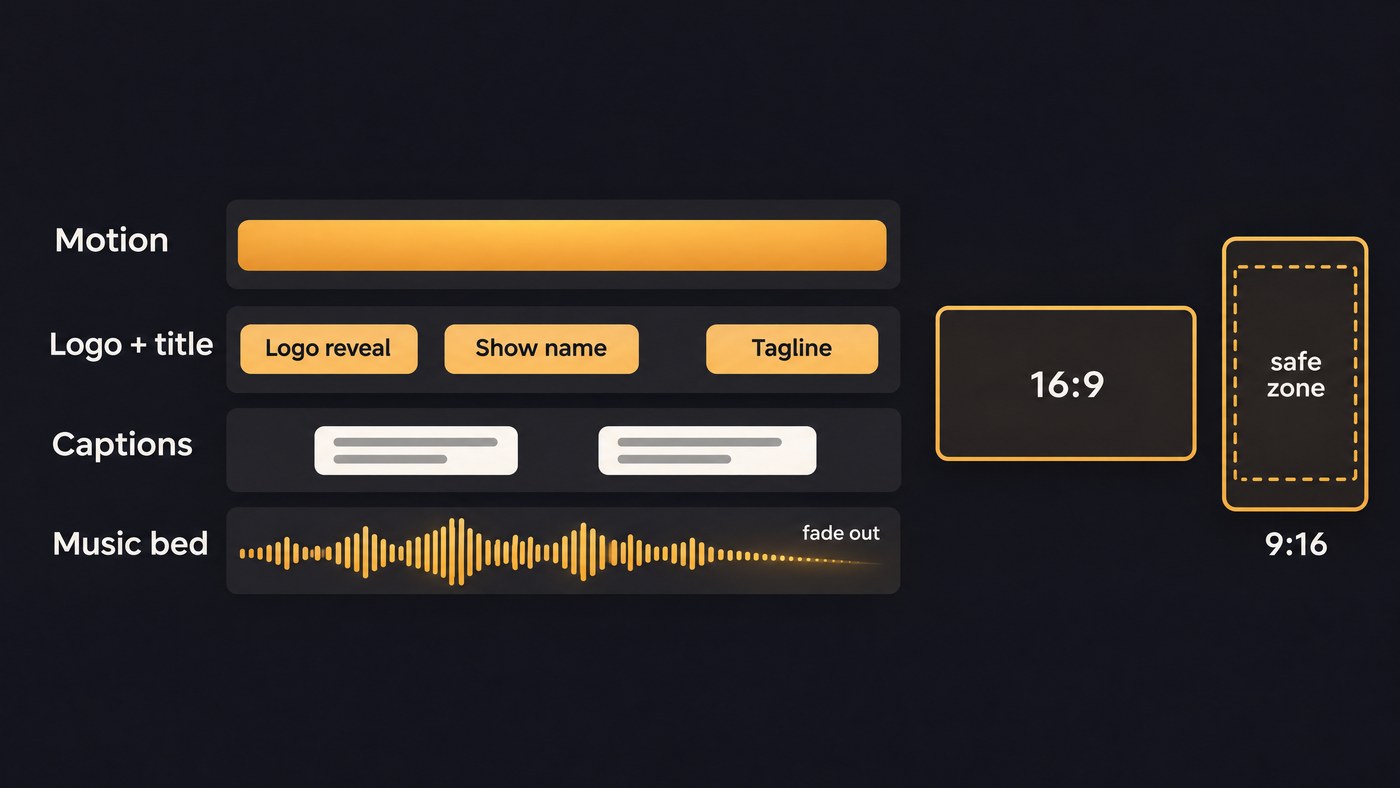
An intro plays at the top of every episode, so it becomes the show's visual signature. Build it from these parts:
- Length: 5 to 20 seconds. Long enough for the name and a promise, short enough that nobody skips. Canva's intro maker page suggests about 10 seconds.
- A brand-consistent look. The same colours, fonts and logo every week, saved as a template or brand kit.
- Logo or title animation. A reveal in the first second or two, then the show name held long enough to read.
- An audiogram or waveform. Kapwing's FAQ defines it well: "An audiogram is a short video that visualizes audio using animated waveforms, subtitles, and often a static or minimal background." For audio-first shows, it tells viewers that sound is playing.
- A music bed. A sting or theme that matches your audio intro, so the video and audio versions open the same way.
- A vertical cut. A 9:16 version for Shorts and Reels, with text and logo kept clear of the app's buttons.
- Captions. Any spoken line needs on-screen text. Kapwing's page makes the point that many people browse feeds with the sound off.
Audiogram and video podcast tools: best for waveforms, titles and captions
These start from your audio or episode recording.
Headliner. Built around podcast promotion. Its homepage lists waveform and audiogram animations, automatic captions, transcription in many languages, 1080p export and automatic posting of audiograms to social platforms and YouTube. Best for: audio-first shows that want the same waveform look on every intro and clip with little editing.
Descript. Its Audiogram Maker applies a layout from Templates > Audiograms, then lets you add text and brand elements and change the aspect ratio, with animated captions from Text > Captions. You can choose between waveforms and upload brand fonts, though the FAQ says custom typefaces need the Pro plan or higher. The Free plan exports 720p without a watermark. Best for: shows already edited in Descript.
Riverside. If you record on Riverside, its homepage says you add your logo, colours, intro and outro once and apply them with a click. It adds animated captions, and its Magic Clips page lets you save a default ratio, layout, branding and length as a preset. Best for: video podcasts where the intro belongs to a branded episode template.
Kapwing. The Sound Wave Generator has six waveform styles, from classic bars to circles and bubbles, with colour, aspect ratio and opacity controls, and exports as a video or GIF. You can build waveforms for free, but the page says export needs a Pro account and free exports carry a watermark. Best for: a quick waveform layer over artwork you already have.
AI video generators for podcast intros with a moving logo or loop
Audiogram tools animate the audio. When the picture itself should move, such as a logo forming out of light or a slow loop behind the title, use a generative video tool.
Kaiber. The most direct fit for a logo intro. Its help article on Logo Motif describes using your uploaded logo as a stencil, with colour, texture and movement set by your description, at 3 to 15 seconds, in 9:16, 16:9, 1:1, 3:4 or 4:3, at 720p or 1080p. A separate Loop Video flow turns an image, two keyframes or a clip into a looping video. Best for: a logo reveal you can export in both orientations.
Luma. Luma's Ray3.14 user guide, published 23 January 2026, lists text-to-video at 5 or 10 seconds, image-to-video at 5 seconds, a native 24 fps, loop support at 540p, 720p and 1080p (not in Draft Mode) and upscaling to 4K. The guide also notes that Ray3.14 launched without support for reference images. Best for: an abstract loop to sit behind your title.
Also worth testing. Kling's homepage lists text-to-video and image-to-video and announces native 4K output. Pika's homepage offers anything from a short clip to a 30-second multi-shot video, and Higgsfield's lists AI Image to Video among its tools. Runway's help centre blocked our requests on 19 November 2026, so we can't grade its loop or keyframe settings here.
One rule for all of them: generators can warp letters. Generate the motion, then place your real logo file and show title on top as layers in your editor, so they stay sharp every episode. Our guide to AI video prompt techniques covers how to describe the motion you want.
Template tools: Canva for a fast branded intro
Canva's intro maker page offers ready-made intro templates and Magic Animate, which picks animations and transitions for you. It says you can download intros with no watermarks and pay only for extras such as premium stock video and music. It accepts MOV, GIF, MP4, MPEG, MKV and WEBM uploads up to 1 GB, so you can drop an AI-generated loop into a template. Best for: podcasters who keep their brand kit in Canva and want a title card with a logo fast.
How to make a 10-second podcast intro, step by step
- Write three beats. A logo reveal of about 2 seconds, the show name and host for about 5, and a one-line promise or episode title for the last 3.
- Make the music bed first. Picture is easier to cut to music than the other way round. Make or choose a sting a little longer than you need, then trim it to 10 seconds with a short fade, ending on a downbeat or a held chord. Our guide to making podcast intro music with AI covers structure and prompts.
- Make the motion. Generate a 10-second logo animation in Kaiber, or a 5 or 10-second loop in Luma, in 16:9 first.
- Assemble the layers. In your editor or audiogram tool, put the motion on the bottom layer, your real logo and show title above it, a waveform if the intro has a spoken line, and captions for every spoken word.
- Set the levels. Match the bed to the episode's loudness (see the checklist) and keep music well under any voice.
- Rebuild for vertical. Lay out the 9:16 version again rather than cropping blindly, so the logo and title stay inside the safe zone. Our guide to vertical videos for Shorts and Reels covers reframing.
- Save it as a template, export both versions and check them on a phone.
Podcast intro video checklist
- Music bed loudness. Apple Podcasts' audio requirements say: "we recommend that the audio signals are preconditioned so the overall loudness remains around -16 dB LKFS, with a +/- 1 dB tolerance, and that the true-peak value doesn’t exceed -1 dB FS." Master the intro to the same target as the episode so the first second doesn't jump out.
- Captions. Burn them in for Shorts and Reels, and check names and show terms by hand.
- Safe zones. Meta's Ads Guide for Instagram Reels suggests leaving at least 14% of the top, 35% of the bottom and 6% on each side free from text, logos and other key elements. Keep the logo and title in the middle band.
- Aspect ratios. 16:9 for full episodes, 9:16 for Shorts and Reels.
- File formats. Upload MP4 with H.264 video and AAC audio, keep a WAV of the music bed, and keep the project file. Our guide to AI video file formats explains codecs and containers.
- Frame rate. Match the episode's frame rate. Luma renders at 24 fps, so if your episodes run at 30, convert the clip before you join them.
- Rights. Use only logos, fonts, music and footage you have rights to, and check each tool's commercial-use terms.
Where Soundverse fits
Soundverse is an AI music platform that takes you from idea to audience, and for an intro it covers the music bed and the visuals around it. AI Music Generator makes instrumentals with no vocals and has three themes for a matching set: Podcast - Intro, Podcast - Background and Podcast - Outro. Keep the genre and vibe tags the same so all three share a style. On Creator and above, one additional engine adds a Length setting from 15 seconds to five minutes and a Loop type. In AI Studio, put your clip or artwork on the video and image lanes, render an audio-reactive Visualizer (from 10 scenes) in 16:9, 9:16, 1:1 or 4:5, and export MP4, WebM or MOV at 24, 30 or 60 fps. AI Video Generator, on Creator and above, can start a clip on your cover art, 3 to 30 seconds long depending on the model. Audio Transcription gives word timestamps for captions, and Media Converter crops 16:9 to 9:16. Licensing is set by plan: the Free plan is for personal use, and the Creator plan comes with a royalty-free license.
This short clip shows asking Agent One for background music, then polishing it in AI Studio.
For more background-music options, see our comparison of platforms for royalty-free background tracks.
FAQ
How long should a podcast intro video be? Between 5 and 20 seconds, with 10 a good default; Canva's intro maker page also suggests about 10 seconds. Full episodes can carry a slightly longer intro, but cut a shorter one for Shorts and Reels.
What's the difference between an audiogram and an AI-generated intro? An audiogram animates your audio: a waveform, captions and a mostly still background. An AI-generated intro animates the picture, such as a logo forming or a looping scene. Many podcasters combine them, with an AI loop as the background and a waveform on top.
Is there a free way to make a podcast intro video? Canva's intro maker page says intros download with no watermarks, and Descript's Free plan exports 720p without one. Kapwing lets you build waveforms for free but needs Pro to export. Check each plan's terms for commercial use before you publish.
Sign up for Soundverse free and make the music bed for your next intro. More guides on the Soundverse blog.