User-Friendly Audio Editing Tools for Social Media Content
Audio editor for social media, compared: one-tap cleanup, hook trims, captions, loudness and vertical export in CapCut, Descript, Kapwing and more.
A good audio editor for social media runs on your phone or in a browser, cleans a voice in one tap, trims to the hook and exports vertical video with captions. Of the user-friendly audio editing tools for social media content we checked, CapCut covers most of that free, Descript suits talking clips, and Audacity is the free desktop baseline.
The right pick depends on what you post. A singer cutting a 20-second chorus for Reels needs different tools from a marketer turning a voice note into a captioned Short. Every detail below comes from each tool's or platform's own page, read on 21 November 2026.
What "user-friendly" means for social audio
Ease here means fewer exports between the raw take and the posted clip. Grade any tool on these seven points:
- Works on a phone or in a browser. If the edit needs a desktop install, you'll put it off. Our comparison of cloud and desktop audio editors covers the trade-offs.
- One-tap cleanup. Noise, hum and room echo removed in one pass, with a strength control so the voice doesn't turn watery.
- Trimming to a hook. A waveform you can cut on, so the clip starts on the line or beat that carries it.
- Captions from the audio. Snap's creator guide tells you to use captions for sound-off viewers, and captions you proofread are faster than captions you type.
- Loudness that holds up on phone speakers. A normalize or loudness setting, plus a peak ceiling so nothing clips.
- Vertical video with the audio. Editing sound and picture together saves a round trip between apps.
- Export presets per platform. 9:16, the right codec and no watermark on the plan you're on.
User-friendly audio editors for social media, graded
CapCut: the most complete free option
CapCut's online audio editor page lists volume, fades, pitch, noise reduction, voice effects and beat detection, says it runs in browsers and on Windows, Mac, iOS and Android, and calls the editor "completely free". It imports MP3, WAV, M4A and FLAC and exports for TikTok, YouTube, Facebook and Instagram. Its auto caption page adds captions generated from speech in several languages.
- Strong on: phone and browser, cleanup, captions, vertical video, sharing.
- Weaker on: loudness. The audio editor page doesn't mention a loudness target, so check levels by ear.
Descript: best for talking clips
Descript transcribes your recording automatically, and its pricing page lists Studio Sound (one-click noise removal and speech enhancement), filler-word removal, gap shortening and animated captions. The Free plan includes 60 media minutes a month, 720p export and limited Studio Sound. Hobbyist costs $16 per person a month billed yearly, or $24 monthly, for 1080p watermark-free export.
- Strong on: cleanup, captions, cutting speech.
- Weaker on: music. Its AI tools are described in speech terms (filler words, word gaps, speech enhancement), so a sung hook gains less.
Adobe Podcast Enhance Speech: rescue for a noisy voice
Adobe's Podcast features page describes Enhance Speech as removing noise and echo from voice recordings, in the browser. Free covers audio only, one file at a time, up to 30 minutes (500 MB) per file and 1 hour a day, with no strength control. Premium adds video files, bulk upload and a strength slider, with files up to 2 hours and 4 hours a day.
- Strong on: one-tap cleanup of speech.
- Weaker on: everything after cleanup. On Free you clean the audio, then lay it back under your video in another app.
BandLab Mastering: polish for a music clip
BandLab's mastering page offers free song mastering with presets and says video export for Mastering now works in its mobile app. The page names eight presets but also says the free option has four, without saying which.
- Strong on: loudness and polish for a song snippet, on a phone.
- Weaker on: cleanup and captions, which this page doesn't cover.
Kapwing and VEED: browser editors with cleanup built in
Kapwing's audio editor runs in the browser and offers Clean Audio (noise and echo), Smart Cut for silences, subtitles and resizing for Shorts. Its FAQ is blunt about the free tier: "If you are using Kapwing on a Free account then all exports will contain a watermark." Clean Audio and Smart Cut sit on Pro.
VEED's audio editor works in a desktop or mobile browser with nothing to install. Free users can trim and adjust volume; one-click Clean Audio is a premium feature, and VEED also lists an auto subtitle generator.
- Strong on: browser access, cleanup, captions, vertical resize.
- Weaker on: the free tier, where watermarks or paywalled cleanup get in the way.
Canva
Canva's audio and video editor pages returned an access error to us on 21 November 2026, so we can't grade them from Canva's own pages.
Audacity: the free baseline
Audacity is free and open source, at version 4.0.2, for Windows, macOS and Linux. It converts between major formats, takes VST3 and Nyquist plugins, and its site lists OpenVINO AI plugins for noise suppression and transcription.
- Strong on: precise cuts, free forever, plugins.
- Weaker on: phone use, captions and video. You'll still need a video app for the vertical post.
Not sure whether to pay at all? Our guide to free vs paid AI audio editors goes deeper.
Platform audio and length specs, and which page says what
- YouTube. Its recommended upload encoding page asks for audio in AAC-LC or Opus at 48 kHz, stereo, in an MP4 container, and recommends 384 kbps for stereo audio. Its help page on three-minute Shorts says square or vertical videos up to three minutes, uploaded on or after 15 October 2024, count as Shorts.
- Instagram. The Reels feature page says you can record and edit reels of up to 20 minutes, but reels over 3 minutes won't be recommended to new audiences.
- Snapchat. Snap's creator guide says Spotlight Snaps should be vertical videos with sound; horizontal Snaps won't show up in Spotlight.
- TikTok. TikTok's help centre didn't load for us on 21 November 2026, so check the current limits on the upload screen in the app.
- Loudness. None of these pages gives a loudness target for short videos. Pick one, keep peaks under −1 dB, and play the export on the phone's own speaker at half volume. If the vocal disappears under the beat, lift the vocal rather than the whole mix.
For aspect ratios and frame rates, our guide to easy AI music video apps for social media lists each platform's format rules.
A 10-minute workflow from raw recording to a posted clip
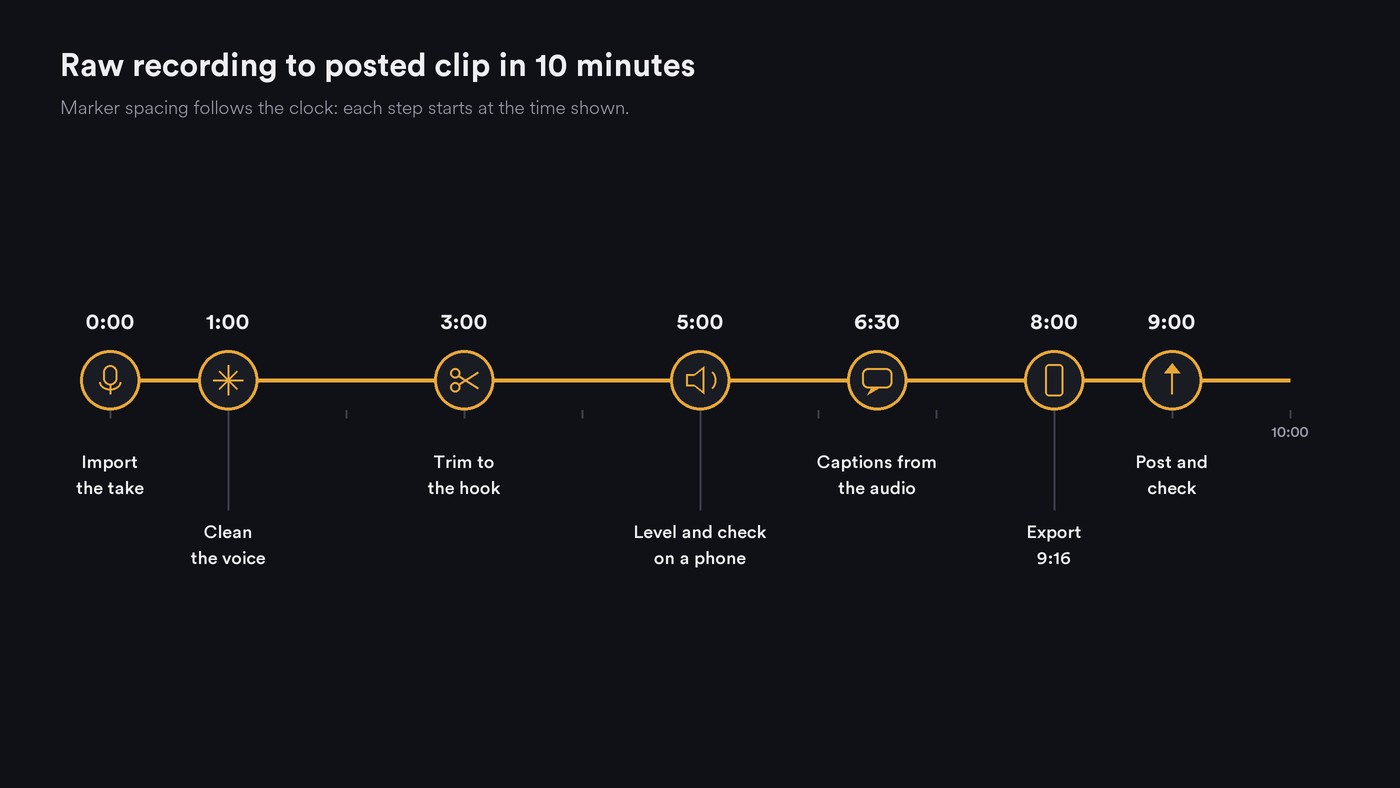
- 0:00 Import the take. Use the original file from the phone or recorder, not a copy sent through a messaging app, which may compress it.
- 1:00 Clean the voice. Run one cleanup pass at a moderate strength. Listen to the breaths and the S sounds; if they sound chewed, back it off. Our roundup of software for cleaning up vocal recordings compares the options.
- 3:00 Trim to the hook. Start on the line or the beat that carries the idea and cut the count-in. For songs, see how artists produce shorter tracks for social media.
- 5:00 Level it. Normalize the voice, sit any music bed under it, set a peak ceiling of −1 dB, then check on the phone speaker.
- 6:30 Captions from the audio. Generate them, then fix names, slang and lyrics by hand.
- 8:00 Export 9:16. Use the platform preset; for YouTube, AAC audio at 48 kHz stereo.
- 9:00 Post and check. Upload natively to each app and play the post once on a phone before you share it.
Which audio editor for social media should you use?
- You post from your phone: CapCut, or BandLab when the clip is a song that needs mastering.
- You talk to camera: Descript, with Studio Sound and captions in one place.
- Your voice note is noisy: Adobe Enhance Speech first, then your video app.
- You work in a browser on someone else's computer: Kapwing or VEED.
- You want free and precise: Audacity, plus any phone editor for the video.
Where Soundverse fits
Soundverse is an AI music platform that takes you from idea to audience, built for artists who release music, and a few of its tools handle the audio side of a social clip in the browser. AI Vocal Cleaner, on the Free plan, removes background noise, hum and clicks from a solo vocal of up to 10 minutes, softens S and P sounds and sets loudness to −23, −18 or −14 LUFS with peaks under −1 dB. Media Converter trims audio on a waveform or video on a timeline, crops to 9:16 and pulls the soundtrack out of a video. Audio Transcription returns word timestamps for captions, but doesn't label speakers. Soundverse isn't a phone video editor, so finish the clip in your usual app. Licensing is set by plan: the Free plan is for personal use, and the Creator plan comes with a royalty-free license.
From 3:56, this walkthrough of Soundverse's Edit tools shows Media Converter taking a file from input to result.
FAQ
What is the easiest free audio editor for social media? CapCut's own page calls its audio editor completely free and lists browser, iOS and Android versions, with noise reduction and auto captions. Audacity is free too, but it runs on desktop only and doesn't edit video.
Can I edit audio for Reels and TikTok on my phone? Yes. CapCut runs on iOS and Android, BandLab's mastering works in its app, and Kapwing and VEED run in a mobile browser. Check free-tier watermarks before you export.
How loud should audio be for Reels, Shorts and TikTok? The platform pages we read on 21 November 2026 don't publish a loudness target for short videos. Keep peaks under −1 dB and test the export on a phone speaker, where weak vocals are easiest to hear.
Do I need captions if my clip is a song? They help. Lyric captions carry the hook for people watching muted, and tools that generate captions from the audio save typing. Proofread every line, because automatic captions can mishear sung words.
Sign up for Soundverse free and clean your next vocal before you cut the clip. More guides on the Soundverse blog.