How to Go From a Finished Song to a Full Music Video Without Leaving the Studio
Making a music video used to mean hiring a director, booking a shoot, and spending money most independent artists don't have. Here's how the Soundverse AI Studio turns a finished song into a full music video — without leaving the browser.
For most of music history, the music video was a luxury. Not because artists didn't want one. Because making one required a budget that most independent artists simply didn't have. A director. A cinematographer. A location. A crew. Post-production. Colour grading. A timeline measured in weeks, not hours. The kind of resource allocation that made sense for a label with a marketing budget and almost never made sense for anyone else.
The result was a two-tier system. Artists with label backing got visuals. Everyone else got a static image on a black background and hoped the algorithm was kind. That gap is now closed. The Soundverse AI Studio can take a finished song and produce a full, structured, beat-aligned music video without you leaving the browser, hiring anyone, or spending anything beyond your existing plan. Here's exactly how it works.
What the Music Video Generator Actually Does Before the walkthrough, it's worth being precise about what "AI-generated music video" means in the context of the Studio because it's meaningfully different from what that phrase usually conjures.
This isn't a visualiser. It isn't an abstract motion background that pulses to the beat. It isn't a slideshow of generated images with a song playing over it. It's a structured, scene-by-scene video that reflects the shape of your song. The intro looks like an intro. The chorus hits with a visual that matches the energy shift. The bridge does something different. The outro resolves. The cuts happen on beats. The lip-sync — where applicable — is frame-accurate to the vocal performance. The reason it can do this is that the video is generated from the music, not assembled alongside it. The Studio analyses the song first, understands its structure, and uses that structure as the blueprint for every visual decision. The music and the picture tell the same story because they were built from the same source.
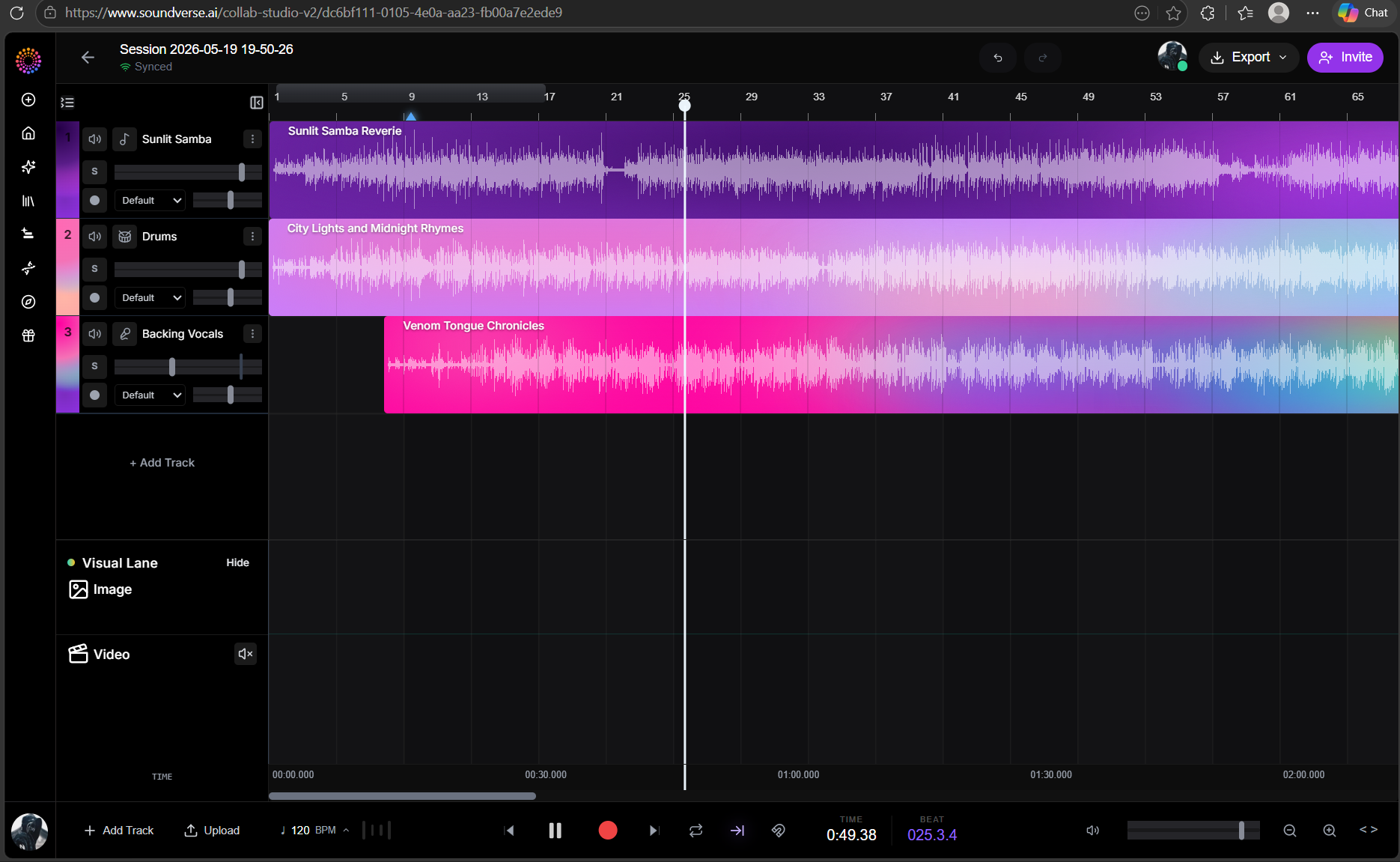
Step One — Bring Your Song Into the Studio Open the AI Studio at soundverse.ai/studio. If your finished song is in your Soundverse library, drag it onto the timeline from the library panel on the left. If it's on your device, upload it via the Upload button in the library. The song lands on the audio timeline as a region. The waveform renders live. You can play it back immediately. This is your starting point. One audio file. The rest of the session builds from here.
Step Two — Tell Agent One What You Want Open the Agent One chat panel on the right side of the Studio. This is where the direction happens — not in a form or a settings menu, but in plain language. You can be as detailed or as minimal as you want. Here are examples across the spectrum: Minimal: "Make a music video for this song." Directional: "Make a music video — cinematic, golden hour, wide open landscapes, emotional." Specific: "Make a music video that tells a story of two people in a long-distance relationship. Start with separation, build through longing, resolve in reunion at the chorus." Reference-driven: "Make a music video with the visual world of this reference image I'm attaching. Keep the character consistent throughout." All four of these work. The more direction you give, the more specifically the output reflects your vision. The less you give, Agent One makes creative calls based on the song's mood, tempo, and structure — and those calls are usually good starting points to refine from.
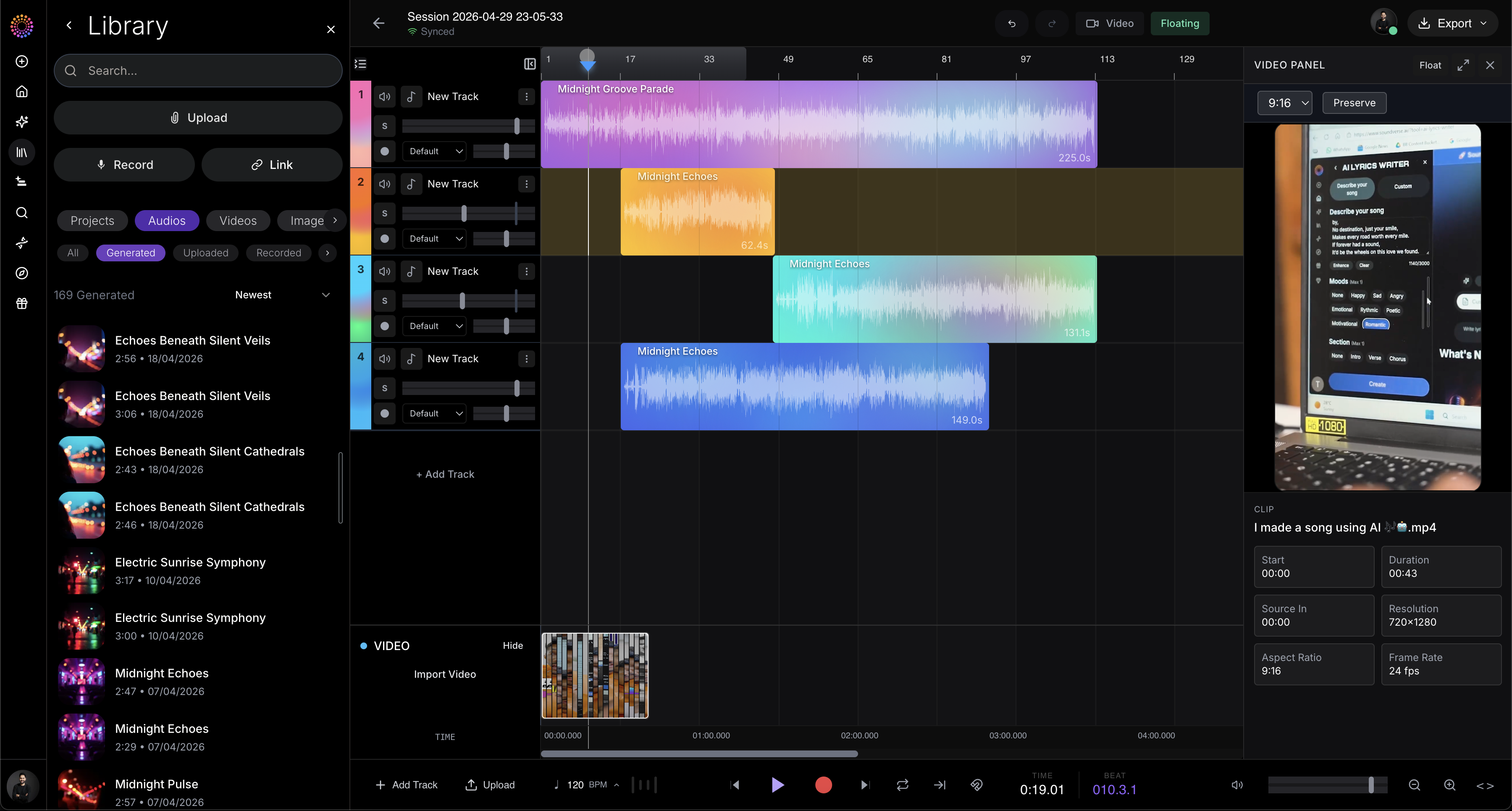
Step Three — The Six-Stage Pipeline Runs Once you send the message, Agent One runs a six-stage pipeline. You don't manage any of it but understanding what's happening explains why the output is structured rather than random. Stage 1 — Analyse. Section detection runs on the audio. Every intro, verse, chorus, bridge, drop, and outro is identified with frame-accurate timestamps. The beat grid is mapped. Tempo and key are detected. If vocals are present, lyric timestamps are extracted for lip-sync targeting. Stage 2 — Plan. Agent One builds a scene-by-scene plan for the video. Which visual narrative arc fits the song's emotional shape. How long each scene should be based on the section lengths. Which of your inputs — reference images, reference videos, character portraits, style descriptions — influence which moments. Where lip-sync targets appear in the timeline. Stage 3 — Generate. AI image generation handles static frames where appropriate. AI video generation handles motion segments. Character-consistency models ensure that if a specific person appears in scene one, they look the same in scene four. The generation is scene-aware — not one long clip, but a series of clips that correspond to the song's structure. Stage 4 — Sync. Cuts snap to the beat grid. Scene boundaries align with the section boundaries identified in Stage 1. Lip-sync rendering happens wherever the singer is on screen. The visual rhythm and the musical rhythm become the same thing. Stage 5 — Assemble. Individual scenes are assembled into a complete video on the video lane, alongside the audio timeline. The full video plays back in the Video Panel — floating preview window, configurable aspect ratio, showing the complete result before export. Stage 6 — Export options. The video is ready in multiple formats simultaneously — 9:16 for TikTok, Reels, and Shorts; 1:1 for Instagram feed; 16:9 for YouTube. Custom dimensions on request.
Step Four — Refine in the Same Session The first output is a strong starting point. The conversation continues from here. Every refinement is one message in the Agent One chat. The session remembers everything — the song, the video as generated, the direction you gave. You're not starting over. You're iterating. Some common refinements and what they do: "The chorus visuals feel too calm — can you make them more intense and high-energy?" Agent One regenerates the chorus scenes with a different visual treatment while keeping the verse and outro scenes unchanged.
"Keep the same character throughout but change the setting from urban to a forest." The character-consistency model maintains the same visual identity across the new location. Same person, different world.
"Make the cuts faster in the second half — more kinetic." The edit rhythm in the back half of the video tightens. More cuts per bar, faster visual pace.
"Add a lip-sync sequence specifically on the bridge." Agent One targets the bridge section, identifies the vocal performance timestamps, and re-renders that section with lip-sync applied.
"I want a version of this in 9:16 for TikTok and a separate one in 16:9 for YouTube." Both versions export from the same session simultaneously. Different aspect ratios, same project.
What You Can Put In to Shape the Output The text prompt is the baseline. But Agent One accepts additional inputs that give the video a much more specific visual identity. Reference images — drop in one or more images that represent the visual style, palette, or mood you want. The generation uses these as visual anchors. Reference videos — share a video whose motion vocabulary, pacing, or edit style you want to match. Agent One uses the visual rhythm and cutting patterns as a template. Character portraits — upload a face or a full-body reference and Agent One maintains that visual identity consistently across scenes. The same character appears in every scene without visual drift. YouTube links — paste a link to a video whose visual world you want to reference. Agent One extracts the aesthetic and uses it as directional input. None of these are required. All of them make the output more specifically yours.
The Export — One Song, Every Platform When the video is ready, the Studio's export surface handles the multi-platform reality in one operation. 9:16 for short-form. 1:1 for feed. 16:9 for long-form. Audio as a separate WAV or MP3 if needed. Synchronised audio and video as a single file ready to upload directly. Every format from the same session. Every platform covered. No re-encoding elsewhere. No manual sync. No starting over in a separate application.
The Bottom Line A music video used to require a budget, a crew, and weeks. Now it requires a finished song, a browser tab, and a message to Agent One. The quality of your release shouldn't depend on how much money you have to spend on visuals. The AI Studio closes that gap and it does it without you ever leaving the session where you made the music.
Social Links: Instagram: https://www.instagram.com/soundverse.ai TikTok: https://www.tiktok.com/@soundverse.ai Twitter: https://twitter.com/soundverse_ai LinkedIn: https://www.linkedin.com/company/soundverseai Youtube: https://www.youtube.com/@SoundverseAI Facebook: https://www.facebook.com/profile.php?id=100095674445607
Join Soundverse for Free and make Viral AI Music