How Can Podcasters Use AI Video Generation to Create Engaging Social Media Snippets?
AI video for podcasters: find clip-worthy moments, pick formats for audio-first shows, add captions and generated b-roll, and label AI honestly.
AI video for podcasters does two separate jobs. Clipping tools find an episode's strongest moment, cut it and reframe it to vertical; AI video generation fills the screen when you have no footage, with b-roll, a scene behind the voice or your cover art in slow motion. Caption every clip, and never fake footage of a real guest.
We checked every tool below on its own pages on 21 November 2026. We make Soundverse, so its section sticks to our own feature pages.
What makes a podcast moment clip-worthy
A snippet has to work for someone who has never heard your show, scrolling with the sound off. Good moments share a shape:
- One complete thought. A question and its answer, a story with its payoff, or a tip someone can use today, usually 20 to 90 seconds.
- A first line that stands alone. If the clip opens on "So yeah, like I said", start it a sentence later.
- A turn. A surprising number, a disagreement, a confession, a strong opinion.
- No inside references. "As we covered last week" loses a new listener at once.
Find it in the transcript, not on the scrub bar
- Clean the audio first, since noisy speech makes a noisy transcript. Our roundup of AI audio editors for podcast post-production covers that step.
- Transcribe the episode with word timestamps.
- Search for signals: numbers, "the mistake", "nobody tells you", "I disagree", "the first time".
- Mark six to ten candidates and read each one cold. If it needs the previous minute to make sense, drop it.
- Run an AI highlight finder on the same episode and keep the overlap plus your best outliers.
Treat AI highlight detection as a second opinion: CapCut's own clip-maker page tells you to check that each generated clip has enough context to stand on its own.
Snippet formats that work for audio-first shows
- Talking-head reframe. If you film the conversation, AI reframing crops 16:9 to 9:16 and follows the speaker. Check the crop during cross-talk.
- Audiogram. A waveform, captions and still artwork. Cheap and honest for audio-only shows, but the line itself has to be strong.
- Captioned quote card. One sentence from the guest as large text, with their voice underneath.
- B-roll or generated visuals behind the voice. The picture shows what's being described: a night bus, a lab bench, an abstract loop in your show colours.
- Animated still. Your cover art with one slow generated move, such as drifting light or a gentle push in.
For a branded opener that plays before every episode instead, see our guide to AI video generators for podcast intros.
Where AI video generation genuinely helps
Generation earns its place on audio-first shows, where the problem is an empty screen.
- Generated b-roll. Two or three short shots per clip: a rainy train platform for a commuting story, steam over a coffee cup for a morning-routine episode. Ask for no text in the frame, since generators can mangle letters.
- Scene backgrounds. One slow abstract loop in your brand colours, generated once and reused behind audiograms and quote cards every week.
- Motion from a still. Start on your cover art and describe a single camera move. Google's Veo 3.1 page lists first-and-last-frame control, extending a clip from its last second, and 1080p and 4K output, and says Veo videos are marked with SynthID, Google's watermark for AI-generated content.
Prompt for the shot, not the topic: subject, setting, light, one camera move, mood and a 9:16 frame. Our guide to prompt engineering for AI video goes deeper. And never let generated footage pose as evidence: if a guest describes a real event, keep the b-roll stylised or label it.
Where it doesn't: real guests, consent and disclosure
Don't generate a guest saying or doing something they didn't: no lip-synced lines, no fake reaction shots. Playful transformations need a yes too. Riverside's Magic Clips page advertises animated clips that turn you and your guests into babies, anime characters or pandas, so ask before you post one.
Put it in your guest release: how you'll cut clips, whether AI tools will touch their face or voice, and where clips will run. Our piece on the ethics of AI video production covers consent in more depth.
Then disclose what looks real. YouTube's help page on disclosing GenAI content says: "We require creators to disclose AI-generated or altered content that seems realistic." First on its list is content that makes a real person appear to say or do something they didn't do. The page adds that disclosure alone won't limit a video's audience or its eligibility to earn money, and that non-realistic content doesn't need a label. TikTok's help page on the subject returned an error to our check, so look for its setting in the app.
Captions and on-screen text
The W3C's Web Accessibility Initiative is blunt about automatic captions: "Automatically-generated captions do not meet user needs or accessibility requirements, unless they are confirmed to be fully accurate."
- Correct every auto-caption, especially names and numbers.
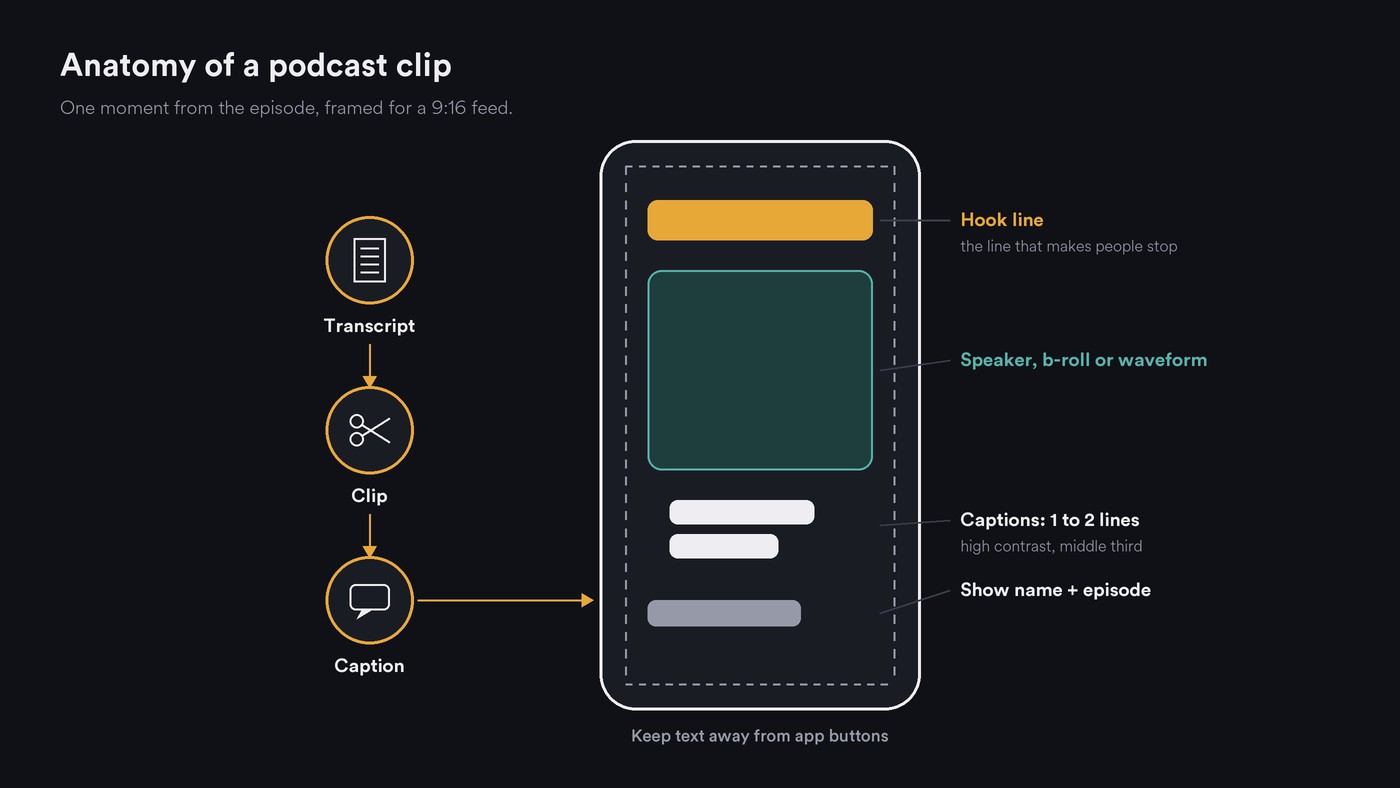
- Keep one or two lines in high contrast, in the middle third of the frame.
- Mark who is speaking with a name or colour when two people talk.
- Add a hook line at the top: the question being answered, in under ten words.
- Keep text away from the edges, where apps put their buttons, and save the show name for the end.
Platform specs, from official help pages
- YouTube Shorts. YouTube's three-minute Shorts page says square or vertical uploads of up to three minutes count as Shorts, and that a Short over one minute with an active copyright claim is blocked globally. Never put music you lack rights to under a long clip.
- Instagram Reels. Instagram's Reels feature page says you can make Reels of up to 20 minutes, but Reels over three minutes won't be recommended to new audiences.
- TikTok. Its help centre didn't load for us, so check its upload screen.
AI video tools for podcasters, checked on their own pages
Riverside Magic Clips. The Magic Clips page says the AI picks highlights, or you highlight a quote in the transcript and turn it into a clip, with presets for ratio, layout, branding and length and export up to 4K. Its FAQ calls it completely free. Best for: shows recorded on Riverside.
OpusClip. The homepage lists ClipAnything, which also takes plain-language prompts for a specific moment, ReframeAnything with subject tracking, animated captions and AI B-Roll. New users get a 7-day Pro trial, then a free plan with 60 credits a month. Best for: clipping at volume.
Descript. On its clips page, Create Clips has its AI co-editor, Underlord, find the best moments, then you adjust captions, layouts and aspect ratio. Create Clips is listed from the Hobbyist plan up; Free exports 720p with a watermark. Best for: shows already edited in Descript.
Headliner. Its homepage lists AI clipping of 10 or more captioned clips from one full-length video, audiograms posted automatically to social platforms and YouTube, and 1080p export. Best for: audio-only shows.
CapCut. Its long-video-to-shorts page describes AI Highlights, which picks moments from speech patterns, plus 16:9 to 9:16 cropping with subject tracking and auto captions. Its Auto Reframe page says that feature works only in specific regions. Best for: hands-on phone or desktop editing.
Kapwing. The AI Clip Maker cuts clips from a chat request, such as five highlights from a long recording, and keeps speakers centred. Its FAQ says it works best on videos over 10 minutes, and Free exports carry a watermark. Best for: describing clips instead of hunting for them.
Canva returned an access error (403) to every check, so it isn't graded. For generated b-roll, Google's Veo page offers Veo 3.1 in Google Flow and the Gemini app; Runway's help centre blocked our requests, so we can't grade its settings.
A repeatable weekly clip workflow
Block about two hours, three days before release.
- Transcribe and search (30 min): mark eight candidates.
- Run your AI clipper (15 min) and keep the best five.
- Assign formats (10 min): say two reframes, one audiogram, one quote card, one b-roll clip.
- Generate visuals (30 min) in 9:16, with the same style words every week.
- Caption and check (25 min), then watch each clip once with the sound off.
- Disclose and schedule (10 min). Tick AI disclosure where visuals look realistic, and spread the clips across the week.
- Review your analytics before the next batch and change the format mix.
Where Soundverse fits
Soundverse is an AI music platform that takes you from idea to audience, built for independent artists who release music, and several of its tools fit a podcast clip routine. Audio Transcription takes up to 60 minutes of audio and times every word, though it doesn't label speakers. AI Video Generator, on Creator and above, turns a prompt or image into a 3 to 30-second clip depending on the model, vertical or widescreen, and can start on your cover art as the first frame; its page asks you to use only a face or voice you own or have permission to use. Multi-Scene Video Builder joins up to 10 planned scenes into one video. Media Converter crops 16:9 video to 9:16 and pulls the soundtrack out of a recording. Licensing is set by plan: the Free plan is for personal use, and the Creator plan comes with a royalty-free license.
From 2:57, this walkthrough of Soundverse's Create tools shows AI Video Generator making a short video from a prompt.
FAQ
Can AI video generation replace filming a video podcast? No. It suits b-roll, backgrounds and animated artwork, but your host and guests should appear only in footage you recorded. For audio-only shows, audiograms, quote cards and generated b-roll give you a picture without a camera.
How long should a podcast clip be? Long enough for one complete thought, usually 20 to 90 seconds. YouTube counts square or vertical uploads of up to three minutes as Shorts, and Instagram says Reels over three minutes won't be recommended to new audiences.
Do I need to disclose AI b-roll? On YouTube, yes when it looks realistic, such as a believable scene that never happened. Abstract loops and clearly non-realistic visuals don't need it, while realistic footage that puts words or actions on a real person always does.
Sign up for Soundverse free and make the visuals for this week's clips. More guides on the Soundverse blog.