Soundverse MCP: make music in Claude and ChatGPT, step by step
Connect Soundverse to Claude or ChatGPT with one server URL and one client ID, set tool permissions, and make full songs from a chat. Setup, step by step.
Quick answer: The Soundverse MCP connector lets Claude and ChatGPT use Soundverse's music tools from inside a chat: write and generate songs, pull stems and swap vocals. You add one server URL (https://mcp.soundverse.ai/mcp) and one OAuth client ID (jt7cp9hv4m9idkuyv2gt0), sign in to Soundverse, and every track lands in your Soundverse Library. You need a Soundverse account, plus any Claude plan (Free allows one custom connector) or a ChatGPT plan that lets you add custom MCP servers.
Soundverse for Claude in 37 seconds: type it in Claude, hear it from Soundverse.
What the connector does
MCP, the Model Context Protocol, is an open standard for connecting AI apps to outside tools and data. Soundverse runs an MCP server, so an assistant can call Soundverse's tools for you: song generation, stems, voice cloning and more. You describe the vibe, ask for a change, swap the vocal or extend the track, and the assistant calls Soundverse to do it.
The split of work is simple. The assistant writes and plans; Soundverse makes the audio. In both setup videos the lyrics came from the assistant and the song was made with Soundverse. Everything you make is saved to your Soundverse account, so you can open it later in AI Studio or drop it into a video.
Soundverse is not affiliated with or endorsed by Anthropic or OpenAI. Claude is a trademark of Anthropic; ChatGPT and OpenAI are trademarks of OpenAI.
Claude and ChatGPT setup at a glance
The server URL and client ID are the same for both assistants. The menus differ.
| Claude | ChatGPT | |
|---|---|---|
| Where you add it | Customize → Connectors → Add → Add custom connector | Plugins (left sidebar) → Add → Add custom MCP server |
| Plan | Any Claude plan; Free allows one custom connector | A plan that lets you add custom MCP servers (the video uses ChatGPT Go); on a work account, ask your admin |
| Server URL | https://mcp.soundverse.ai/mcp (no slash at the end) |
https://mcp.soundverse.ai/mcp (no slash at the end) |
| Sign-in | "Use your own OAuth client", client ID jt7cp9hv4m9idkuyv2gt0, secret empty |
OAuth → Advanced OAuth settings → "User-Defined OAuth Client", same client ID, secret empty |
| Turn it on in a chat | + → Connectors → switch Soundverse on | + → Soundverse |
| Approvals | Per tool: Needs approval (default), Always allow or Blocked | ChatGPT may ask: Always allow, Deny or Allow once |
| Where songs go | Your Soundverse Library | Your Soundverse Library → Audios |
How to set it up in Claude
The whole setup takes a few minutes, once. These steps follow the full tutorial video and the Soundverse MCP page.
- In Claude, open Customize → Connectors, click Add, then Add custom connector. (The /mcp page calls this Settings → Connectors.)
- Name it Soundverse and paste the MCP server URL
https://mcp.soundverse.ai/mcp, with no slash at the end. Click Continue. - Make sure "Sign in now" and "Use your own OAuth client" are selected. Claude usually picks both and marks them Detected; if not, select them yourself.
- Paste the OAuth client ID
jt7cp9hv4m9idkuyv2gt0and leave the client secret empty. There isn't one, and the client ID is safe to share. Scroll down and click Add. - Sign in to Soundverse if asked.
- In any chat, click + → Connectors and switch Soundverse on.
If your dialog shows Name, URL and "Advanced settings" on one screen instead, open Advanced settings, paste the client ID there (secret empty) and click Add. On Team or Enterprise plans, an Owner adds the connector first, then you click Connect. Anthropic's own guide to custom connectors using remote MCP covers the organisation side.
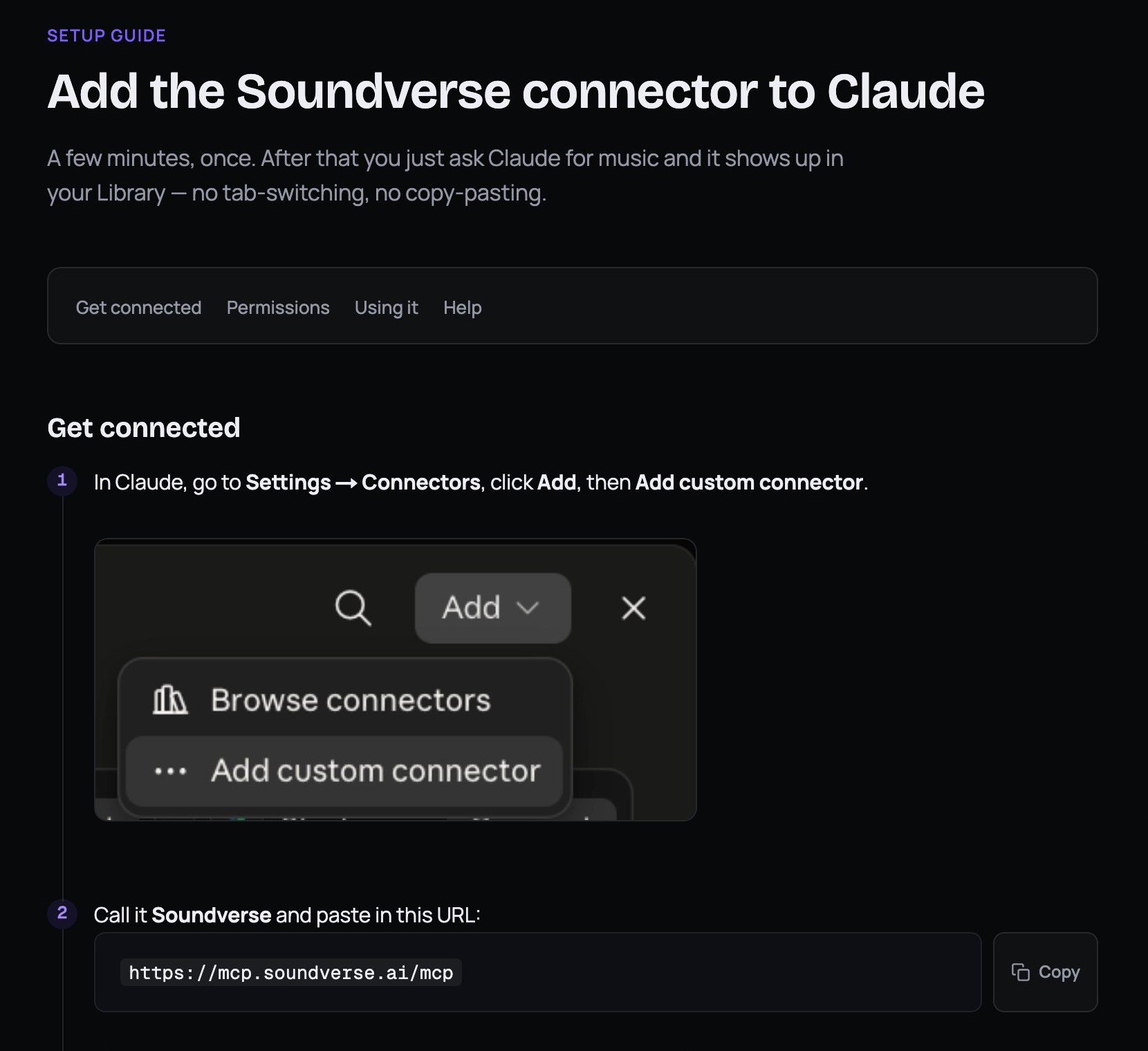 The /mcp page lists both values, with a copy button for each.
The full Claude setup, then a song from one message, its stems and Claude in Chrome.
Choose what Claude may do on its own
Soundverse connects many separate tools, and you decide how much each one can do without asking. In the connector's settings, every tool has three options, set one by one or for the whole group:
- Needs approval: Claude asks before each use. This is the default.
- Always allow: Claude just runs it.
- Blocked: Claude can't use it.
Each Claude chat also has a permission mode. Manual means Claude asks before using a new tool; Auto means Claude runs on its own and pauses if something looks unsafe.
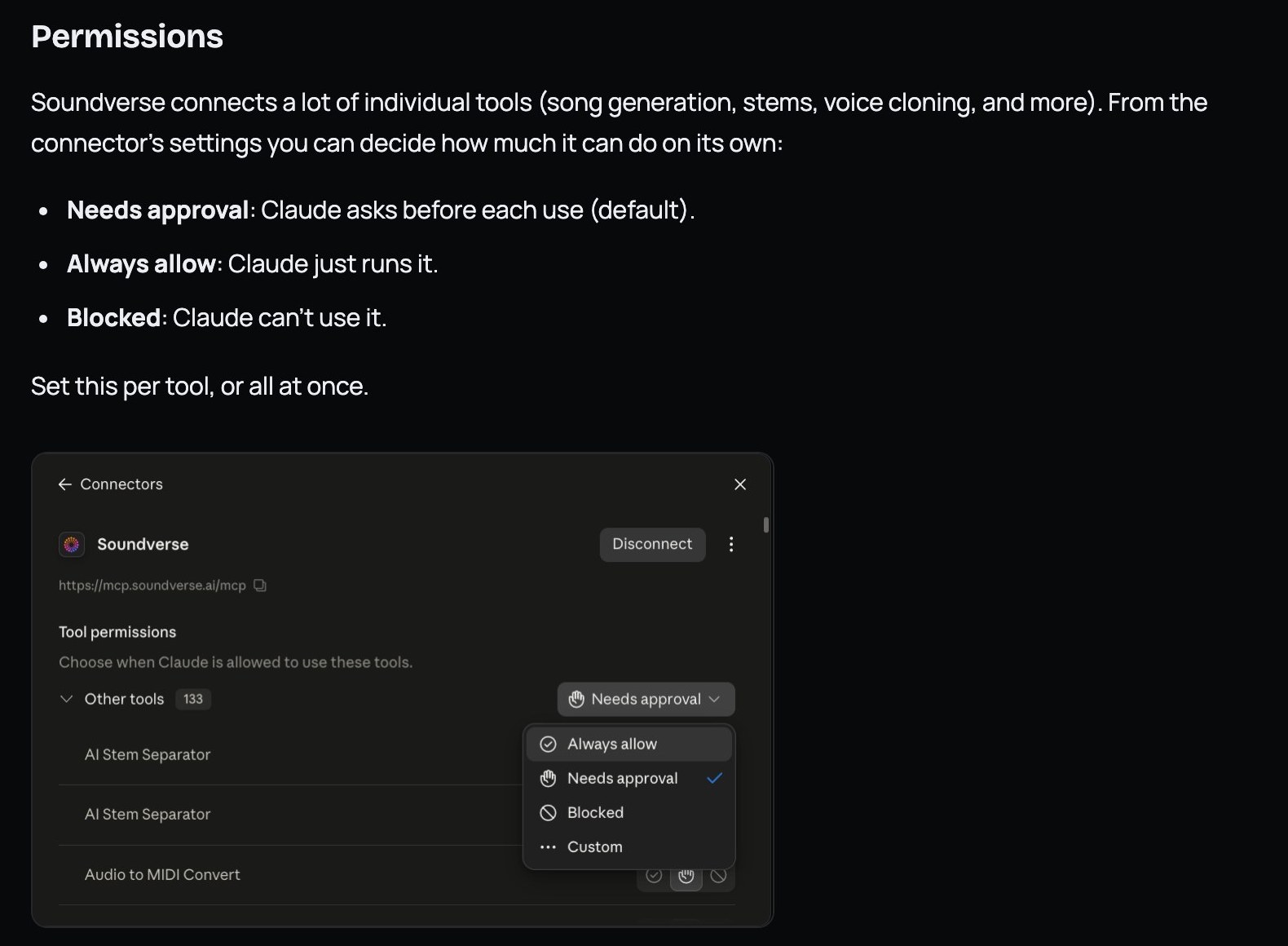 Needs approval is the default for every Soundverse tool.
Want to approve every generation? Use Manual. On Auto, Claude can run a generation without asking.
The Claude video also shows Claude in Chrome using the Soundverse website for you. That needs a paid Claude plan and Chrome on desktop. It has its own approval menu (Manually approve, Automatically approve or Skip all approvals), and Anthropic says to use Skip all approvals only when you fully trust the whole task.
How to set it up in ChatGPT
ChatGPT adds Soundverse as a custom MCP plugin, from ChatGPT on the web. OpenAI's developer docs describe the same Add custom MCP server flow.
- In ChatGPT on the web, open Plugins in the left sidebar, click Add (top right), then Add custom MCP server.
- Name it Soundverse. The description is optional; it shows up in the + menu. Server URL:
https://mcp.soundverse.ai/mcp, with no slash at the end. - Under Authentication, choose OAuth, open Advanced OAuth settings, keep "User-Defined OAuth Client" and paste the OAuth client ID
jt7cp9hv4m9idkuyv2gt0. - Leave the client secret empty and everything else as it is. Two orange notes (DCR and CIMD) appear; they are expected.
- Tick "I understand and want to continue", then click Create as a plugin. It takes about 20 seconds.
- In the "Connect Soundverse" window, click Connect Soundverse and sign in to Soundverse if it asks.
Adding Soundverse to ChatGPT as a custom MCP plugin, then a full song from one message.
Make your first song from a chat
Ask the way you would in the Soundverse app. These prompts come from the /mcp page:
- "Write and generate an upbeat pop song about a road trip."
- "Turn this hum into a full song." (attach the audio)
- "Swap the vocals on this track for something warmer."
- "Pull the stems from this song."
In ChatGPT, start a new chat, click + → Soundverse, then ask. The video used: "Write a feel-good summer pop song about a beach bonfire with friends, then make it on Soundverse." ChatGPT may ask before it uses Soundverse (Always allow, Deny or Allow once). In the video it asked once, to rename the chat project in Soundverse, then made the song without asking again. About two minutes later ChatGPT showed the title, the style and the lyrics.
 Stems are one sentence away: "Pull the stems from this song."
Where your songs land
The assistant tells you in the chat when it's done, but the track lives in your Soundverse Library. It doesn't play inside the conversation. Open soundverse.ai → Library → Audios to listen, download or keep editing.
Three details from the videos are worth knowing:
- Names change. Soundverse gives generated songs their own names. Claude's "Whole Lotta Sky" was saved as "Upbeat Feel-good Pop". To work on a specific song later, give the assistant its link.
- Private is fine. Your song can stay Private; Claude opens the link through your connected Soundverse account.
- Keep going elsewhere. From the Library, a song can go into AI Studio for recording, arranging and mixing. The AI Studio guide walks through it.
If you'd rather work in one place, Agent One does the same kind of planning inside Soundverse itself.
Troubleshooting
- "Authorization with the MCP server failed" (Claude): the client ID can't be edited after adding. Remove the connector (⋯ menu → Remove) and add it again with the client ID above and the secret empty.
- "Couldn't reach the MCP server": remove the connector and add it again. Check the URL (
https://mcp.soundverse.ai/mcp, no slash at the end) and choose "Use your own OAuth client". - ChatGPT says it can't use Soundverse: open Plugins, switch to Personal and open Soundverse. If you see a Connect button, click it to finish signing in.
- Something stuck: remove the connector and add it again. Still stuck? Try the Soundverse Help Centre.
FAQ
Is Soundverse affiliated with Anthropic or OpenAI?
No. Soundverse is added to Claude as a custom connector and to ChatGPT as a custom MCP plugin. It is not affiliated with or endorsed by Anthropic or OpenAI.
Do I need a paid plan?
On Claude, any plan works; the Free plan allows one custom connector. On ChatGPT, you need a plan that lets you add custom MCP servers (the video uses ChatGPT Go), and on a work account you ask your admin. On the Soundverse side you need an account, and songs are made on that account, so check what your plan includes on the pricing page.
Is the client ID a secret?
No. The client ID is safe to share. Leave the client secret field empty; there isn't one.
Will Claude make songs without asking me?
Only if you let it. Every tool starts at Needs approval. If you set a tool to Always allow, or put the chat in Auto mode, Claude can run a generation without asking.
Can I play the song inside the chat?
No. The chat confirms the song is done; the audio is in your Soundverse Library, where you can listen, download or keep editing.
Try it
Copy the server URL and client ID from soundverse.ai/mcp, connect once, and ask for your first song. Building music into your own app instead? The Soundverse API walkthrough does it in three calls.