How to move from Suno to Soundverse: bring your whole library
Download your Suno songs, drop the ZIP or folder into Soundverse, and each song becomes a project for AI Studio or Agent One. No Suno password needed.
Quick answer: Move from Suno brings the songs you've downloaded from your own Suno library into Soundverse. Drop in the files, a folder or the ZIP Suno gives you, and Soundverse sorts songs, stems, lyrics, prompts, covers, metadata and versions into projects you can open in AI Studio or continue with Agent One. It never connects to your Suno account or asks for your Suno password. What you can do next depends on your plan: Extend and 2- and 6-stem separation are on Free, AI Remix is on Creator and up.
Import a Suno library with artwork, time-stamped lyrics and metadata.
How the move works
There are three steps, and you control each one. You download your songs from Suno, you choose which files to give Soundverse, and Soundverse turns each song into a project. Nothing is taken from your Suno account, and only the files you pick come across.
The Move from Suno page is where you drop the files. Everything lands in your Soundverse Library, so it's there across your sessions and devices.
There is no Suno sign-in here and we never ask for your Suno password. (Move from Suno page)
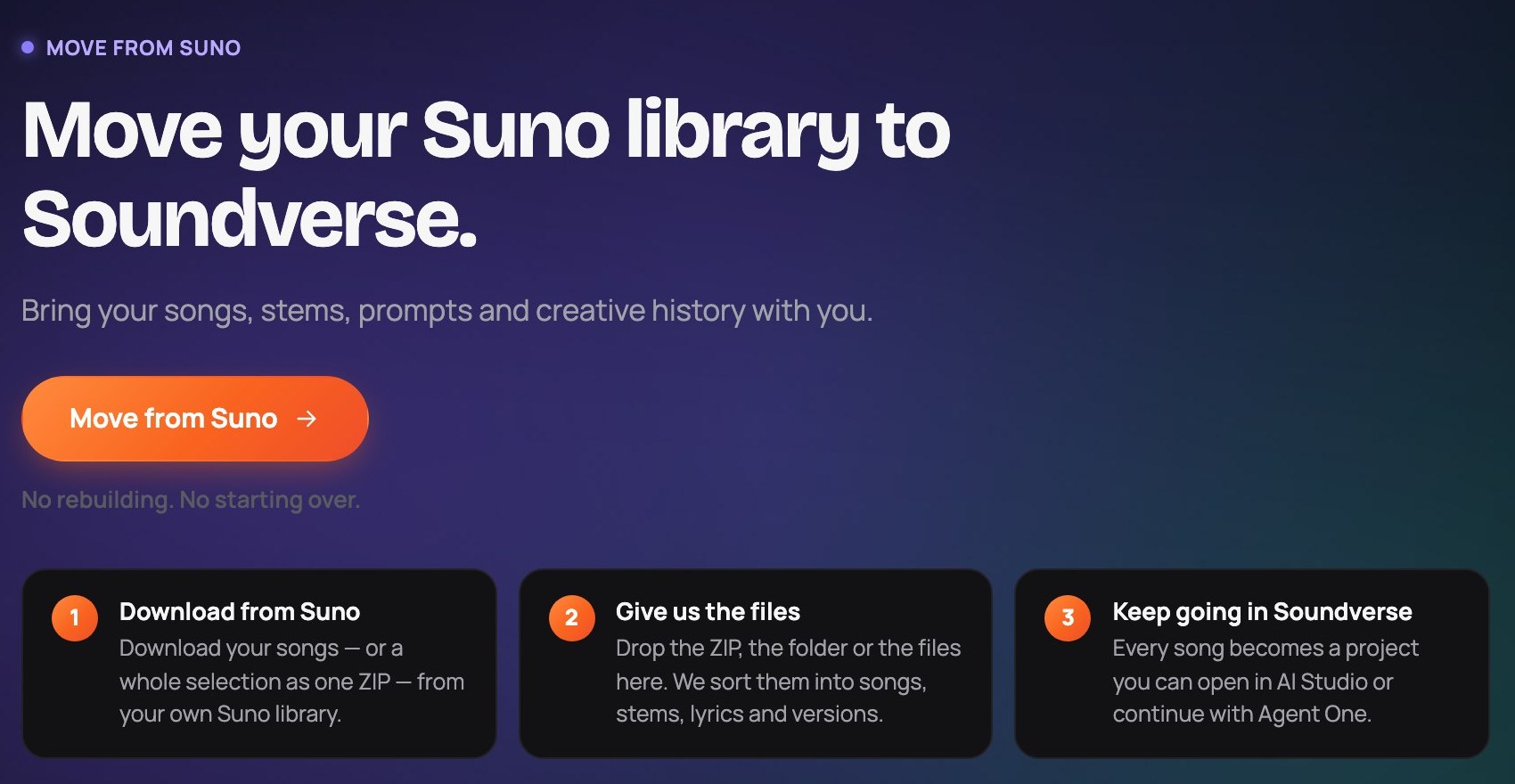 Download from Suno, give Soundverse the files, keep going in Soundverse.
Step 1: download your music from Suno
These steps are from Suno's own Help Center, read on 5 November 2026.
- One song: find it in your Suno Library or Workspace, open the More Actions (…) menu, choose Download and pick a format. (Suno: How do I download songs?)
- Many songs: hold Command (Mac) or Ctrl (Windows) to pick songs, or Shift for a range. Right-click one of them, choose Download All, pick a file type and select Download. Suno puts them in one ZIP. Bring that ZIP over exactly as it is; there's no need to unzip it.
- Stems: open a song's More Actions menu and choose Get Stems, pick a split type and select Extract. Suno lists Get Stems for Pro and Premier subscribers. (Suno: How do I get stems?)
- Suno Studio projects: use the Export menu for Full Song, Selected Time Range or Multitrack. Studio exports are WAV files. (Suno: Exporting from Studio)
Formats depend on your Suno plan. Suno lists MP3 on all plans, WAV for Pro and Premier subscribers on suno.com, and video downloads for songs (Suno: file types).
Downloads also count toward your Suno plan's allowance. As of November 2026, Suno's FAQ lists up to 7 lifetime trial downloads on Free (personal, non-commercial use), 20 a month on Pro and 60 a month on Premier. Downloading a song again doesn't use another one, and a song's stems count as part of that song's single download (Suno: Upcoming Changes FAQ). Suno also says every song stays playable and shareable on Suno on every plan. So pick the songs you want to keep working on first.
Step 2: give Soundverse the files
You choose how much to bring:
- Import everything: pick a whole folder or ZIP of Suno downloads, and Soundverse organises and moves every song.
- Upload an export: drag and drop files, a folder or a ZIP, check what was found, then move it.
- Import selected songs: Soundverse scans your download first, then you choose exactly which songs to bring.
Soundverse accepts MP3, WAV, M4A, FLAC, OGG and MP4, ZIP archives (even a ZIP inside a ZIP), whole folders, lyric files (.txt, .lrc), metadata (.json), artwork (.jpg, .png, .webp) and MIDI. One move takes up to 5,000 files and 2 GB per file. Formats a browser can't play, such as AIFF or WMA, are listed with the reason, so you can download that song again as MP3 or WAV.
You can import again later, as often as you like. Soundverse recognises a song by its audio, not its file name, so songs you've already moved are skipped, and a renamed copy is recognised too.
What comes across, and where it goes
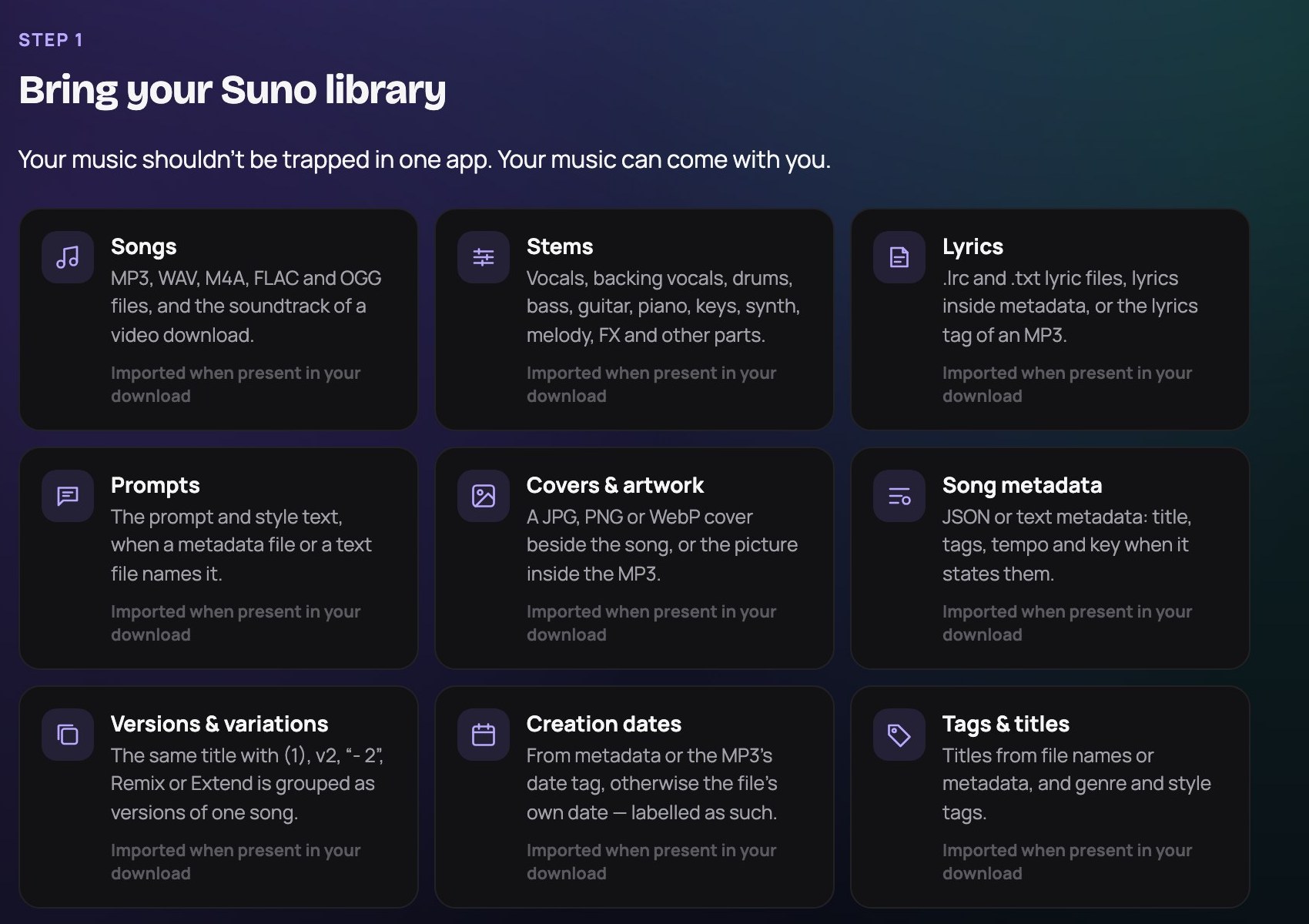 Songs, stems, lyrics, prompts, artwork, metadata and versions all come across.
Each item is imported when it's present in your download. Here is where it ends up:
| From your Suno download | In Soundverse |
|---|---|
| Song audio (full mix) | A playable Library item, and the AI Studio track when a song has no stems |
| Stems | One AI Studio track per stem, all starting at bar 1, named Vocals, Drums, Bass… |
| Prompt and style | Kept with the song and written to the project's history in AI Studio |
| Lyrics (.lrc, .txt, metadata or MP3 tag) | Kept with the song and written to the project's history |
| Title | The Library title and the AI Studio project name |
| Artwork | The song's cover, on its card and its Agent One attachment |
| Tempo (BPM) | The project tempo, measured from the audio when confident, or taken from your metadata |
| Key | Shown in your Library only when your metadata states it; never guessed |
| Versions ("(1)", "v2", "Remix", "Extend") | Grouped under one song; each version opens in AI Studio on its own |
| Creation date | Kept with the song, labelled "file date" when it comes from the file itself |
| MIDI from Suno Studio | Stored with the song in your Library, not placed on the timeline |
Step 3: keep going in AI Studio or with Agent One
Every imported song becomes an editable Soundverse project. You have two ways in.
Continue in AI Studio. This starts a new project named after the song, with each stem on its own track at bar 1 (or the full mix when there are no stems). It sets the project tempo when it's known and writes the prompt, style and lyrics to the project's history. If AI Studio already has work open, you're asked before it's replaced. AI Studio is a multitrack timeline in your browser, and the studio itself (instruments, effects, Mix One and Mastering One) uses no tokens; only AI generation does. On Free, AI Studio includes 3 projects with 3 tracks each.
Continue with Agent One. The song is attached, and you ask for changes in plain words. The Move from Suno page suggests prompts such as:
- "Make the chorus bigger and add a darker synth bass"
- "Replace the second verse vocals"
- "Make this more cinematic"
- "Turn this into a 30-second TikTok version"
Agent One plans the steps and runs the tools. On Free it runs in Lite mode with plans of up to 4 steps; Creator gets plans of up to 12 steps and Pro and Max up to 120.
 AI Studio opens each stem on its own track at bar 1.
Chat or AI Studio? The complete tour of Soundverse, from beginner to pro.
What you can do with an imported song
| Tool | What it does | Plan |
|---|---|---|
| Extend | Grow the song with a new intro, verse or outro | Free and up |
| Stem separation | Split the mix into vocals, drums, bass and more | 2 and 6 stems on Free; 14+ stems on Creator and up |
| Voice Swap | Re-sing the vocal in a chosen voice model | Free and up |
| AI Remix | Remix it from a prompt or new lyrics | Creator and up |
| Similar Song | Make a new song in its style, with your lyrics | Creator and up |
| AI Studio collaboration | Invite collaborators to work on it in real time | See pricing |
Paid plans start at $12.49 a month for Creator ($9.99 billed yearly). If you're moving a large library, check your storage too: 500 MB on Free, 5 GB on Creator and 25 GB on Pro, as of November 2026. The remix and stems guide covers the edit tools in depth.
Your songs keep the rights Suno gave them
Moving a song doesn't change its rights. Soundverse records every imported song as "Originally created in Suno" and shows its clearance as Conditional; it never marks a Suno-made song as cleared for release.
On Suno's side, its FAQ says Free trial downloads are for personal, non-commercial use, and that songs downloaded as a paying subscriber come with commercial rights. Only import songs you have the rights to. Before you release, remix or monetise an imported song, check Suno's terms for that song and Soundverse's Terms of Service. This isn't legal advice.
FAQ
Does Soundverse connect to my Suno account?
No. Soundverse never connects to your Suno account and never asks for your Suno password. You download your own songs and stems from Suno, then give Soundverse those files, so you decide exactly what comes across.
Do I need to unzip Suno's download first?
No. Bring the ZIP exactly as Suno gives it to you. A ZIP inside a ZIP works too, and so does a whole folder.
What happens if I import the same ZIP twice?
Songs you've already moved are skipped. Soundverse recognises a song by its audio, so a renamed copy is recognised as well. A different song that shares file names, or a song you've since edited in Suno, comes across as its own song.
Does Soundverse detect tempo and key?
Tempo is measured from each version's audio, its drums stem first and then its full mix, and only used when the measurement is confident; otherwise the tempo in your metadata is used. Key is only taken from your metadata. Neither is ever guessed.
Where are my imported files stored?
In your Soundverse Library. Songs, stems, metadata and artwork are uploaded to your account, so they're available across your sessions and devices, ready for AI Studio or Agent One.
Try it
Download the songs you want from Suno, then drop them into Move from Suno. For a side-by-side of the two products, see Soundverse vs Suno, and for the studio itself, the AI Studio guide.
Suno is a trademark of its owner. Soundverse is not affiliated with Suno.