How to make a Christmas song with AI, then a music video starring your pet
Build a festive pop song from one piano loop in Soundverse AI Studio: AI stems, vocals, Audio to MIDI, mixing and mastering, then a Veo 3.1 music video starring your pet.
Quick answer: You can make a full Christmas song and a music video starring your pet in Soundverse AI Studio, start to finish, in your browser. This walkthrough starts from a single piano loop and builds Santa's Sleigh Ride, a festive pop song: extend the loop, generate bass, strings, sleigh-bell drums and vocals with AI, turn the bass into MIDI and play it on a synth, mix and master, then make a music video with one shot per section, starring the pet from your Library, and export it as a 1080p MP4.
How to make a Christmas song from scratch with AI, then a music video starring your pet.
What you need
- A Soundverse account and AI Studio, which runs in the browser.
- A short loop to start from. The video uses a piano loop uploaded from a computer; any loop you like will do.
- A few photos of your pet in your Soundverse Library, for the music video.
Everything below happens inside AI Studio, so you can follow along step by step.
Part 1: Build the song
1. Start a project (0:11)
Create a new project, give it a name and set the tempo. Setting the tempo first keeps every generated part on the same grid.
2. Upload a piano loop (0:27)
Drag your loop in from your computer. This is the seed the whole song grows from.
3. Extend the music (0:41)
Use Extend Music to grow the loop into a longer section that keeps its character.
4. Tidy the timeline (1:11)
Delete what you don't need, rename clips so you can find them later, and split clips where a section should change.
5. Add a bass line with the AI Stem Generator (1:31)
The AI Stem Generator writes a new part that fits what's already there. Here it's a bass line under the piano.
6. Strings as a new stem (1:54)
Generate strings as a brand-new stem, the same way.
7. Festive pop drums with sleigh bells (2:30)
Ask for festive pop drums, with sleigh bells, so it sounds like Christmas from the first bar.
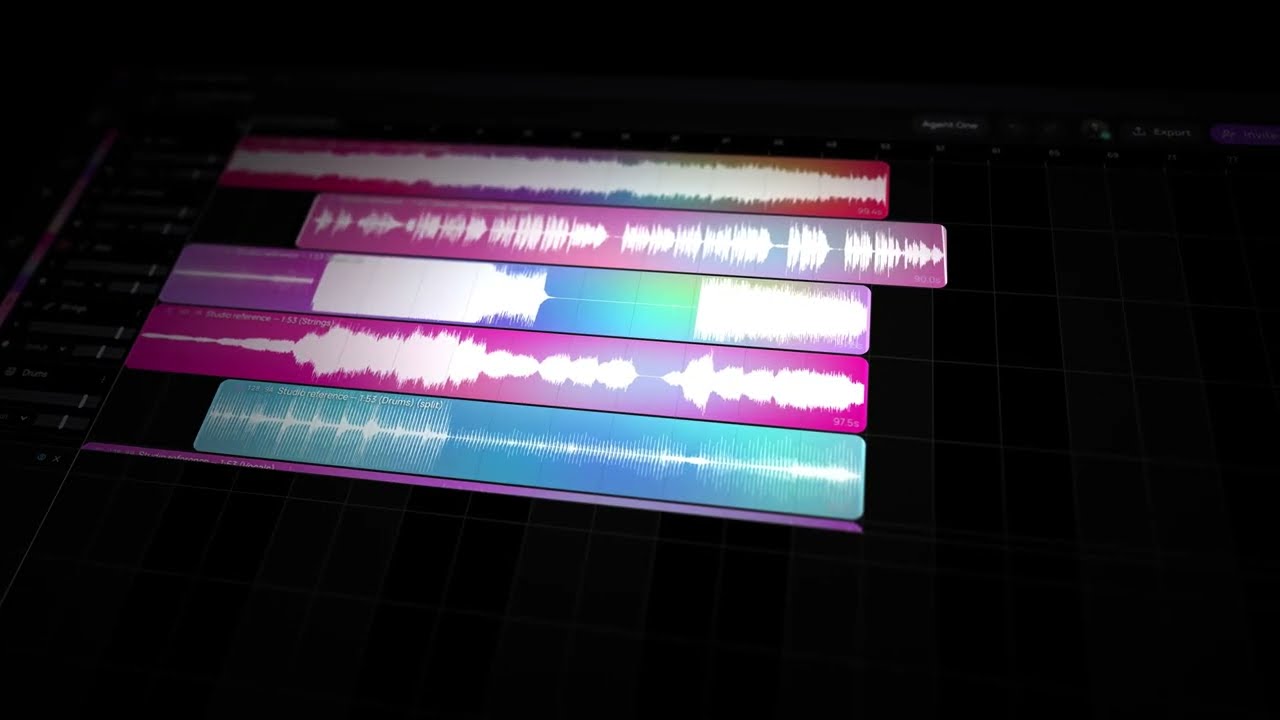
8. Vocals: lyrics, a voice and a song (2:54)
Write the lyrics, pick a voice and generate the vocals. If writing isn't your thing, the AI lyrics writer can draft a first version.
9. Rewrite one line with Inpainting (3:39)
Not happy with one line? Inpainting rewrites just that part and keeps the rest of the vocal as it is.
Part 2: Turn audio into notes
10. Audio to MIDI (4:14)
Convert the generated bass into MIDI notes with Audio to MIDI.
11. Play it on Bass One (4:42)
Play the MIDI bass line on Bass One, a synth built into AI Studio. Now the bass is fully editable, note by note.
Part 3: Mix and master
12. Automation (4:52)
Automate the filter cutoff and the volume, so parts open up and fade where they should.
13. Reverb and EQ (5:13)
Add reverb and EQ, track by track.
14. Clean-up (5:50)
Cut stray sounds out of the stems.
15. Shape the detail (6:03)
Punchier drums, softer strings, a brighter vocal.
16. Mix with the mixer, then Mix One (6:36)
Balance the tracks on the mixer, then use Mix One for the overall mix.
17. Master with Mastering One (7:10)
Mastering One sets loudness, intensity and dynamics for the final master.
18. Final balance pass (7:34)
One last listen and small adjustments. At 7:47 you hear the finished song, Santa's Sleigh Ride.
Part 4: Make the music video
19. Visuals with the AI Video Generator and Veo 3.1 (8:11)
Open the AI Video Generator inside AI Studio and choose Veo 3.1.
20. Cast your pet (8:29)
Use reference images of your pet from your Library, so the same pet appears in every shot.
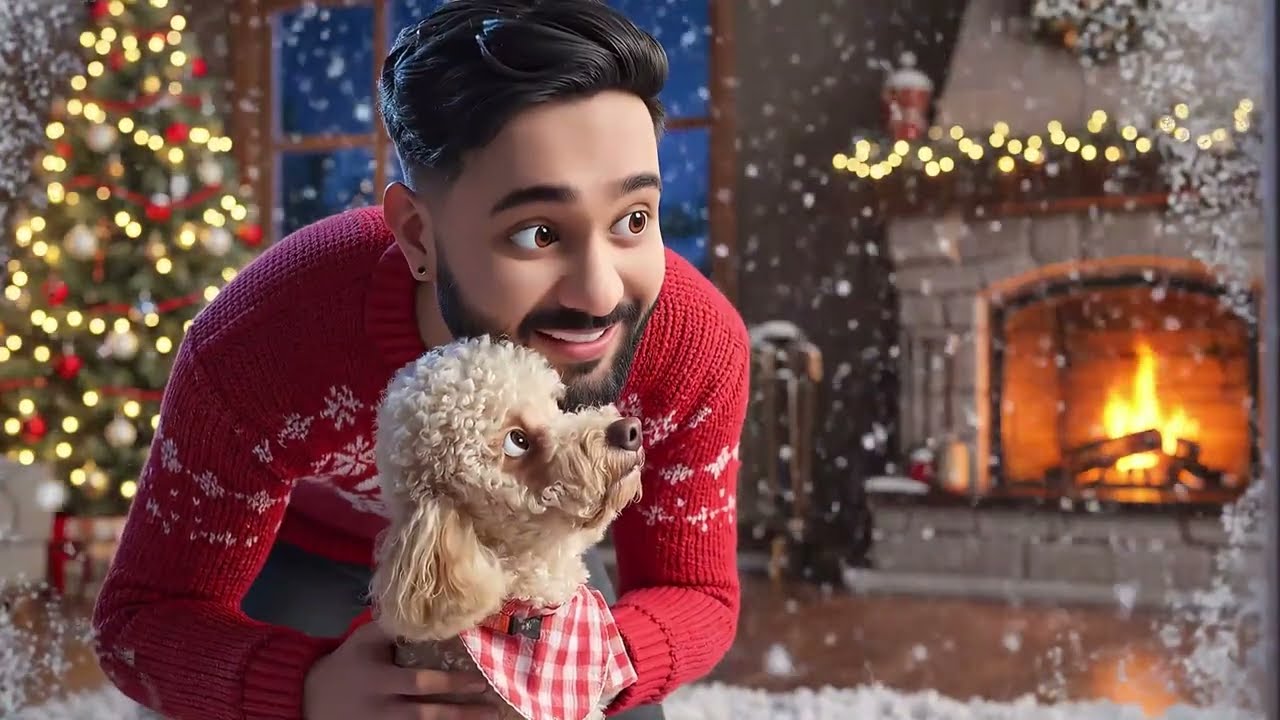
21. One shot per section (8:44)
Generate one shot for each section of the song: intro, verse, chorus and so on.
22. Arrange every scene on its bars (8:56)
Place each scene on the bars of the section it belongs to, so the cuts land with the music.
23. Export as 1080p MP4 (9:06)
Export the music video as a 1080p MP4, with the song mixed in.
Why this workflow works
- You never leave one project. Song, MIDI, mix, master and video all live in the same AI Studio session.
- AI fills the parts you can't play. Bass, strings, drums and vocals come from generators, and you decide what stays.
- You can still edit by hand. Audio to MIDI and Bass One turn a generated part into notes you can change.
- The video follows the song. One shot per section, placed on the bars, means the visuals change when the music does.
FAQ
Do I need to install anything?
No. AI Studio runs in your browser.
Can I start without a loop?
Yes. The video starts from a piano loop, but you can also generate a first idea with Agent One and open it in AI Studio.
Which video model is used for the music video?
Veo 3.1, through the AI Video Generator in AI Studio.
How do I keep my pet looking the same in every shot?
Use reference images of your pet from your Library when you generate each shot.
What format is the final video?
A 1080p MP4.
Try it
Got a pet who deserves to be a star? Open AI Studio, make your own Christmas song and music video, and tag @soundverse.ai when you share it.