The new Soundverse, explained: Chat, AI Studio and your Library
Everything new in the 2026 Soundverse, how Chat and AI Studio work together, and how to find, organise and reuse everything you make in your Library.
Quick answer: The brand-new Soundverse (2026) puts creating, editing, owning, analysing, promoting, performing and distributing music in one place, with Agent One always a chat away. There are two ways to work: Chat, where you describe what you want and Agent One makes it, and AI Studio, where you shape every detail on a timeline. Everything you make, upload or record lands in your Library, where you can find it, organise it and reuse it. This guide covers all three, with the three short videos that explain them.
The brand-new Soundverse, 2026: your AI music team, studio and stage in one place.
What's new in the brand-new Soundverse
The relaunch is the biggest update in Soundverse's history. Here's what the video covers, in order:
| Time | What's new |
|---|---|
| 0:07 | Agent One, your AI music team: it plans the steps, picks the tools and does the work |
| 0:19 | Refine your creations in the same chat until they sound right |
| 0:23 | Plan releases and create music videos: a day-by-day release plan with the best release day and pitch deadlines |
| 0:32 | Keep perfecting in AI Studio, a full audio-visual studio in your browser |
| 0:40 | Music provenance built in: every creation carries its story |
| 0:43 | Track every contribution: see who made what, human or AI |
| 0:45 | New instruments in AI Studio, with precise control |
| 0:50 | Connect your MIDI keyboard or controller and play straight in |
| 0:54 | Collaborate with friends in the same project, in real time |
| 1:00 | Computer Use: Agent One handles tasks that need a browser |
| 1:07 | Trace: song similarity at track, stem, section and lyric level |
| 1:11 | DNA: train an AI model on your own sound |
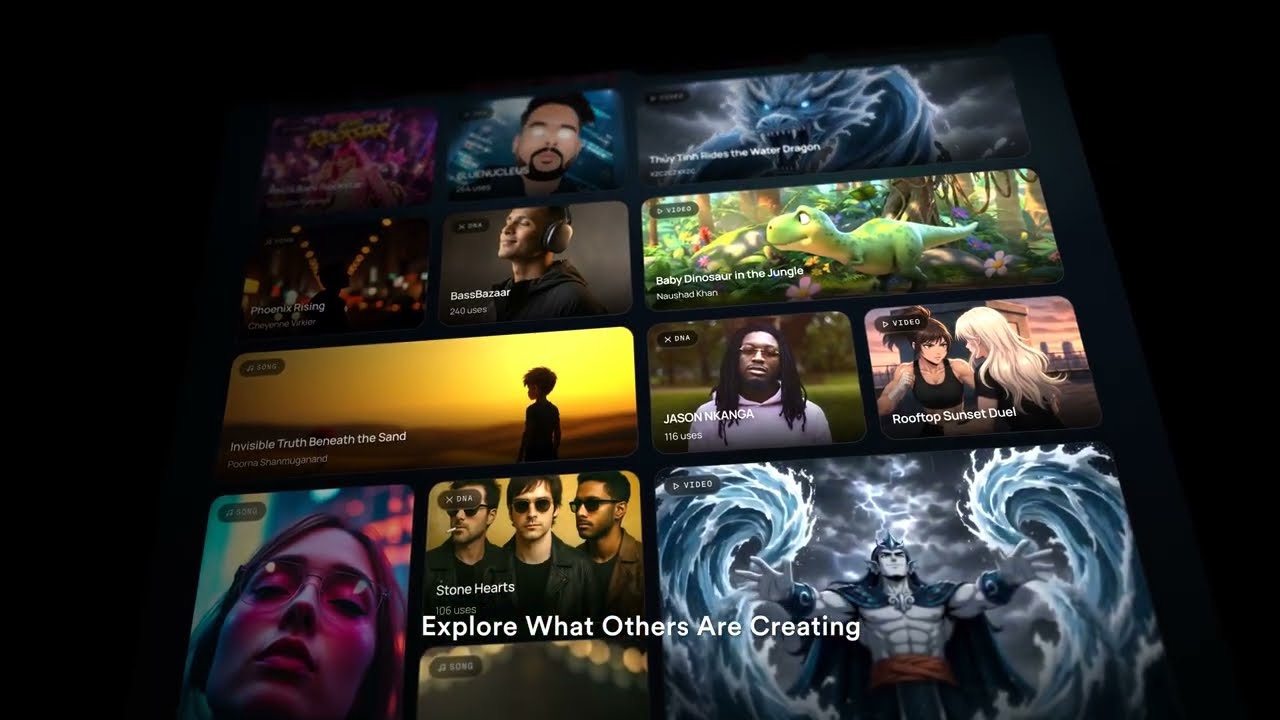
| 1:14 | Explore what others are creating |
| 1:15 | Sparks: song ideas from what's trending in your country |
| 1:18 | APIs and MCP to build Soundverse into your own apps |
| 1:20 | Soundverse works with Claude |
| 1:24 | Soundverse DJ to perform live |
| 1:28 | Automix your tracks with AI |
Two ways to create: Chat and AI Studio
New to Soundverse? This 60-second guide is the place to start.
Soundverse in 60 seconds: how to use Chat and AI Studio.
Chat: just ask
Chat is the fastest way to create. Describe what you want in plain words, and Agent One picks the right tools and makes it for you.
- Type what you want: a song, a beat, a remix, a music video, cover art and more.
- Type @ to reference your own files, songs or earlier creations.
- Ask for changes in the same conversation: "make the chorus bigger", "swap the vocal", "make it lo-fi".
- Pick your Agent One mode depending on how much depth you need.
AI Studio: shape every detail
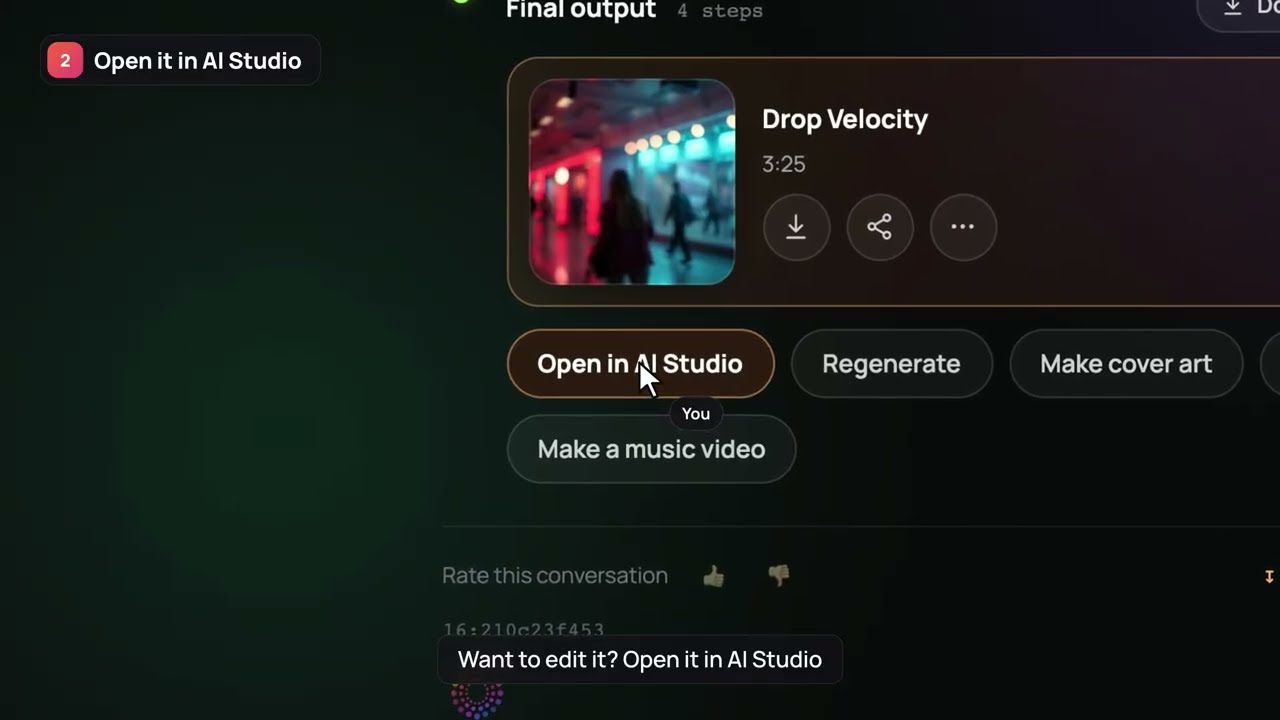
AI Studio is a full audio-visual studio in your browser. Everything you make in Chat can open here, laid out section by section on a timeline.
- Edit audio, video and images on a multitrack timeline.
- Record vocals and instruments from your mic or audio interface.
- Generate music, stems, vocals and sound effects straight onto the grid.
- Invite collaborators to work with you in real time.
- Ask Agent One for help without leaving the studio.
Which one should you use?
- Want something fast? Start in Chat.
- Want full control? Open AI Studio.
- Want both? Start in Chat, then refine in AI Studio. Everything stays editable.
Your Library: everything you make, in one place
Soundverse Library basics: find, organise and reuse everything you create.
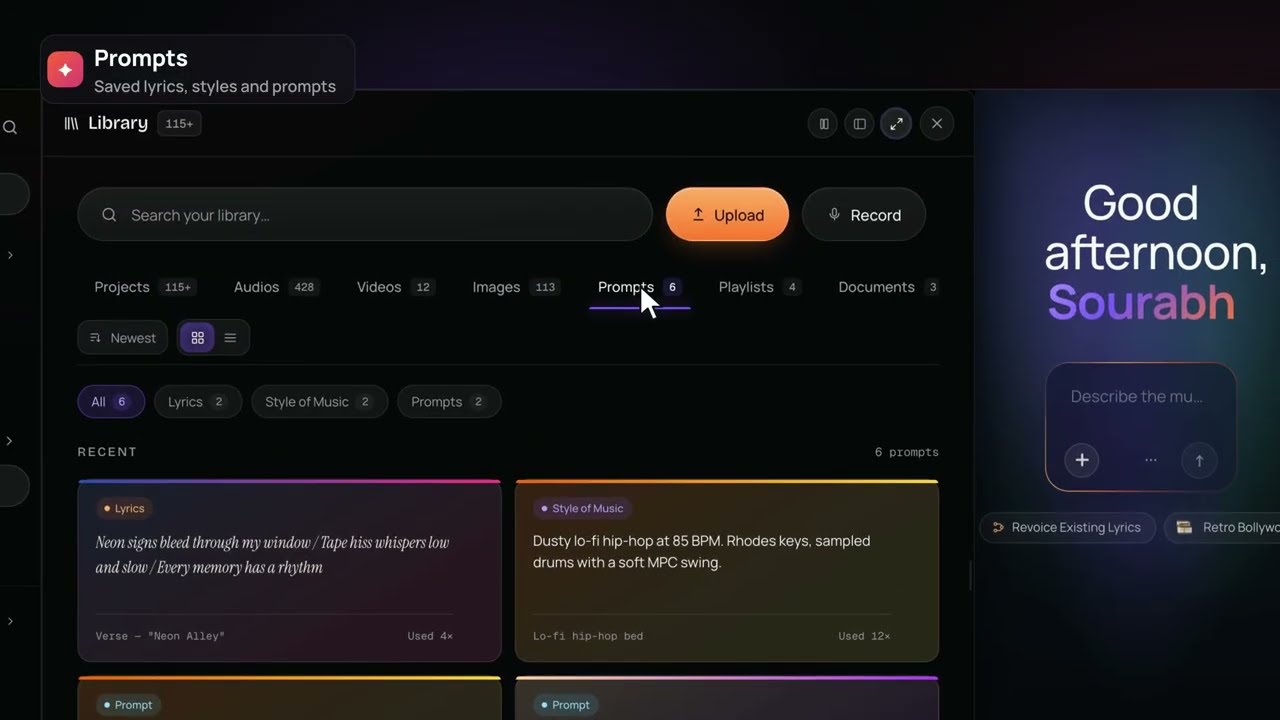
Click Library in the left-hand menu to see everything you've made, uploaded or recorded, newest first. Your recent projects also appear at the bottom of the sidebar, so you can jump back in fast. You can search, upload audio, video, images and files, record straight from your mic, sort by newest, and switch between grid and list views.
The tabs in your Library
| Tab | What's in it |
|---|---|
| Projects | Every project you've started, filtered by where you made it: Chat, AI Studio or Legacy |
| Audios | All your audio, filtered by Generated, Uploaded, MIDI, Recorded and Legacy; songs made with DNA are marked |
| Videos | AI videos, music videos, lip-synced reels and uploaded clips |
| Images | Cover art, AI images, characters and uploads |
| Prompts | Your best ideas, saved and filtered by Lyrics, Style of Music and Prompts |
| Playlists | Songs grouped for albums, projects, clients or moods |
| Documents | Briefs, lyric sheets, PDFs and other files, ready to use with Agent One |
Why it matters
Everything in your Library can be used again. Type @ in Chat to reference any song, image, prompt or document, open it in AI Studio to edit, or use it as the starting point for something new.
How to get started
- Go to soundverse.ai and sign up.
- Start in Chat: describe what you want and let Agent One make it.
- Open your creation in AI Studio to edit, arrange and mix.
- Find it again any time in your Library.
- Export, share or release your music.
FAQ
What's the difference between Chat and AI Studio?
Chat is where you describe what you want and Agent One makes it. AI Studio is where you edit it yourself on a timeline. You can use either, or both.
Where does everything I make go?
Into your Library, sorted into Projects, Audios, Videos, Images, Prompts, Playlists and Documents.
Can I reuse a prompt that worked?
Yes. Save it in the Prompts tab and reuse it any time.
Can I play my MIDI keyboard into Soundverse?
Yes. Connect your MIDI keyboard or controller and play straight in.
Can Soundverse work inside Claude?
Yes. See Soundverse MCP: make music in Claude and ChatGPT.
Try it
Open Soundverse, make one thing in Chat, open it in AI Studio, and find it again in your Library. That's the whole loop.