How to Use a Splitter: Complete 2026 Guide for Audio, Video, and Network Devices
Learn how to use a splitter effectively to connect multiple devices, troubleshoot issues, and enhance your audio setup in 2026.
How to Use a Splitter
In today’s interconnected world, knowing how to use a splitter effectively is essential for creators, musicians, gamers, and everyday tech users. Whether you’re dealing with an audio splitter to share sound between devices, a video splitter to duplicate displays, or a network splitter for internet connections, the process follows a few core principles of signal distribution and device compatibility. In 2026, splitters remain indispensable tools as multimedia setups have become more complex, especially with hybrid workspaces, smart devices, and multi-stream entertainment systems.
What is a Splitter and Why Do You Need One in 2026?
A splitter is a simple yet powerful device that divides a single input signal into multiple outputs. It’s widely used in audio setups to share output across headphones or speakers, in video setups to connect multiple monitors or projectors, and in network configurations to split data transmission between systems.
Audio Splitters: Allow multiple headphones or speakers to share the same sound source. They’re common among musicians and podcasters collaborating in real-time.
Video Splitters: Duplicate visuals from one display source (like a computer or console) to multiple screens, ideal for multi-monitor productivity setups.
Network Splitters: Divide internet or network signals for multiple computers or smart devices without needing additional routers.
As 2026 technology advances, splitters now support higher bandwidths, better signal fidelity, and smarter compatibility detection. Still, it’s vital to understand proper cable splitter setup and troubleshooting tips to avoid degraded performance or sync issues.
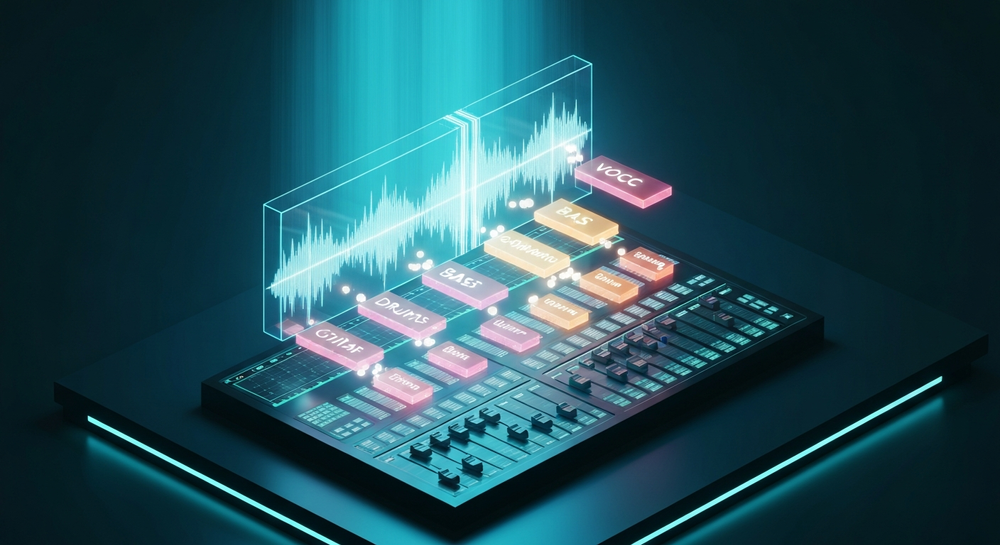
How to Make Full Use of Splitter Types and Their Applications
When exploring splitter types and uses, focus first on your intended purpose:
- Audio Sharing: Ideal for music producers, DJs, podcasters, and classroom setups. Use stereo splitters with high-quality shielding to minimize interference.
- Video Broadcasting: Select HDMI 2.1 splitters for 4K/8K streaming or multi-screen event setups. Always check that your splitter’s output resolution matches the source.
- Networking: Ethernet splitters help extend connections within limited setups; however, they may not always maintain full bandwidth across devices—choose powered variants when possible.
For audio professionals, using a splitter often goes hand in hand with digital editing tools. This brings us to Soundverse—a platform that has revolutionized music production in 2026.

How to Make Your Splitter Workflow More Creative with Soundverse Stem Separator
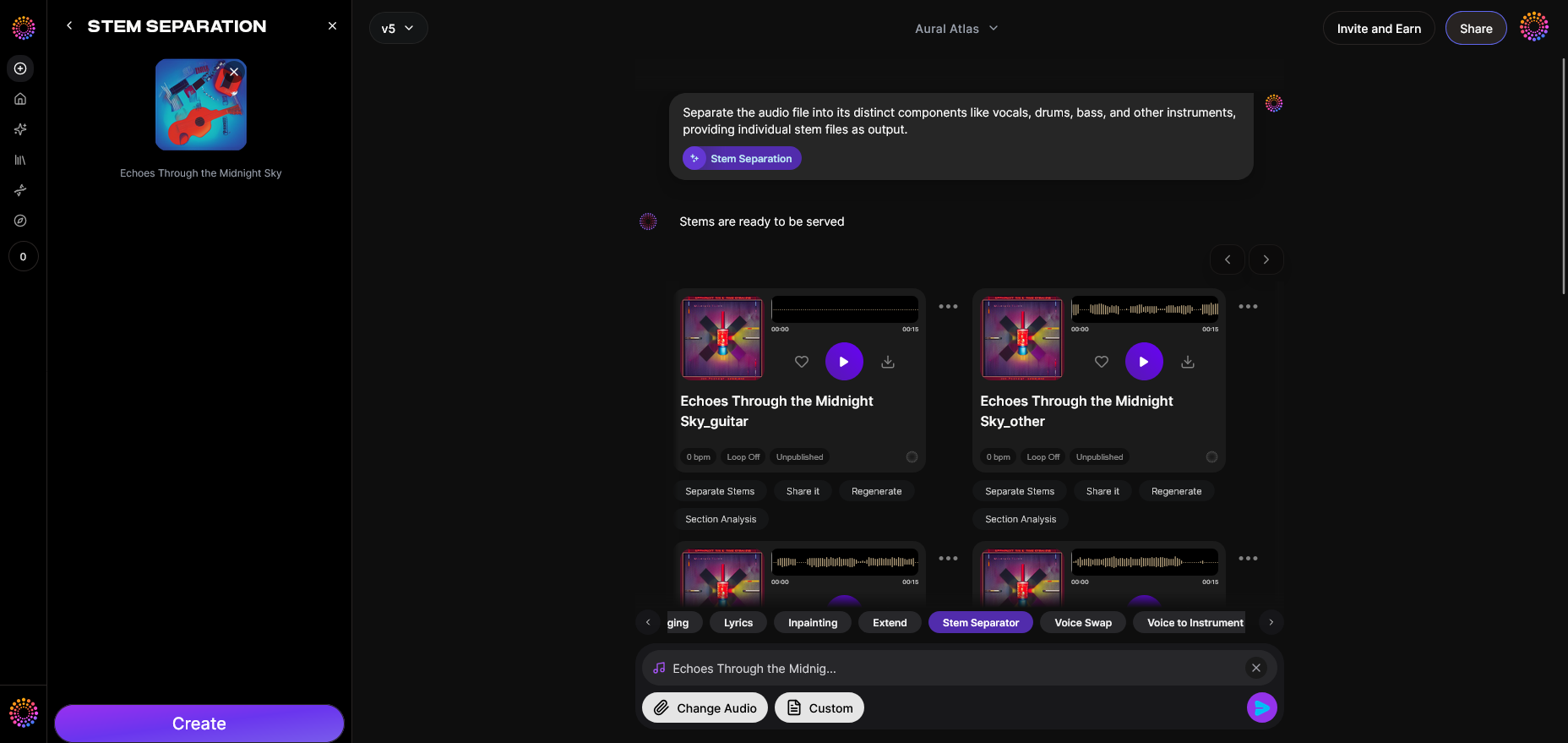
Soundverse’s Stem Separator goes beyond basic signal splitting—it dissects mixed audio into up to six editable stems: Vocals, Drums, Bass, Guitar, Accompaniment, and others. Unlike a physical splitter that only duplicates output, Soundverse’s AI brings splitting into the digital realm, enabling precise isolation and remixing.
Core Capabilities:
- Six-stem separation for in-depth mix control.
- Supports URL, File, and Recording inputs.
- Delivers high-quality isolation ideal for remixing or educational use.
With these features, users can create backing tracks for karaoke, perform detailed remix analyses, or clean up audio for professional editing. Pairing physical splitters with Soundverse’s digital stem separation ensures both live and post-production versatility. For more context, explore the complete splitter AI tutorial.
Step 1: Upload Interface
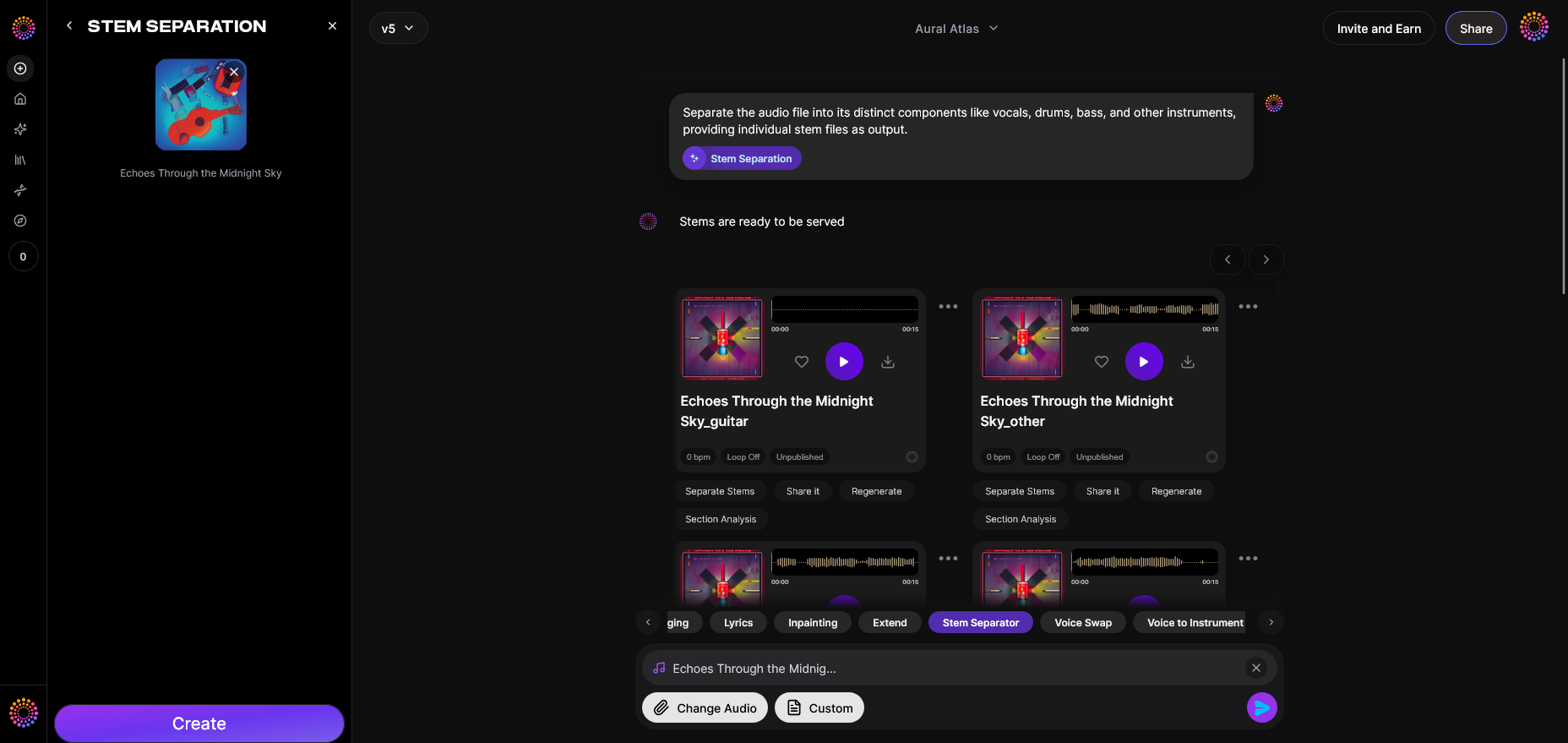
Begin by opening the Soundverse Stem Separator. Upload your audio through the dialog box—the platform accepts local files, URLs, or direct recordings. This step initializes the signal analysis before AI separation occurs.
Step 2: Additional References
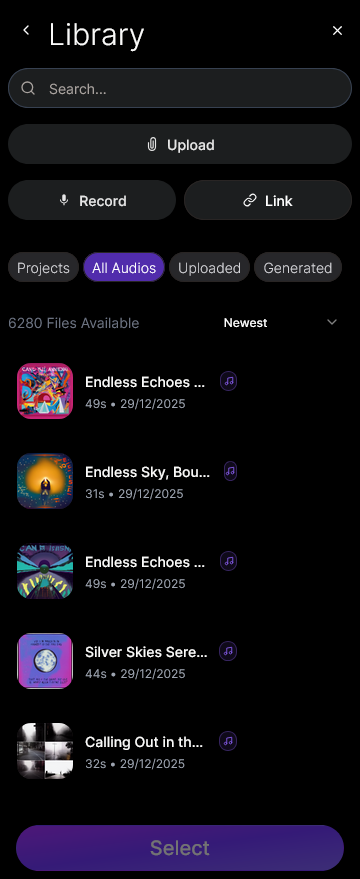
If available, you can upload reference audio to guide processing. This allows Soundverse to better understand desired mixing characteristics or stylistic influences, improving stem accuracy for both vocals and instruments.
Step 3: Results Display
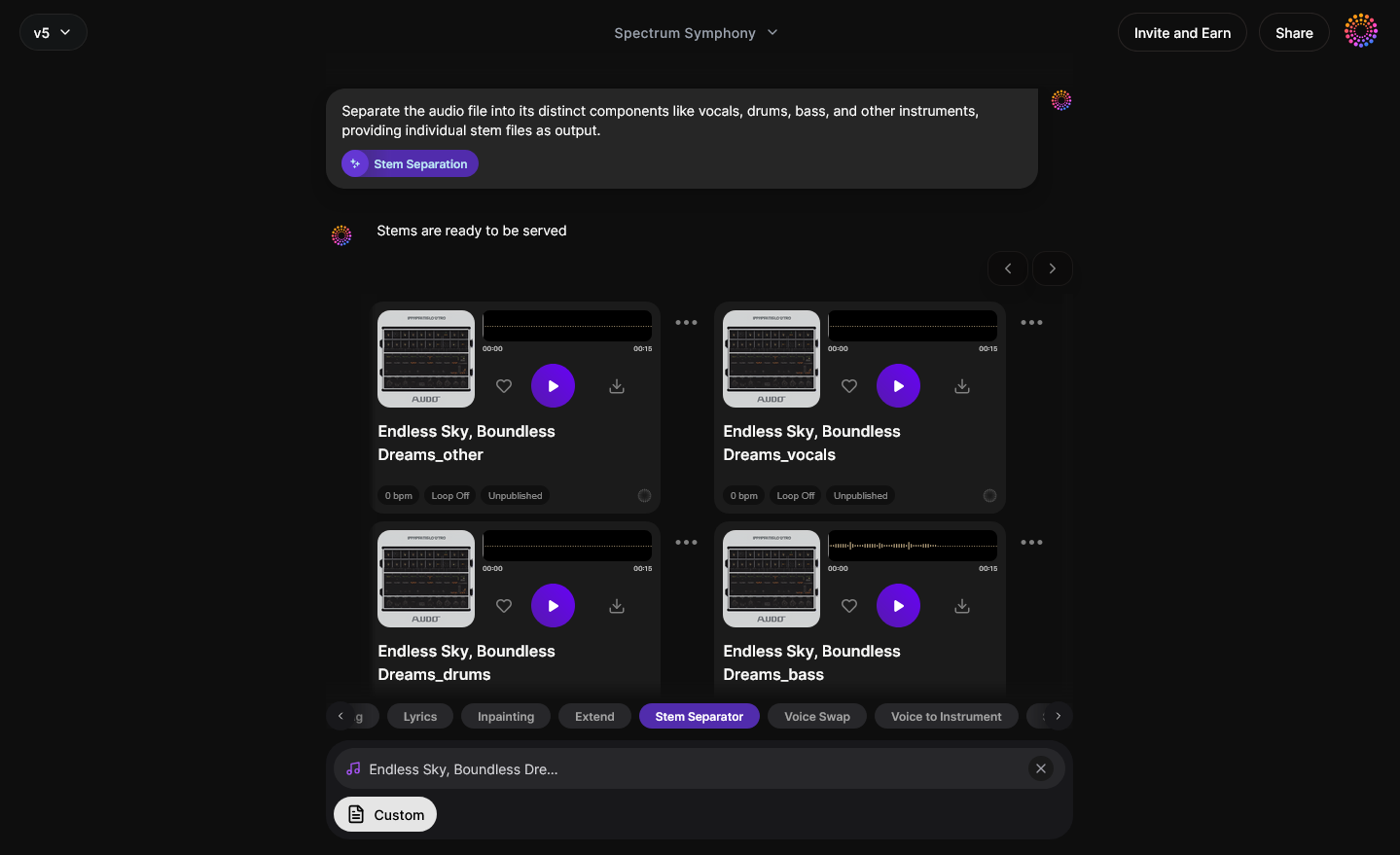
Once processed, Soundverse will show the separated stems visually. You’ll see sections like Vocals, Drums, Bass, and Guitar clearly delineated. This representation helps identify elements you want to enhance or eliminate.
Step 4: Download Stems
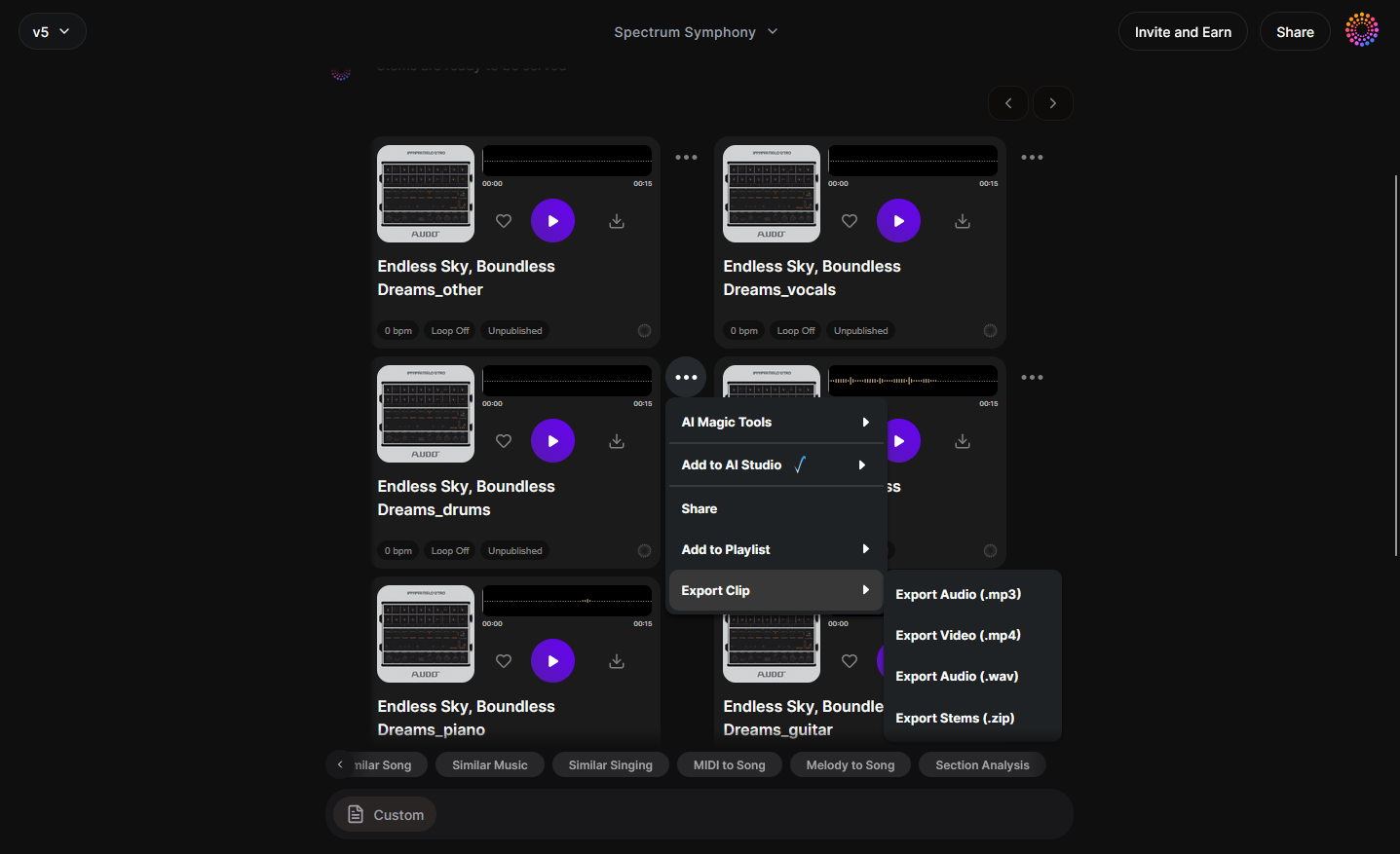
After review, users can download individual stems. Use them with DAWs or effects chains to refine arrangements. These clean extractions mimic a digital form of splitter usage—distributing original sound components across different creative tracks.
Step-by-Step Guide: How to Use a Physical Splitter Efficiently
To complement Soundverse’s digital workflow, here’s a practical audio splitter guide you can follow:
Step 1: Identify Your Connection Type
Check your devices’ ports—3.5mm for audio, HDMI for video, USB-C or Ethernet for data. The splitter type must match both your source and output devices. To learn more about crafting an Audio Splitter: 5 Steps guide.
Step 2: Connect Source and Outputs
Attach the source cable (such as your phone, mixer, or PC) to the splitter’s input port. Then connect your output cables—these may lead to headphones, speakers, or additional displays. For USB setups, see How to Use a USB Training Splitter for Dual Headset Setup.
Step 3: Configure Device Settings
For audio setups, ensure all devices are set to receive stereo output. For video, adjust screen cloning or duplication settings in your OS. For networks, verify IP assignment consistency.
Step 4: Test and Troubleshoot
Check signal levels—if one device seems weaker, swap output ports to isolate potential faults. Common splitter troubleshooting tips include reseating cables, checking for bent connectors, and testing different sources.
What Are Common Splitter Troubleshooting Tips?
Troubleshooting splitters involves methodical signal tracing:
- No Output: Ensure cables are fully seated and powered splitters are correctly connected.
- Poor Audio Quality: Check cable shielding and use dedicated amplifier splitters for high-impedance headphones.
- Video Lag or Flicker: Choose certified HDMI cables supporting current standards.
- Network Speed Drops: Network splitters may halve bandwidth; consider a managed switch for high-speed tasks.
These issues are often resolved through cable swaps or power adjustments—understanding signal flow is key. To explore how sound can be routed and tested, see Using OBS as an Audio Splitter for Live Streaming and Recording.
Combining Splitters with Smart Creative Tools in 2026
Modern creators use splitters alongside AI music solutions like Soundverse to maximize flexibility. For instance, after isolating music components using the Stem Separator, you can route the separated stems into different playback systems using hardware splitters for collaborative mixing sessions.
Soundverse’s AI music generation features empower users to create diverse genres after stem separation, from jazz to EDM, as seen in guides like How to Create Jazz Music with Soundverse AI and How to Create EDM with Soundverse AI. Combining hardware splitters with AI tools bridges physical and digital creativity. For a deeper dive, watch our Soundverse Tutorial Series - How to Make Music and Explore Tab walkthrough.
Pro Tips for Optimal Splitter Setup
- Use high-quality cables to minimize losses.
- Favor powered splitters for maintaining consistent performance.
- Label outputs to avoid confusion during live setups.
- For music creators, test stem playback through separate monitors to analyze frequency distribution.
- Consider integrating Soundverse’s Stem Separation AI Magic Tool to digitally split and clean up noisy recordings before hardware playback.
Start Creating with AI-Powered Music Splitters
Unlock the ability to separate, remix, and refine stems instantly using Soundverse’s AI Magic Tools. Take control of your sound design and turn every track into creative potential.
Try Soundverse Free
- Soundverse Introduces Stem Separation AI Magic Tool: Discover how Soundverse’s advanced stem separation technology empowers creators to isolate vocals, instruments, and beats effortlessly.
- What Are Song Stems and Why Do You Need Them: Learn the fundamentals of song stems and how understanding them can elevate your music mixing and production process.
- Soundverse AI Magic Tools: Create Content Quickly with AI: Explore how AI Magic Tools from Soundverse streamline music creation, editing, and stem manipulation for creatives of all levels.
- Let Soundverse Assistant Auto Select the Right AI Magic Tool for You: Find out how Soundverse Assistant intelligently chooses the best AI tool for splitting or creating stems based on your project’s needs.
Here's how to make AI Music with Soundverse
Video Guide
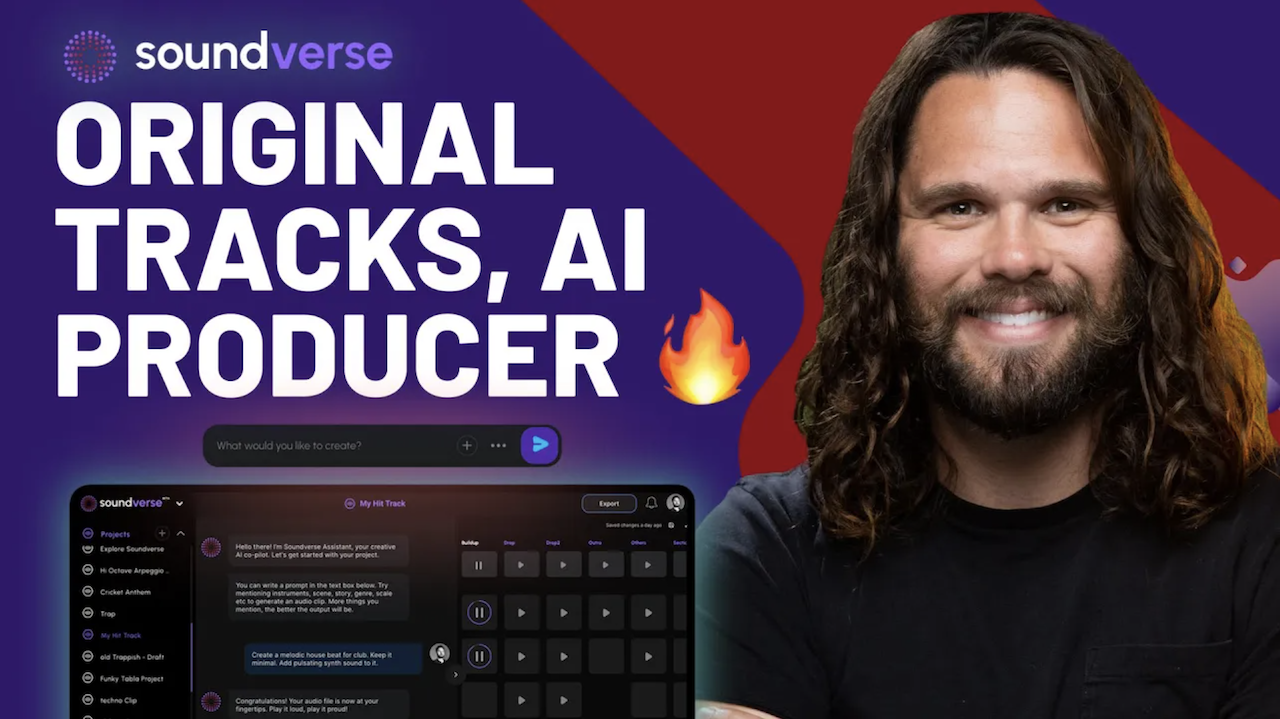
Here’s another long walkthrough of how to use Soundverse AI.
Text Guide
- To know more about AI Magic Tools, check here.
- To know more about Soundverse Assistant, check here.
- To know more about Arrangement Studio, check here.
Soundverse is an AI Assistant that allows content creators and music makers to create original content in a flash using Generative AI.
With the help of Soundverse Assistant and AI Magic Tools, our users get an unfair advantage over other creators to create audio and music content quickly, easily and cheaply.
Soundverse Assistant is your ultimate music companion. You simply speak to the assistant to get your stuff done. The more you speak to it, the more it starts understanding you and your goals.
AI Magic Tools help convert your creative dreams into tangible music and audio. Use AI Magic Tools such as text to music, stem separation, or lyrics generation to realise your content dreams faster.
Soundverse is here to take music production to the next level. We're not just a digital audio workstation (DAW) competing with Ableton or Logic, we're building a completely new paradigm of easy and conversational content creation.
TikTok: https://www.tiktok.com/@soundverse.ai
Twitter: https://twitter.com/soundverse_ai
Instagram: https://www.instagram.com/soundverse.ai
LinkedIn: https://www.linkedin.com/company/soundverseai
Youtube: https://www.youtube.com/@SoundverseAI
Facebook: https://www.facebook.com/profile.php?id=100095674445607
Join Soundverse for Free and make Viral AI Music

We are constantly building more product experiences. Keep checking our Blog to stay updated about them!