Platforms Where You Can Instantly Download AI-Generated Music Videos for Your Game Project
Where to download AI music videos for a game: platforms, formats Unity, Unreal and Godot accept, commercial-use terms, loop steps and Steam AI rules.
To download AI music videos for a game, use a browser-based generator that exports a ready video file, on a plan whose terms allow commercial use. If you want a platform where you can instantly download AI-generated music videos for your game project, start with Soundverse, Kaiber, Neural Frames, Freebeat or Revid, then convert the file for your engine.
We checked every platform below on its own pages on 19 November 2026, alongside the Unity, Unreal, Godot and Steam documentation.
What a game project needs from music-video footage
Music-video footage turns up in a game in four places, each with its own needs.
- Cutscenes. Plays once, full screen, with its own audio, at your target display's resolution.
- Trailers and store videos. Steam's trailer guidelines ask for up to 1920 x 1080 at 30 or 60 fps, a bit rate of 5,000 Kbps or more, and a .mov, .wmv or .mp4 file, with H.264 video and AAC audio preferred.
- Menu and title loops. Plays for minutes behind the UI, so the last frame has to meet the first, and a short clip keeps the build small.
- In-world screens. A video wall in a club level or a stage backdrop in a rhythm game. These play on a texture, so 720p is often enough.
On resolution, Godot's video documentation recommends 1080p at most for desktop games, preferably at 30 fps, and 720p at most for mobile and web, because most players' screens are 1080p or lower.
Alpha channel. None of the platforms below lists an alpha-channel export on the pages we read. For a hologram over gameplay, generate the subject on a flat solid background, key it out in your editor and export a codec that keeps alpha. Unity supports two: Apple ProRes 4444 and WebM with VP8. Unreal's Media Framework plays HAP Alpha and HAP Q Alpha.
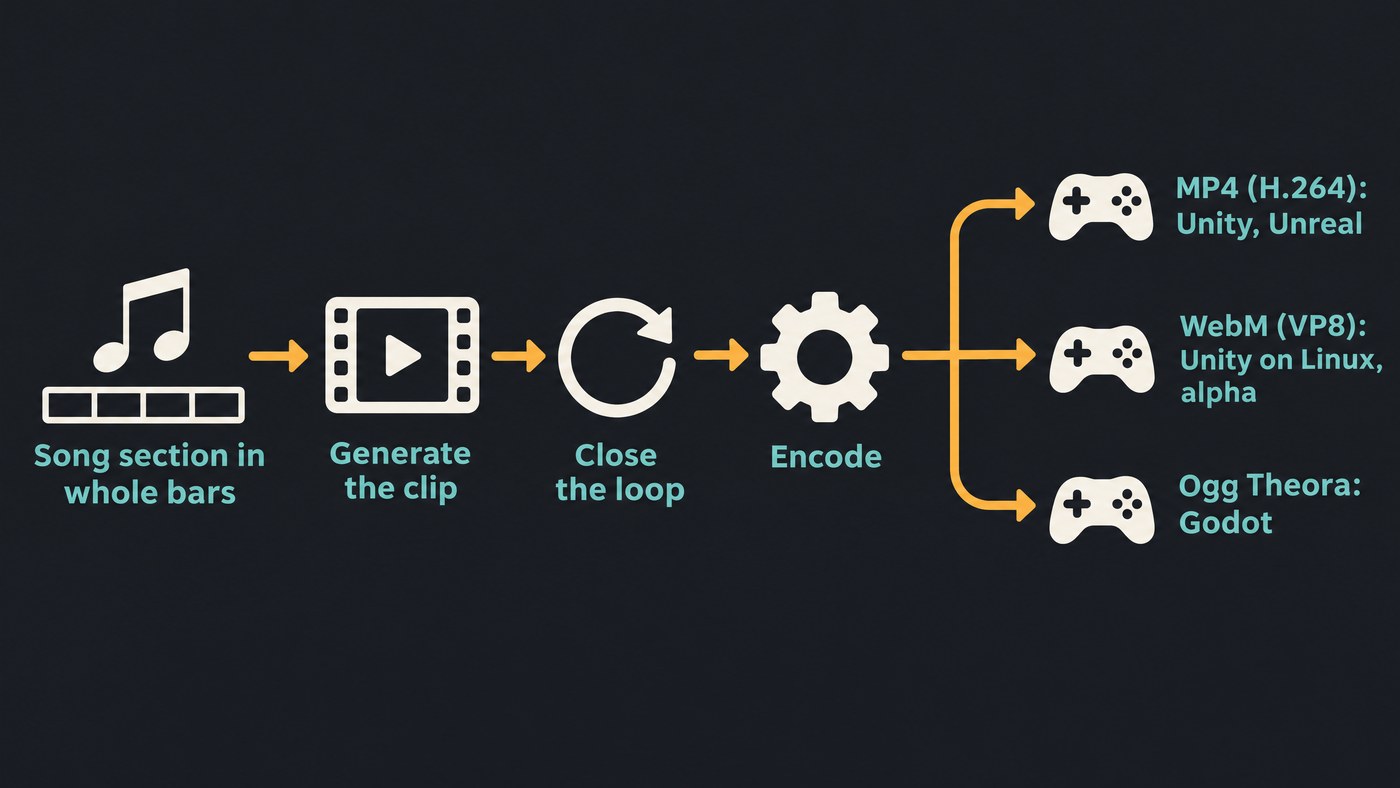
Video formats Unity, Unreal and Godot accept
- Unity (Video Player component). Unity's file compatibility table lists .mp4 and .mov for the Windows and macOS editors, and .webm and .ogv on all three, Linux included. Unity calls H.264 the best codec for most platforms and VP8 WebM the best on Linux; WebM imports only with VP8 video and Vorbis audio. Tick Loop on the Video Player, and use Render Texture mode to put video on a mesh.
- Unreal Engine (Media Framework). Epic's technical reference is direct: "For the best compatibility and performance, it is recommended to use H.264 encoded MP4 (.mp4) container files." HAP suits heavy, high-quality playback, but as of 4.23 it carries no embedded audio.
- Godot 4. Core Godot plays only Ogg Theora (.ogv), with optional Vorbis audio. WebM support was removed in 4.0, and H.264 can't ship in core because of patents, so every MP4 needs converting.
Our guide to common file formats for exported AI video explains containers and codecs.
Platforms where you can make and download AI music videos now
"Commercial use" below is what each vendor's own terms or plan pages say about using output in something you sell.
Soundverse. An AI music platform that takes you from idea to audience. AI Music Video Generator films and cuts a full video to your song in 16:9 or 9:16 at up to 1080p, on Creator or above. In AI Studio, the Visualizer renders an audio-reactive MP4 for a song, and the studio exports video as MP4, WebM or MOV at 24, 30 or 60 fps: up to 720p on Free, 1080p on Creator, 1440p or 4K on Pro. Licensing is set by plan: the Free plan is for personal use, and the Creator plan comes with a royalty-free license.
Kaiber. Its help centre says videos export as MP4, in 9:16, 16:9 or 1:1. Loop Video turns a clip, an image or two keyframes into a looping video at 720p or 1080p, which suits menu screens. Kaiber's plans guide lists commercial use rights from the Creator plan.
Neural Frames. Song-to-video with Autopilot, 1080p upscaling on every plan and 4K from Neural Ninja. Its pricing page lists 25 fps export, so convert to 30 or 60 fps for a Steam trailer. The FAQ says: "You own the videos you create with Neural Frames and may publish, monetize, distribute, or use them for client work." All its plans are paid.
Freebeat. Upload or link a track and it plans, shoots and edits the video. Its FAQ lists 720p and 1080p export in 16:9, 9:16 or 1:1, and a commercial-use license subject to its Terms of Use. Those terms and its pricing page returned a security checkpoint to us, so we couldn't read them.
Revid. Turns a song into a beat-synced music video with lyric captions, aimed at TikTok, Reels and Shorts. Its terms (last updated 25 October 2026) say: "You can use your videos however you want, including commercially and after your subscription ends."
Runway. A clip generator rather than song-to-video. Its Terms of Use (last updated 23 October 2026) say "the Company does not restrict your commercial use of your Outputs." The Free plan has 125 one-time credits, and "No watermarks" is listed from Standard up. Max adds HDR, ProRes and image sequences.
Luma. Clips with HDR and HDR+EXR output on Ray3.2, handy for a graded cinematic. Its Terms of Service (last updated 14 May 2026) say you "can only use the Outputs for commercial purposes if the Outputs were produced during an active Subscription Term under Customer's paid subscription allowing for the commercial use of those Outputs."
Pika. A clip generator. The Free plan has no monthly credits and no commercial license, though exports carry no watermark. The commercial license starts on Starter, $10 a month (November 2026).
Where to purchase a license for an AI tool that generates custom music videos for your game
With these tools you don't buy a separate license. The commercial rights come with the plan, so you buy them on the vendor's pricing page:
- Soundverse: Creator or above.
- Kaiber: Creator, which its plans guide lists with commercial use rights.
- Pika: Starter, Creator or Fancy.
- Luma: Plus, Pro or Ultra, for videos made while the subscription is active.
- Studios needing custom terms or seats: Runway, Luma and Pika list Enterprise plans, Kaiber has Visionary, and Soundverse lists Enterprise with custom seats and SLA support.
Make the final render on the paid plan, and keep the invoice, plan name and date with each asset.
From track to an engine-ready loop, step by step
- Cut the section in whole bars. Seconds = bars × 240 ÷ BPM. Eight bars at 120 BPM is 16 seconds, or 480 frames at 30 fps. Whole bars let the music loop on the same beat; our guide to looping music for smooth playback covers the audio side.
- Set shape and size before you generate. 16:9 for full screen and most in-world screens, 1080p for desktop, 720p for mobile and web.
- Generate with the loop in mind. Use a loop mode such as Kaiber's Loop Video, or set the same image as the first and last frame in a clip generator that supports both.
- Trim to the exact frame count and check the join. If it jumps, crossfade the last 15 frames over the first 15, half a second at 30 fps.
- Split picture from sound. For menus and in-world screens, export the video silent and play the music through the engine's audio, so volume settings apply. In Godot, set Video Delay Compensation to 0 to avoid dropped frames at each loop start.
- Encode for the engine.
- Unity and Unreal:
ffmpeg -i loop.mov -an -c:v libx264 -pix_fmt yuv420p -r 30 loop.mp4 - Unity on Linux, or with alpha:
ffmpeg -i loop.mov -an -c:v libvpx -pix_fmt yuva420p -auto-alt-ref 0 -b:v 6M loop.webm - Godot, from its docs:
ffmpeg -i input.mp4 -q:v 6 -q:a 6 -g:v 64 output.ogv
- Unity and Unreal:
- Import, loop and test on your weakest target. Godot decodes Theora on the CPU, and low-end phones struggle with high-resolution video.
Rights checklist before your game ships
- The music. You need rights to any track you upload, for use in a commercial game; Neural Frames and Freebeat both say that's on you. If the song came from an AI music tool, check that tool's plan when you made it.
- The plan at render time. Pika's Free plan has no commercial license, and Luma requires an active paid subscription when the video is made.
- Faces and likeness. Use only faces you own or have written permission to use, and don't build a character that looks like a real performer.
- Steam's AI disclosure. The Steamworks Content Survey is clear: "Instead, it is concerned with the use of AI in creating content that ships with your game, and is consumed by players." A music video used as a cutscene, menu loop or in-world screen is Pre-Generated content, so describe it there.
- A paper trail. For each asset, note the tool, plan, date, prompt and input files.
Where Soundverse fits
Soundverse suits game developers who want the soundtrack and the video from the same place. AI Music Video Generator writes a script for a track you upload, or a song it makes first, then films and cuts it, on Creator or above. For a menu loop or an in-world screen, AI Studio's Visualizer renders an audio-reactive video of your song. Check the codec of any WebM export before importing it into Unity.
For single shots, AI Video Generator makes 3 to 30 second clips from a prompt or an image, with first and last frames you choose, at up to 1080p. Its page suggests slow abstract clips to play behind a live set, the same job as a stage backdrop in a rhythm game. Clips download straight from the chat.
This tutorial shows AI Studio building a song, a matching AI video and sound effects on one timeline, then exporting the finished piece.
FAQ
Can I use AI-generated music videos in a commercial game? Yes, if the plan you made them on allows commercial use and you hold the rights to everything you uploaded. On Steam, disclose the footage in the Content Survey.
What video format should I use in Unity? H.264 in an MP4 for most platforms, and WebM with VP8 video and Vorbis audio for Linux or alpha. ProRes 4444 also carries alpha, in much larger files.
Why does my looping video stutter in Godot? Godot decodes Ogg Theora on the CPU, so lower the resolution to 720p for mobile and web. Set Video Delay Compensation to 0 so audio sync doesn't drop frames at each loop start.
Sign up for Soundverse free and build your game's next music video around the track. More guides on the Soundverse blog.