How to Export Stems in Pro Tools: Step-by-Step Guide for 2026
Learn how to export stems in Pro Tools effectively for mixing, mastering, and collaboration in 2026.
How to Export Stems in Pro Tools
In the fast-paced world of music production in 2026, efficiency and precision are key — especially when it comes to tasks like exporting stems from your Pro Tools sessions. Whether you’re sending tracks for mixing, mastering, or collaboration, knowing how to execute an accurate export stems Pro Tools workflow is critical for maintaining professional standards.
This guide will walk you through everything you need to know about Pro Tools stem export, highlighting best practices, pro tips, and how to enhance your workflow using Soundverse’s Stem Separator technology for advanced editing.
Why Do Producers Export Stems in Pro Tools?
Exporting stems is one of the most crucial parts of any audio mixing workflow. It allows producers and engineers to isolate each instrument or vocal element into separate audio files, enabling flexibility in post-production. Stems are invaluable for:
- Sending projects for professional mixing or mastering
- Preparing songs for live performance and remixing
- Archiving session materials in organized form
- Collaborating with other producers or labels remotely
In 2026, as collaborative and remote music production becomes more common, professionals increasingly rely on accurate Pro Tools session export techniques to ensure high fidelity and consistency across studios.

What Are Stems and Why They Matter in Mixing
Before diving into how to bounce tracks in Pro Tools, it’s important to understand what stems truly are. Stems are grouped audio files, commonly separated by categories such as drums, bass, vocals, and guitars. Instead of sending hundreds of individual tracks, you send concise yet detailed audio representations of your project.
This process is particularly useful when working with online collaborators, music publishers, and sync licensing teams. For instance, stems make it easy to adjust vocal levels or remove the drum track for television edits.
For a deeper look at stem concepts, check this resource: What are song stems and why do you need them.

How to Make Stem Exports More Efficient in 2026
Pro Tools has evolved significantly since 2024, optimizing faster rendering, automated grouping, and improved session compatibility. Yet even with these improvements, stem exporting requires strategic planning. Always ensure these steps before you start:
- Consolidate clips so all tracks are uniform in length
- Label each track clearly (e.g., “Kick”, “Snare”, “Lead Vocal”, “Backing Vocals”)
- Organize your session folders and naming conventions properly
- Use consistent sample rate and bit depth settings (e.g., 48kHz/24-bit)
With this groundwork laid, you can avoid common pitfalls such as phase issues, mismatched levels, or missing automation data.
How to Make Stem Export Workflows Smarter with Soundverse Stem Separator
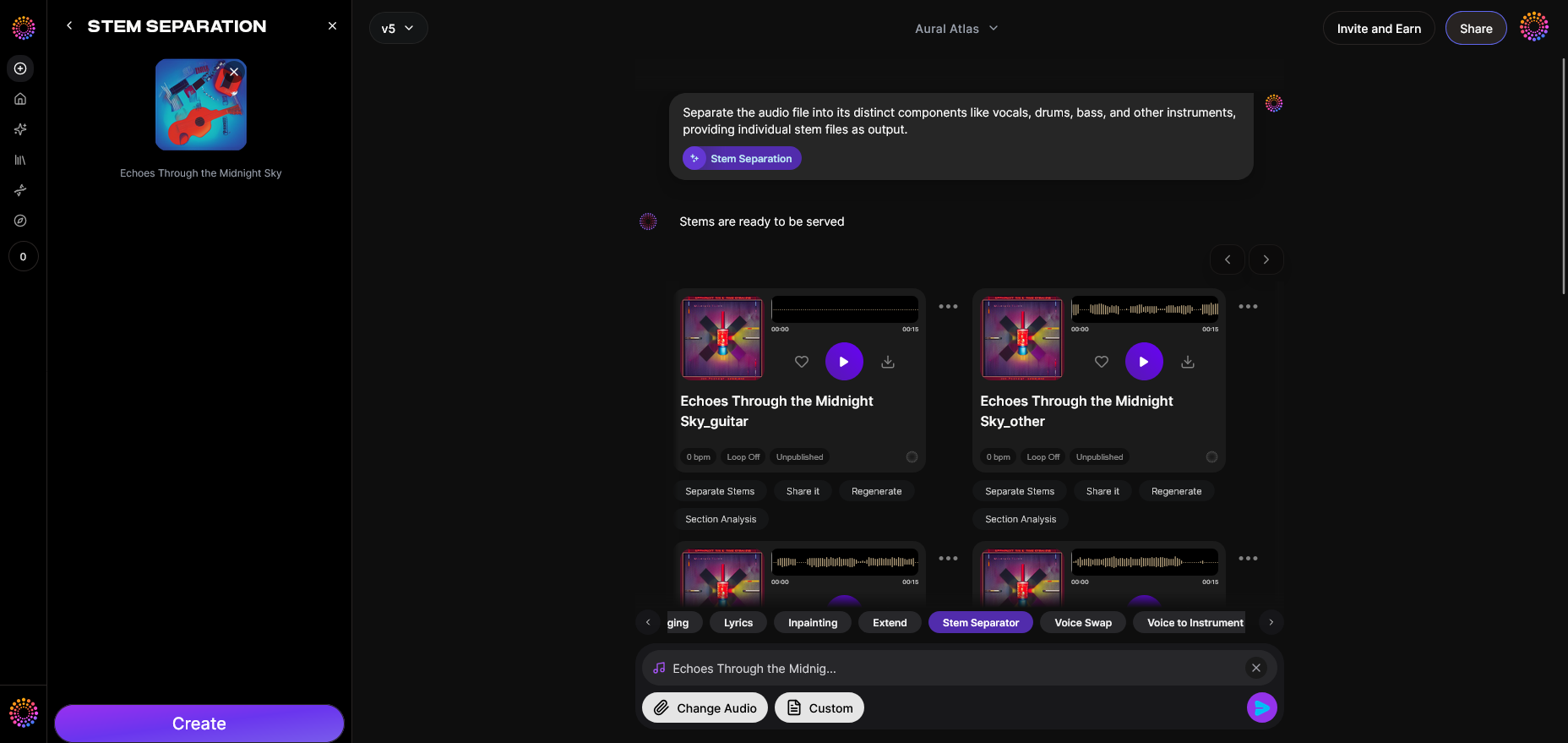
The Soundverse Stem Separator is redefining how producers separate and analyze mixes in 2026. Rather than manually bouncing each element from a complex session, this intelligent tool automatically dissects mixed audio into up to six editable stems — Vocals, Drums, Bass, Guitar, Accompaniment, and more.
Official Description: The Stem Separator effortlessly performs 6-stem separation from mixed audio files, URLs, or direct recordings. It delivers high-quality isolation suitable for remixing, sampling, and educational or creative analysis.
By integrating Soundverse’s AI-powered isolation technology within your Pro Tools workflow, you can streamline your sessions. You can bounce one stereo mix from Pro Tools, then feed it into Soundverse to quickly separate and edit stems without having to reopen a full DAW session.
Primary Use Cases:
- Remixing and sampling existing songs without original multitracks
- Creating backing tracks for live performances or karaoke versions
- Educational analysis for arrangement and production studies
- Cleaning up audio for broadcast or video editing
For more insights into Soundverse’s capabilities, visit Soundverse introduces Stem Separation AI Magic Tool.
For a deeper dive, watch our Soundverse Tutorial Series - How to Make Music or Soundverse Tutorial Series - Explore Tab.
Step 1: Upload Interface
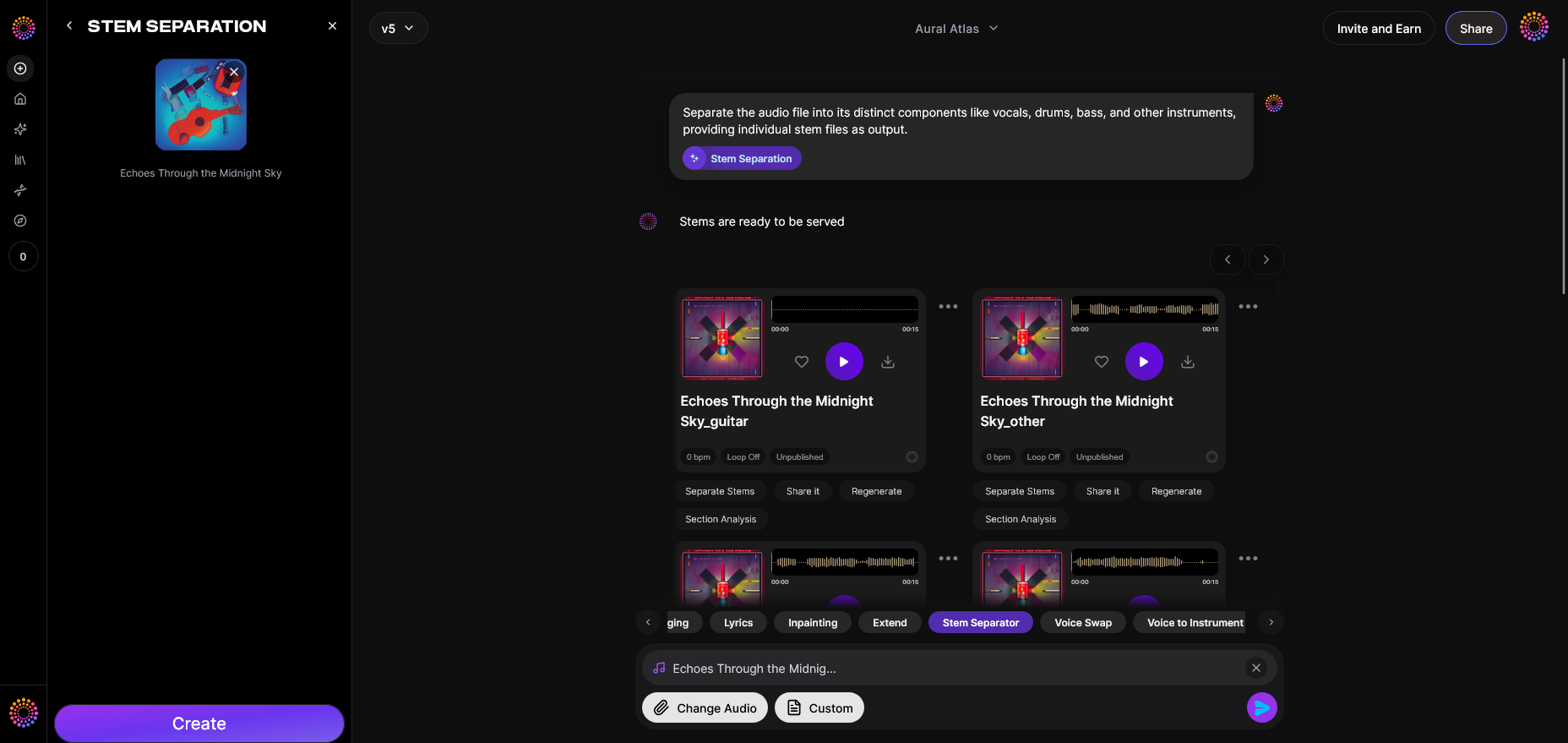
To start, export your stereo mix from Pro Tools (File → Bounce Mix). Once your mixed track is ready, open Soundverse and access the Upload Interface. Here you’ll find simple options to upload directly from your computer or import via URL.
Step 2: Additional References
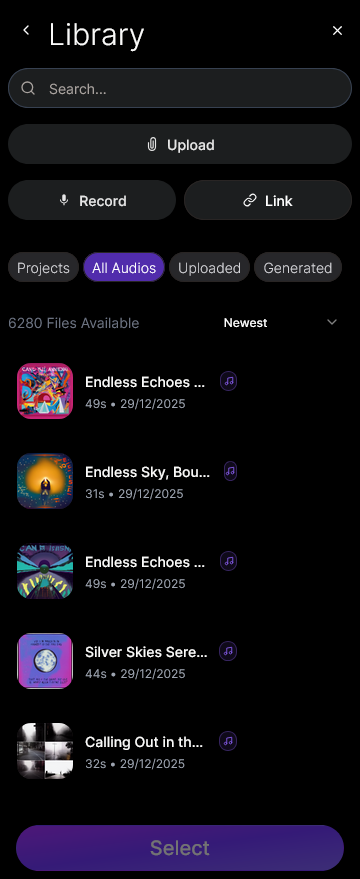
If you wish to refine accuracy, upload reference files such as older mixes or demo versions. The tool uses these to enhance the precision of Pro Tools stem export, ensuring the separated parts match musical context.
Step 3: Results Display
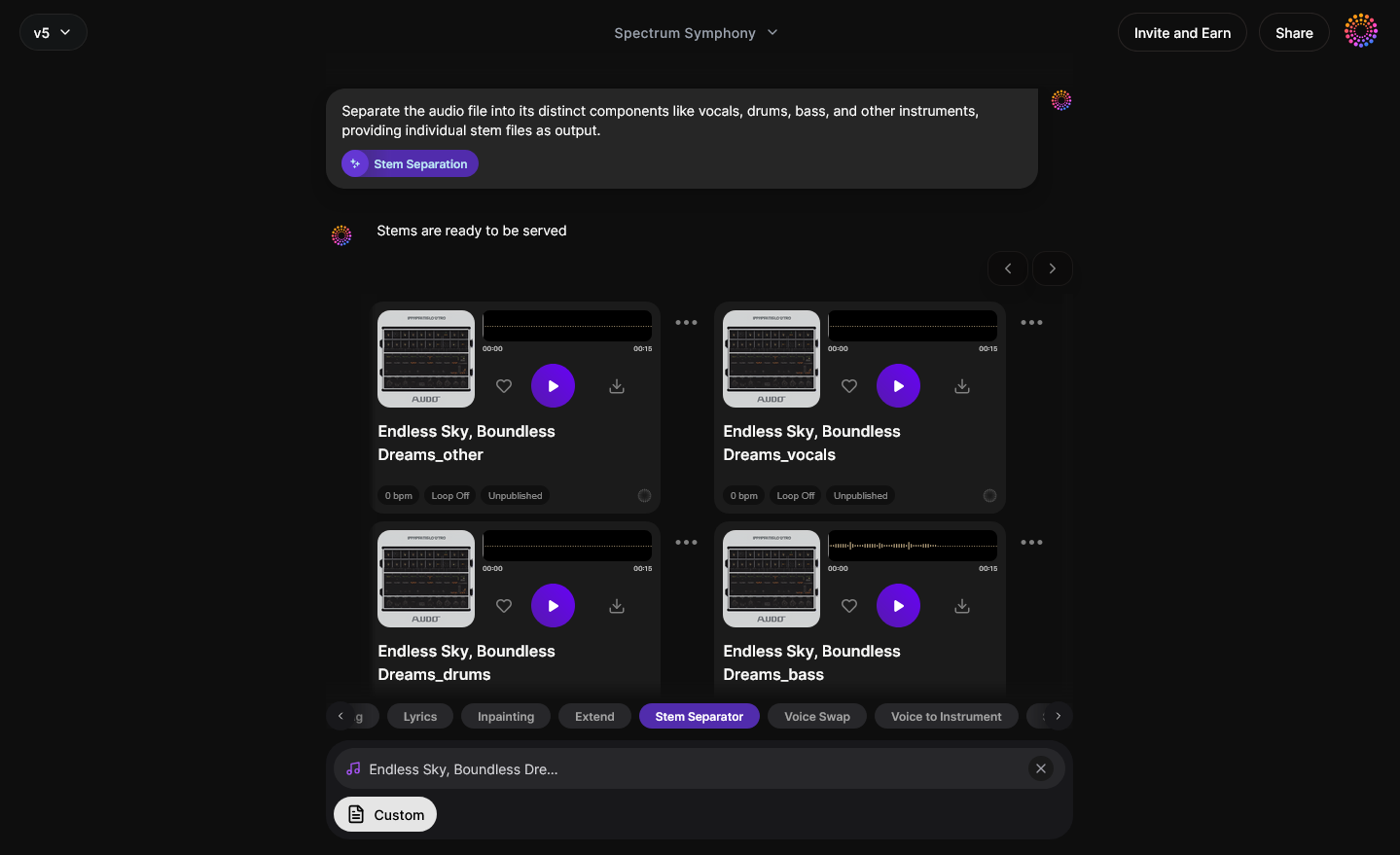
After processing, Soundverse displays separated stems visually — Vocals, Bass, Drums, Guitar, and more. You can preview and review their clarity before finalizing downloads. This visualization helps in understanding song structure and spectral distribution.
Step 4: Download Stems
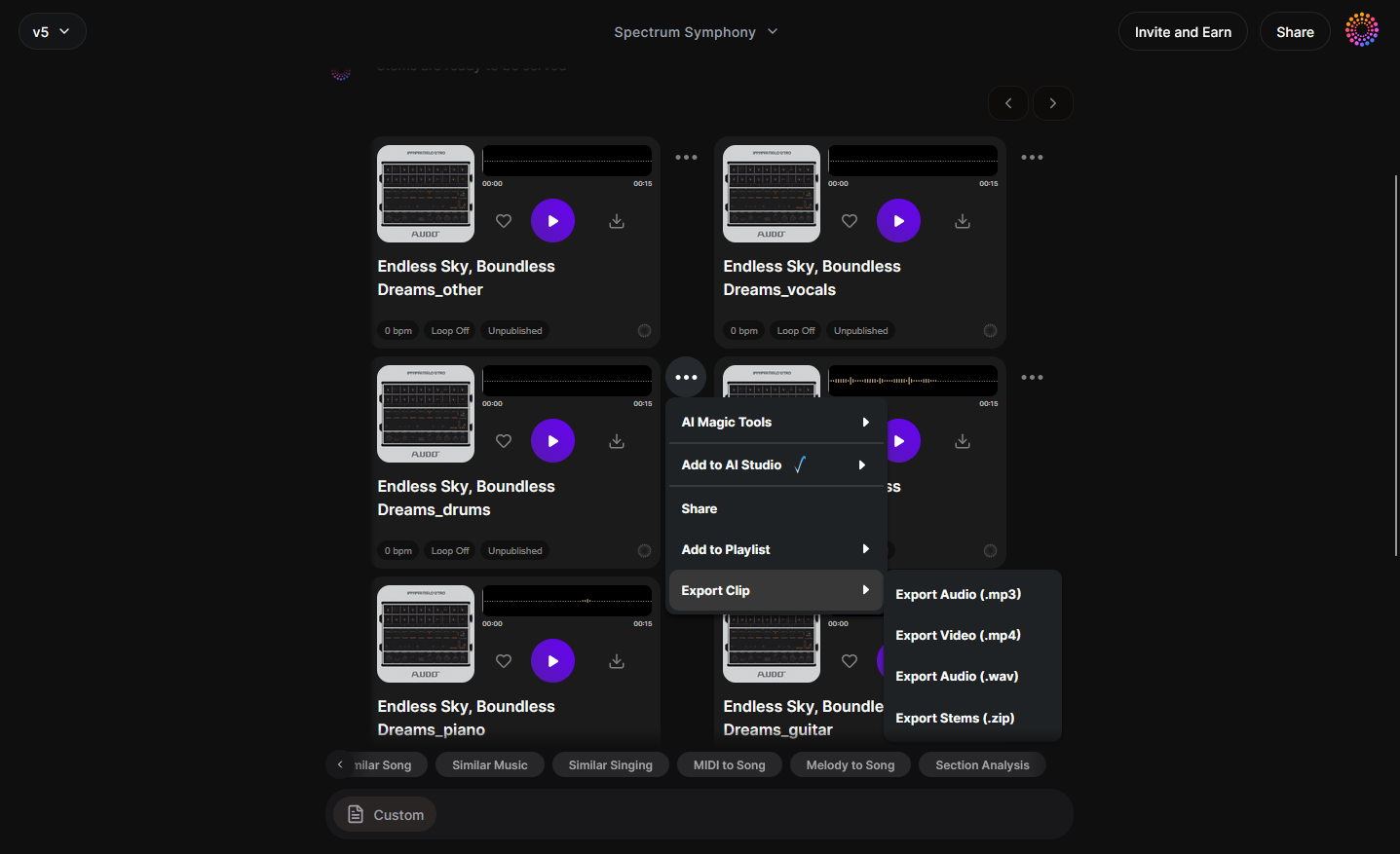
Finally, download each stem individually for integration back into your audio mixing workflow. Then, reopen these stems inside Pro Tools for further refinement, applying EQ, compression, and automation to perfect each layer.
Pro Tools Export Workflow Tips
Here are some music production tips every engineer should keep in mind when handling stem exports:
- Bounce Individual Groups – If the project is large, export stems by group rather than by track. This keeps files manageable.
- Check Plugin Rendering – Always commit tracks with heavy external processing. Some third-party plugins may not render identically on other systems.
- Maintain Consistent Start Points – Ensure every bounce starts at bar 1 to align perfectly when imported elsewhere.
- Verify Sample Rate – Keeping all stems at one uniform sample rate prevents playback speed issues.
- Document Session Settings – Include tempo markers, key signatures, and notes within a text file or Pro Tools memo.
You can explore related resources on enhancing workflow efficiency here: Soundverse AI Magic Tools: Create Content Quickly with AI, and Soundverse Assistant: Your AI Music Co-Producer.
Advanced Techniques for Stem Export in 2026
Producers in 2026 are combining AI and DAW integration to speed up post-production. While manual stem bounces remain vital in Pro Tools, technologies like Soundverse allow rapid separation and re-composition. Many composers use Arrangement Studio to open Soundverse-separated stems, rearrange sections, and apply creative effects.
Moreover, Soundverse’s Section Analysis tool automatically labels intros, verses, choruses, and outros within exported stems — offering an acoustic roadmap for remixers.
These workflows are transforming the industry, similar to how AI production tools shaped trends discussed in How AI-Generated Music Is Transforming the Music Industry.
How Soundverse Enhances Your Pro Tools Stem Export Workflow
By leveraging Soundverse alongside Pro Tools, creators no longer face tedious partitioning of complex multitrack projects. The Stem Separator complements traditional bouncing processes, enabling hybrid workflows:
- Export mixed song from Pro Tools
- Load into Soundverse for instant 6-stem isolation
- Reimport stems into Pro Tools or the Arrangement Studio for refinement
This integration speeds up remix creation, music education studies, and broadcast prep. It’s time-saving, accurate, and built for modern producers embracing AI-enhanced workflows.
Transform Your Stems into Complete Tracks Instantly
Export stems from Pro Tools and upload them to Soundverse to reimagine your mix, apply AI mastering, or craft entirely new arrangements—all in minutes.
Try Soundverse Free
Related Articles
- What Are Song Stems and Why Do You Need Them — Discover the fundamentals of song stems and why they’re essential for remixing, mixing, and collaboration.
- Soundverse Introduces Stem Separation AI Magic Tool — Learn how Soundverse’s AI Magic Tool automatically separates stems from any audio track with precision and speed.
- Soundverse Assistant: Your AI Music Co-Producer — Explore how Soundverse Assistant helps streamline music creation with smart automation and creative suggestions.
- The Benefits of Composing with AI Music Generator — Find out how AI tools can accelerate your creative workflow while keeping your musical vision intact.
Here's How to Make AI Music with Soundverse
Video Guide

Here’s another long walkthrough of how to use Soundverse AI.
Text Guide
- To know more about AI Magic Tools, check here.
- To know more about Soundverse Assistant, check here.
- To know more about Arrangement Studio, check here.
Soundverse is an AI Assistant that allows content creators and music makers to create original content in a flash using Generative AI.
With the help of Soundverse Assistant and AI Magic Tools, our users get an unfair advantage over other creators to create audio and music content quickly, easily and cheaply.
Soundverse Assistant is your ultimate music companion. You simply speak to the assistant to get your stuff done. The more you speak to it, the more it starts understanding you and your goals.
AI Magic Tools help convert your creative dreams into tangible music and audio. Use AI Magic Tools such as text to music, stem separation, or lyrics generation to realise your content dreams faster.
Soundverse is here to take music production to the next level. We're not just a digital audio workstation (DAW) competing with Ableton or Logic, we're building a completely new paradigm of easy and conversational content creation.
TikTok: https://www.tiktok.com/@soundverse.ai
Twitter: https://twitter.com/soundverse_ai
Instagram: https://www.instagram.com/soundverse.ai
LinkedIn: https://www.linkedin.com/company/soundverseai
Youtube: https://www.youtube.com/@SoundverseAI
Facebook: https://www.facebook.com/profile.php?id=100095674445607
Join Soundverse for Free and Make Viral AI Music

We are constantly building more product experiences. Keep checking our Blog to stay updated about them!