How to Bounce Stems in Pro Tools: A Step-by-Step Guide for 2026
Learn how to bounce stems in Pro Tools and export individual tracks using Soundverse Stem Separator in 2026.
How to Bounce Stems in Pro Tools
In 2026, bouncing stems in Pro Tools has become an essential part of every music producer’s workflow. Whether you’re collaborating remotely, preparing a track for mastering, or remixing, learning how to bounce stems in Pro Tools efficiently can save hours of time and enhance the overall production process. This guide walks you through every detail of how to bounce stems in Pro Tools, optimize your mix, and elevate your audio workflow using modern tools such as Soundverse’s Stem Separator.
Why Do You Need to Bounce Stems in Pro Tools?
Pro Tools remains one of the most powerful DAWs for professional music production. However, one of the most crucial tasks in any session—bouncing stems—is often misunderstood. When you bounce stems in Pro Tools, you are essentially exporting individual tracks or groups (vocals, drums, bass, etc.) as separate audio files. These files can then be mixed, mastered, or remixed independently. If you’re new to this workflow, guides like How To Bounce Stems In Pro Tools - Pro Mix Academy offer more insight.
There are many reasons why producers and audio engineers in 2026 rely on this technique:
- Flexible Remixing and Collaboration: Sending stems to remix artists or collaborators allows them to manipulate parts of the song without affecting the entire mix.
- Efficient Mastering Preparation: Stems let mastering engineers target specific frequency ranges or instruments.
- Archival and Backup: Having stems ensures you can recreate or modify a track later, even if plugin versions change.
- Enhanced Learning Experiences: By analyzing stems from finished tracks, students can study mixing decisions and arrangement balance.

What Are Stems and How Do They Fit into Your Audio Mixing Workflow?
In music production, stems represent grouped elements from a session—such as all vocal channels rendered into one stereo file, all drum tracks into another, and so on. They are not simply isolated tracks but processed and balanced groups meant for downstream use. Using stems improves the audio mixing workflow by making each stage of production more organized.
If you’ve ever needed to export individual tracks in Pro Tools, you’ve likely run into challenges—file management, correct routing, and maintaining consistent effects and automation. Understanding stems helps prevent those headaches. The goal is to export clean, consistent audio that maintains your mix’s integrity.

How to Make Stem Export in Pro Tools Efficient in 2026
While Pro Tools has evolved over the years, the fundamental method for stem export remains similar. The following approach outlines a process optimized for clarity and speed:
- Organize Your Session: Label each track and group them (for example, VOCALS, DRUMS, BASS, GUITARS, FX). Use color coding to ensure easy recognition.
- Check Processing Chains: Ensure that each group has the relevant inserts, EQs, and automation applied. When bouncing stems, it’s best to include these effects unless you intend to remix.
- Route Groups to Aux Channels: Create stereo aux busses for each stem group. This ensures all parts of the mix are routed properly.
- Solo Safe Mode: Activate solo-safe on busses so that soloing one group doesn’t mute others.
- Bounce or Export: Use “Bounce to Disk” or “Commit Tracks” to export stems. Pro Tools lets you work in real-time or offline bounce modes depending on your system. You can also watch visual guides such as How To Bounce Stems In Pro Tools! #ProTools #Avid - YouTube or Quick way to Bounce All Your Stems At Once! AUX BUS Effects ... for video tutorials.
Now that you understand the classic workflow, let’s explore how next-generation AI tools assist in stem management.
How to Make Stem Export with Soundverse Stem Separator
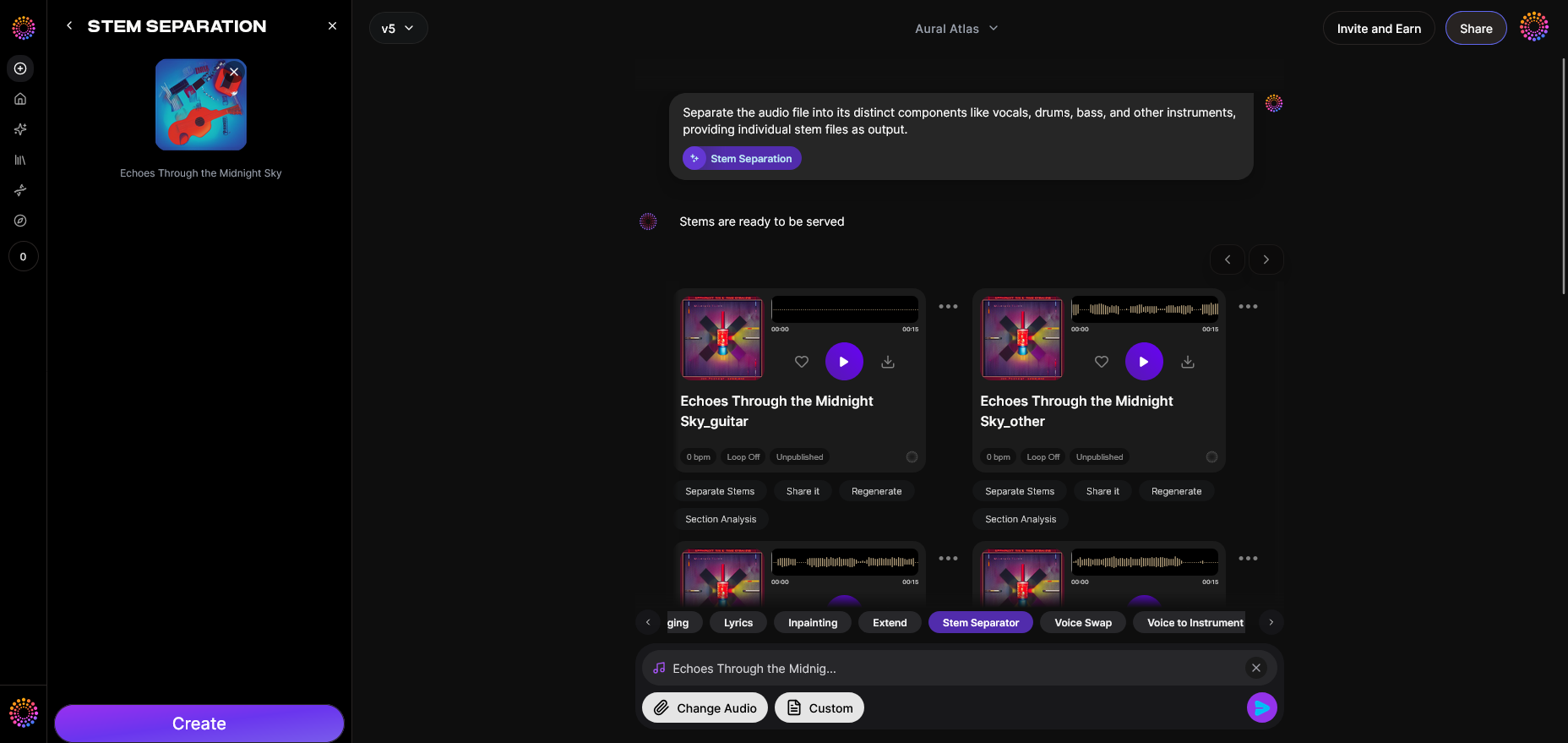
Soundverse has introduced an AI-driven tool that revolutionizes how producers handle stems: the Stem Separator. This tool dissects any mixed audio into six individual editable stems — Vocals, Drums, Bass, Guitar, Accompaniment, and other key elements — making it incredibly powerful for producers looking to clean up, remix, or analyze tracks.
Core Capabilities
- 6-stem separation: Provides up to six independent audio layers.
- Input flexibility: Supports URL, file upload, and direct recording inputs.
- High-quality isolation: Produces clean, studio-grade separation for reshaping your mix.
Ideal Use Cases
- Remixing or sampling existing songs.
- Creating karaoke backtracks or performance stems.
- Detailed educational analysis of mixing structures.
- Cleaning up audio before editing or mastering.
If you want to learn more about the technology behind this, see how Soundverse introduces stem separation AI magic tool.
For a deeper dive, watch our guide on creating Deep House music and tutorial on the "Explore" Tab, both part of the Soundverse Tutorial Series.
Step-by-Step: Bounce Stems in Pro Tools with Soundverse
The following steps walk you through the full bounce stems Pro Tools workflow using Soundverse Stem Separator.
Step 1: Upload Interface
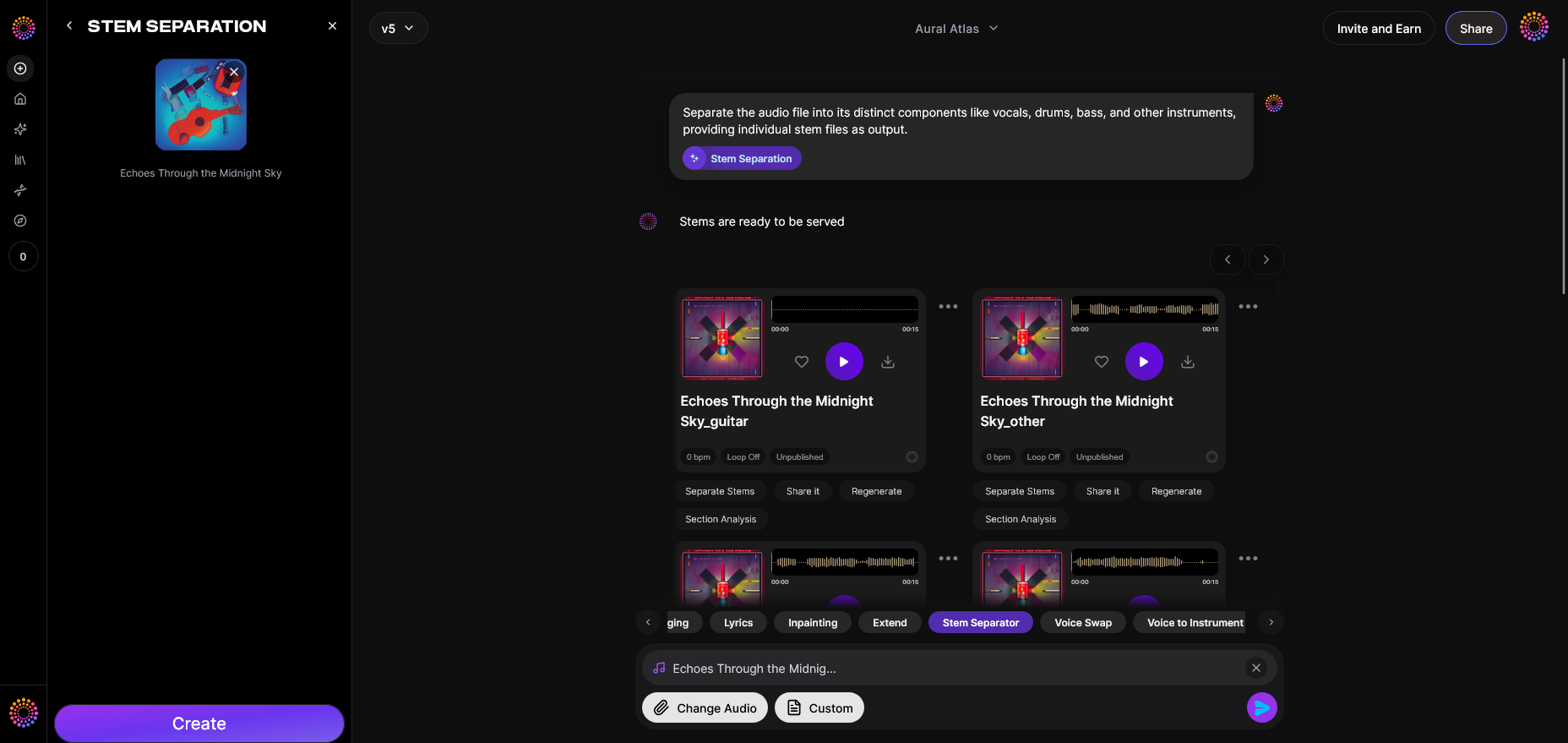
Start by opening the Stem Separator within Soundverse. You will see an upload dialog where you can drag and drop your mixed audio file directly from Pro Tools. If you’ve just bounced your mix, export it as a WAV or AIFF file and upload it here. This begins the stem separation process.
Step 2: Additional References
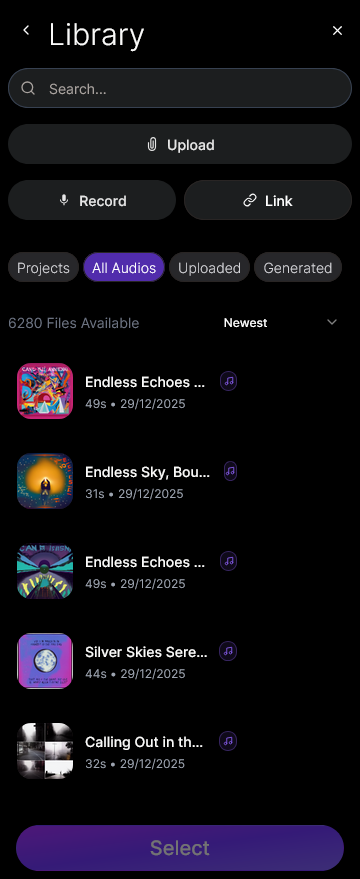
Soundverse allows you to add optional reference tracks or URLs for comparative analysis. This feature helps in remixing and sampling workflows, enabling you to match tonal balance or structure based on another track.
Step 3: Results Display
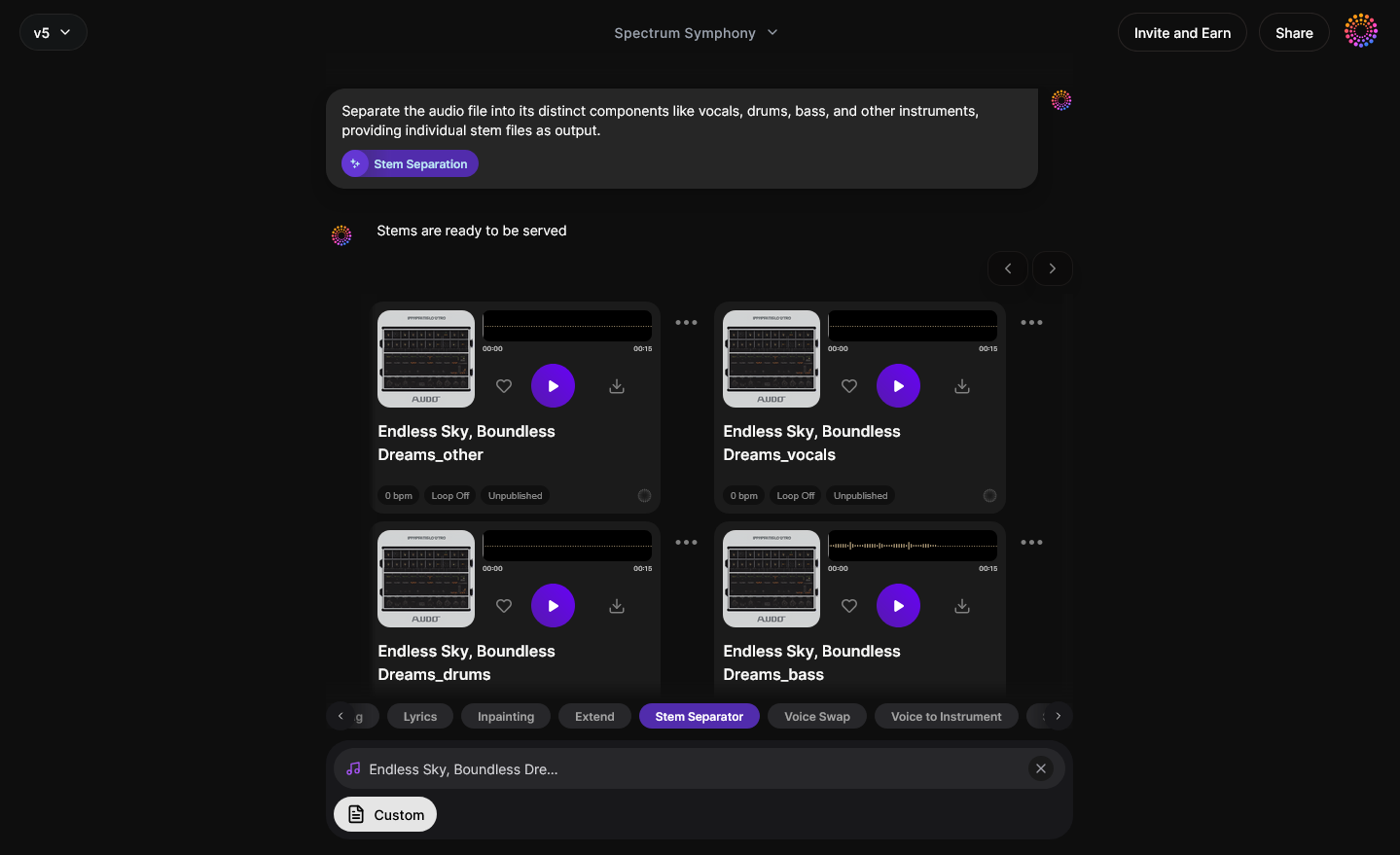
After processing (asynchronously, not in real-time), Soundverse displays a visualization of separated stems — vocals, drums, bass, guitar, and others. From here, producers can listen, inspect, and make editing decisions.
Step 4: Download Stems
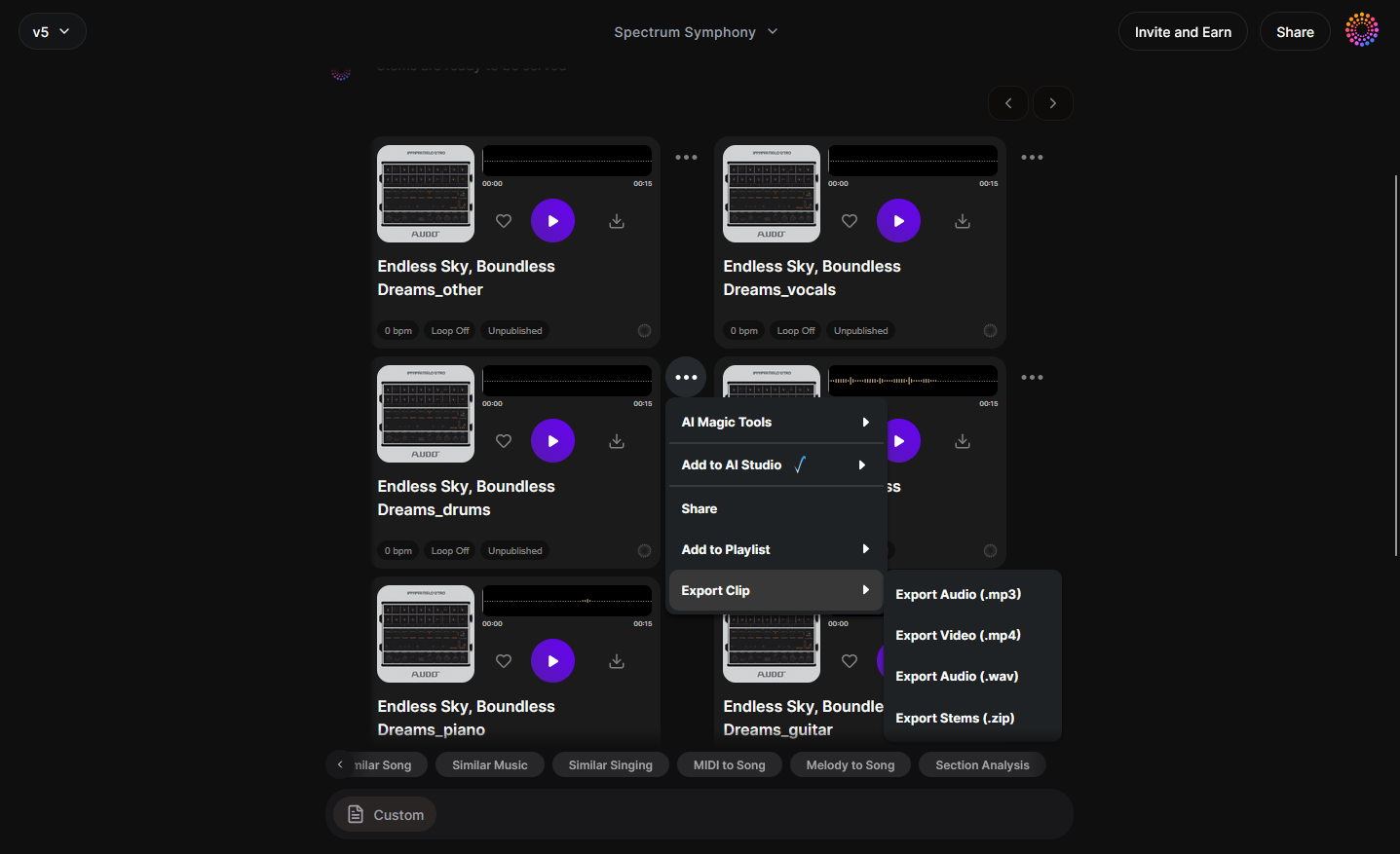
Once satisfied, download individual stems for further mixing, mastering, or creative use. These files can be re-imported into Pro Tools or loaded into the Arrangement Studio — Soundverse’s collaborative environment that supports detailed section rearrangement and compositional refinement. To learn how Arrangement Studio can enhance workflow, visit What is Soundverse Arrangement Studio and what does it do.
Pro Tips for Bouncing Stems in Pro Tools
- Maintain consistent sample rate and bit depth: Avoid unnecessary conversions.
- Use descriptive filenames: Example: “TrackName_Vocals.wav,” “TrackName_Drums.wav.”
- Double-check automation passes: Ensure volume and panning automation are included.
- Perform a final bounce test: Import the stems into a new session and verify alignment.
Soundverse’s integration with tools like Section Analysis also boosts efficiency. Section Analysis automatically detects and labels song parts (Intro, Verse, Chorus, Bridge, Outro) with precise timestamps, which makes remixing intuitive.
How Soundverse Enhances Music Production Workflows
Soundverse doesn’t replace Pro Tools—it complements it. By utilizing intelligent stem extraction, Soundverse bridges the gap between traditional DAW output and modern remixing methods. When combined with Soundverse’s AI Magic Tools, producers can achieve hyper-efficient workflows impossible just a few years ago.
In 2026, creators use Pro Tools for complex production and Soundverse for AI-enhanced precision. This hybrid workflow empowers musicians to focus on creativity rather than tedious manual routing or exporting. Whether you’re preparing tracks for an AI-generated remix or aligning stems for mastering, Soundverse ensures quality isolation and workflow accuracy.
Transform Your Music Workflow with Soundverse
Create, mix, and master with next-gen AI tools that simplify your production process. Unlock seamless stem separation and composition features designed for modern creators.
Start Creating with Soundverse
Related Articles
- Soundverse Introduces Stem Separation AI Magic Tool — Discover how Soundverse’s AI Magic Tool lets you separate stems instantly for effortless remixing and production.
- What Are Song Stems and Why Do You Need Them — Learn the basics of song stems and how they can streamline your mixing and mastering projects.
- Soundverse Assistant: Your AI Music Co-Producer — Meet Soundverse Assistant – your intelligent partner for faster, smarter music creation.
- How an AI Music Generator Inspires Creative Fusion — Explore how AI-powered music generation sparks creativity and helps producers discover new sounds effortlessly.
Here's how to make AI Music with Soundverse
Video Guide

Here’s another long walkthrough of how to use Soundverse AI.
Text Guide
- To know more about AI Magic Tools, check here.
- To know more about Soundverse Assistant, check here.
- To know more about Arrangement Studio, check here.
Soundverse is an AI Assistant that allows content creators and music makers to create original content in a flash using Generative AI.
With the help of Soundverse Assistant and AI Magic Tools, our users get an unfair advantage over other creators to create audio and music content quickly, easily and cheaply.
Soundverse Assistant is your ultimate music companion. You simply speak to the assistant to get your stuff done. The more you speak to it, the more it starts understanding you and your goals.
AI Magic Tools help convert your creative dreams into tangible music and audio. Use AI Magic Tools such as text to music, stem separation, or lyrics generation to realise your content dreams faster.
Soundverse is here to take music production to the next level. We're not just a digital audio workstation (DAW) competing with Ableton or Logic, we're building a completely new paradigm of easy and conversational content creation.
TikTok: https://www.tiktok.com/@soundverse.ai
Twitter: https://twitter.com/soundverse_ai
Instagram: https://www.instagram.com/soundverse.ai
LinkedIn: https://www.linkedin.com/company/soundverseai
Youtube: https://www.youtube.com/@SoundverseAI
Facebook: https://www.facebook.com/profile.php?id=100095674445607
Join Soundverse for Free and make Viral AI Music

We are constantly building more product experiences. Keep checking our Blog to stay updated about them!