Why Does Suno Keep Crashing? Troubleshooting Guide (2026 Edition)
Fix Suno app errors and performance issues with this complete 2026 troubleshooting guide.
Why Does Suno Keep Crashing? Troubleshooting Guide
Suno has become one of the most popular AI music generators over the past few years. Its ability to turn text prompts into fully produced songs quickly attracted creators from all corners of the digital music space. However, since 2025 and well into 2026, users have increasingly reported performance issues — the app suddenly stops, freezes, or displays unexpected errors mid-generation. If you’ve been asking, “Why does Suno keep crashing?” this comprehensive troubleshooting guide breaks down all possible causes, fixes, and long-term solutions, including how Soundverse Agent can be used as a reliable alternative workflow.
Why Does Suno Keep Crashing?
When Suno crashes, it’s usually a mix of local device problems and server-side overloads. The tool operates on complex AI models that process large audio datasets. During peak usage, especially when major trends hit social platforms, Suno servers experience congestion. Combined with updates that sometimes alter compatibility settings, these factors cause recurring app failures. As of 2026, the most frequent crash reports involve file upload errors, sudden app termination, and lag during audio synthesis.

Common causes include:
- Overloaded Servers – AI music generation is computationally intensive. If Suno’s backend is processing thousands of parallel requests, it may throttle performance or fail to respond.
- App Cache Conflicts – Old caches from pre-2025 versions conflict with new data formats, causing corruption during generation.
- Out-of-Date Software – Many users run outdated Suno versions without recent stability patches.
- Unstable Internet Connections – Interruptions during music model requests can lead to incomplete response packets, forcing the app to close.
- Device Resource Limits – Memory or CPU exhaustion, especially on mobile devices, stops the app before generating full-length songs.
Understanding these technical roots helps you plan better troubleshooting before you lose creative time.
What Are the Most Common Suno Errors?
Typical Suno errors fall into three categories: launch crashes, generation crashes, and export failures. Launch crashes occur when the app fails to initialize its AI modules — often visible through blank screens. Generation crashes interrupt mid-song creation, returning outdated or incomplete previews. Export errors appear when the system fails to apply metadata tags or convert files after rendering.

Here’s a breakdown:
- “Generation Failed” – The server didn’t process the prompt; usually network-related.
- “Audio Engine Timeout” – Your local cache or RAM is overloaded, stopping synthesis midway.
- “File Format Unsupported” – Uploading corrupted reference tracks causes an exception.
- “Song Export Error” – Failed conversion to MP3 or WAV because audio isn’t fully generated.
If any of these occur, proceed with the troubleshooting steps below. For more insights on common app issues, see How To Fix Suno AI App Not Working, Crashing, Keep ... - YouTube.
How to Fix Suno App Crashes and Suno Not Working Issues
Troubleshooting Suno isn’t complicated once you categorize whether the issue is local or server-side. Here’s a detailed walkthrough fitting current 2026 best practices.
Step 1: Clear the Cache and Reset Local Preferences
Open the app settings and hit “Clear Cache.” This deletes mismatched temporary files from previous sessions. Follow up with a restart to reload default preferences.
Step 2: Verify Your Internet Connection
AI models running on Suno need continuous connectivity. Test your Wi-Fi, switch to a stable network, and ensure no VPN interference.
Step 3: Update Suno to the Latest Version
Crashes often correlate with older builds. Visit the official website or app store and install the latest patch. Suno typically releases monthly fixes as of 2026. You can find user-reported crash feedback on Suno - AI Songs & Music - Ratings & Reviews - App Store.
Step 4: Reduce Concurrent Tasks
Avoid multitasking heavy applications alongside Suno. Music generation models consume GPU and RAM; freeing resources prevents mid-process shutdowns.
Step 5: Use Reference Audio Properly
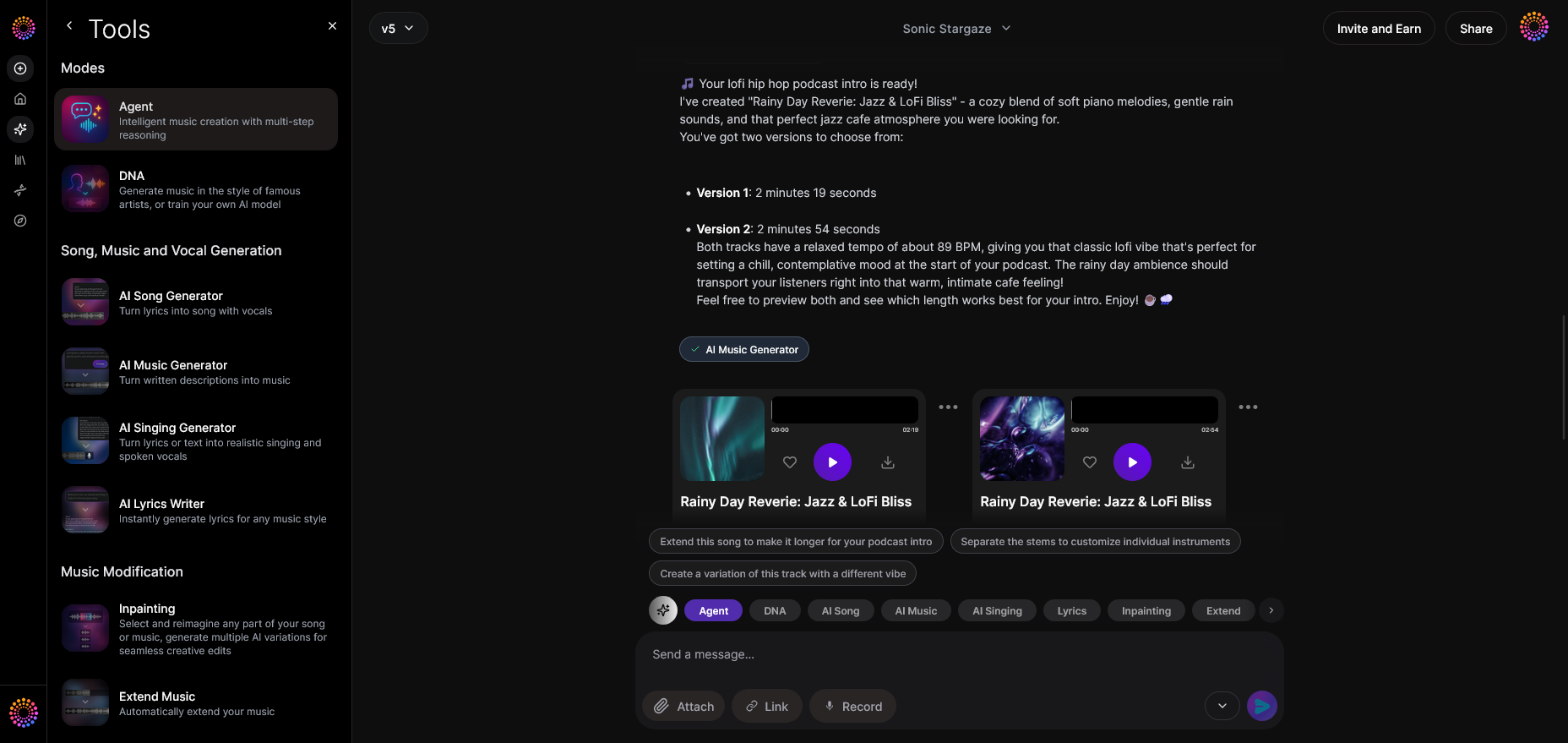
If Suno allows uploading or referencing external audio, ensure formats are standard (MP3/WAV). Incorrect encoding or corrupted tracks often crash the render engine.
Step 6: Monitor Server Status
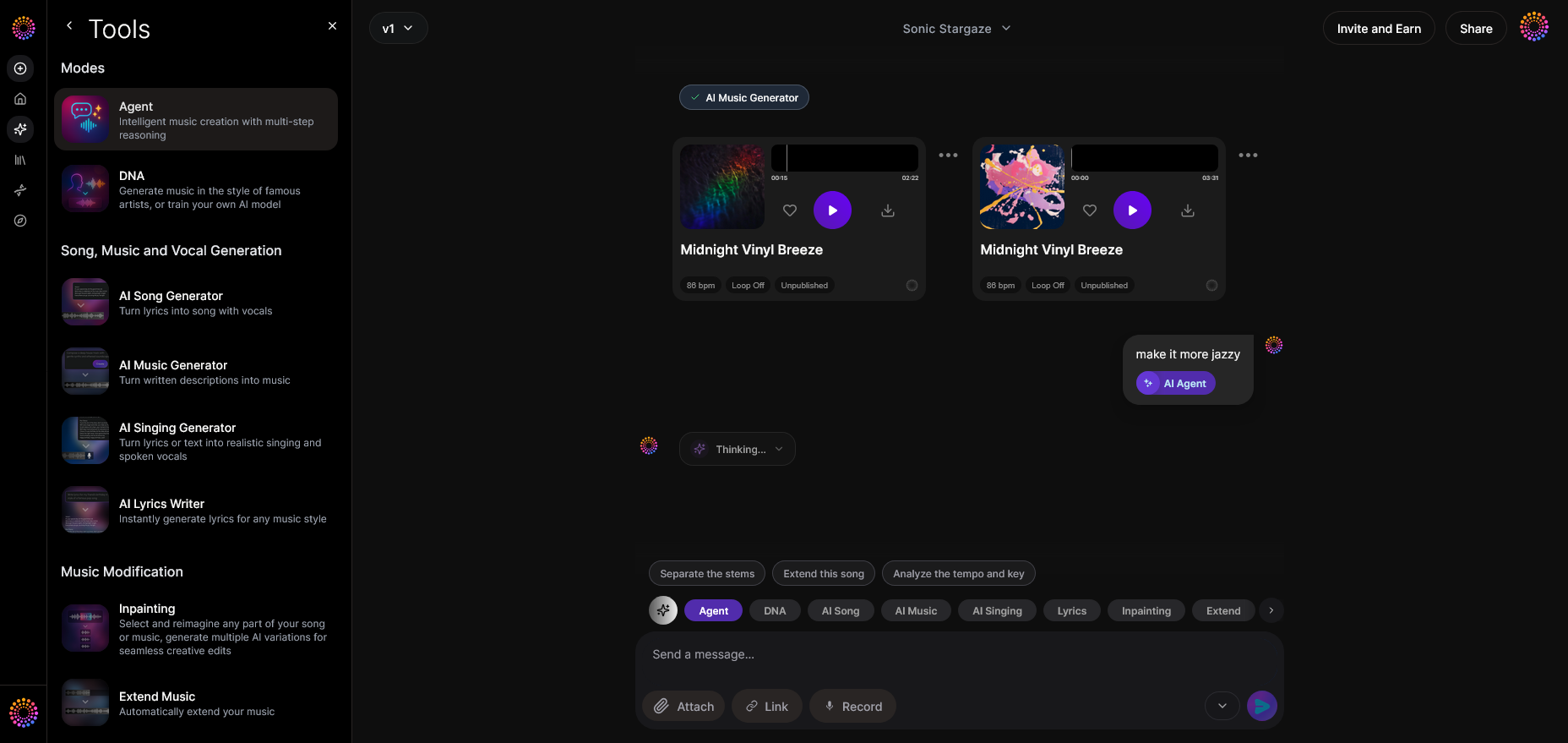
Check the official Suno status page or community board to confirm no system-wide downtime. If other users report similar issues, wait until servers stabilize. See Is Suno Down? Troubleshooting and Updates for the AI Music Platform for background on Suno outage patterns.
Step 7: Reinstall the App
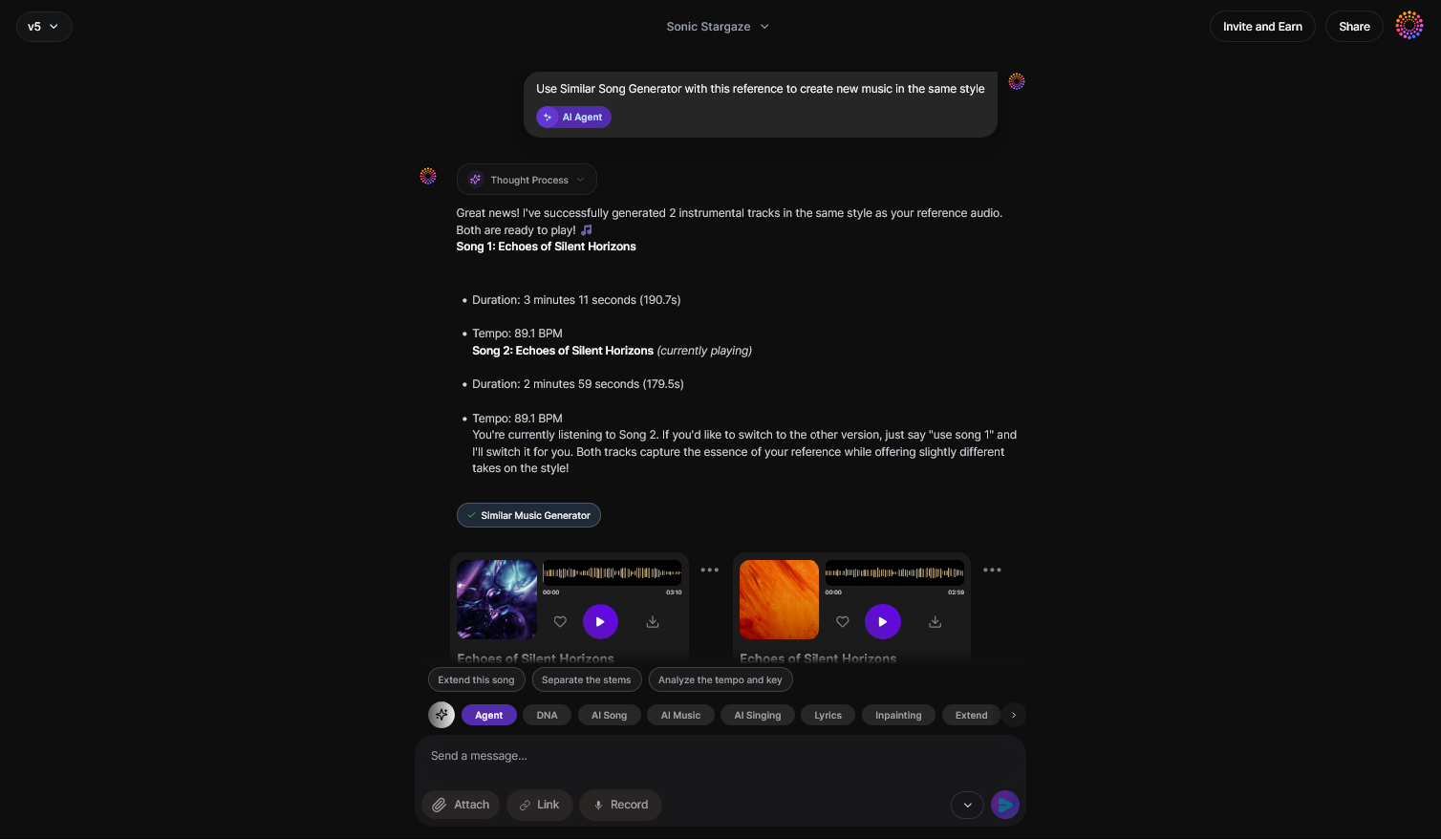
If all else fails, perform a clean reinstallation. Delete existing folders to remove legacy configurations before reinstalling.
For video walkthroughs, watch how creators handle AI generator issues in Just A Moment Ago: Suno just crashed ⚠️ ! - YouTube.
How to Make Music Without Suno: The Soundverse Alternative
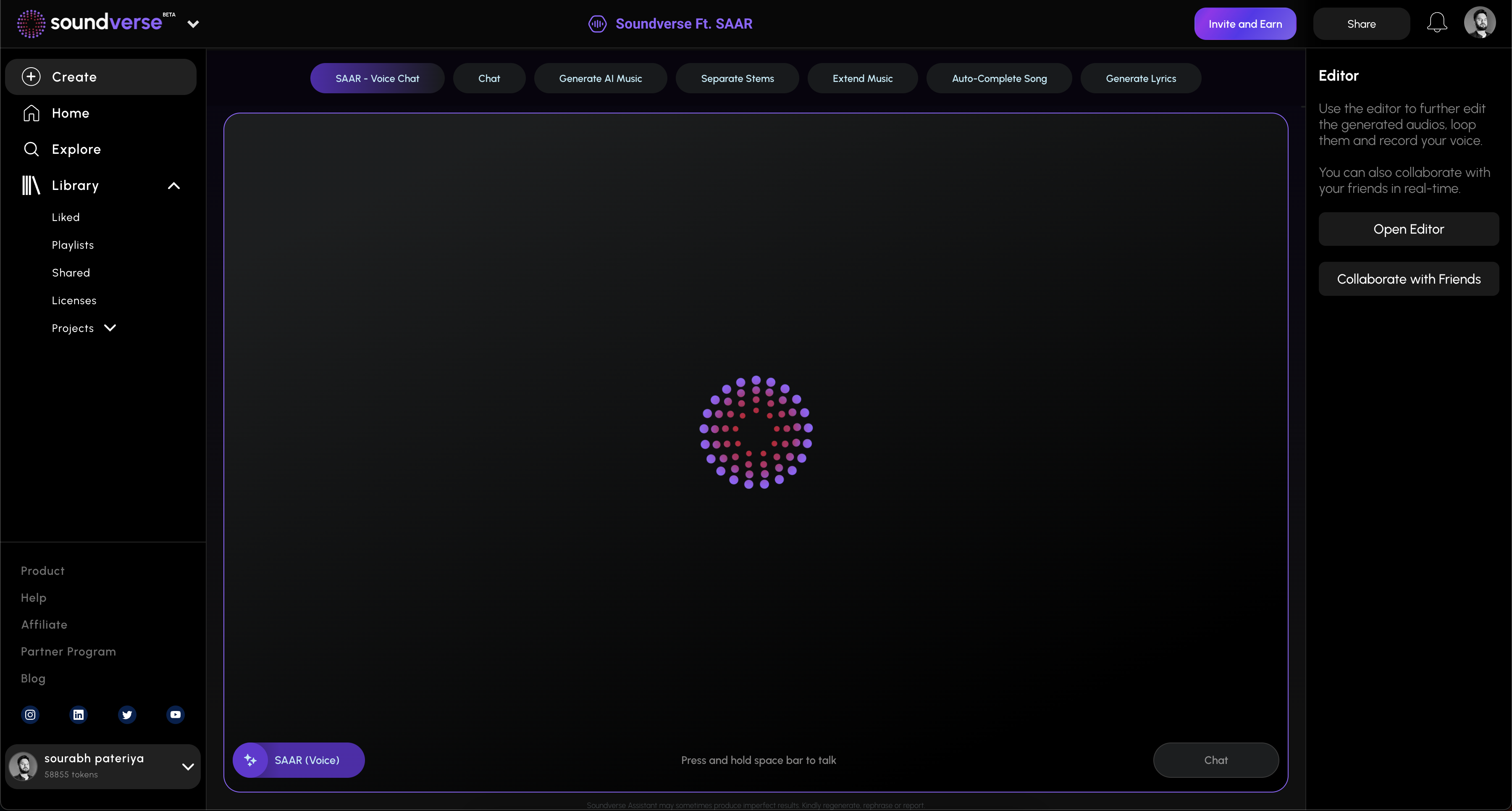
When Suno is down or unreliable, many creators transition to Soundverse. Unlike Suno, Soundverse employs an advanced conversational control system called Soundverse Agent.
How to Make AI Music with Soundverse Agent
Soundverse Agent is a core innovation within Soundverse — a conversational AI music assistant functioning as a centralized controller for the entire platform. It uses multi-step reasoning to interpret natural language inputs and orchestrate multiple tools in sequence, enabling fully automated workflows without manual intervention.
Key Capabilities:
- Multi-step Tool Orchestration: The Agent doesn’t just generate music; it automatically coordinates generation, separation, and arrangement tools for complex tasks.
- Contextual Memory: It remembers your previous commands, facilitating iterative refinements.
- Voice Input Support: Speak ideas directly instead of typing; the Agent translates them into production actions.
- Cross-tool Workflow Automation: It links diverse Soundverse modules, from melody generation to stem separation.
Primary Use Cases:
- Beginners: Start a creative project using plain English prompts like “make a chill pop beat.”
- Producers: Automate repetitive actions — generate, extract vocals, rearrange sections.
- Educators: Demonstrate musical structure interactively.
- Prototype Developers: Test quick creative variations without manual exports.
Step 1: Overview
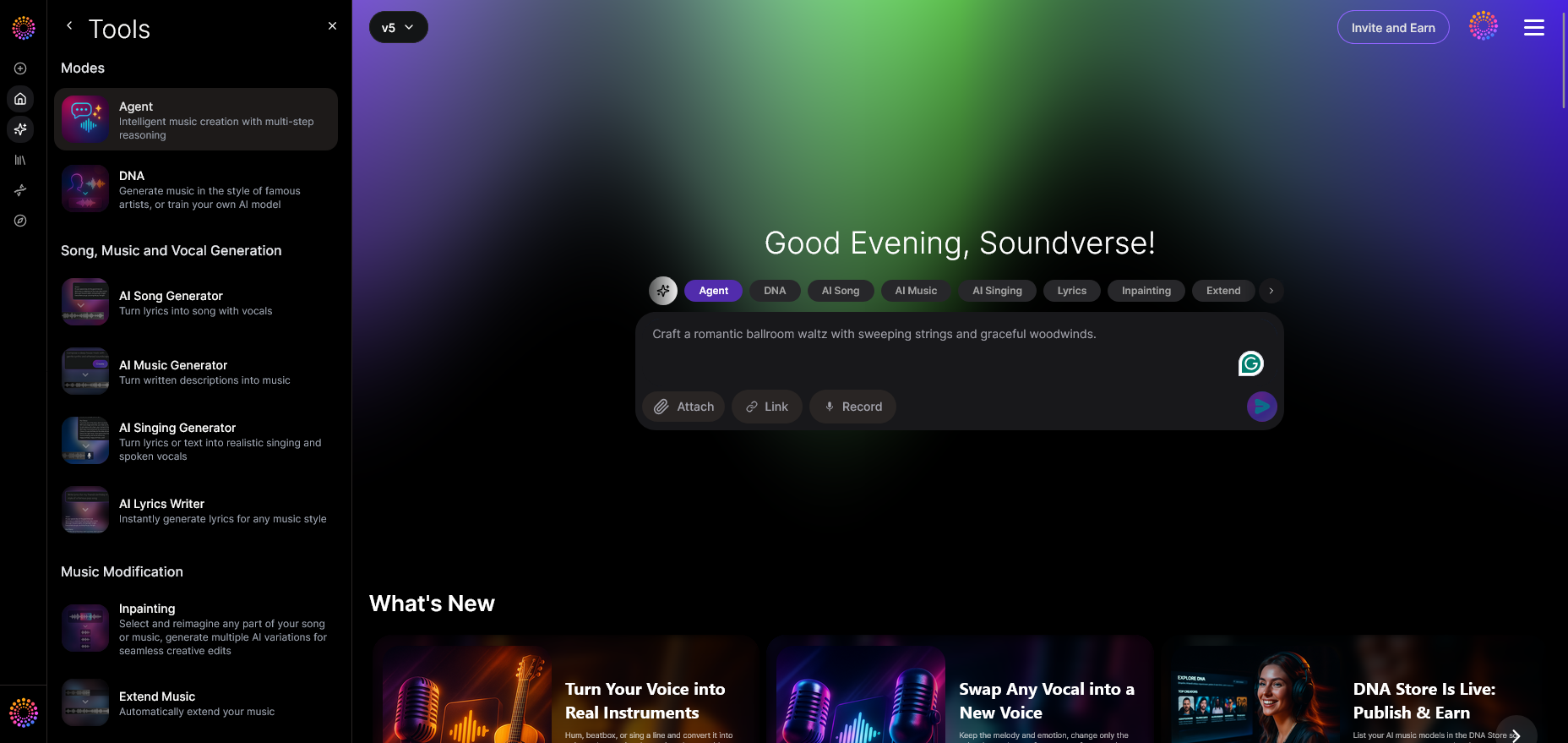
Open the main Agent interface inside Soundverse. You’ll see a conversational workspace where all requests begin.
Step 2: Reference Audio
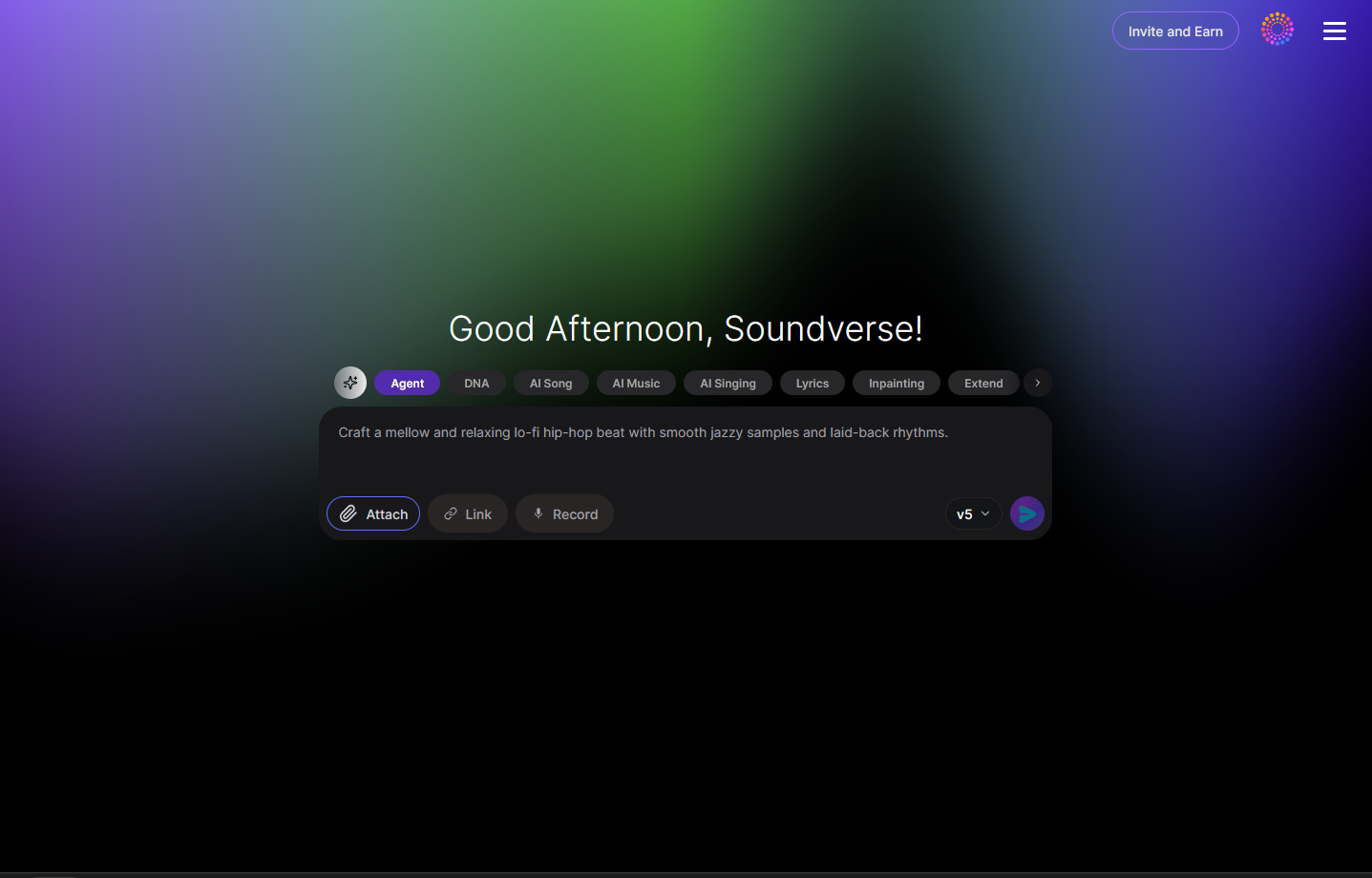
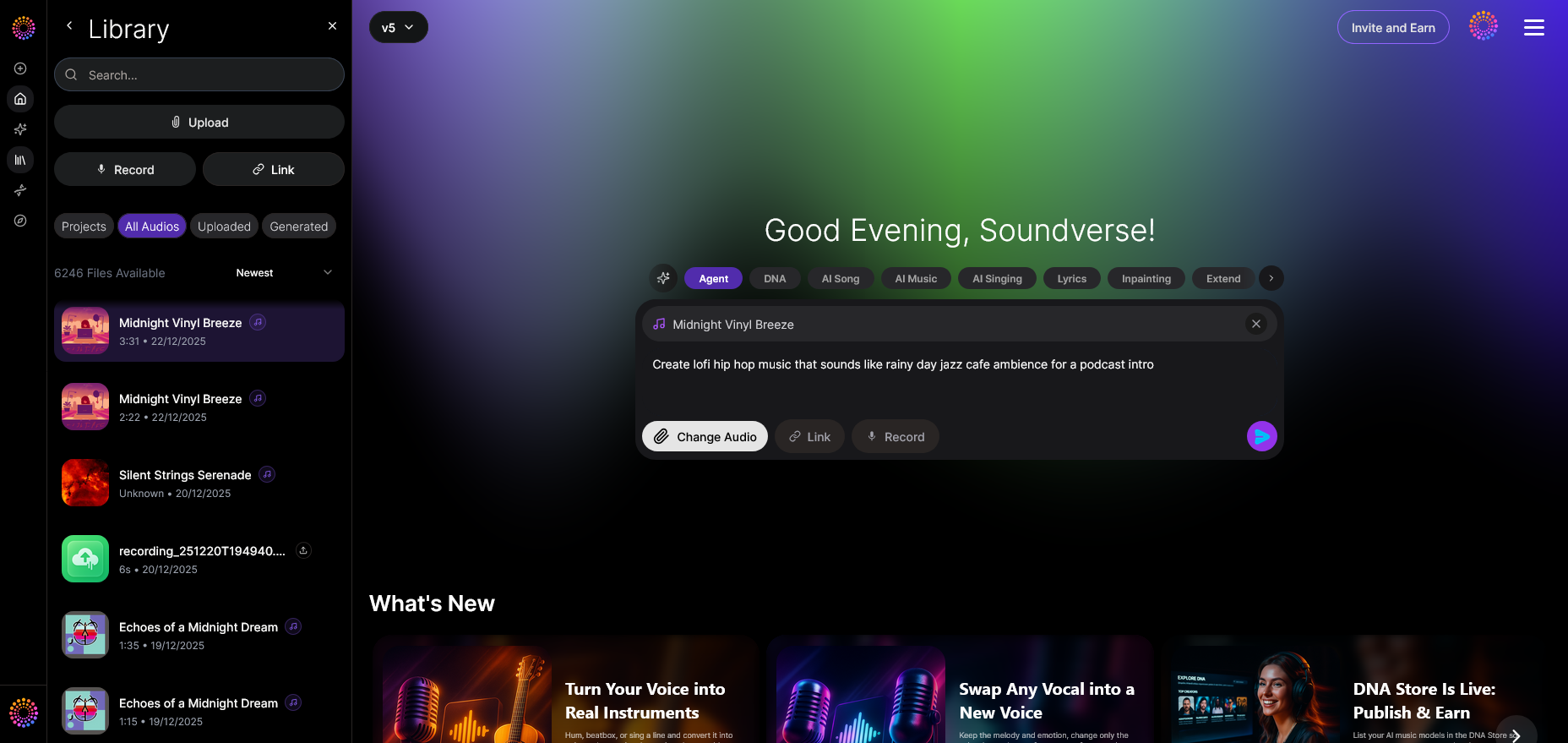
Optionally upload a reference track using the “Add Reference” option. This helps the AI interpret genre or rhythm preferences.
Step 3: Attach Button
Click the attachment icon to include lyrics or additional files for context.
Step 4: Submit Request
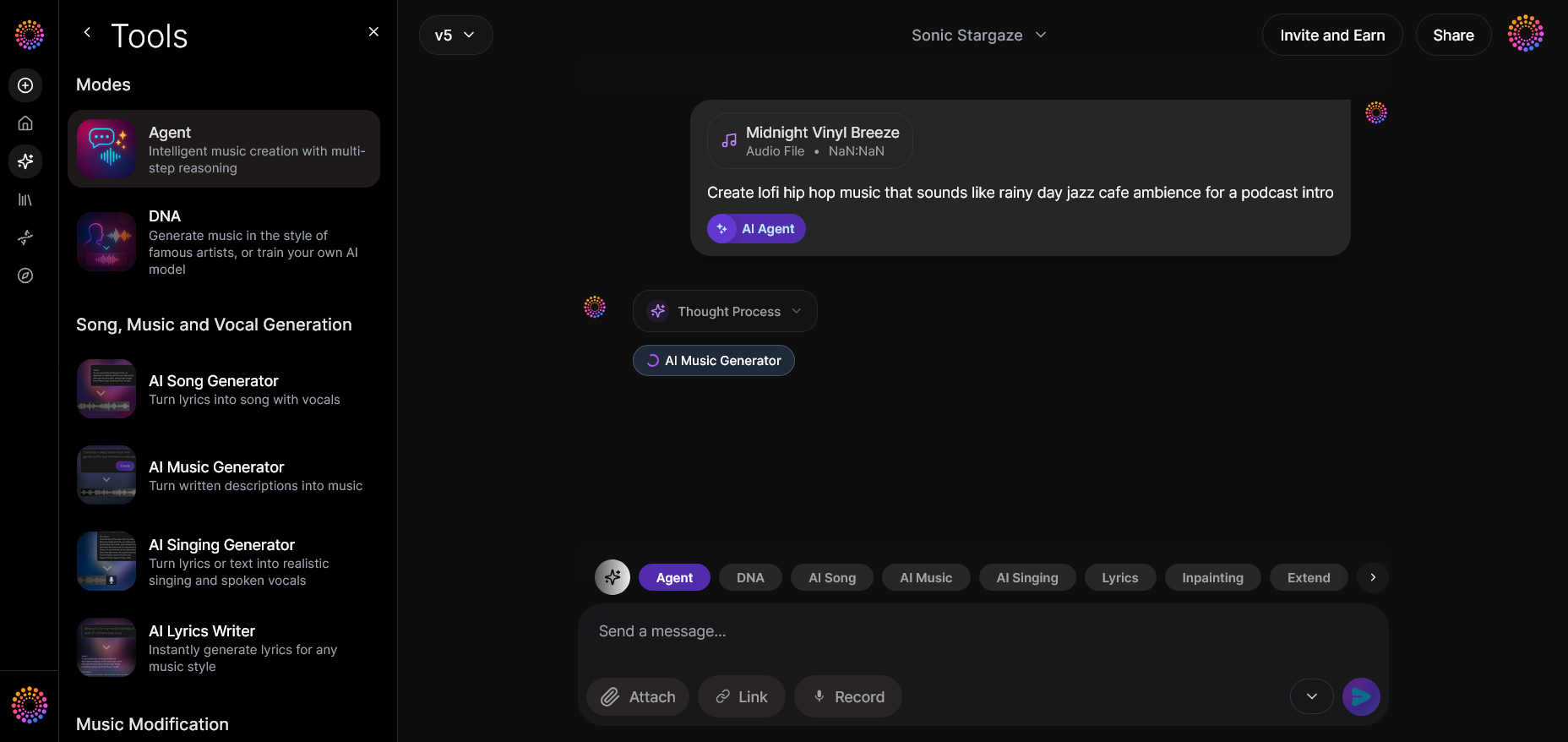
Press “Send” when your prompt is ready — for instance, “Create a synth-pop track influenced by 80s vibes.” The Agent processes asynchronously.
Step 5: Review Output
After processing, review the result shown in the output display area. You can play, pause, or inspect structure layers.
Step 6: Refine Conversation
Continue dialogue by telling the Agent your desired change — “Remove drums” or “Extend chorus.” Contextual memory ensures smooth revisions.
Step 7: Advanced Controls
For producers, access advanced options to adjust tempo, genre, and arrangement depth across tools.
Step 8: Export Options
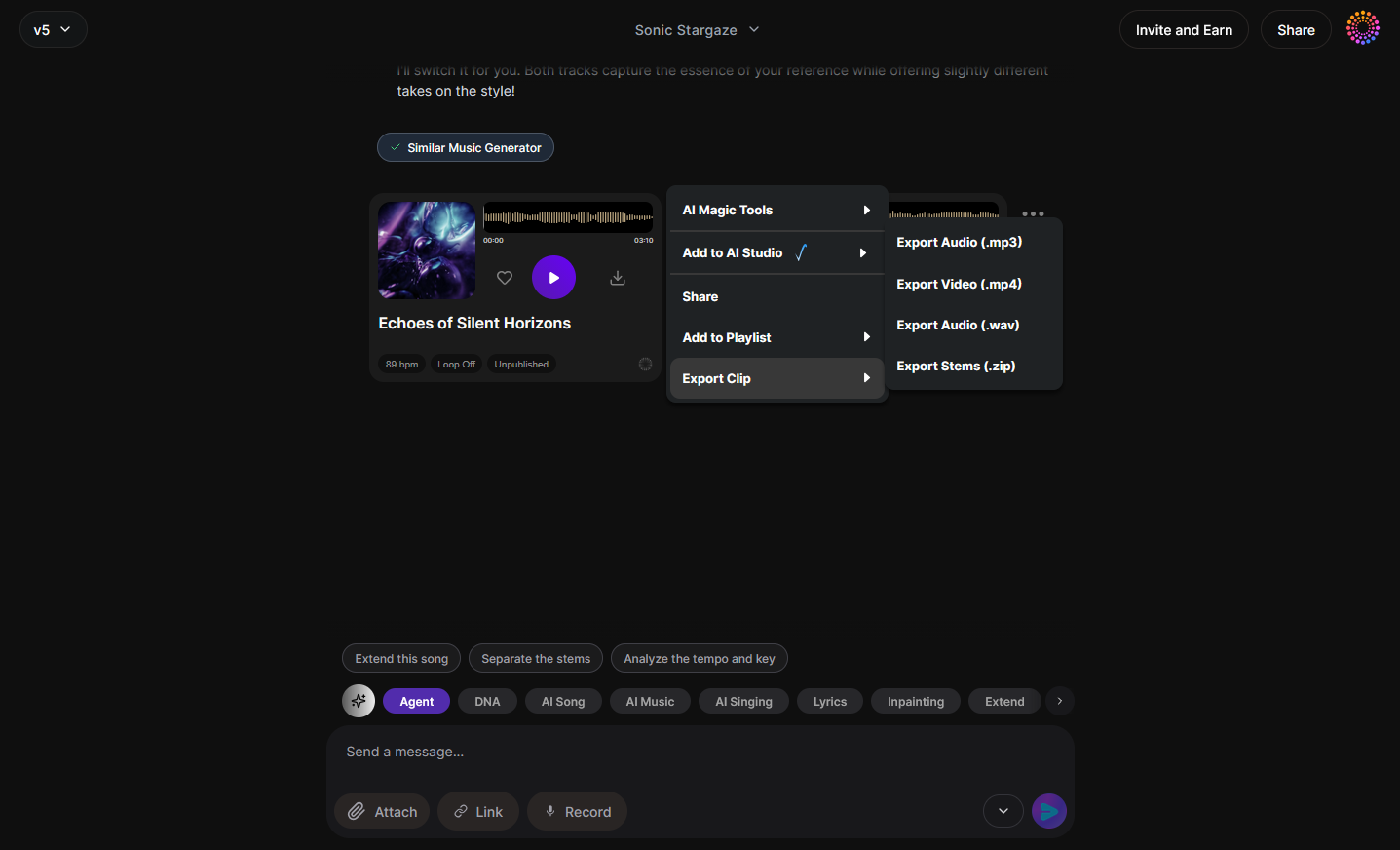
Use the export menu to download files in WAV, MP3, or project formats adaptable for Arrangement Studio.
Step 9: New Conversation
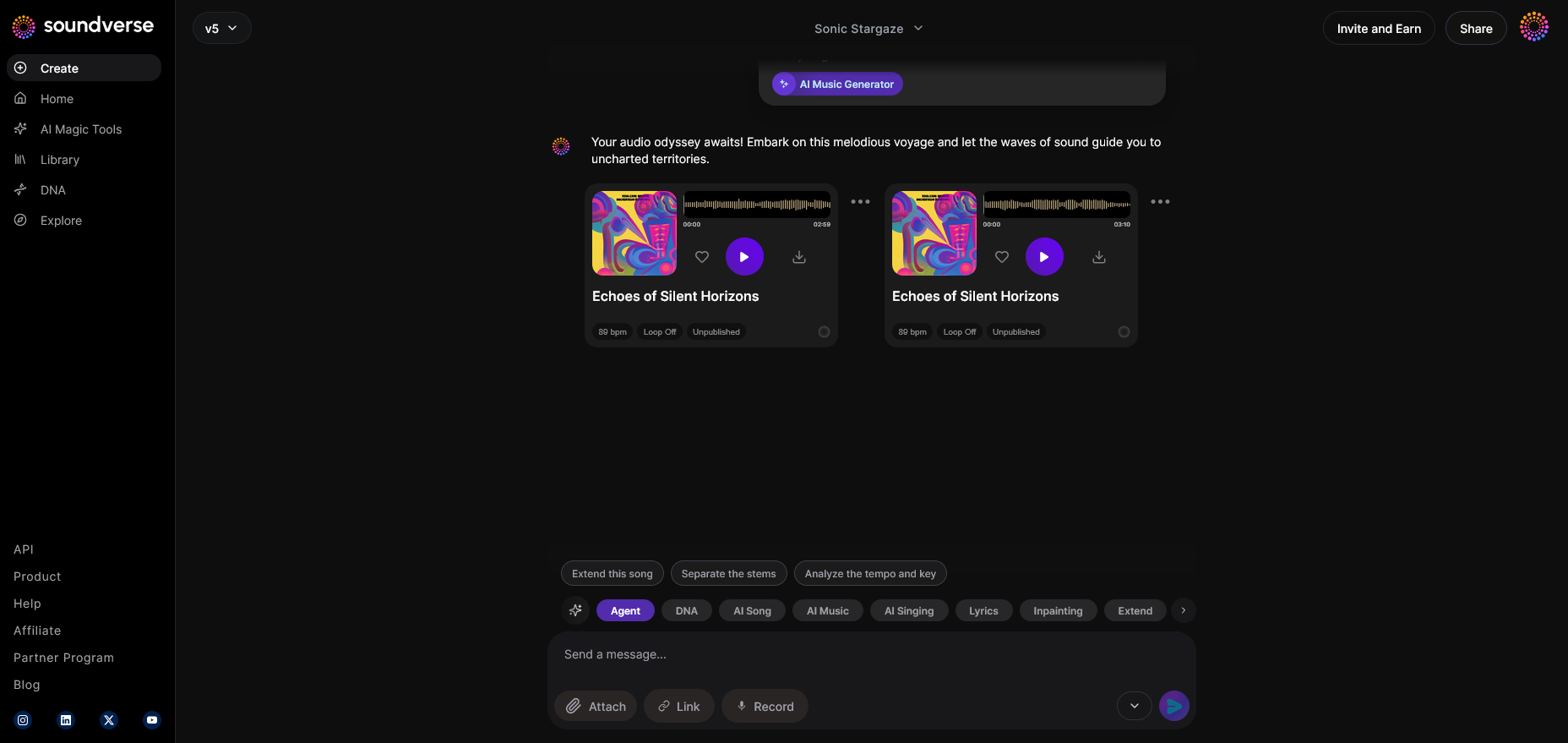
Start fresh anytime using “New Project.” This clears current context and creates a new creative workspace.
For deeper creative examples, watch our Soundverse Tutorial Series - 9. How to Make Music and Soundverse Tutorial Series - 10. Make Deep House Music.
By employing Soundverse Agent, users avoid common Suno performance issues — processing interruptions, server overload, or faulty exports. Soundverse’s orchestration system ensures stable AI workflows because tasks are distributed across optimized modules instead of a single generator.
Bonus Tips to Prevent Future App Crashes
- Regularly backup music externally to avoid data loss.
- Check compatibility when installing OS updates; mismatched libraries trigger model errors.
- Avoid simultaneous uploads when using experimental AI filters.
- Keep an eye on music industry trends to adapt prompt language as AI systems evolve.
Related Reading for AI Music Creators
To enhance your creative workflow with more reliable systems, explore these guides:
- Best Suno Alternative – Soundverse AI Free Sign Up
- Soundverse Introduces Stem Separation AI Magic Tool
- Soundverse Assistant: Your AI Music Co-Producer
- Generate AI Music with Soundverse Text-to-Music
Fix Suno Crashes with Smarter AI Tools
Tired of dealing with constant crashes? Soundverse offers a stable, performance-driven AI music generation experience so you can focus on creativity instead of troubleshooting.
Related Articles
- Best Suno Alternative: Soundverse AI Free Sign-Up — Discover how Soundverse delivers a more reliable AI music creation experience compared to Suno.
- Soundverse Introduces Stem Separation AI Magic Tool — Learn how Soundverse’s new AI Magic Tool helps isolate and remix stems quickly and precisely.
- Soundverse Assistant: Your AI Music Co-Producer — Explore how Soundverse Assistant simplifies music creation by managing complex production tasks automatically.
- Best AI Music Generator: Top Picks and Review — Compare the leading AI music generators—find your best option for stable performance and creative freedom.
Here's how to make AI Music with Soundverse
Video Guide
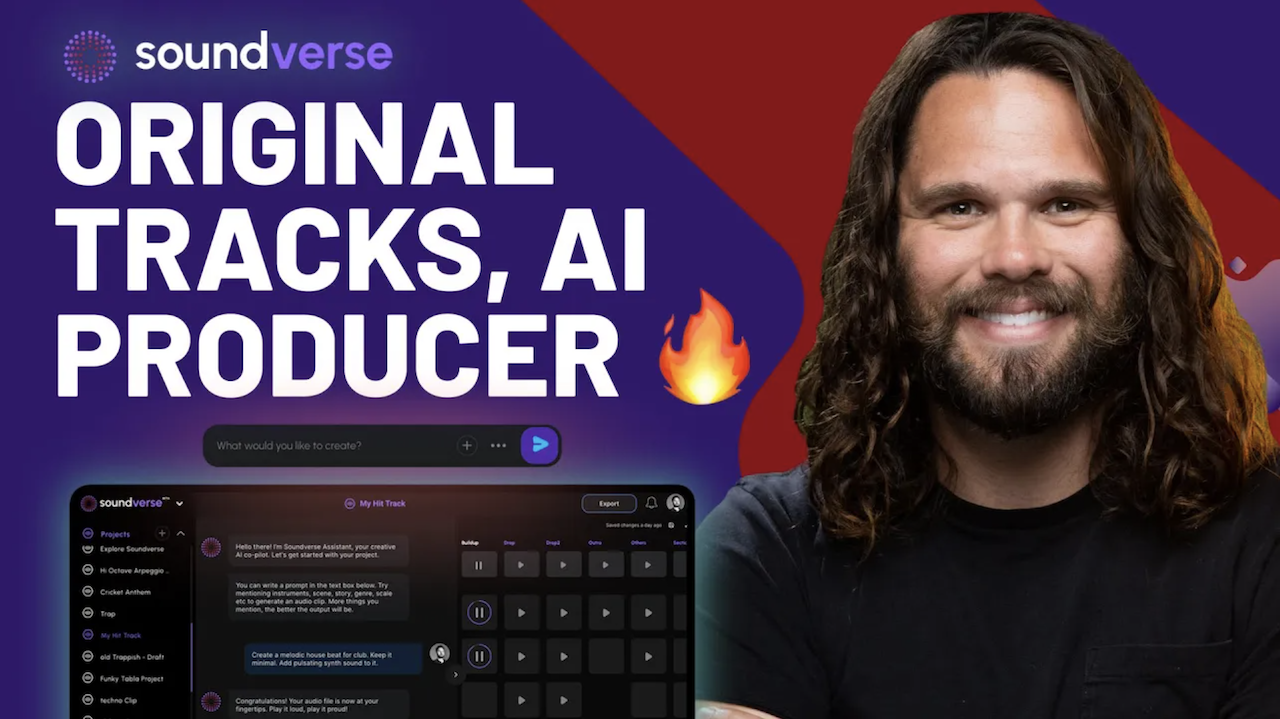
Here’s another long walkthrough of how to use Soundverse AI.
Text Guide
- To know more about AI Magic Tools, check here.
- To know more about Soundverse Assistant, check here.
- To know more about Arrangement Studio, check here.
Soundverse is an AI Assistant that allows content creators and music makers to create original content in a flash using Generative AI.
With the help of Soundverse Assistant and AI Magic Tools, our users get an unfair advantage over other creators to create audio and music content quickly, easily and cheaply.
Soundverse Assistant is your ultimate music companion. You simply speak to the assistant to get your stuff done. The more you speak to it, the more it starts understanding you and your goals.
AI Magic Tools help convert your creative dreams into tangible music and audio. Use AI Magic Tools such as text to music, stem separation, or lyrics generation to realise your content dreams faster.
Soundverse is here to take music production to the next level. We're not just a digital audio workstation (DAW) competing with Ableton or Logic, we're building a completely new paradigm of easy and conversational content creation.
TikTok: https://www.tiktok.com/@soundverse.ai
Twitter: https://twitter.com/soundverse_ai
Instagram: https://www.instagram.com/soundverse.ai
LinkedIn: https://www.linkedin.com/company/soundverseai
Youtube: https://www.youtube.com/@SoundverseAI
Facebook: https://www.facebook.com/profile.php?id=100095674445607
Join Soundverse for Free and make Viral AI Music
We are constantly building more product experiences. Keep checking our Blog to stay updated about them!