Audio to JS, Audio to Prompt and Soundverse's analyze tools
Turn a sound into JavaScript with Audio to JS, a song into a reusable prompt with Audio to Prompt, and read BPM, key, sections, lyrics and copyright.
Quick answer: Audio to JS, new in Soundverse AI Tools in November 2026, turns a short sound from your library into a JavaScript file that recreates it, which you compare with the original, adjust and download for your app. Audio to Prompt does the same kind of reverse-engineering for whole songs, writing a reusable style prompt, an instrumental prompt and section-tagged lyrics. Tempo & Key Detector, Section Analysis, Audio Transcription and the Copyright Checker tell producers, DJs and songwriters what's in a track before they build on it. Audio to JS is open to every account in AI Tools, and Audio to Prompt and those four run on every plan, including Free.
Audio to JS: a sound, rebuilt as code
Audio to JS is a new tool in Soundverse's AI Tools, shown in a short video on 3 November 2026. You give it a sound, and you get back code that plays that sound.
"Soundverse listens and measures every detail: length, peak, pitch, note and noise. Then it writes a recipe for the sound and ships it as JavaScript code."
Audio to JS in 30 seconds: a one-second "Digital Chime" becomes chime-beep.js.
The Digital Chime example
The video starts with a one-second sound effect called "Digital Chime". Audio to JS measures it, then writes chime-beep.js: a clean electronic synth blip at 554 Hz (C#5), with a bright attack that mellows into a warm decay. In Soundverse's run, the recreated sound matched the original on the first attempt.
If your app needs a notification chime, a button blip or a short alert, you can start from a sound you like and end with a file your code can play.
How it works
- Pick a sound from your library.
- Soundverse measures it: length, peak, pitch, note and noise.
- It writes a recipe for the sound: layers, pitch, envelope and filters.
- It turns the recipe into a JavaScript file.
- Compare the original and the recreated sound side by side.
- Adjust plain settings such as pitch, brightness, reverb, drive and decay.
- Download the .js file and use it in your app.
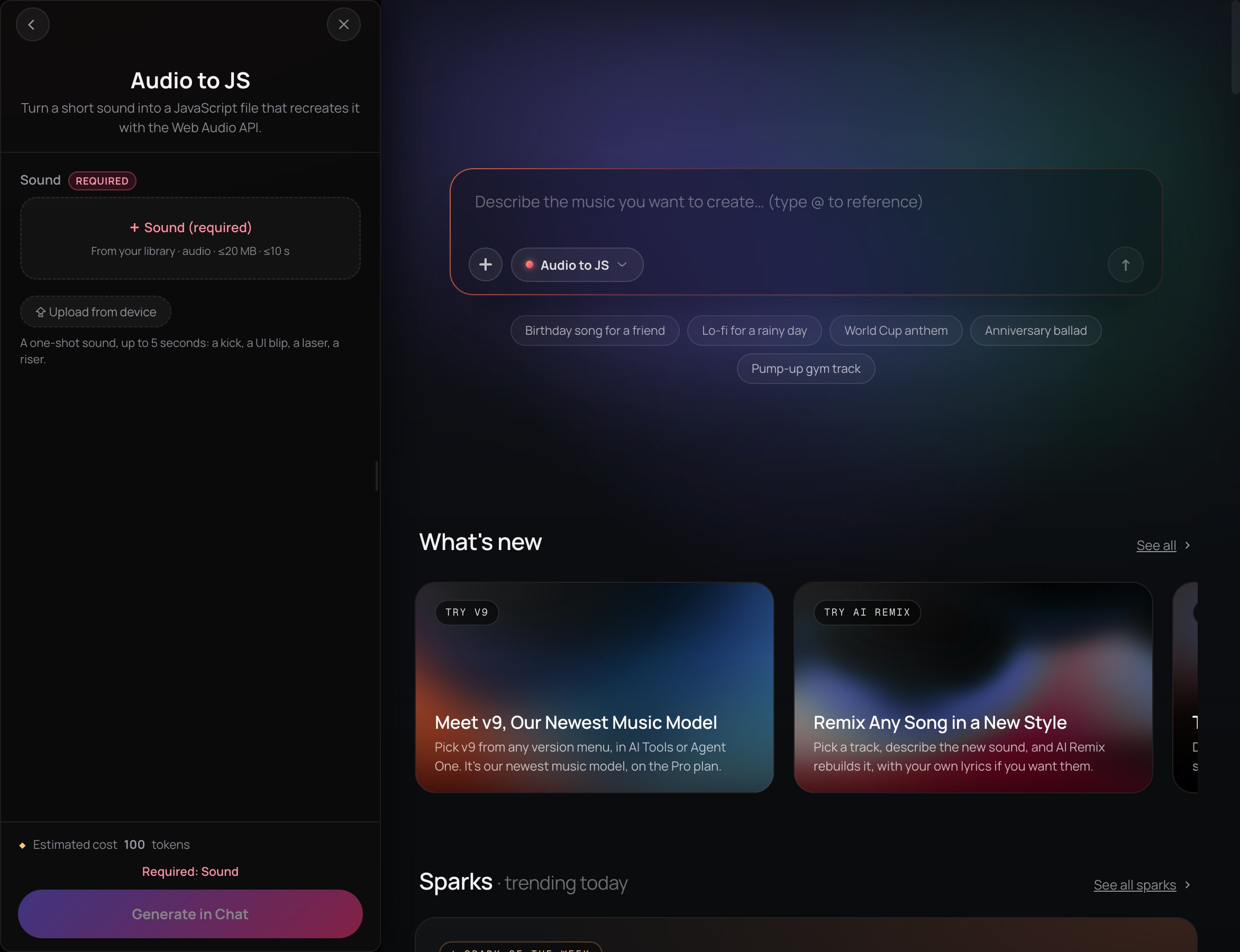 Audio to JS lives in AI Tools: pick a sound, get a .js file.
If you don't have the sound yet, the AI Sound Effects Generator makes clips from a text description, from 0.5 to 30 seconds long, on every plan. Start from a sound you made or have the rights to. New to JavaScript? MDN's JavaScript reference is a good place to start. Developers who want Soundverse inside their own product should also read our post on the Soundverse API.
Audio to Prompt: a song, rewritten as a prompt
Audio to Prompt turns a song into text you can reuse: a style prompt, an instrumental prompt and the song's lyrics tagged by section, such as [Verse] and [Chorus]. It listens for genre, mood, instruments, production, era and vocals, checks tempo and key, and maps the song's structure. Then it writes the prompts in English.
You pick one song from your Library: MP3, WAV, FLAC, AAC, OGG, M4A or MP4 audio, up to 10 minutes long. Leave Lyrics Language on Auto-detect or choose from 12 languages, including Spanish, Hindi, Japanese, Korean and Arabic. Click Generate in Chat and step cards show each stage. You get a short summary, then each prompt and the tagged lyrics in a block you can copy.
 Audio to Prompt: a reference track in, a reusable prompt out.
It runs on every plan, including Free, at a flat 100 tokens a run whatever the song's length. You're charged only when the listening and writing steps both succeed. It runs in chat, not inside AI Studio, and an instrumental comes back with prompts only, because there are no lyrics to return.
Paste the style prompt into the AI Song Generator, or the instrumental prompt into the AI Music Generator. A song you make from the prompt is a new song in that style, not a copy of the original. The tagged lyrics are still the original songwriter's words, so reuse them only with permission.
Tempo, key, sections and words
Three more Analyze tools answer the questions you ask before you remix, edit or score. Each one reads your audio and reports back in the chat.
Tempo & Key Detector finds one BPM and one key for the whole file, such as 96 BPM in A minor. Both readings are saved to the file, so the track's page in your Library shows them afterward. A song that changes tempo or key partway gets a single overall reading, so confirm by ear when it matters.
Section Analysis labels each part of a song as intro, verse, chorus, bridge, instrumental, solo, break or outro, with start and end times. It also detects the tempo, beats and downbeats, but not the key. The map is saved with the file, so Agent One can reuse it in later work on the same track.
Audio Transcription turns sung or spoken words into text. It takes files up to 500 MB and 60 minutes, detects the language or lets you force one of 12, and keeps word timestamps on by default for captions and lyric videos. It doesn't label speakers, so add names yourself for an interview.
 Tempo & Key Detector: one check, one BPM and one key.
The Analyze category also includes AI Video Describer (Creator and up), which breaks a video into timed scenes, dialogue, sound effects and music, and Web Search, which answers questions from a live web search with links to its sources. Inside AI Studio, the Analysis One meter plugin reads loudness in LUFS (K-weighted and gated, the method set out in ITU-R BS.1770), true peak, phase and spectrum as a song plays. It runs in your browser and uses no tokens.
Every tool in Soundverse's Analyze category, from Tempo & Key to Section Analysis.
Copyright Checker: check before you release
The Copyright Checker identifies a track by its acoustic fingerprint and tells you whether it matches a known, commercially released recording. A match shows the title, artist, album, label, release date and ISRC where known. No match is a valid result, not an error, and fresh Soundverse generations normally come back unmatched.
Open it from the Own section of AI Tools, or from a track's menu in your Library under Analyze. It's on every plan, including Free, and each check uses tokens. To check just a sample or an intro, trim that part into its own file with Media Converter and check the new file.
 The Copyright Checker: a recognition check against released recordings.
Know its limits. It matches the recording itself, so a cover, a re-recording or a song that only sounds similar may not be flagged. It's a recognition check, not legal clearance: a match doesn't decide whether your use is allowed, and no match doesn't mean the audio is cleared.
On authorship, the US Copyright Office's 2025 report on copyrightability says prompts alone don't make you the author; the parts you create yourself, such as lyrics you write and your arrangement and edits, can be protected. A prompt from Audio to Prompt is no different: on its own, it doesn't make you the author. This isn't legal advice.
What each tool does and which plan
| Tool | You give it | You get back | Plan (as of November 2026) |
|---|---|---|---|
| Audio to JS (new) | A short sound from your library | A .js file that recreates it, compared side by side | Every account, in AI Tools |
| Audio to Prompt | A song up to 10 minutes | Style prompt, instrumental prompt, section-tagged lyrics | Every plan, 100 tokens a run |
| Tempo & Key Detector | A song, stem or sample | One BPM and one key, saved to the file | Every plan |
| Section Analysis | A song | Labeled sections with times, plus tempo, beats and downbeats | Every plan |
| Audio Transcription | Up to 60 minutes of audio | Text, with optional word timestamps | Every plan |
| Copyright Checker | A track or a trimmed clip | A match with release details, or no match | Every plan |
| AI Video Describer | An MP4 or WebM video | Timed scenes, dialogue, effects and music cues | Creator and up |
How the tools work together
Analyze tools are often the first step. Find a song's key and tempo, map its sections, capture its style as a prompt, then use the Create and Edit tools to make something new. Or ask Agent One, which runs these tools behind the scenes to understand your references before it creates.
- Open the Analyze category in AI Tools at soundverse.ai, or start a chat with Agent One.
- Upload your audio or video, or pick it from your Library.
- Run the analysis and read the result.
- Use what you learned to create, edit or remix your next track.
To take a track apart once you know what's in it, see our guide to the edit tools: AI Remix, stems and Audio to MIDI.
FAQ
What do I get from Audio to JS?
A .js file that recreates the sound you picked, such as chime-beep.js in the "Digital Chime" example. You can compare it with the original and adjust it before you download.
Does a song made from an Audio to Prompt prompt copy the original?
No. A song made from the prompt is a new song in that style. The tagged lyrics, though, are the original songwriter's words, so reuse them only with permission.
Can Section Analysis find the key?
No. It finds the sections, tempo, beats and downbeats. Run Tempo & Key Detector on the same track for the key.
Does "no match" from the Copyright Checker mean my track is cleared?
No. It only means the audio wasn't recognized as a known, commercially released recording. Confirm rights with the owners, or get legal advice, before you release or reuse audio.
Are the analysis tools free?
Tempo & Key Detector, Section Analysis, Audio Transcription, Audio to Prompt and the Copyright Checker run on every plan, including Free. Each run uses tokens from your balance, and new accounts get starter tokens. See the Pricing page for what each plan includes.
Try it: open Audio to Prompt or any Analyze tool on Soundverse, and pick a track from your Library.