How to Use Rythm Bot on Discord: Complete 2026 Tutorial
Learn how to use Rythm Bot on Discord for music playback, commands, setup, and control with this 2026 guide.
How to Use Rythm Bot on Discord
In 2026, Discord continues to dominate as a hub for community engagement, gaming, and group communication. One of the most beloved features for many users is the ability to play and share music directly in servers. If you are wondering how to use Rythm bot on Discord, this guide will walk you through everything you need to know — from inviting the bot to executing commands to enhance your music experience.
Rythm Bot has been a staple in the Discord music ecosystem for years, enabling thousands of servers to enjoy seamless audio streaming from YouTube, SoundCloud, and more. While previous versions faced limitations due to platform restrictions, its current incarnation in 2026 operates with modern functionality, improved compatibility, and responsive playback integration.
What is Rythm Bot and Why Use It in 2026?
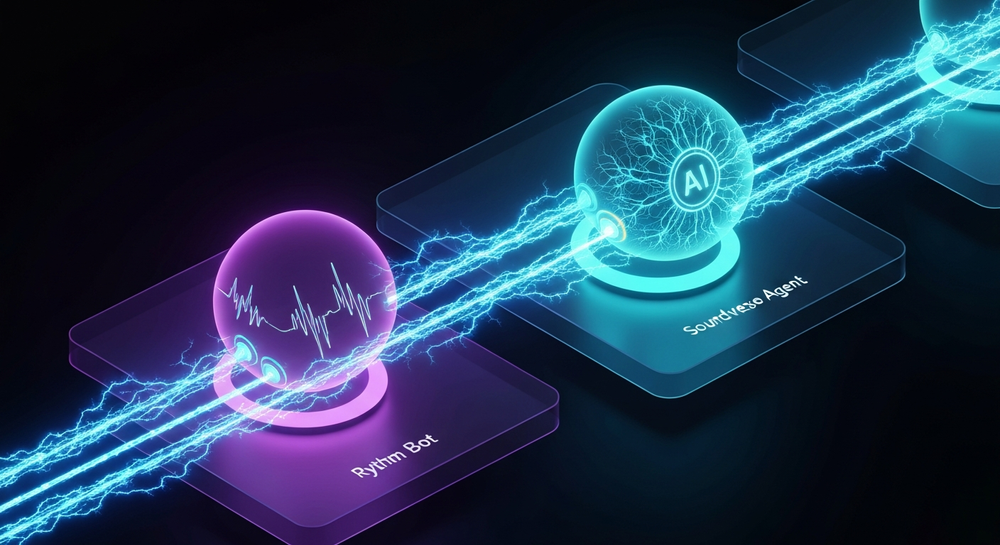
Rythm Bot is a Discord music bot that allows users to stream high-quality audio directly into Discord voice channels. Instead of having members individually play songs through their own systems, Rythm Bot synchronizes playback for everyone in the voice room. This creates a shared listening experience ideal for gaming sessions, study groups, and community events.
Key benefits of using Rythm Bot include:
- Easy access to millions of songs via platform links.
- Commands for precise control (like pause, skip, queue management).
- Server-wide settings for volume and permissions.
- 24/7 uptime on selected premium servers.
If you’re searching for a Rythm bot setup guide, this tutorial covers everything you need to make your server’s music experience smooth and fun.
How to Make Rythm Bot Work with Soundverse Agent
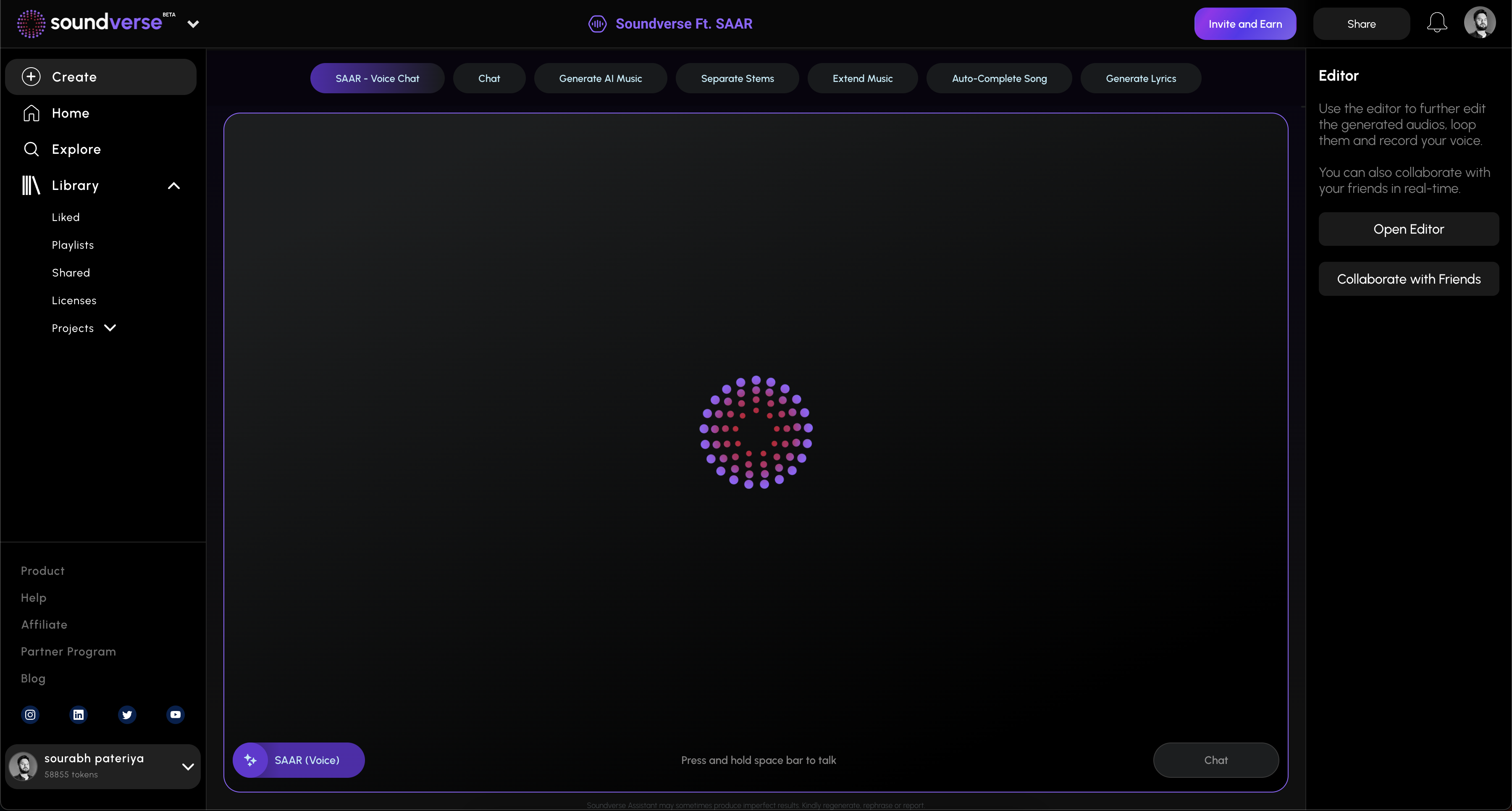

Before diving into Discord itself, it’s worth understanding how Rythm Bot blends into broader creative workflows. Soundverse’s Agent is an advanced conversational AI designed to orchestrate music-related tasks effortlessly. While Rythm Bot handles playback in Discord, Soundverse Agent manages creation.
The Agent acts as a centralized music assistant, interpreting natural language requests like “create a pop track and separate stems” or “extend the melody but remove drums.” It automatically coordinates Soundverse’s tools—such as the AI Music Generator, AI Song Generator, and Stem Separator—to complete multi-step music production workflows.
Main highlights of Soundverse Agent include:
- Multi-step orchestration: Automates complex creative tasks.
- Contextual memory: Remembers previous requests in a project.
- Voice input support: You can dictate requests naturally.
- Cross-tool automation: Transfers data between generators and separators seamlessly.
This connection between Rythm Bot and Soundverse Agent allows Discord users to create music collaboratively, then immediately share results through live bot playback. You can learn more about AI-driven music workflows in Soundverse’s guides like Generate AI music with Soundverse Text-to-Music and Soundverse Assistant: Your AI Music Co-Producer.
Now let’s dive into the real steps to set up and use the Rythm Bot effectively on Discord.
Step 1: Overview — Understanding the Main Interface
After inviting Rythm Bot to your Discord server using the official bot link, you’ll see it appear in your members list. It can join voice channels when summoned. The main interface for interaction is via commands in text channels. Users type commands to control playback, volume, and playlist management.
Step 2: Reference Audio — Adding Links or Keywords
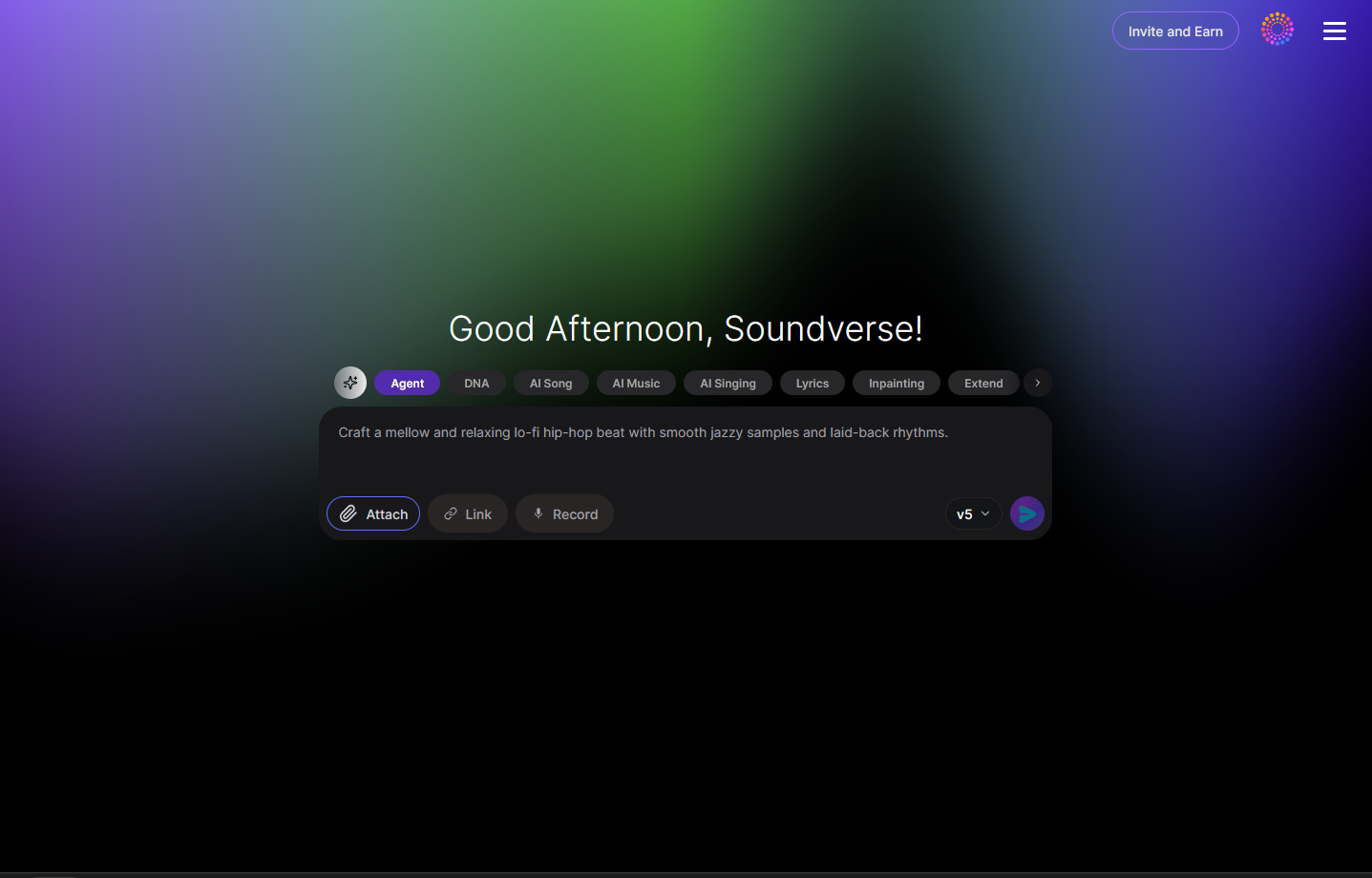
To play songs, use simple commands like:
!play [song name or URL]
This command makes Rythm Bot search and stream audio. You can paste direct YouTube or SoundCloud links or type keywords, and the bot will retrieve the most relevant track. Watch this video guide demonstrating how to use Rythm Bot on Discord for a visual walkthrough.
Step 3: Attach Button — File Integration
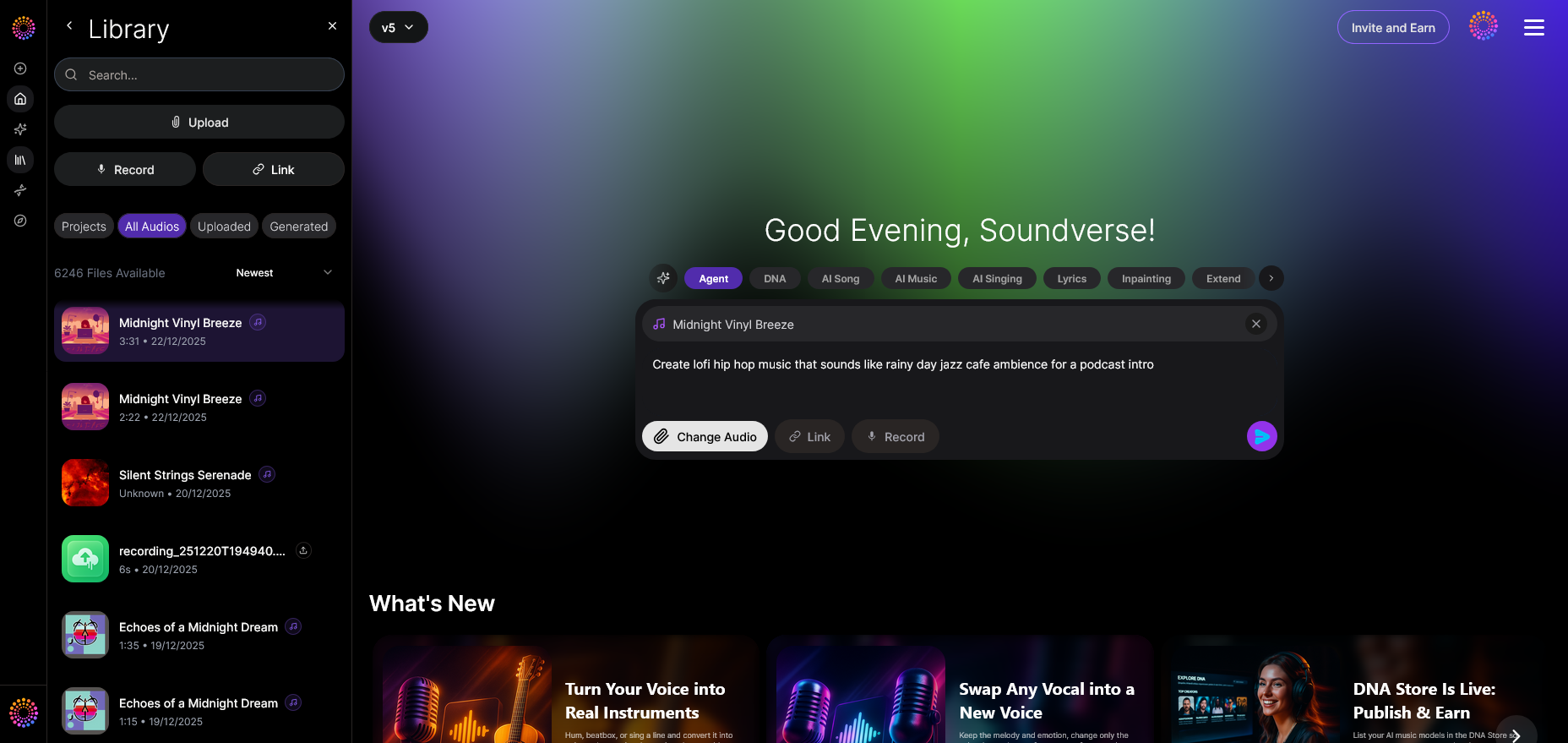
For advanced users, Rythm Bot supports uploading local files if enabled in your server settings. Using Discord’s attach button next to the text input box, you can upload audio clips for playback. This is particularly useful during collaborative projects where team members generate content using Soundverse tools and want to preview stems or short samples in Discord.
Step 4: Submit Request — Executing Commands
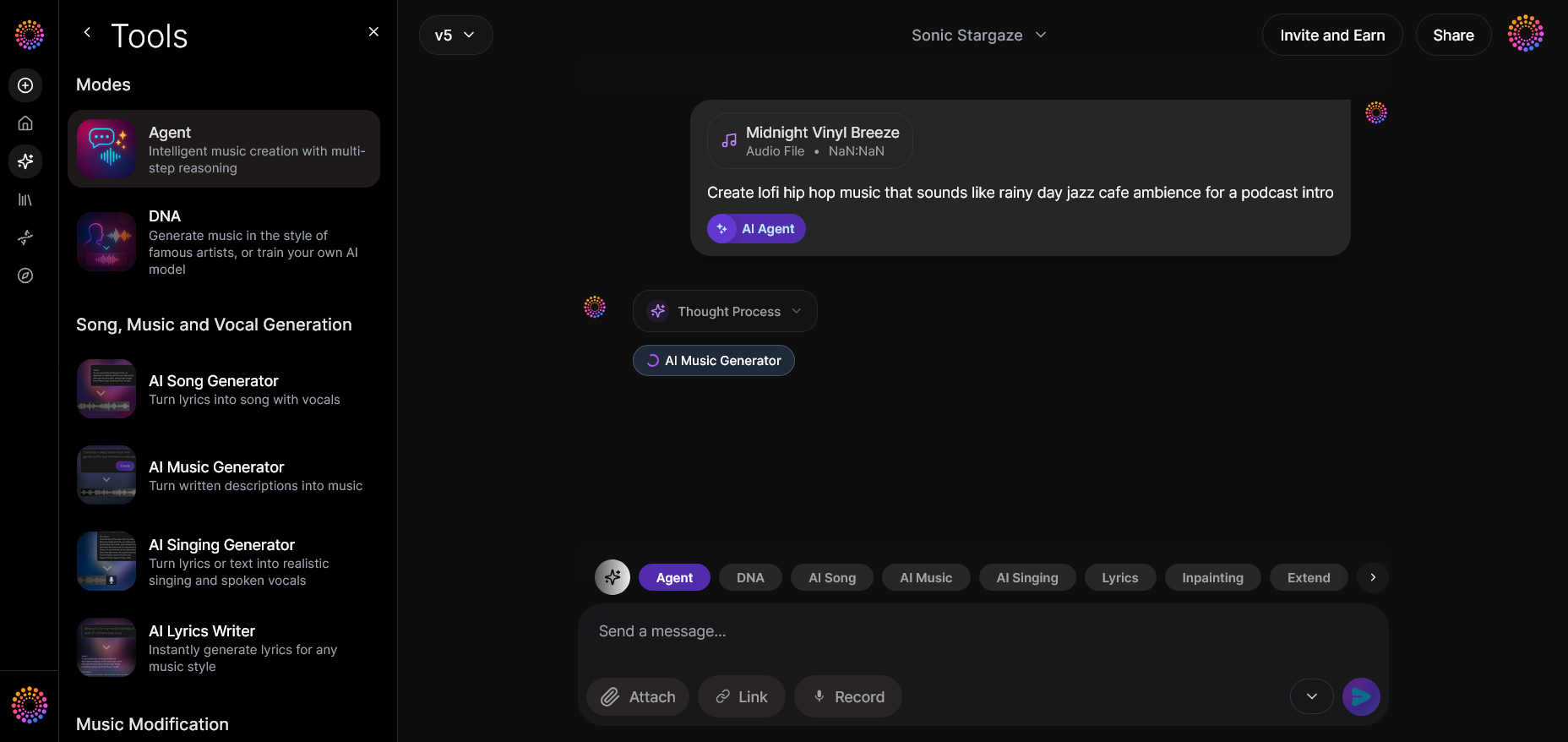
Once you send a command (e.g., !play), Rythm Bot will join your active voice channel automatically. You can also control stream behavior using commands like:
!skip— Move to the next song.!pause— Pause playback.!resume— Continue playing.!queue— View queued tracks.!remove [number]— Delete an item from the queue.
These are the essential Rythm bot commands that allow full control over session flow. For a deeper dive, watch Soundverse Tutorial Series - 9. How to Make Music to learn about music flow with collaborative agents.
Step 5: Review Output — Check Playback Quality
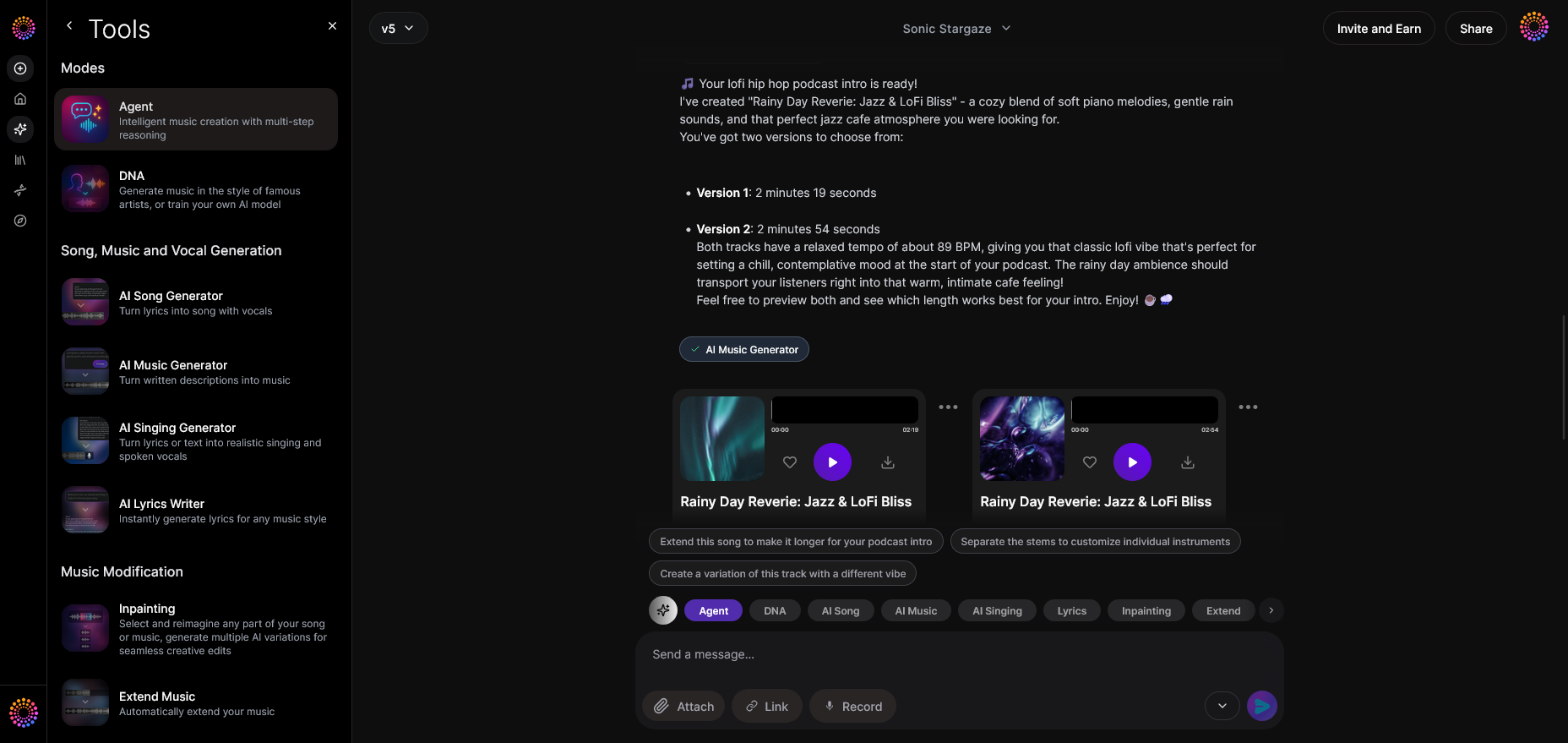
As the bot plays, verify audio clarity. Ensure the bitrate of your voice channel is high enough (128kbps or higher for premium clarity). If songs lag, consider adjusting permissions and checking latency between the bot and server region settings.
Step 6: Refine Conversation — Adjust Queue and Interaction
You can refine playlist conversations by using reply threads. For instance, if someone types !play jazz, another user can add their own selection using !play blues to curate themed playlists. This collaborative responsiveness brings community engagement.
Step 7: Advanced Controls — Server Management and Permissions
Administrators can customize bot permissions through Discord’s Server Settings. Typically, Rythm Bot should have permissions for:
- Connecting to voice channels.
- Speaking.
- Reading and sending messages.
You can also integrate it with role-based controls so moderators handle music during events. Learn more in this step-by-step admin guide for adding music bots to Discord.
Step 8: Export Options — Recording and Sharing Music Sessions
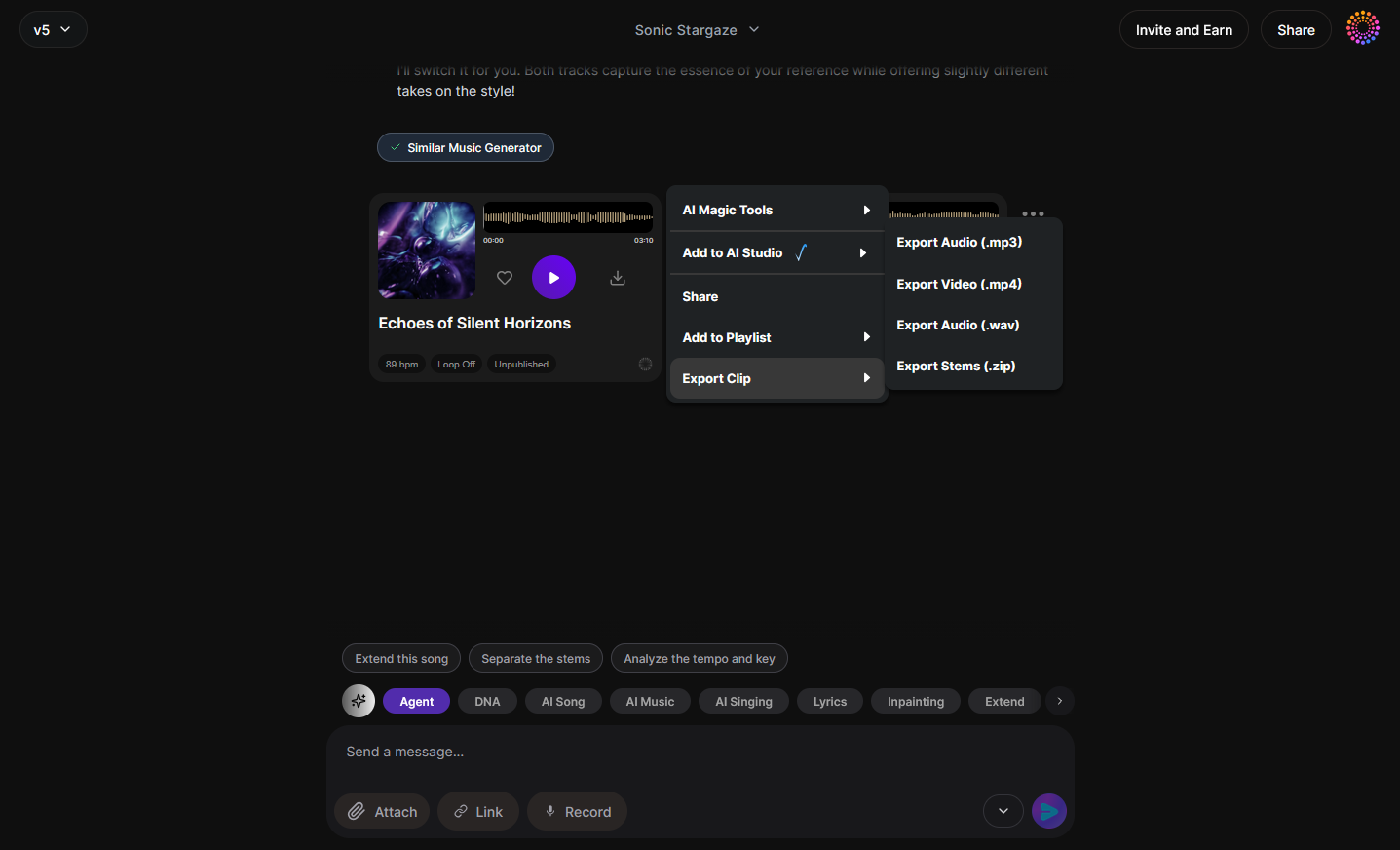
While Rythm Bot does not record or export directly from Discord, creators can use Soundverse to create or edit related materials. You can generate stems using Soundverse Stem Separation AI Magic Tool and share processed versions in Discord. Watch the Soundverse Tutorial Series - 10. Make Deep House Music for advanced production examples.
Step 9: New Conversation — Starting Fresh Sessions
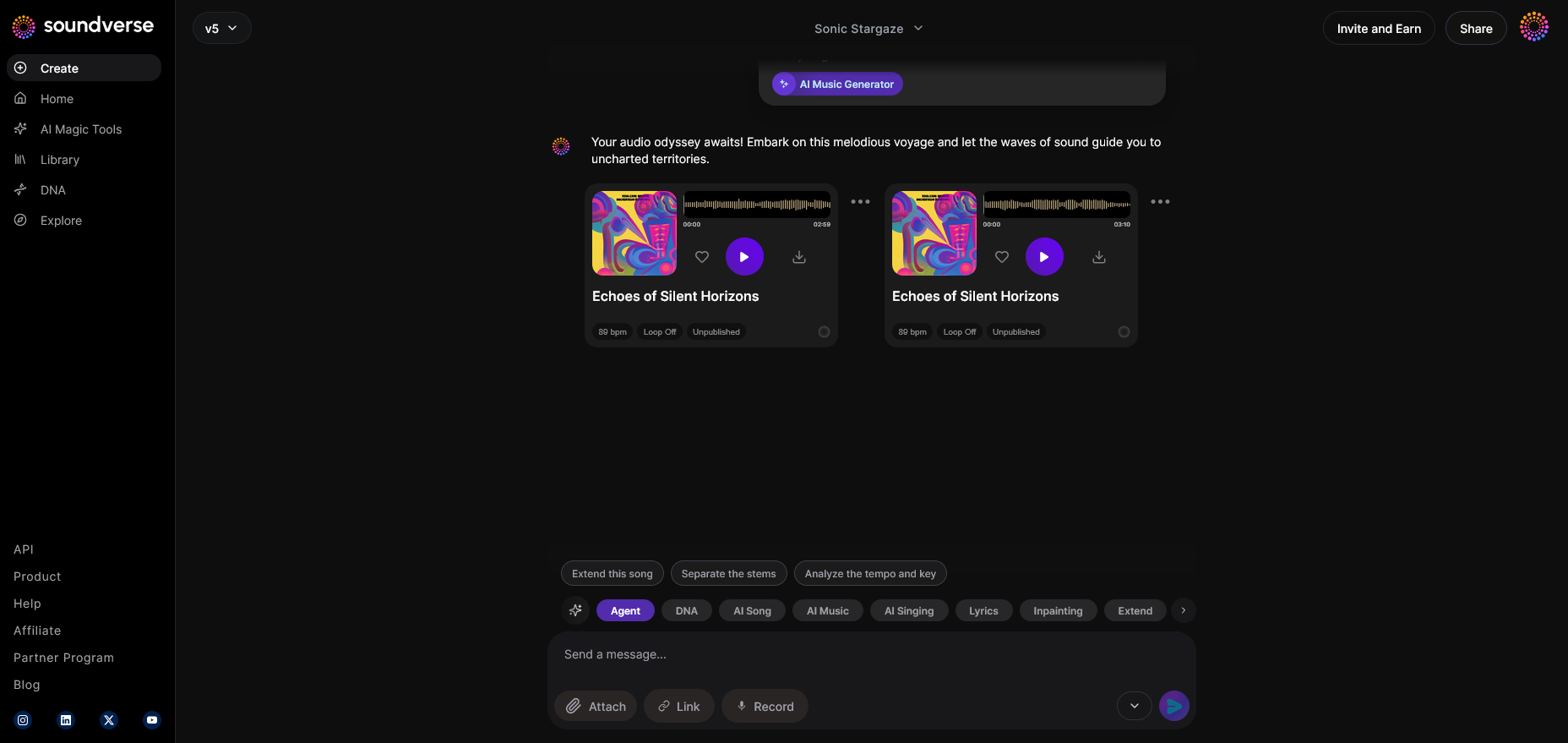
End each session cleanly by typing !disconnect or !stop. Then you can begin new musical playlists by restarting the bot’s queue. This ensures smooth service performance.
Pro Tips for Using Rythm Bot Efficiently in 2026
- Optimize server region: Choose a region near your group for minimum lag.
- Use playlists smartly: Save recurring playlists with custom commands if your bot supports user preferences.
- Combine Soundverse for custom music: Generate unique background tracks via AI Music Generator and then upload or stream them through Rythm Bot.
- Monitor permissions: Avoid configuration conflicts by ensuring proper roles and permissions.
- Use queue organization: Encourage members to add songs responsibly using moderation commands.
Why Rythm Bot Remains Relevant in Discord Communities
Even as alternative Discord music bots have appeared — such as Hydra, Jockey, and FredBoat — Rythm stands out for its simplicity, uptime, and stable integration with YouTube APIs. By 2026, with new compliance standards and creator-friendly policies, Rythm Bot has regained strong traction among gaming and music communities.
When combined with Soundverse, users step beyond just playing music — they begin creating, editing, and remixing collaboratively within their communities.
Create Music Instantly with Soundverse AI
Unlock your creativity by generating custom music tracks with just text prompts. Experience the easiest way to turn ideas into high-quality, royalty-free music.
Related Articles
- Generate AI Music with Soundverse Text-to-Music — Learn how Soundverse’s text-to-music tool can transform simple prompts into unique compositions in moments.
- Enhancing YouTube Content with Royalty-Free and Copyright-Free Music Using Soundverse AI — Find out how creators use Soundverse AI to add captivating, copyright-free music to their YouTube videos.
- What AI Can Generate Songs — Discover the various AI platforms capable of generating songs and how they’re changing the music landscape.
- Soundverse Assistant – Your AI Music Co-Producer — Explore how Soundverse Assistant acts as your digital co-producer, refining and optimizing your creative process.
Here's how to make AI Music with Soundverse
Video Guide
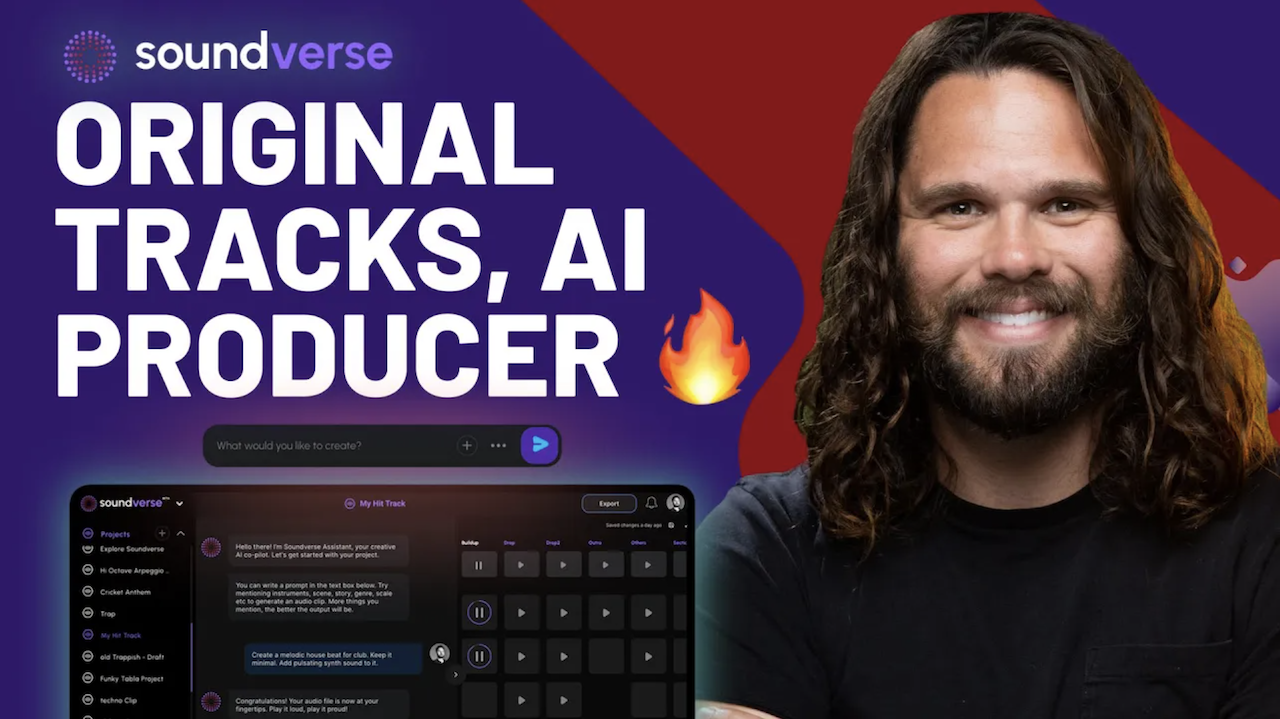
Here’s another long walkthrough of how to use Soundverse AI.
Text Guide
- To know more about AI Magic Tools, check here.
- To know more about Soundverse Assistant, check here.
- To know more about Arrangement Studio, check here.
Soundverse is an AI Assistant that allows content creators and music makers to create original content in a flash using Generative AI.
With the help of Soundverse Assistant and AI Magic Tools, our users get an unfair advantage over other creators to create audio and music content quickly, easily and cheaply.
Soundverse Assistant is your ultimate music companion. You simply speak to the assistant to get your stuff done. The more you speak to it, the more it starts understanding you and your goals.
AI Magic Tools help convert your creative dreams into tangible music and audio. Use AI Magic Tools such as text to music, stem separation, or lyrics generation to realise your content dreams faster.
Soundverse is here to take music production to the next level. We're not just a digital audio workstation (DAW) competing with Ableton or Logic, we're building a completely new paradigm of easy and conversational content creation.
TikTok: https://www.tiktok.com/@soundverse.ai
Twitter: https://twitter.com/soundverse_ai
Instagram: https://www.instagram.com/soundverse.ai
LinkedIn: https://www.linkedin.com/company/soundverseai
YouTube: https://www.youtube.com/@SoundverseAI
Facebook: https://www.facebook.com/profile.php?id=100095674445607
Join Soundverse for Free and make Viral AI Music
We are constantly building more product experiences. Keep checking our Blog to stay updated about them!