How to Make an AI K-Pop Music Video with the Soundverse AI Music Video Generator
A step-by-step Soundverse AI Music Video Generator tutorial: clone a voice, make the song, cast a girl group, sync the dance, lip sync, and the real cost.
Quick answer: To make an AI music video that looks like a real K-pop performance, lock your song and your cast before you shoot anything. Clone your voice and generate the song in Agent One, split it into vocals and instrumental with the Stem Separator, and make every character's face first, then their full stage look from that face. Shoot each scene in the Soundverse AI Music Video Generator (Seedance 2.5 is the model inside), using the face, the look and the set as reference images and a slice of the song as reference audio. Give the group one signature move, and use the instrumental as reference audio so the dance lands on the beat. Lock the verses with Music Video Lip Sync, then cut everything on the beat in AI Studio. Our host Mira made a 60-second K-pop music video this way in one night, and the real token bill is at the end of this post.
I made a K-pop music video in one night with the Soundverse AI Music Video Generator: the full 4:50 tutorial, with the finished video at 3:26.
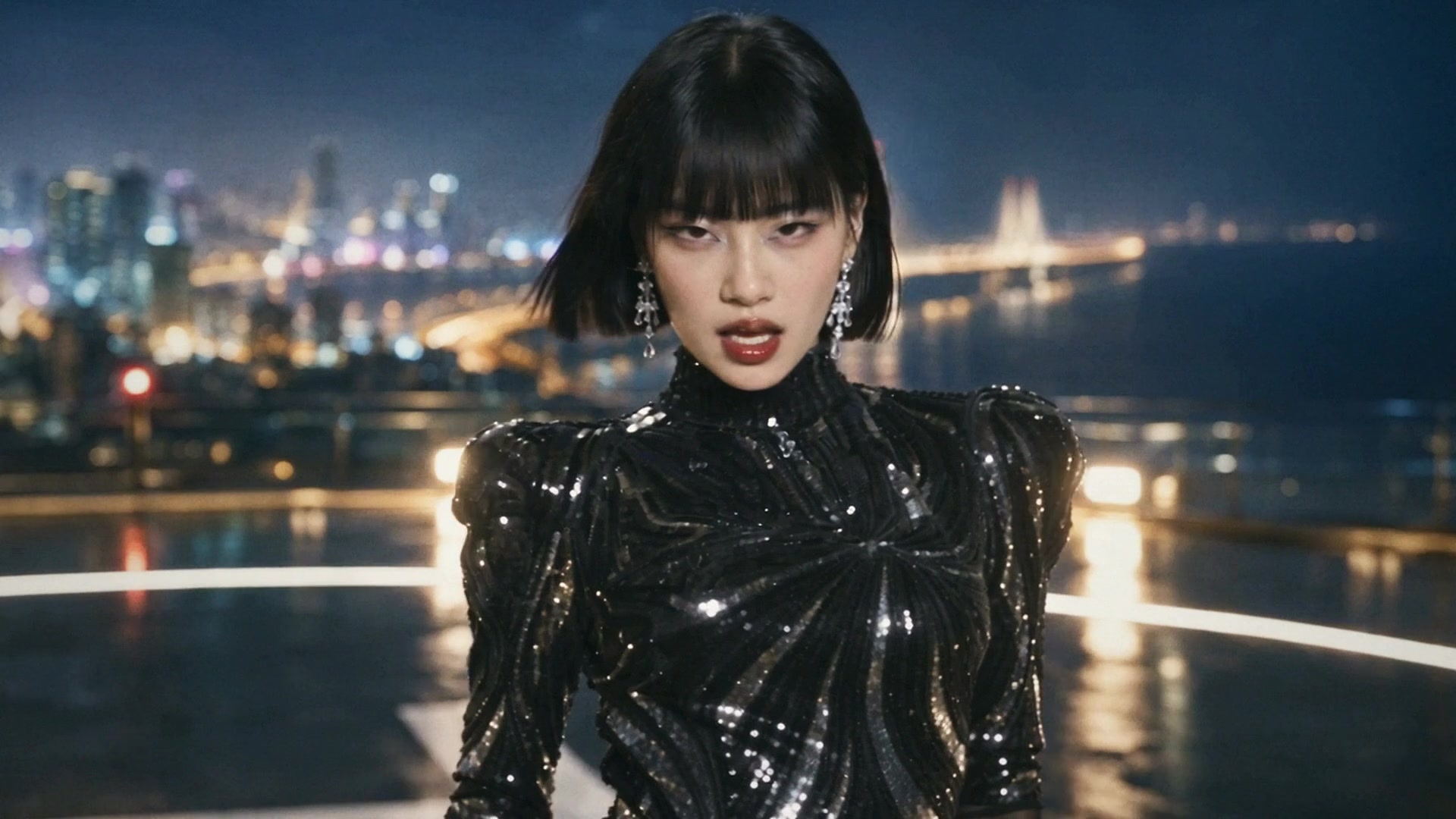
About Mira: Mira is an AI host created for Soundverse. Her face, voice and studio are AI-generated, and so are the four performers and the three sets in the music video.
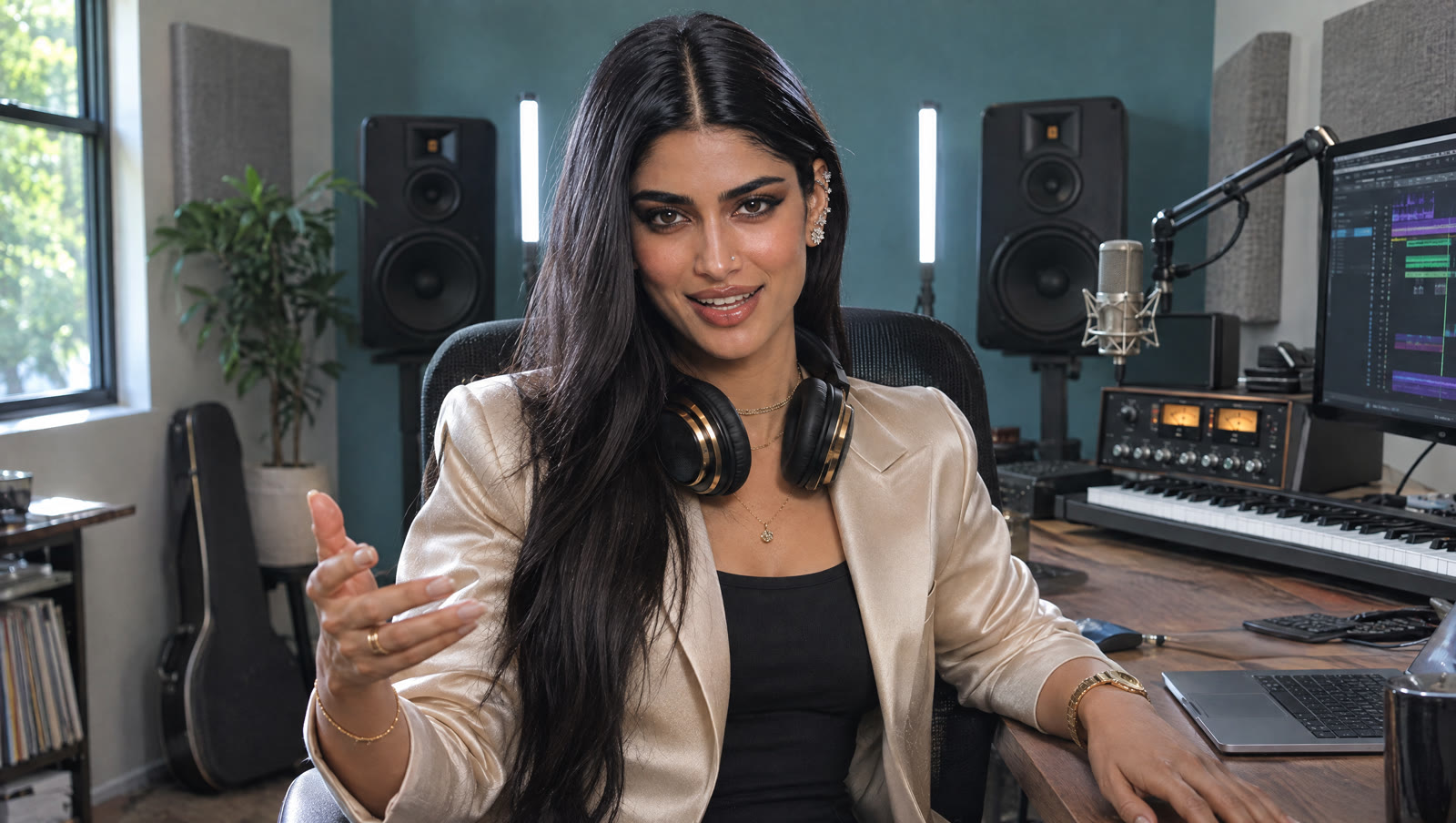
The plan: one voice, one song, four performers, sixty seconds
The finished video is "1 Minute Life", a performance video for a desi-pop girl-group song with K-pop polish, sung in Hindi and English. Four members, three sets (a sold-out arena, a chrome mirror corridor and a rooftop over Mumbai at night), fourteen shots and one signature move.
| Step | Tool in Soundverse | What it does in this video |
|---|---|---|
| 1 | Agent One | Clones Mira's voice from about 30 seconds of her talking |
| 2 | Agent One (AI Song Generator, v9) | Generates the song from her lyrics and style |
| 3 | Stem Separator | Splits the song into vocals and instrumental |
| 4 | Library | Holds the four faces, four stage looks and three sets |
| 5 | Soundverse AI Music Video Generator (Seedance 2.5) | Shoots every scene from reference images and reference audio |
| 6 | Soundverse AI Music Video Generator (Seedance 2.5) | Shoots the synced group choreography |
| 7 | Music Video Lip Sync | Redraws the mouth on the verse shots so the lips match the vocal |
| 8 | AI Studio | Puts the song and all 14 shots on one timeline |
Step 1: Clone your voice in Agent One
Open Agent One and drop in about thirty seconds of you talking. Mira used a recording with some English and some Hindi in it, because the song would be in both languages. Then type one line:
Clone this voice and name it Mira.
Agent One plans a single step, and nine seconds later the voice is saved in your voices, ready to pick for a song. Use your own voice, or one you have clear permission to use.
Step 2: Write and generate the song
Paste your lyrics with section tags, so the model knows where each part starts. The top of Mira's lyric sheet looks like this:
[Intro]
One minute... बस एक मिनट

[Verse 1]
2 a.m., chai gone cold, headphones on
कमरे में सपने, the whole world gone
Then add a style. Mira's direction was desi pop with K-pop polish, a four-member girl group, Hindi and English, and a hook the whole arena can chant. The full Style of Music she pasted:
Desi pop girl-group anthem, 106 BPM, glossy I-pop production with K-pop polish, punchy trap-pop drums and deep 808, bright synth plucks, a catchy sitar riff hook, tabla-flavoured percussion fills, Hindi and English lyrics, confident sultry female lead vocal with stacked four-member girl-group harmonies and gang-vocal chants on the hook, a short dance break, radio-ready mix
Then ask Agent One to generate the song in your cloned voice. It plans every step for you, and a couple of minutes later the song is ready.
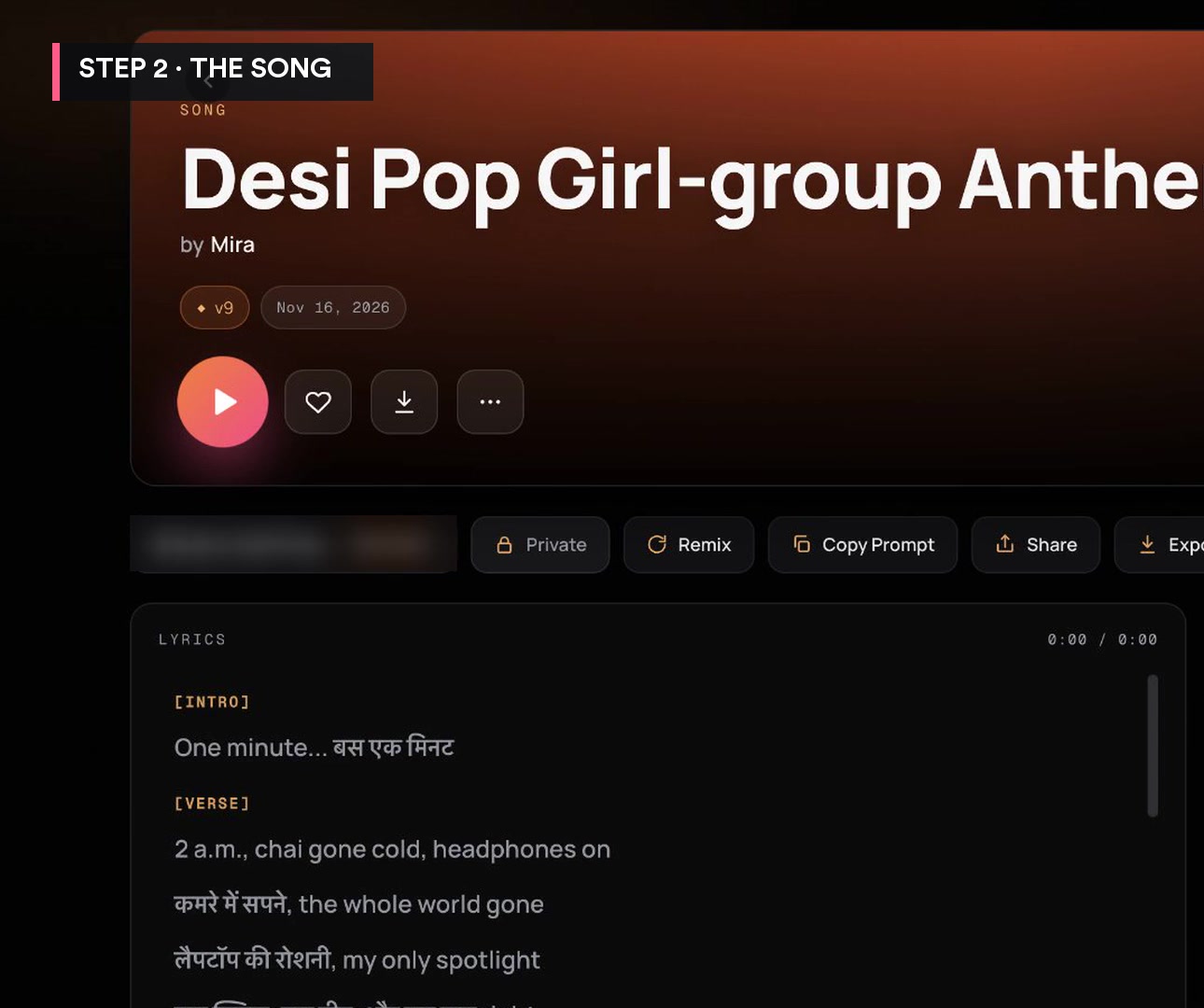
For more on section tags and style prompts, see the Soundverse Prompting Playbook.
Step 3: Split vocals and instrumental with the Stem Separator
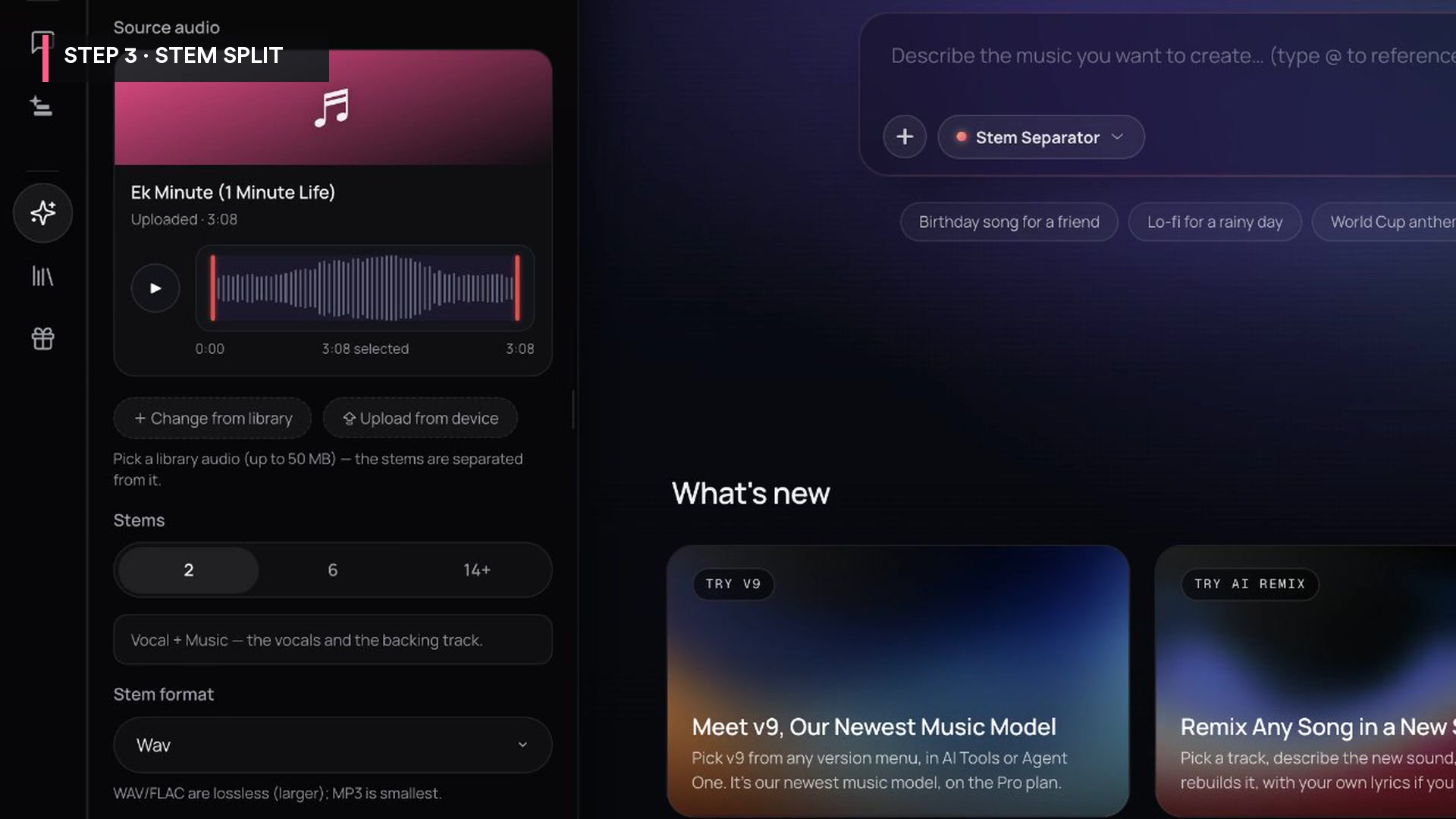
Before any video, open AI Tools, then the Stem Separator, drop in the song and pick 2 stems (it also offers 6, or 14 and more). You get two files with two different jobs:
- The vocal stem drives the lip sync. For every singing shot, cut out the line that plays during that shot, starting at the exact moment the shot starts in your edit. With no drums underneath, the mouth follows the words, not the snare.
- The instrumental drives the dance. It goes on every group shot as reference audio (Step 6).
Step 4: Cast your characters and sets, faces first
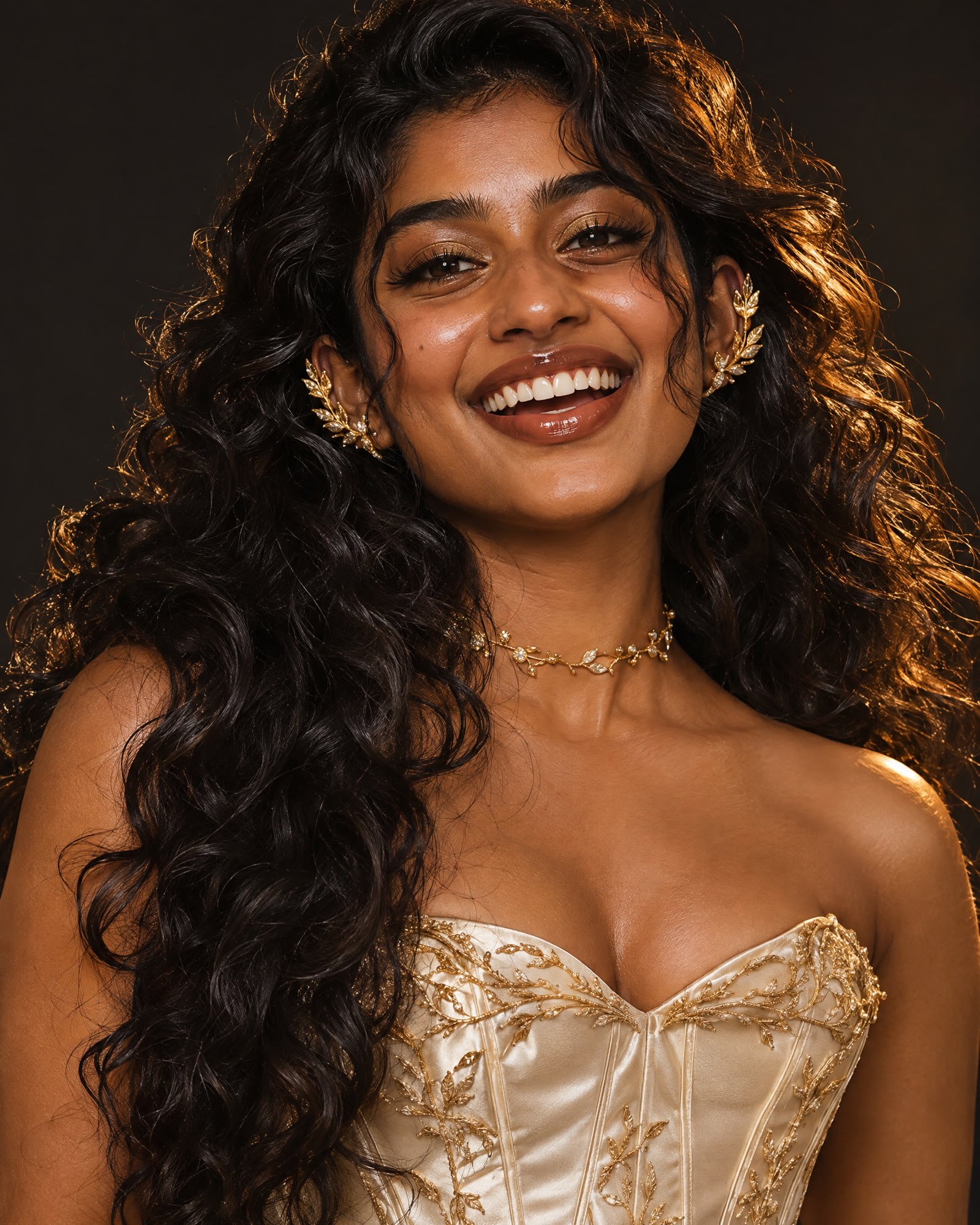
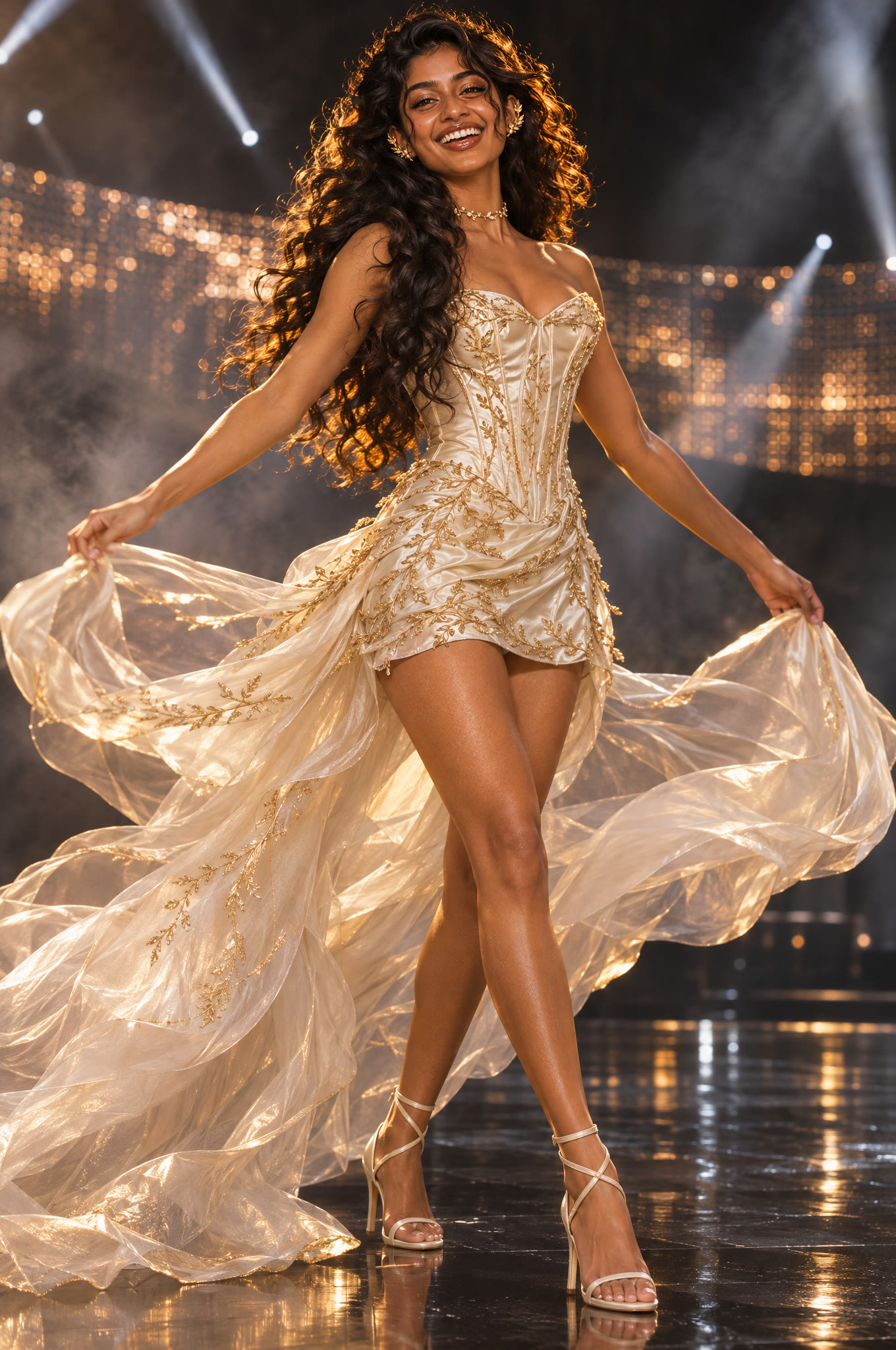
This is the step most people skip, and it is why AI characters melt from shot to shot. Make every face first, as a sharp close-up. Only then make the full stage look, built from that face, so the person never drifts.
Mira's group:
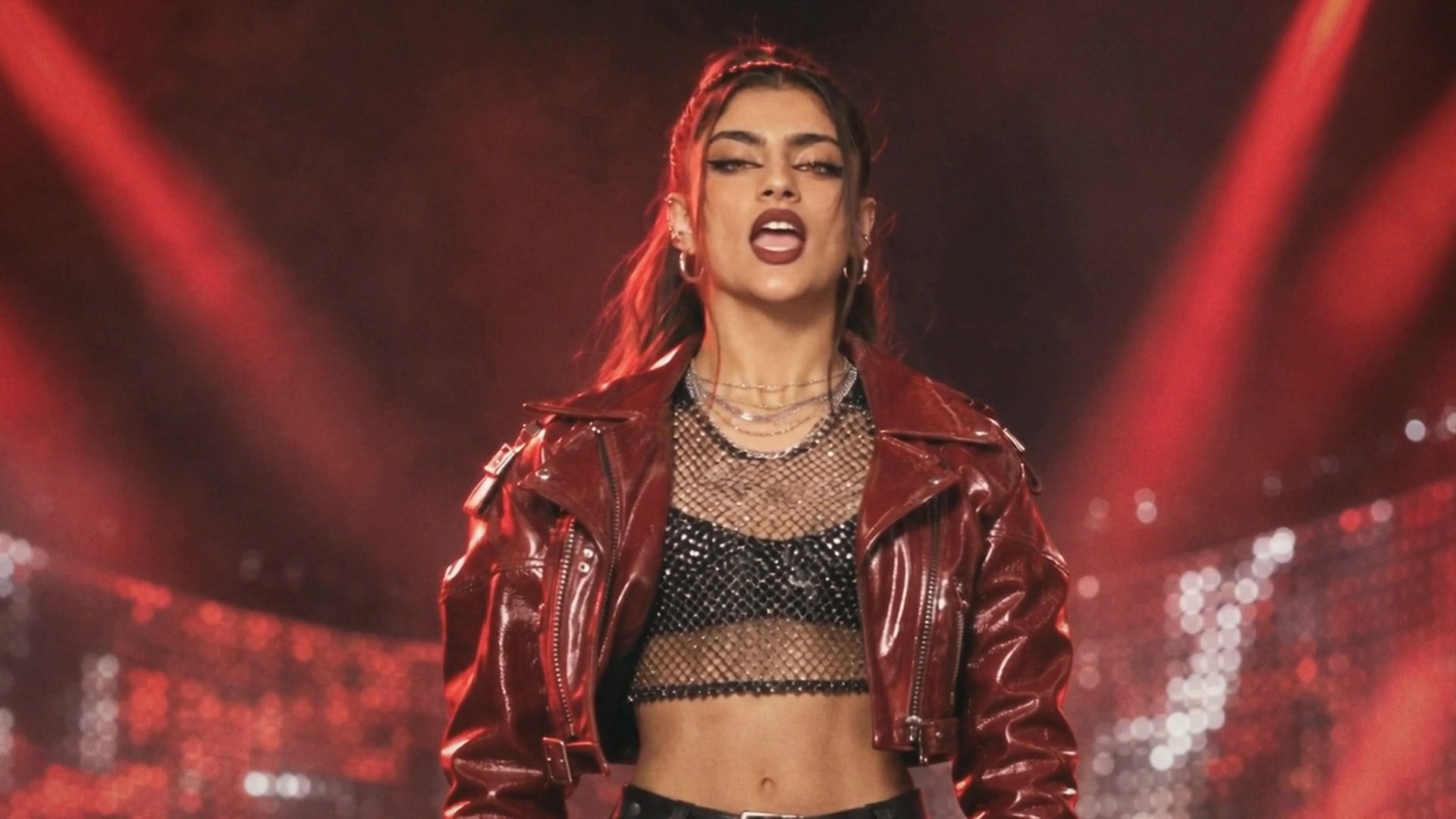
- Noor, the rapper: red leather, high ponytail.
- Tara, the main vocalist: curls, ivory-and-gold corset dress.
- Kavya, the visual: black bob with bangs, black sequins.
- Mira, the leader: long dark hair, silver.
Different faces, different hair, one colour story. Then the three sets: the arena, the chrome mirror corridor and the Mumbai rooftop. Keep all eleven images in your Library so you can attach the right ones to every shot.
Step 5: Shoot each scene in the Soundverse AI Music Video Generator
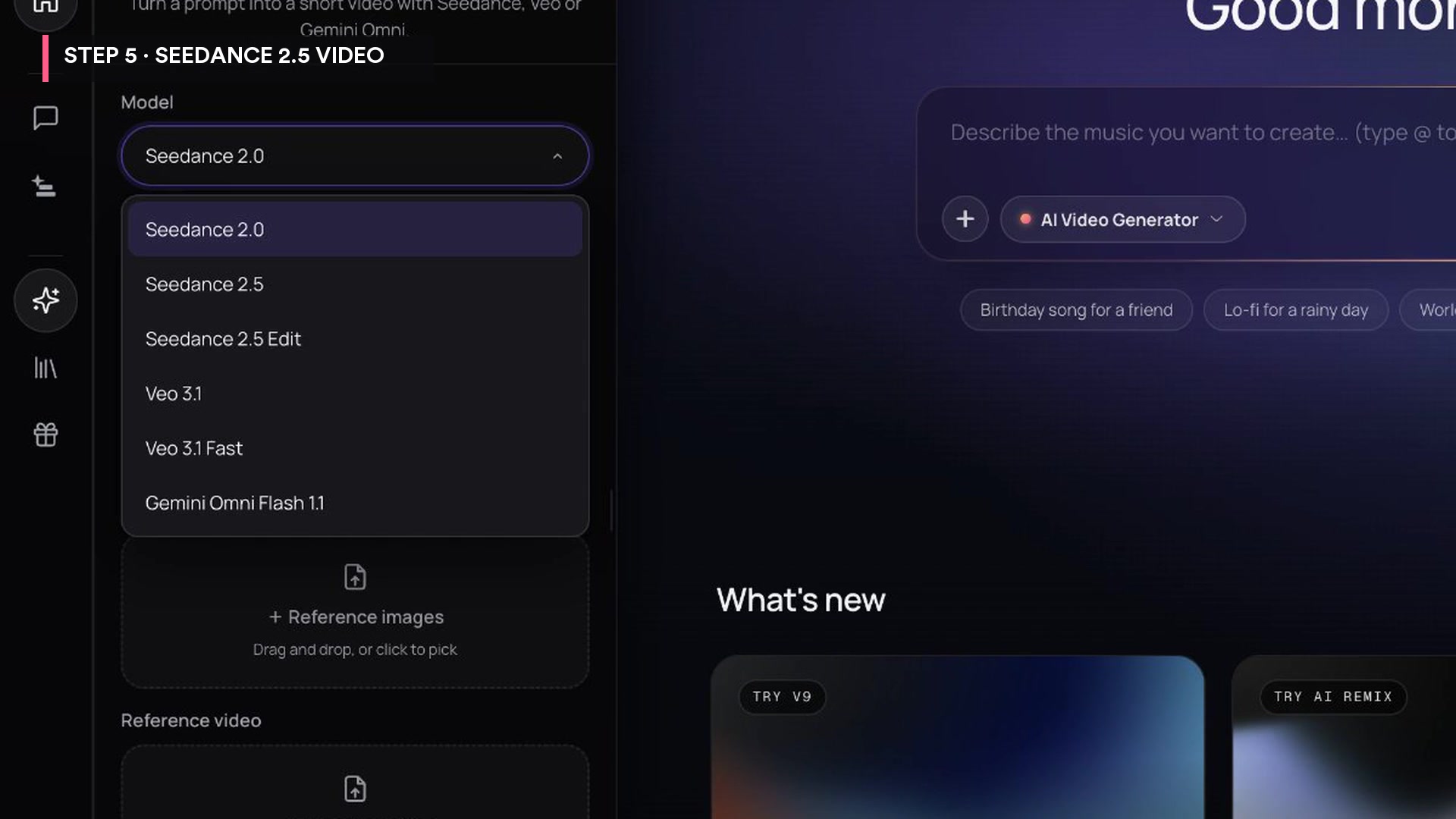
Open AI Tools, then AI Video Generator, and pick Seedance 2.5 from the model menu. Seedance 2.0, Seedance 2.5 Edit, Veo 3.1, Veo 3.1 Fast and Gemini Omni Flash 1.1 are in the same menu.
The formula for one shot:
- One clear direction. One camera move, what the light is doing, and who is in frame.
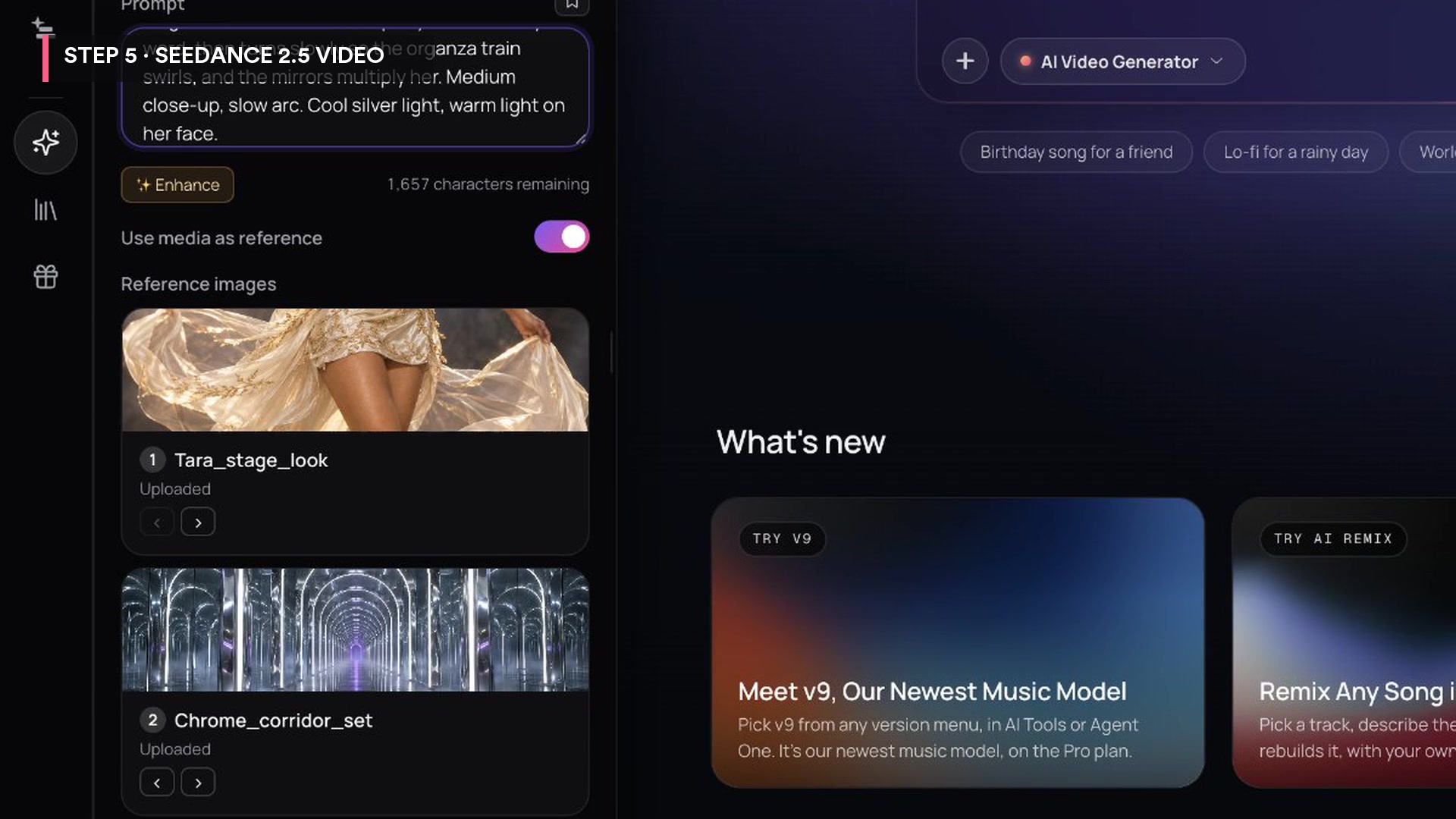
- Turn on "Use media as reference" and add the character's face, her stage look and the set as reference images.
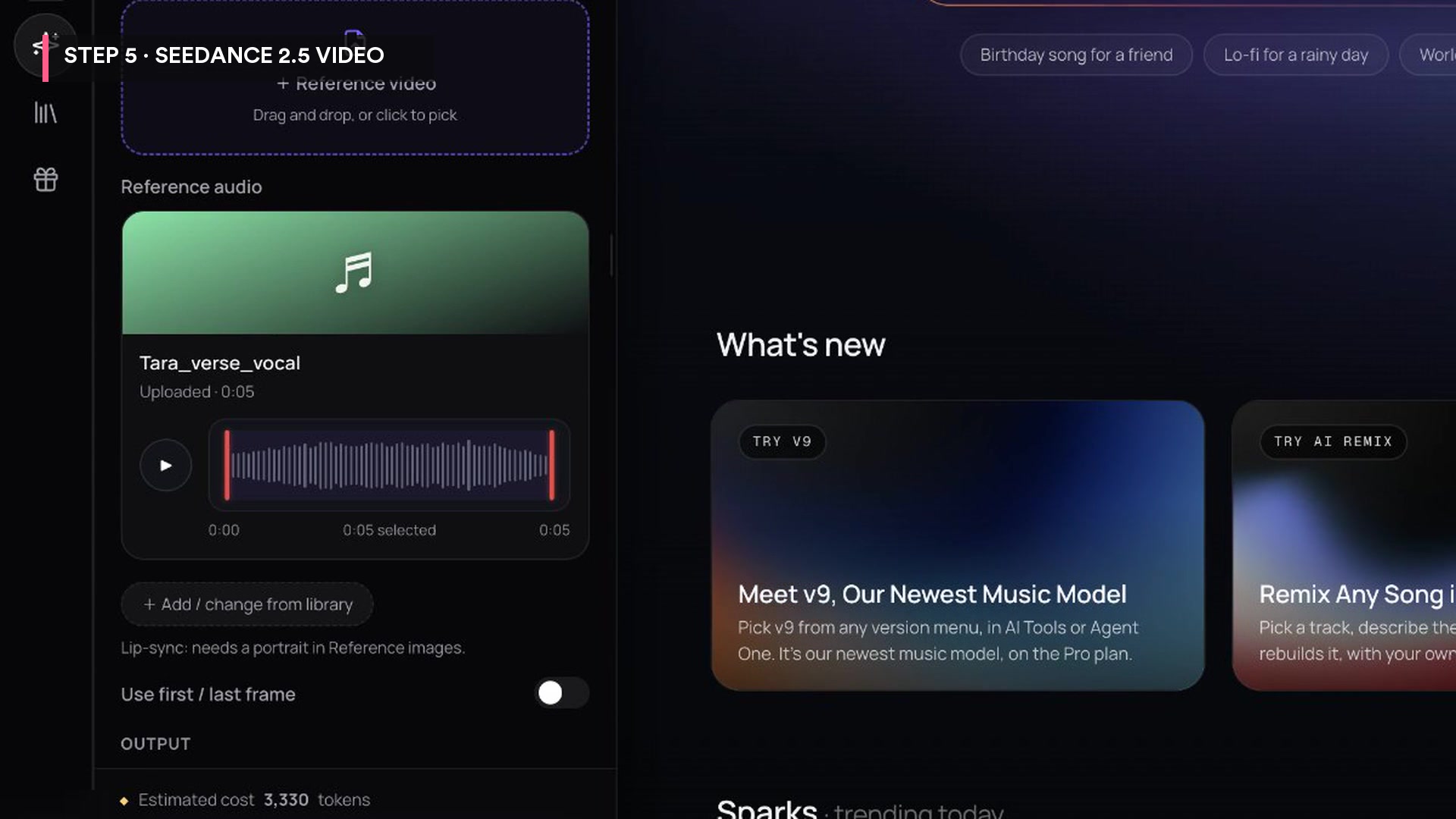
- For a singing shot, add that line of the vocal stem as reference audio. The panel notes that lip sync needs a portrait in the reference images, which the face covers.
- Settings: 5 seconds, 16:9, 720p. The resolution menu also offers 480p and 1080p.
Here is the prompt for Tara's verse in the mirror corridor:
Tara, our main vocalist, sings in a chrome mirror corridor. Keep her face, curls and ivory-gold corset dress exactly as in the references. She sings the reference audio, lips synced to every word, then turns slowly so the organza train swirls, and the mirrors multiply her. Medium close-up, slow arc. Cool silver light, warm light on her face.
The panel shows the estimated cost before you generate: 3,330 tokens for this 5-second shot. Generate, and there's Tara, singing in the corridor.
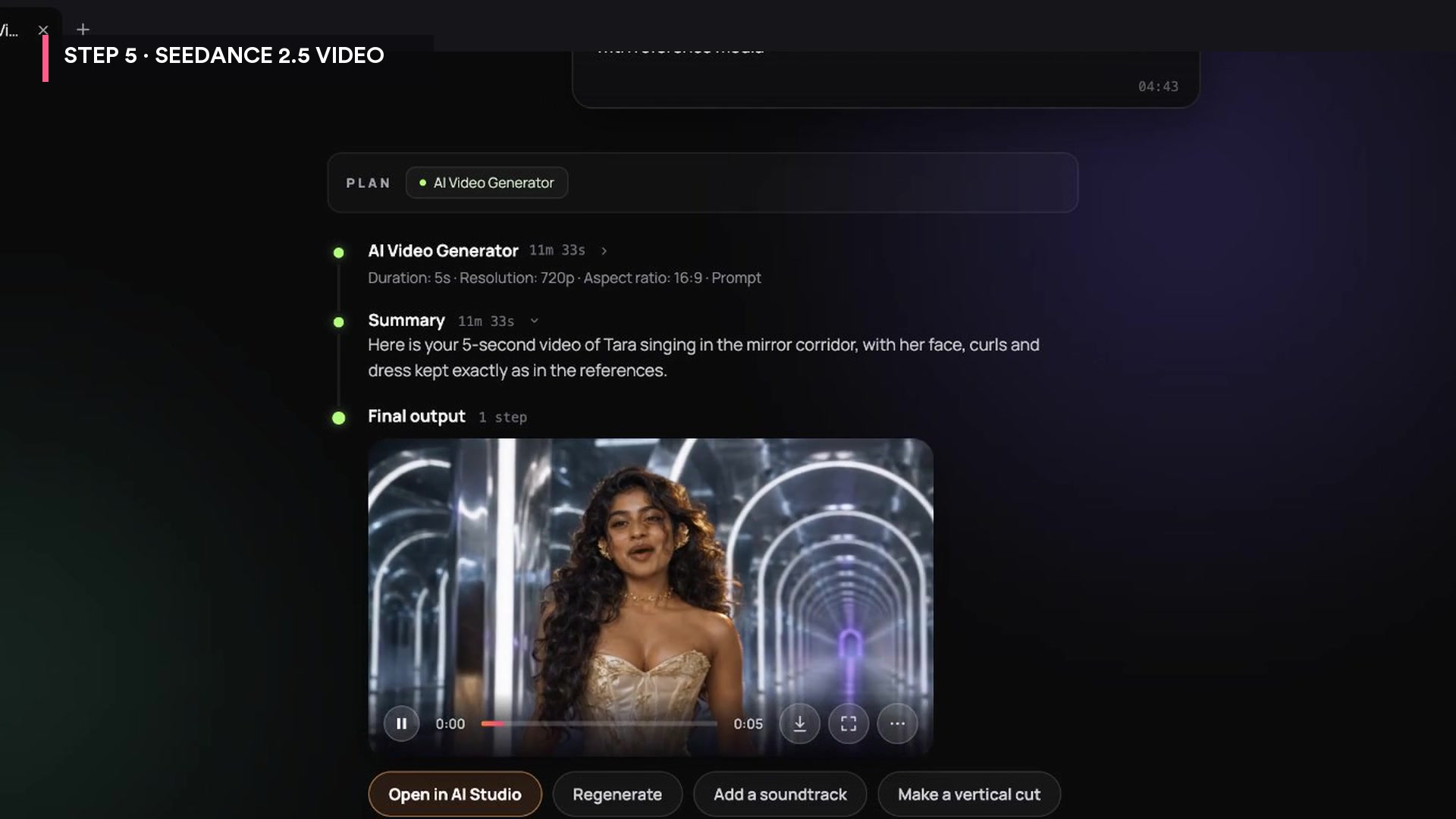
Why 5 seconds: the song runs at about 106 BPM, so two bars last about 4.5 seconds. A 5-second shot covers one two-bar phrase with a little room to trim.
Step 6: Make the group dance in sync
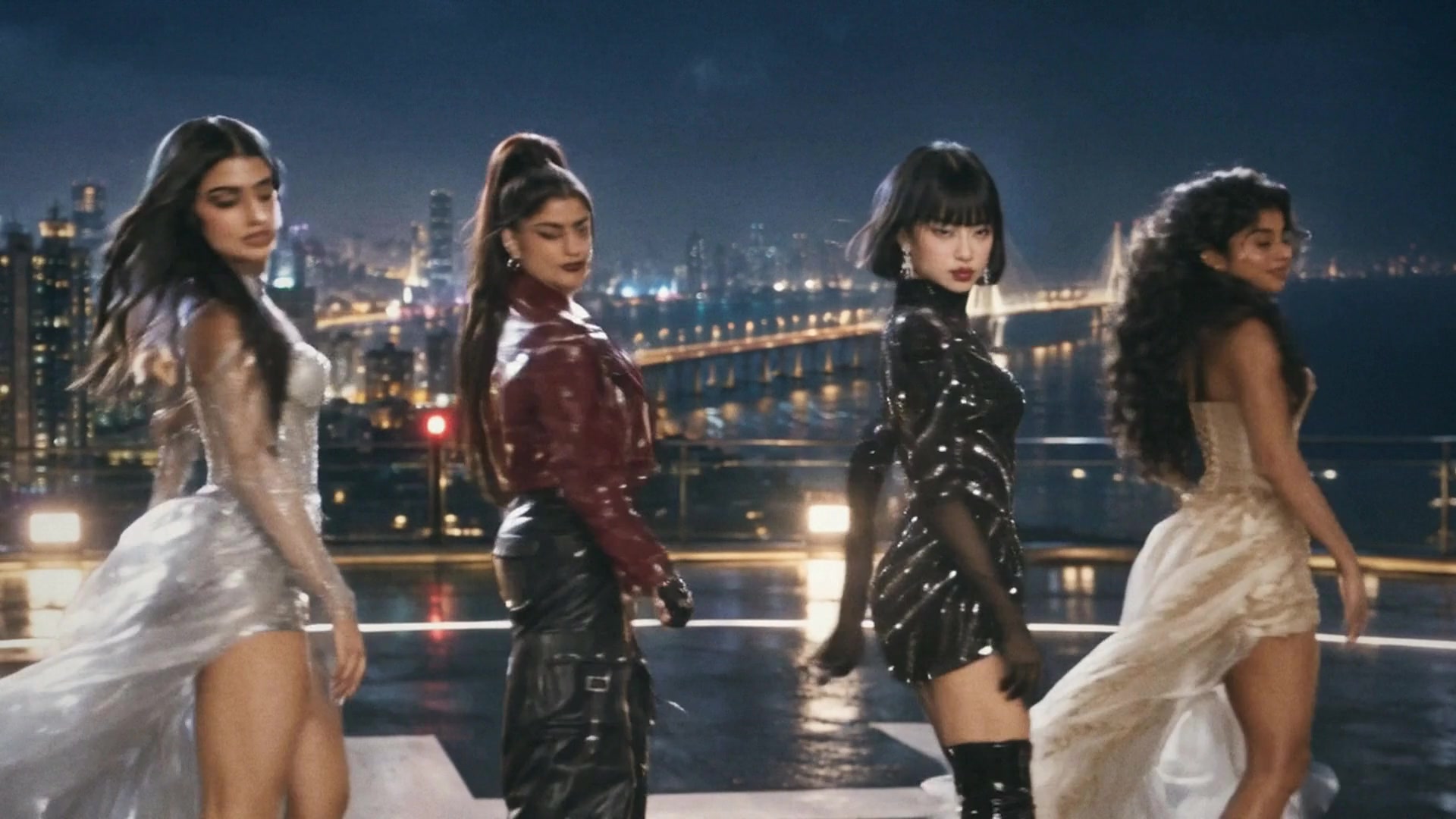
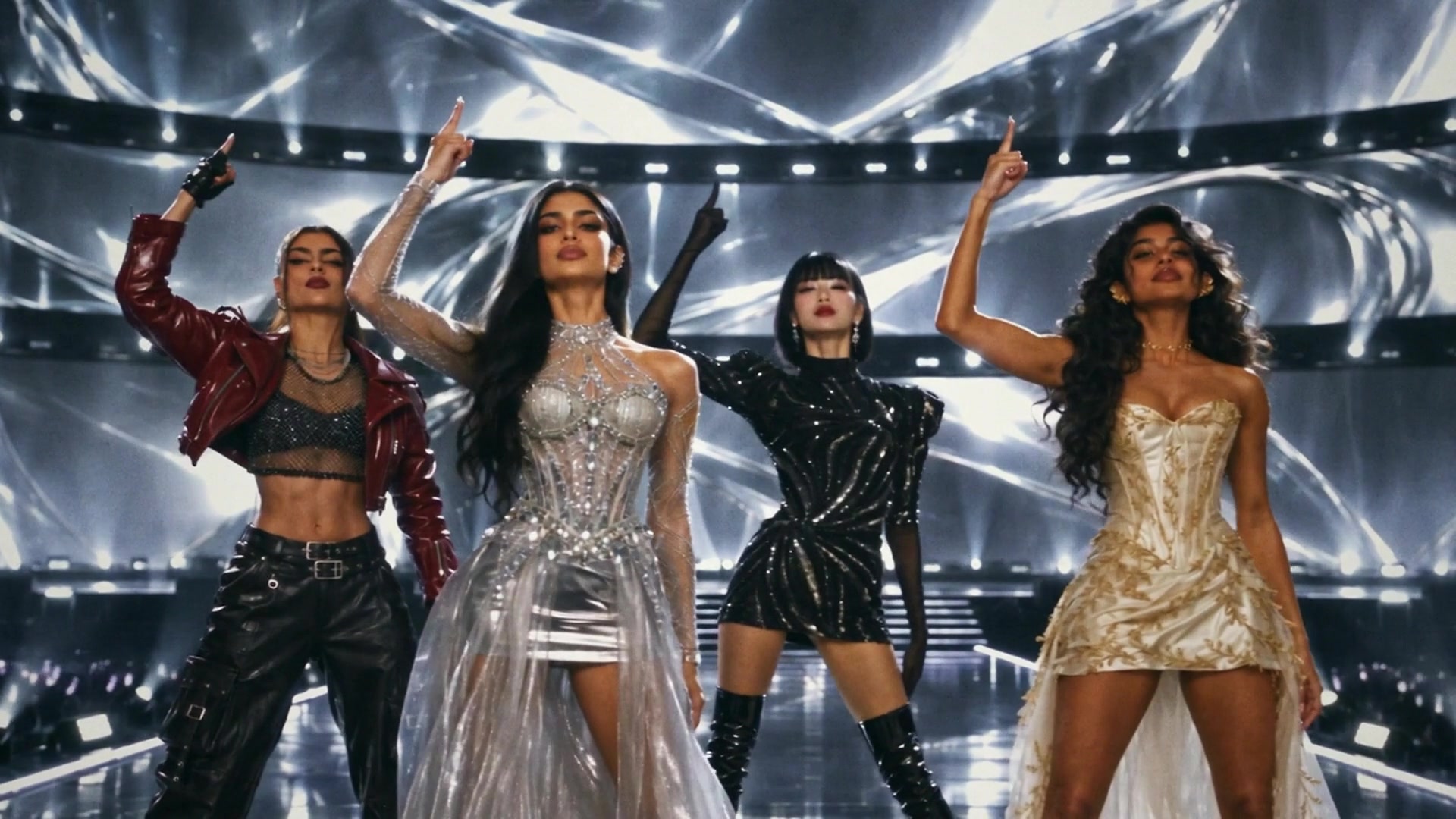
What makes it look like a real girl group is the choreography. Give the group one signature move and describe it exactly. Ours: tap your wrist like a watch, then one finger to the sky. Ek minute.
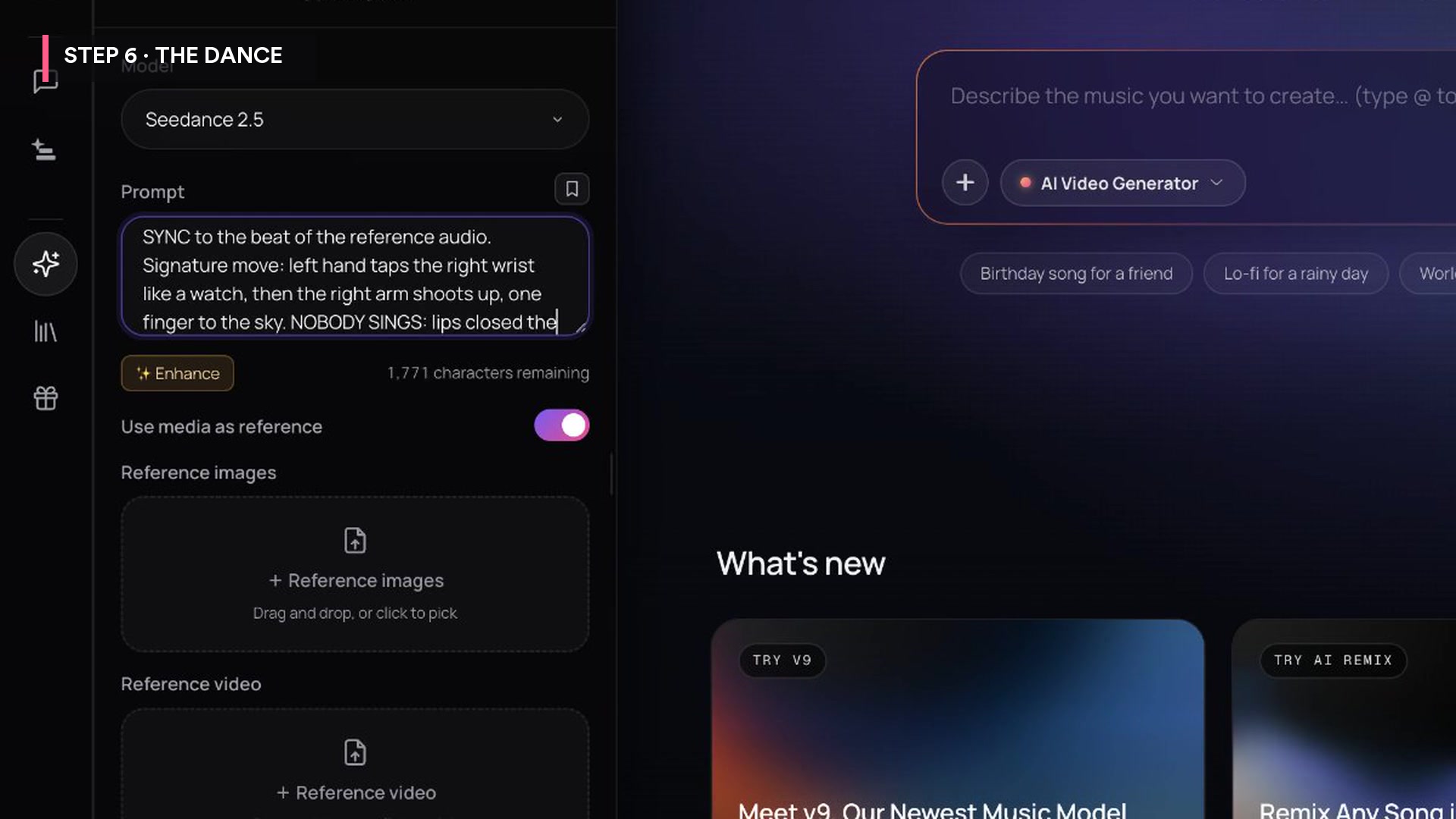
Then the trick: attach the instrumental as reference audio, so every move lands on the beat. And in dance shots, tell them not to sing. Closed mouths look much better than loose lip sync across four faces.
All four members dance the chorus in PERFECT SYNC to the beat of the reference audio. Signature move: left hand taps the right wrist like a watch, then the right arm shoots up, one finger to the sky. NOBODY SINGS: lips closed the whole time. Mumbai rooftop at night, medium-wide, slow arc.
Reference images for this shot: the rooftop set and all four stage looks. Reference audio: the chorus slice of the instrumental.
Step 7: Lock the lips with Music Video Lip Sync
The video model gets the lips close. For the verses, Mira locks them with Music Video Lip Sync. In Agent One, attach the shot and its vocal line and type:
Lip sync this shot to this vocal line with Music Video Lip Sync. Keep everything else exactly the same.
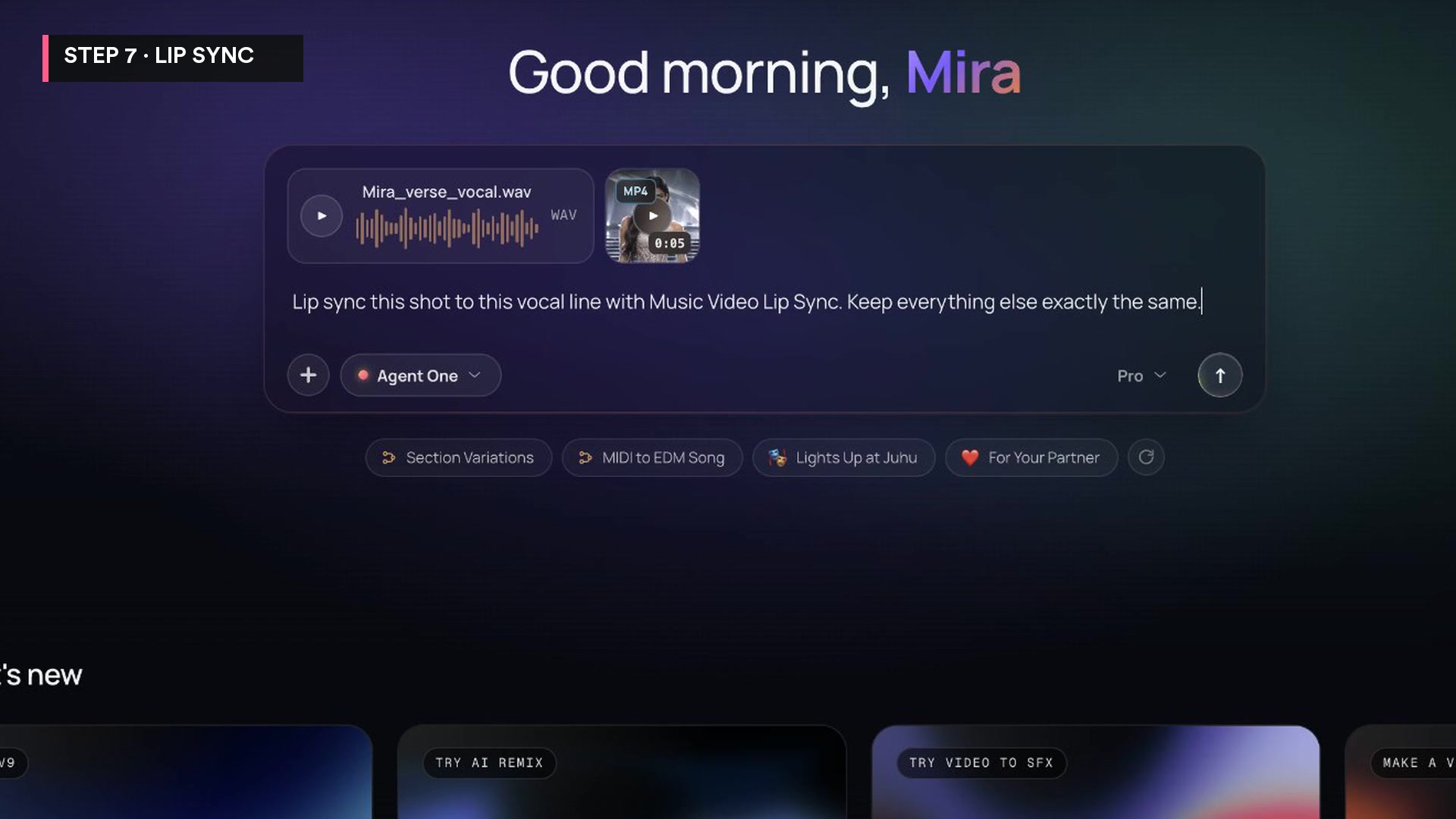
It only redraws the mouth. The camera, the face and the light stay as they were. It syncs one face per shot, and it costs 100 tokens a second, so 500 tokens for a 5-second verse shot. The clip comes back silent, so lay the song back under it in the edit.
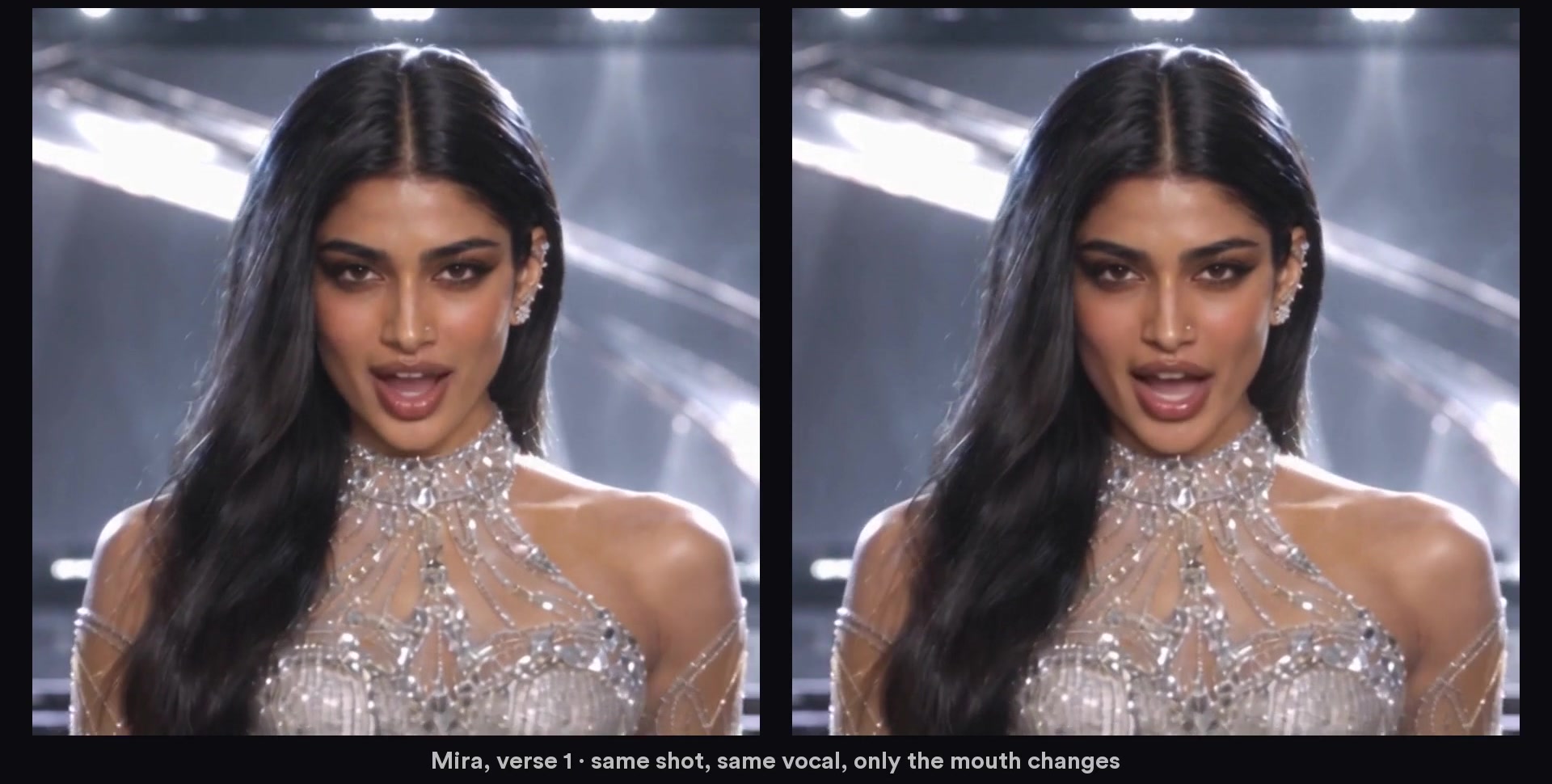
Use it when one singer faces the camera. Skip it when hands or hair cross the face: that is where it breaks. On a very tight close-up we also saw a seam on the cheek. When a shot fails those checks, regenerate it with closed mouths (Step 6) instead of forcing the sync.
Step 8: Put it together in AI Studio
Put the whole video together in AI Studio. The song goes on the timeline with a jump to the final chorus, so the story fits in sixty seconds. Then every shot goes on the video lane, cut on the beat: an intro, a verse for each member, the pre-chorus, the chorus, the dance break, and the final pose. One colour grade and a little film grain on top, so fourteen shots feel like one night.
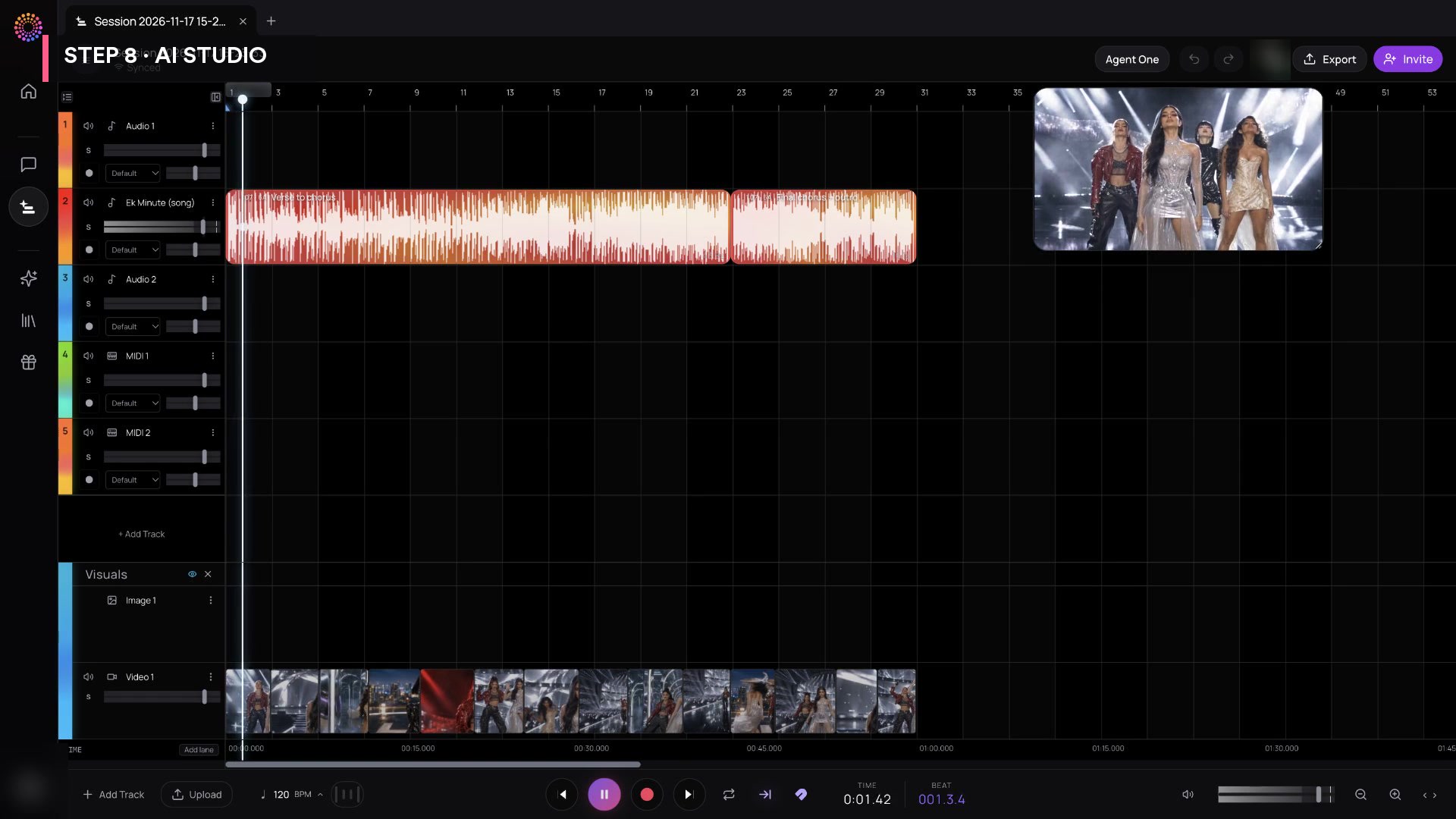
The shot list we cut to:
| # | Song section | Set | Who |
|---|---|---|---|
| 1 | Intro build | Arena | All four, silhouettes in a diamond |
| 2 | Verse, line 1 | Arena runway | Mira (lip-synced) |
| 3 | Verse, line 2 | Chrome corridor | Tara (lip-synced) |
| 4 | Verse, line 3 | Rooftop | Kavya (lip-synced) |
| 5 | Verse, line 4 | Arena, red light | Noor (lip-synced) |
| 6 | Pre-chorus 1 | Arena | All four, line formation |
| 7 | Pre-chorus 2 | Arena | Mira in front, group behind |
| 8 | Chorus 1 | Arena, wide | All four, the signature move |
| 9 | Chorus 2 | Chrome corridor | All four, hair flips |
| 10 | Chorus 3 | Arena, overhead | Line morphs into a diamond |
| 11 | Final chorus | Rooftop | All four, full choreography |
| 12 | Post-chorus | Arena, strobes | Dance break |
| 13 | "One minute life" | Arena | Mira, close-up |
| 14 | "Bas ek minute" | Arena | Final pose, the signature move |
The music video: 1 Minute Life
The finished 60-second video plays at 3:26 in the tutorial above.
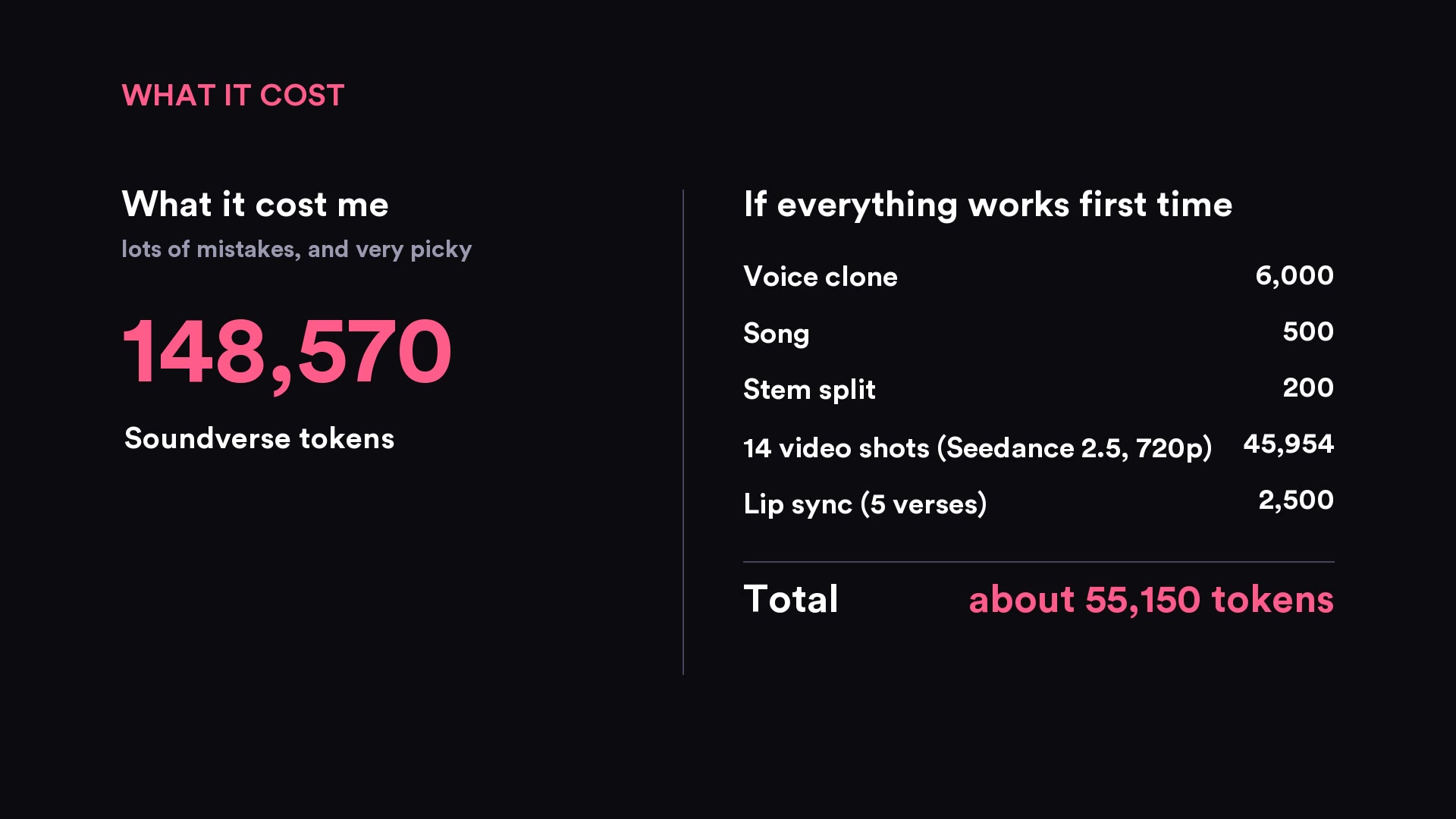
What it cost
Every step in Soundverse is paid in tokens, and the tutorial shows the real numbers.
What it actually cost: 148,570 Soundverse tokens. In Mira's words: "I made a lot of mistakes and was super picky with every output."
If everything works first time, about 55,150 tokens:
| Step | Tokens |
|---|---|
| Voice clone | 6,000 |
| Song | 500 |
| Stem split | 200 |
| 14 video shots (Seedance 2.5, 720p, with references: 666 tokens a second, so 3,330 for a 5-second shot) | 45,954 |
| Music Video Lip Sync on 5 verses (100 tokens a second) | 2,500 |
| Total | about 55,150 |
Video is most of the bill, and retakes are where it grows. Lock the cast, the prompt formula and the audio slices first, and you spend your tokens on shots you keep. Both numbers are Soundverse tokens only. The cast and set images were made before the shoot and are not counted here.
Tips from the video
- Lock your cast before any video. Make each face first, then the full look from that face, and attach the face, the look and the set to every shot.
- Give the group one signature move and describe it exactly. Body part, direction and order.
- Attach the instrumental as reference audio so the moves land on the beat, and tell dancers not to sing.
- Use Music Video Lip Sync when one singer faces the camera. Skip it when hands or hair cross the face.
- Cut each vocal slice to start exactly where the shot starts in your edit. Then don't trim the start of a lip-synced clip, or the mouth slides off the words.
- Say how many people are in frame. In a group shot, name the number and attach every member's look.
- Check every singing shot at the mouth, frame by frame, before it goes in the edit.
FAQ
What is Seedance 2.5, and where is it in Soundverse?
Seedance 2.5 is a video model you pick from the model menu in Soundverse's AI Video Generator (AI Tools, then AI Video Generator). According to its feature page, it makes 4 to 30 second clips guided by reference images, reference video and reference audio, and Seedance 2.5 Edit changes a clip you already have. In this tutorial every shot is 5 seconds at 720p.
How do I keep AI characters consistent from shot to shot?
Make each face first as a sharp close-up, then make the full-length look from that face. Attach the face, the look and the set as reference images on every shot, and repeat the same outfit words in every prompt.
How does AI lip sync work for a music video?
Two layers. In the AI Video Generator, add a portrait in the reference images and the shot's line of the vocal stem as reference audio, and Seedance 2.5 sings it. Then Music Video Lip Sync redraws only the mouth to match that vocal exactly, one face per shot. It works best when one singer faces the camera, and breaks when hands or hair cross the face.
Why do the dancers have their mouths closed?
Loose lip sync across four faces looked bad. For the group dance shots, the instrumental goes in as reference audio and the prompt says "NOBODY SINGS: lips closed the whole time." The moves still land on the beat, and nobody is visibly singing the wrong words.
How much does an AI music video like this cost in Soundverse?
About 55,150 tokens if every step works the first time. The real run cost 148,570 tokens because of retakes. The full breakdown is in What it cost. Before you release a video, check what your plan's license covers, and use the altered or synthetic content setting when you upload realistic AI video to YouTube.
Keep reading
- AI music video generator: one prompt to a full song and music video
- From song to music video: Soundverse's AI video and lip sync tools
- AI lip sync reels, lip sync any video, and the character replacement trend with Seedance 2.5
- Make AI sound like you: voice, Artist DNA and instrument training
- How to make a K-pop song using an AI song generator
Soundverse is an AI music platform that takes you from idea to audience. Try it free, open Soundverse and make your first scene, or find more guides on the Soundverse blog.